
@tarkashilpa/strapi-plugin-image-dimension-validation
v1.0.4
Published
Validates images selected through Strapi's Media Library against configurable aspect ratio and dimension requirements.


Readme
Strapi Image Validation


A Strapi plugin that validates images uploaded through Media fields based on aspect ratio and minimum width.
Configure image requirements directly in the Strapi Admin Panel and help content editors select images that meet the requirements of your website.
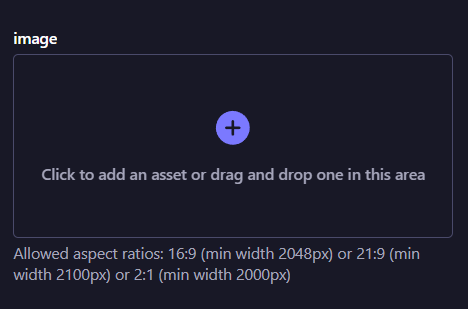
When an invalid image is selected, a validation error is displayed as shown below:

What is it?
Different sections of a website often require images with specific proportions and resolutions.
For example:
- Hero banner →
16:9, minimum width2048px - Content card →
4:3, minimum width1600px - Square promotional image →
1:1, minimum width1200px
Strapi Image Validation allows developers to configure these requirements directly on individual Media fields.
Validation of image dimensions and resolution on the Strapi level prevents:
- Website layout breaking
- Poor-quality images on the website
- Images not fitting well on the website
- Images getting clipped excessively
Features
- Validate images in Strapi Media fields.
- Configure validation rules independently for each Media field from Strapi Content-Type builder.
- Validate image aspect ratios.
- Define a minimum image width.
- Support multiple acceptable aspect ratio and width combinations.
- Allow different Media fields to have different image requirements.
- Configure validation directly from the Strapi Content-Type Builder.
- Support higher-resolution images without requiring exact image dimensions.
- Provide validation feedback when an image does not meet the configured requirements.
I’d update it to distinguish supported Strapi versions from the recommended Node.js versions:
Compatibility
| Requirement | Supported Version |
| ----------- | ----------------- |
| Strapi | 5.0.0 and up |
| Node.js | 18.x and up |
To verify compatibility, the plugin has been tested against the following Strapi and Node.js configurations:
| Strapi Version | Node.js Version | Status |
| -------------- | --------------- | --------- |
| 5.0.0 | 18.x | ✅ Tested |
| 5.0.0 | 20.x | ✅ Tested |
| 5.31.0 | 20.x | ✅ Tested |
| 5.31.0 | 22.x | ✅ Tested |
| 5.31.0 | 24.x | ✅ Tested |
| 5.48.1 | 22.x | ✅ Tested |
| 5.48.1 | 24.x | ✅ Tested |
These configurations were strategically selected based on Strapi and Node.js compatibility boundaries to provide coverage across different Strapi and Node.js versions.
Installation
Install the plugin in your Strapi project:
npm install strapi-plugin-image-validationAfter installation, rebuild the Strapi Admin Panel:
npm run buildThen start Strapi:
npm run developConfiguration
Image validation is configured independently for each Media field.
Navigate to:
Content-Type Builder
    → Select a Content Type
        → Select a Media Field
            → Advanced Settings
                → Image Validation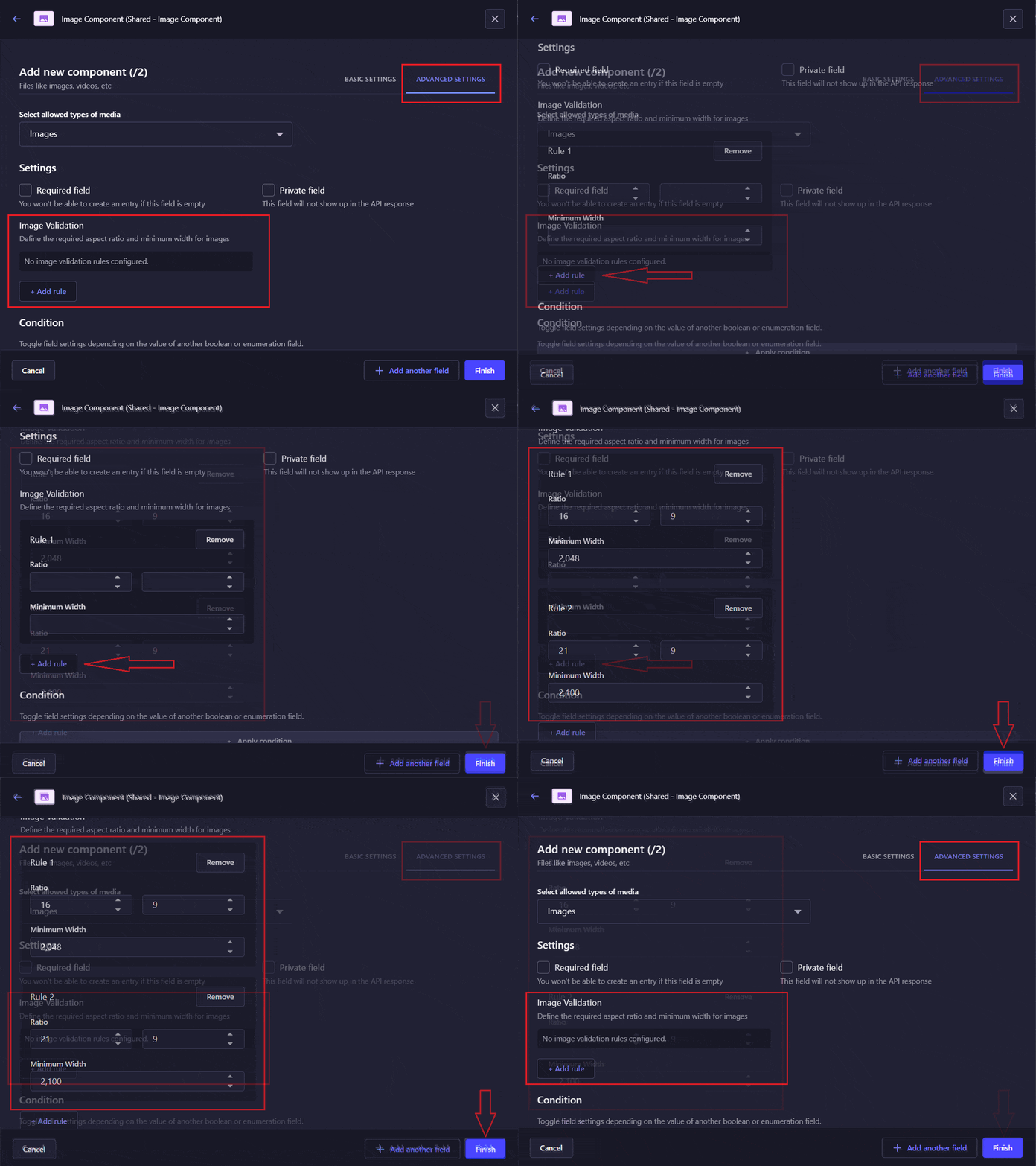
Basic Configuration
Each validation rule contains:
| Setting | Description | | ------------- | ----------------------------------------------- | | Aspect Ratio | The required width-to-height ratio of the image | | Minimum Width | The minimum width of the image in pixels |
For example:
Aspect Ratio: 16:9
Minimum Width: 2048px
This means the image must have a 16:9 aspect ratio and a width of at least 2048px.
Configuration Example
The validation configuration is stored as part of the Media field configuration.
{
  "imageValidation": {
    "rules": [
      {
        "aspectRatio": {
          "width": 16,
          "height": 9
        },
        "minWidth": 2048
      }
    ]
  }
}
The configuration above requires:
Aspect Ratio: 16:9
Minimum Width: 2048px
Multiple Validation Rules
A Media field can support multiple valid image formats.
For example:
{
  "imageValidation": {
    "rules": [
      {
        "aspectRatio": {
          "width": 16,
          "height": 9
        },
        "minWidth": 2048
      },
      {
        "aspectRatio": {
          "width": 4,
          "height": 3
        },
        "minWidth": 1600
      },
      {
        "aspectRatio": {
          "width": 1,
          "height": 1
        },
        "minWidth": 1200
      }
    ]
  }
}
In this example, the Media field accepts an image when it satisfies at least one of the configured rules.
The validation logic is:
Rule 1
   OR
Rule 2
   OR
Rule 3
Each individual rule requires both conditions to be satisfied:
Aspect Ratio
      AND
Minimum Width
For example:
16:9 + minimum width 2048pxis one complete validation rule.
Minimum Width Is Rule-Specific
The minimum width is configured independently for each aspect ratio.
For example:
16:9 → Minimum Width: 2048px
4:3  → Minimum Width: 1600px
1:1  → Minimum Width: 1200px
An image only needs to satisfy the minimum width associated with the rule it matches.
For example:
Rule 1
16:9
Minimum Width: 2048px

Rule 2
4:3
Minimum Width: 1600px
A 4:3 image with a width of 1600px can pass Rule 2 without needing to meet the 2048px minimum defined for Rule 1.
Aspect Ratio Tolerance
Aspect ratio validation uses a fixed tolerance of:
0.02This allows small variations when comparing the actual aspect ratio of an image with the configured aspect ratio.
The tolerance is currently fixed and cannot be configured.
Usage
Once image validation has been configured for a Media field, images selected for that field are checked against the configured validation rules.
An image is considered valid when:
- Its aspect ratio matches one of the configured aspect ratios within the allowed tolerance.
- Its width meets or exceeds the minimum width configured for that matching rule.
Valid Images
For the following rule:
Aspect Ratio: 16:9
Minimum Width: 2048px
The following images are valid:
2048 × 1152   ✓
2560 × 1440   ✓
3840 × 2160   ✓
Higher-resolution images with the same aspect ratio are also accepted.
Invalid Images
An image with the correct aspect ratio but insufficient width is invalid:
1920 × 1080 ✗The aspect ratio is correct, but the width is below 2048px.
An image with sufficient width but an incorrect aspect ratio is also invalid:
2048 × 1536 ✗The width requirement is satisfied, but the image does not match the configured 16:9 aspect ratio within the allowed tolerance.
Example Use Cases
Hero Banner
Aspect Ratio: 16:9
Minimum Width: 2048px
Useful for large website sections where a high-resolution, wide image is required.
Content Card
Aspect Ratio: 4:3
Minimum Width: 1600px
Useful for maintaining consistent image proportions across card layouts.
Square Image
Aspect Ratio: 1:1
Minimum Width: 1200px
Useful for promotional tiles, square content blocks, and profile-style images.
Validation Logic
For a single validation rule:
Image
  │
  ├── Aspect Ratio matches?
  │
  └── Minimum Width satisfied?
          │
          ▼
        Valid
For multiple rules:
              ┌── Rule 1 ── Valid
              │
Image ────────┼── Rule 2 ── Valid
              │
              └── Rule 3 ── Invalid
                    │
                    ▼
              Image is Valid
An image only needs to satisfy one complete rule.
For example:
Rule 1: 16:9 + 2048px
Rule 2: 4:3  + 1600px
Rule 3: 1:1  + 1200px
A 4:3 image that is 1600px wide passes Rule 2 even if it does not satisfy Rule 1 or Rule 3.
Troubleshooting
Plugin does not appear in Strapi
Rebuild the Strapi Admin Panel:
npm run buildThen restart Strapi.
Image Validation settings are not visible
Make sure:
- The plugin is installed correctly.
- You are configuring a Media field.
- The Strapi Admin Panel has been rebuilt after installation.
Image is rejected unexpectedly
Check:
- The configured aspect ratio.
- The image's actual dimensions.
- The configured minimum width.
- The fixed aspect ratio tolerance of
0.02.
Support & Issue Reporting
If you encounter a bug or have a feature request, please open an issue in the project's GitHub repository.
When reporting a bug, include:
- Strapi version
- Node.js version
- Plugin version
- Steps to reproduce
- Expected behavior
- Actual behavior
- Relevant configuration, if applicable
Contributing
Contributions are welcome.
- Fork the repository.
- Create a feature branch.
- Make your changes.
- Add or update tests where applicable.
- Submit a pull request.
For significant changes, please open an issue first to discuss the proposed approach.
Roadmap
Possible future improvements include:
- Maximum width validation
- Minimum and maximum height validation
- Exact dimension validation
- Image file size validation
- Image format validation
The roadmap may change based on project requirements and community feedback.
License
This project is licensed under the MIT License.