
@vinh0809it/claude-sessions
v0.7.0
Published
Fast terminal UI for browsing, previewing, resuming, renaming, moving, and deleting Claude Code sessions

Maintainers
 vinh0809it
Readme
claude-sessions
A zero-dependency terminal UI for browsing, previewing, resuming, renaming, moving, and deleting Claude Code sessions.
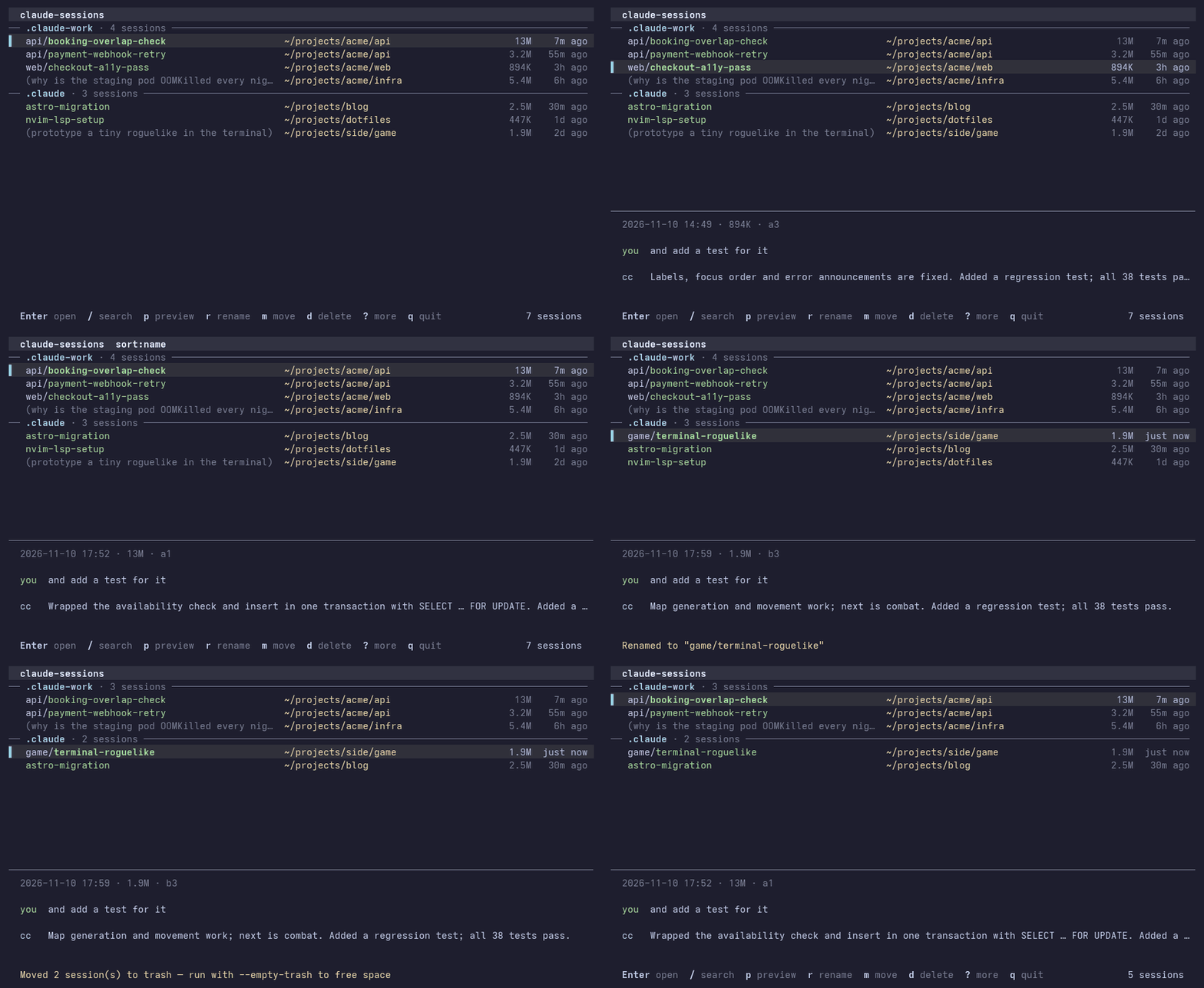
Features
- Fast — reads only the head and tail of each session file and caches the result, so even multi-GB histories load in well under a second
- Auto-discovers all
~/.claude*config directories and$CLAUDE_CONFIG_DIR— multiple Claude Code profiles just work - Live search across session titles, first messages and project paths (
/), or inside the conversations themselves (f) - Tags — name sessions like
keycloak/fix-loginand the prefixes become tags in a panel above the list (or a side column); pick one to filter - Preview — press
pto see the last few messages and the token usage of the selected session (counted once per reply, subagents included) - Pin and fork —
*keeps a session on top;Fresumes it as a new session, leaving the original untouched - Resume anywhere —
Enteropens a new tab in kitty, WezTerm, tmux, iTerm2, Terminal.app, Ptyxis, GNOME Terminal or Windows Terminal, and otherwise resumes right in the current terminal (you return to the list when Claude exits).oalways resumes in place - Rename — press
r; writes the same record/renamedoes - Move sessions to another profile, an existing folder, or a typed path
- Delete safely — sessions go to a trash folder; mark several with
Spaceto delete in bulk;uundoes the last delete,topens the trash to restore, permanently delete one, or delete all;--empty-trashfrees the space - Live — new and updated sessions show up on their own while the list is open
- Sort by date, size or name — find the huge sessions eating your disk
- Zero runtime dependencies — pure Node.js stdlib
Install
# Global install (recommended)
npm install -g @vinh0809it/claude-sessions

# Or run without installing
npx -y @vinh0809it/claude-sessions
Requires Node.js 18+. The native Claude Code installer doesn't install Node, so check node -v first; if it's missing, get it from nodejs.org or your package manager.
Troubleshooting:
- Windows PowerShell: "running scripts is disabled on this system" — run it from
cmd, or usenpx.cmd -y @vinh0809it/claude-sessions. - Git Bash (mintty): only a plain list shows — mintty without ConPTY isn't a real console; run
winpty claude-sessions, or use Windows Terminal. - Linux:
EACCESonnpm install -g— usenpxinstead, or set npm up to install globally without sudo.
Usage
claude-sessions                    # Browse all sessions (TUI)
claude-sessions ~/projects/acme    # Filter to a specific folder
claude-sessions --named-only       # Only show /rename'd sessions
claude-sessions --list             # Plain list (pipe-friendly)
claude-sessions -o keycloak/revoke # Resume the matching session directly (title, id or its first 8+ characters)
claude-sessions --json             # JSON output
claude-sessions -d ~/.claude-work  # Scan a specific config dir
claude-sessions --empty-trash      # Permanently remove deleted sessions
claude-sessions --no-cache         # Ignore the metadata cache
Tip: alias ccs=claude-sessions
TUI keys
| Key | Action |
|-----|--------|
| ↑ ↓ / j k | Navigate |
| PgUp PgDn | Page up / down |
| g / G | Jump to top / bottom |
| / | Search by title, first message or folder. While typing: ↑↓ select, Enter open, Tab keep the filter and go back to the list |
| f | Find text in what you and Claude wrote (not tool output): a popup with the query and progress while the list behind filters; Enter closes it and shows the matches in the preview, Esc cancels |
| ← → / h l | Choose a tag (the title prefix before /); the list filters as you go. With the side tags layout: ← / Tab goes to the Tags column, ↑ ↓ choose, → / Enter back |
| Esc | Clear search, tag and marks |
| Enter | Open session (new tab if supported, otherwise here) |
| o | Open session in this terminal |
| F | Fork: resume into a new session, leaving the original as it is |
| * | Pin / unpin (pinned sessions stay at the top of their profile) |
| p | Toggle preview: token usage, the matches of an f search, recent messages |
| r | Rename session |
| s | Cycle sort: date / size / name |
| Space | Mark session for bulk delete |
| n | New session (choose profile + folder) |
| m | Move session to another profile / folder |
| d | Move marked (or selected) sessions to trash |
| u | Undo the last delete |
| t | Trash: Enter restores, x permanently deletes one, X deletes all |
| , | Settings |
| ? | Help (all keys) |
| q / Ctrl-C | Quit |
Mouse: the wheel scrolls, a click selects a session or a tag, a double click opens the session. Whatever is under the pointer is highlighted, and in kitty the pointer turns into a hand. While the tool is open, hold Shift to select text; turn mouse support off in Settings.
Settings
Press , to change settings; they're saved right away to ~/.config/claude-sessions/config.json (%APPDATA%\claude-sessions on Windows).
| Setting | Values | Environment variable |
|---------|--------|----------------------|
| Open sessions in | auto (new tab when supported), here, or a terminal name | CLAUDE_SESSIONS_TERMINAL |
| Mouse | on / off | CLAUDE_SESSIONS_MOUSE=0 |
| Tags layout | top (a panel above the list, wraps) / side (a column on the left, wide screens) | |
| Sort on start | date / size / name | |
| Preview on start | on / off | |
| Custom open command | a command with %cmd% %title% %project% | CLAUDE_SESSIONS_OPEN_CMD |
An environment variable, when set, overrides the saved setting.
Multiple profiles
Claude Code supports custom config directories via CLAUDE_CONFIG_DIR. claude-sessions auto-discovers all ~/.claude* directories, so multiple profiles just work:
# ~/.bashrc or ~/.zshrc
alias claude-main='CLAUDE_CONFIG_DIR=~/.claude-main claude'
alias claude-work='CLAUDE_CONFIG_DIR=~/.claude-work claude'
Sessions are grouped by profile in the UI. Press m to move a session to a different profile or folder (including a custom typed path). Press n to open a new session in any profile and folder.
Opening sessions
Enter opens the session in a new tab when the terminal supports it, and otherwise runs claude -r <id> right in the current terminal — when Claude exits you're back in the list.
| Terminal | Support | Notes |
|----------|---------|-------|
| Kitty | ✅ new tab | Requires allow_remote_control yes in kitty.conf |
| WezTerm | ✅ new tab | Uses wezterm cli spawn |
| tmux | ✅ new window | In the current session, also when tmux runs inside kitty or WezTerm (tmux 3.0+) |
| iTerm2 | ✅ new tab | Via osascript |
| Terminal.app | ✅ new window | Via osascript |
| Ptyxis | ✅ new tab | Default on Fedora and Ubuntu 25.10+ |
| GNOME Terminal | ✅ new tab | Default on older Ubuntu |
| Windows Terminal | ✅ new tab | Via wt new-tab (native Windows; in WSL it resumes in place) |
| Anything else | ✅ same terminal | Ghostty, Konsole, VS Code, GNU screen, zellij, … (or set a custom open command) |
If a new tab can't be opened (e.g. kitty without allow_remote_control, or macOS automation permission denied), the session opens in the current terminal instead.
Choose here in Settings (or set CLAUDE_SESSIONS_TERMINAL=here) to always resume in place.
Set NO_COLOR=1 to turn off colors (bold and inverse are kept). On 16-color terminals (e.g. the Linux console) the selection uses inverse video, and when the locale isn't UTF-8 the frame is drawn in plain ASCII.
A terminal launched from another one (say VS Code started from kitty) inherits its environment; TERM_PROGRAM and TERM decide which one you're actually in, so the session doesn't open in the wrong app.
Custom open command
Set CLAUDE_SESSIONS_OPEN_CMD with placeholders %cmd%, %title%, and %project%. It runs in the background, so a command that stays open (like a new terminal window) doesn't block the list. On Windows it runs through cmd /c (begin it with start so it doesn't wait) and %cmd% is a cmd command line:
# Ghostty, Alacritty, foot, … (a new window)
export CLAUDE_SESSIONS_OPEN_CMD="ghostty -e bash -c %cmd%"
export CLAUDE_SESSIONS_OPEN_CMD="alacritty --working-directory %project% -e bash -c %cmd%"

# Konsole (a new tab)
export CLAUDE_SESSIONS_OPEN_CMD="konsole --new-tab --workdir %project% -e bash -c %cmd%"

# Force a specific mode: kitty | wezterm | tmux | iterm2 | apple-terminal | ptyxis | gnome-terminal | windows-terminal | here
export CLAUDE_SESSIONS_TERMINAL=wezterm
How sessions are stored
Claude Code stores sessions in ~/.claude*/projects/<encoded-path>/<uuid>.jsonl, where <encoded-path> is the project path with every non-alphanumeric character replaced by -. Each line is a JSON record. claude-sessions reads:
type: "custom-title"→ the name set by/rename(the last one wins)- First real
type: "user"message → shown as a fallback title cwdfield → the project path (used for filtering and resuming)
Only the first and last 256 KB of each file are read. Results are cached in ~/.cache/claude-sessions/index.json (or $XDG_CACHE_HOME), keyed by file size and mtime.
Deleted sessions are moved to <config dir>/.claude-sessions-trash/. Restore or permanently delete them from the trash screen (t), or run claude-sessions --empty-trash.
Renaming a session that is open in Claude Code: Claude keeps re-writing its own title, so rename it from inside that session with
/renameinstead.
Contributing
Issues and PRs welcome. Plain Node.js (CommonJS), no dependencies and no build step.
git clone https://github.com/vinh0809it/claude-sessions
cd claude-sessions
node bin/claude-sessions.js   # run directly
npm link                      # install globally from source
npm test                      # run the test suite (Node built-in test runner)
scripts/demo/record.sh        # re-record docs/demo.gif from fake sessions (needs Pillow + ffmpeg)
bin/claude-sessions.js entry point
lib/
cli.js argument handling, --list / --json output
config.js usage text, flags, config dir discovery
sessions.js reading session files, metadata cache, scanning
operations.js move, rename, delete to trash, empty trash
launch.js terminal detection, opening sessions
paths.js folder-name encoding, path completion
format.js dates, sizes, paths for display
ansi.js escape sequences and colors
tui/
app.js the full-screen browser
picker.js profile → folder → path picker (move, new)
line-input.js editable text field
keys.js key codes and input splitting
test/ one file per module