
@wild-moose/dev-kit-plugin
v0.1.11
Published
Skills for authoring, running, and debugging Wild Moose playbooks (aka. micro-agents) and Wild Moose MCP tools


Readme
Wild Moose plugin
Used for playbook/micro-agent development for Wild Moose: skills for setting up, authoring, running, testing, and debugging playbooks, plus the wild-moose MCP server - packaged as one plugin for AI coding assistants.
Supported clients: Claude Code and Codex CLI (>= 0.147). Any other assistant can use the manual path under Other assistants.
Prerequisites
- Node.js >= 20 (
node --version)
You need an email enabled for Wild Moose SSO to use the plugin — it will be verified in Step 2.
Step 1: Install the plugin
Claude Code
Add the marketplace and install — the install pulls @wild-moose/dev-kit-plugin from npm:
claude plugin marketplace add https://public.wildmoose.ai/claude-plugin/marketplace.json
claude plugin install wild-moose-dev-kit@wild-moose
Update later with:
claude plugin marketplace update wild-moose
claude plugin update wild-moose-dev-kit@wild-moose
Auto-update (recommended). Claude Code only auto-updates official Anthropic marketplaces, so a marketplace added by hand stays on the installed version until you run the commands above. Turn it on in either of the two ways below.
From the plugin manager — quickest on a machine you have already set up:
- Run
/plugin - Select Marketplaces
- Choose wild-moose from the list
- Select Enable auto-update
From settings.json — use this to share the setting with a team. Add it to your project's .claude/settings.json (or ~/.claude/settings.json to apply everywhere):
{
  "extraKnownMarketplaces": {
    "wild-moose": {
      "source": { "source": "url", "url": "https://public.wildmoose.ai/claude-plugin/marketplace.json" },
      "autoUpdate": true
    }
  },
  "enabledPlugins": {
    "wild-moose-dev-kit@wild-moose": true
  }
}
Checked into a shared repository, this also onboards teammates: when they trust the folder, Claude Code prompts them to add the marketplace and install the plugin — replacing the two install commands above, with nothing for them to configure first. Updates download in the background after startup and apply on the next launch (or /reload-plugins).
Note that DISABLE_AUTOUPDATER, which some organizations set centrally, also stops plugin updates. To keep plugin auto-updates while leaving that in place, set FORCE_AUTOUPDATE_PLUGINS=1 alongside it.
Migrating from a manual setup. If you previously copied skills into .claude/skills/ or registered a Wild Moose MCP server in ~/.claude.json by hand, remove both — otherwise each skill and tool registers twice.
Codex CLI/Desktop App
Requires Codex CLI 0.147 or later;
Codex adds marketplaces from a folder on disk, not from a URL: codex plugin marketplace add takes the marketplace root directory and reads .agents/plugins/marketplace.json inside it. Download the marketplace file into that layout and keep the folder in place (Codex references it):
# WM_DIR can be any directory of your choice, e.g. your playbooks repo
WM_DIR=~/wild-moose
mkdir -p "$WM_DIR/.agents/plugins"
curl -o "$WM_DIR/.agents/plugins/marketplace.json" https://public.wildmoose.ai/claude-plugin/marketplace.json
If you use Codex CLI - run these
codex plugin marketplace add "$WM_DIR"
codex plugin add wild-moose-dev-kit@wild-moose
If you use Codex App - follow these steps
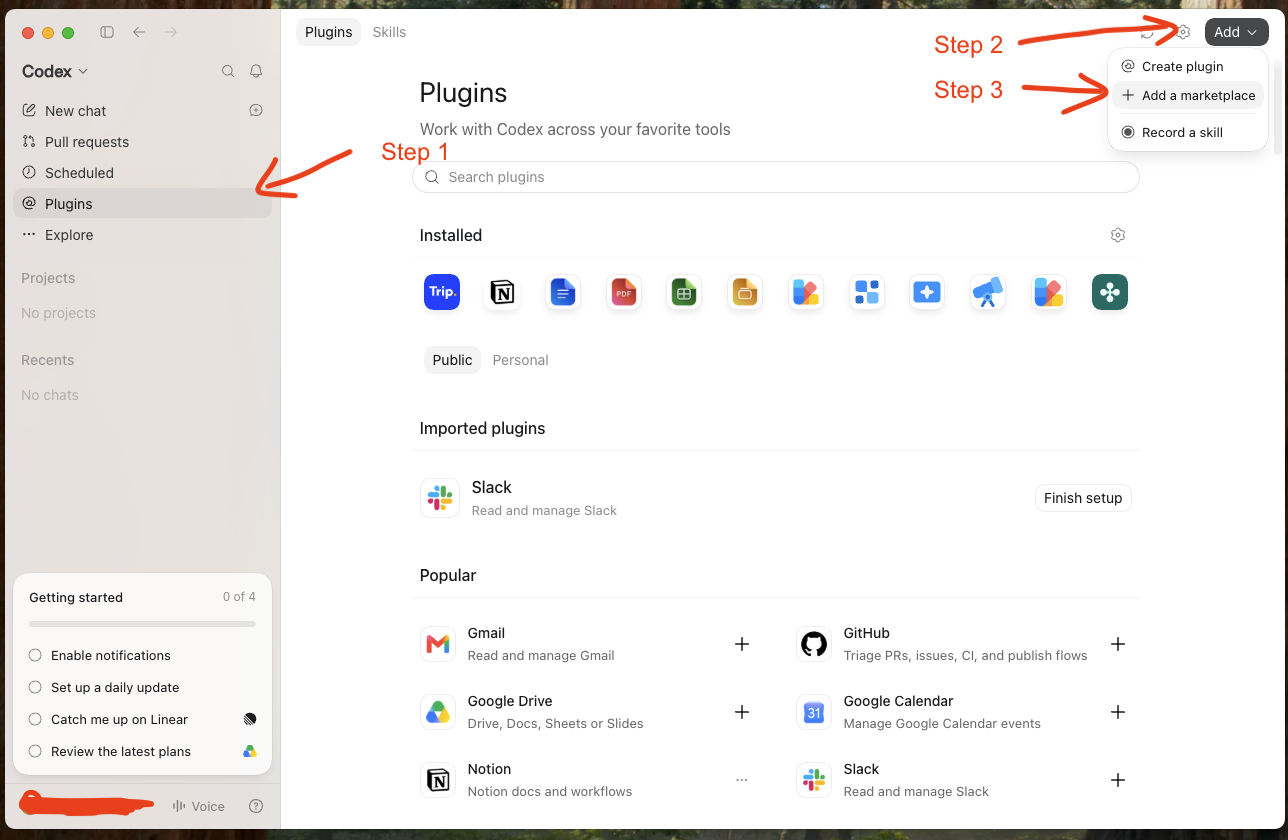
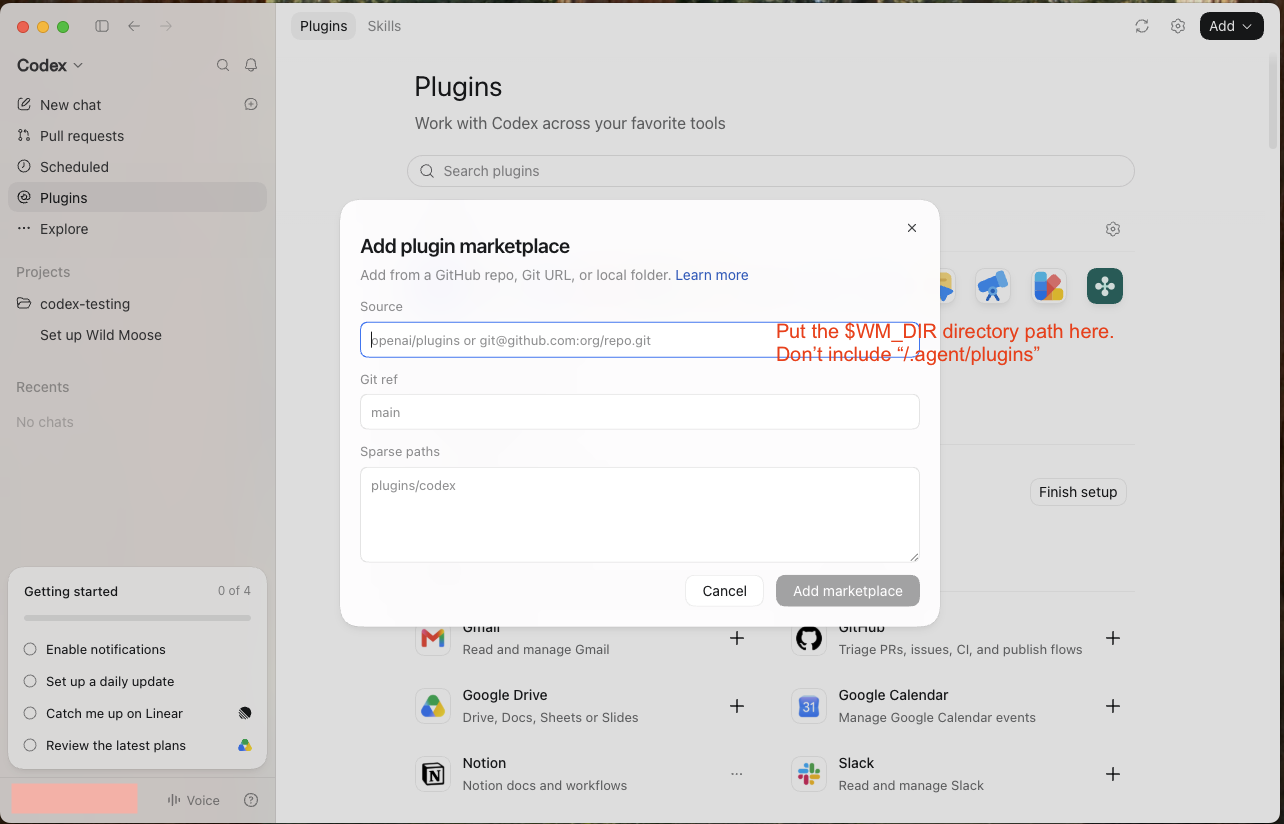
If marketplace add fails, check what you passed it:
local marketplace source must be a directory, not a file— the argument wasmarketplace.jsonitself. Pass the folder that contains.agents/plugins/.git clone https://public.wildmoose.ai/... returned error: 403— the argument was the URL. Codex treats everyhttps://source as a Git repository to clone, so download the file first as above.
Update later with:
codex plugin marketplace upgradeOther assistants (Cursor, Augment)
The plugin mechanism is client-specific, but the same npm package serves any assistant:
- Get the skills:
npm install @wild-moose/dev-kit-plugin, then copy or symlinknode_modules/@wild-moose/dev-kit-plugin/skills/into your assistant's skills directory (e.g..cursor/skills/,.agents/skills/, or their~/-level equivalents). To update later,npm updateand re-copy. - Register the MCP server in your assistant: it runs over stdio via
npx -y @wild-moose/moose-cli@latest mcp(for Cursor, add it undermcpServersin~/.cursor/mcp.json). Once the skills are installed, thewm-setupskill walks through per-assistant recipes.
For organization-wide rollout in Cursor or Codex, contact Wild Moose — see your account team.
Step 2: Authenticate to the Wild Moose API
npx @wild-moose/moose-cli@latest loginIf the command fails, turn off VPN and try again — a corporate VPN can block the auth flow. Turning off VPN is only required for first-time setup. Subsequent logins and other usage work on VPN.
Verify
Ask your assistant: get fired alerts from <channel-name> for the last 7 days. If alerts come back, everything is wired.
Troubleshooting
Install fails with
404 Not Foundnaming an internal registry URL, or withENOVERSIONS - No versions available— your npm resolves through a corporate mirror (check withnpm config get registry) that doesn't carry the@wild-moosepackages, and organizations like this often also enforce a release-age gate that filters out fresh versions. Two npm settings bypass both, and they are needed for installing and for every session that uses the plugin, because the MCP server re-resolves@wild-moose/moose-cliat each session start:Install with both settings:
npm_config_registry=https://registry.npmjs.org npm_config_min_release_age=0 claude plugin install wild-moose-dev-kit@wild-mooseRun Claude Code with both settings — an alias keeps this painless:
alias wmclaude='npm_config_registry=https://registry.npmjs.org npm_config_min_release_age=0 claude'Verify the MCP connection (same prefix, from any shell):
npm_config_registry=https://registry.npmjs.org npm_config_min_release_age=0 claude mcp list 2>&1 | grep wild-moose-dev-kitHealthy output includes
plugin:wild-moose-dev-kit:wild-moose: ... - ✔ Connected. Inside a running session,/mcpshows the same status. If it reports✘ Failed to connectinstead, the session was started without the settings — relaunch through the alias.
If an AI assistant is doing this setup for you, it can run steps 1 and 3 from its shell, but it cannot fix the session it is already running in — after install, relaunch Claude Code through the alias yourself, then re-run step 3. These settings bypass your organization's registry routing and release-age policy for Claude sessions only; the durable fix is asking your registry admins to allowlist the
@wild-moosescope in the mirror, after which none of this is needed.Login hangs or fails — you are probably on VPN; retry the first
moose-cli loginoff VPN.A user email is required, but your SSO connection does not send an email attribute.— a 403 from the Wild Moose API with two possible causes. Try a fresh login first:npx @wild-moose/moose-cli@latest loginAn expired login session produces this same error, and re-running login fixes it. If the error comes back right after a fresh login, your SSO connection is not sending an email attribute and needs a configuration change on the Wild Moose side — contact your account team.