
@woody_s/htmledit
v1.6.0
Published
Local visual HTML editor and review skills for Claude Code and Codex
Downloads
1,001

Maintainers
 woody_s
Readme
HTMLEdit
English · 한국어 · Español · 日本語 · Português (Brasil)
Point to what you want changed. Let your AI handle the HTML.
Open an AI-generated HTML document, make small edits on screen, and leave a request on the exact element. Save it, send the request to Claude Code or Codex, and review the result in the same editor.
Built for the moment when explaining “the paragraph under the second card” takes longer than clicking it.
Local editor · Claude Code & Codex skills · Five UI languages · MIT licensed
One request across several elements
A joint note connects one request to several selected elements. For example, select two headings and ask:
Swap the positions of these two headings. Keep their text unchanged.
- Select the targets. Click the first heading, then Ctrl+click the second (Cmd+click on Mac).
- Leave one request. Choose Add one note to selected elements, write the request and add the note. The same note number appears beside both headings.
- Save and hand it to your AI. Click Save and copy AI request, then paste into Claude Code or Codex. The button saves the working file before copying; you send the request in your AI conversation.
- Watch the result in the same editor. The AI applies the saved request through the installed skill. In connected mode, the open editor refreshes automatically when there are no unsaved changes. You do not need to find and open another output file.
Verified with the published 1.5.1 package
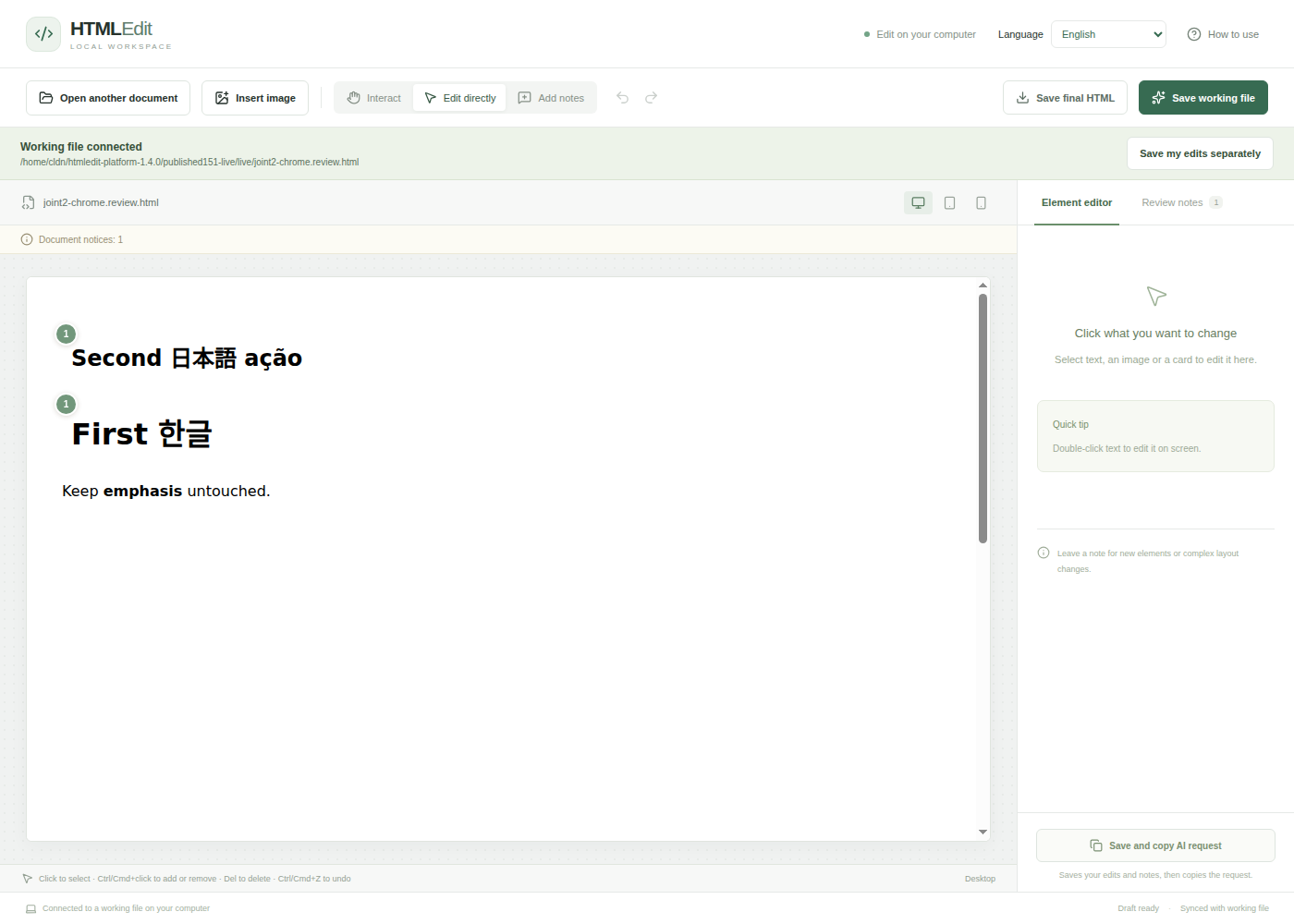
In this test, First → Second became Second → First. The two green 1 markers below represent the same completed joint note. The heading text and the unrelated paragraph stayed intact.
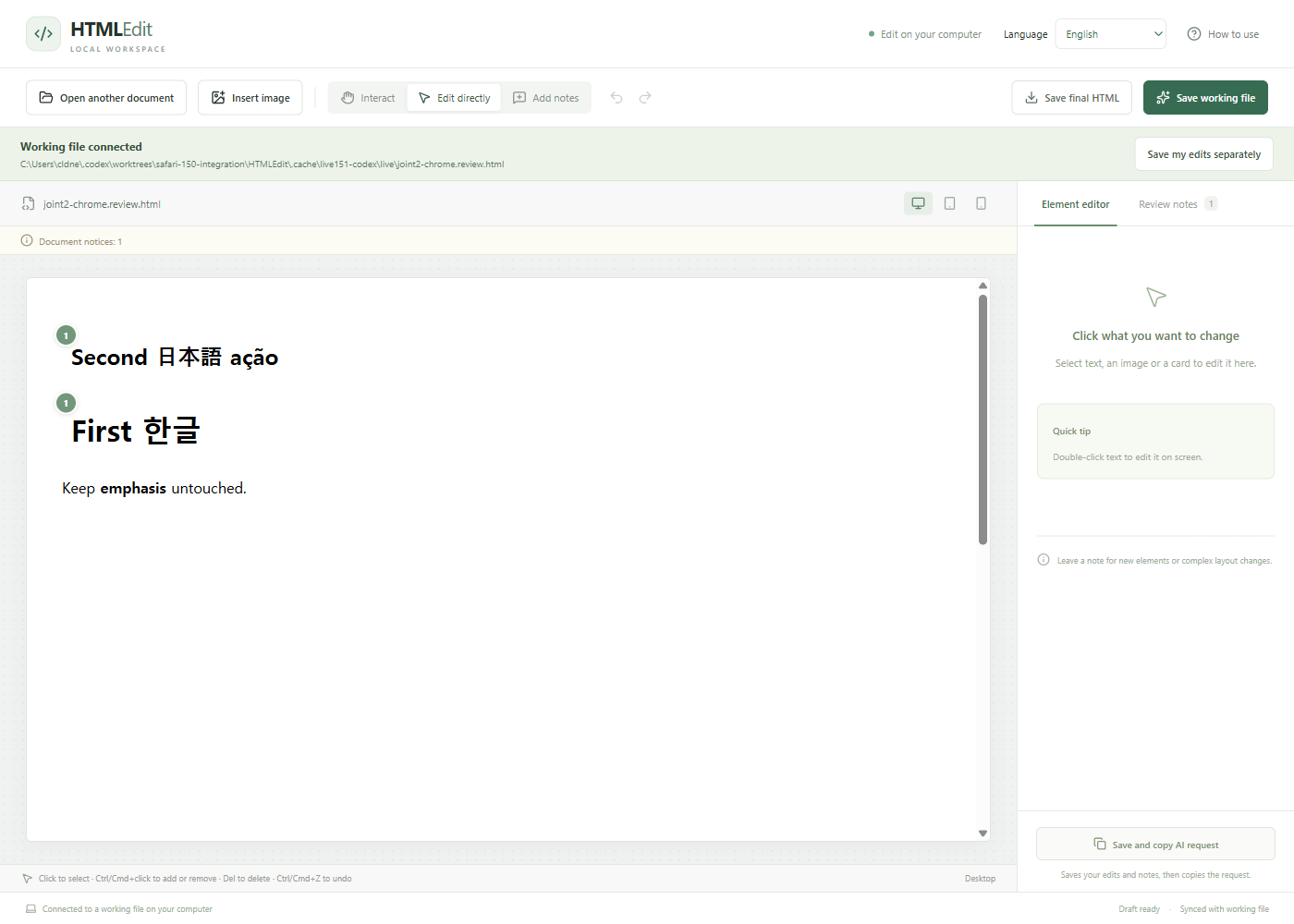
Codex on Windows Chrome and authenticated Claude Code on Ubuntu WSLg Chrome each interpreted and applied the request in separate runs. Both passed automatic refresh, target preservation, original-file preservation, byte-identical backup checks and final HTML export. Browser actions were automated; both AI applications were real.
Read the 1.5.1 verification and inspect the before/after HTML. These results cover the environments above; earlier single-element examples remain available.
What you can do
| On the screen | In your AI conversation | | ------------------------------------------------------------------------- | ------------------------------------------------------------------ | | Edit text, color and font size; insert or replace images; delete elements | Ask for new elements or layout changes using saved notes | | Attach a request to an element, or its before/after/inside position | Give the AI an exact target without describing its screen location | | Select several elements and attach one joint note | Ask the AI to change them together as one request | | Save and copy the AI request | Paste it into Claude Code or Codex to apply the notes | | Review the updated document and completed notes | Keep a backup of the previous file and export clean HTML |
Install and open
Requires Node.js 22.12+ and a local Claude Code or Codex session. Update both the editor and the skill before using joint notes. Windows Chrome and Edge remain the primary supported desktop environment. Your AI tool uses its own account; HTMLEdit needs no separate account or API key.
Run these commands in your document folder, outside the HTMLEdit source checkout:
npx --yes @woody_s/htmledit@latest install --agent all
npx --yes @woody_s/htmledit@latest open "./document.html"
Use --agent claude or --agent codex to install one skill. In a new AI session, use /htmledit in Claude Code or $htmledit in Codex. You can also ask: “Open this HTML with HTMLEdit.”
Your next edit
- Open your HTML. HTMLEdit creates
document.review.htmlbeside the original. Existing review files can be reopened. - Edit or leave a note. Change small details directly. Select one or more elements and leave one request for the change you want.
- Save and copy AI request. Paste the copied request into your AI conversation.
- Review the result. The AI applies the saved notes through the skill. In connected mode, the editor refreshes automatically when there are no unsaved changes.
- Save final HTML. Export the edited document without notes or editor identifiers.
The editor runs locally. HTMLEdit does not call an AI API or collect usage telemetry. When you ask your AI to process a file, that AI service's fees and data policies apply.
Start with a single HTML file
Import change requests (new in 1.6.0)
Paste free-form instructions, personal notes, collected feedback or meeting notes, or import a UTF-8 TXT/MD or DOCX file. Save and copy analysis request asks your existing Claude Code or Codex session to turn the source into element-linked suggestions. Review the quoted evidence, edit requests and targets, resolve ambiguities, and approve only what you want.
Add approved suggestions as notes leaves the rendered HTML unchanged. Then use Save and copy AI request in the request panel to apply only those note IDs through the existing backup and revision checks. Source text and review history stay in the document's local .htmledit folder; exports contain no source text or unapproved suggestions.
This feature requires local connected mode. Update both the editor and installed skills to 1.6.0 or later using the installation commands above. Usage and limits · AI/API format · Verification evidence.
Supported documents
Best suited to static documents, landing pages and reports with embedded styles and images. The UI supports English, Korean, Spanish, Japanese and Brazilian Portuguese.
External resources must remain accessible. Related local asset folders are not collected. React apps, runtime Tailwind and dynamic charts are outside the supported scope. Trusted inline menus and tabs can be navigated in Interact mode before editing.
Published 1.5.1 passed the separate Codex/Windows Chrome and Claude/WSLg Chrome workflows shown above. Linux/macOS launchers and file pickers remain experimental. Earlier candidate checks include Mac Chrome and actual Safari 18.6; manual IME and native picker checks are recorded separately in the environment-specific evidence.
Insert images
Select a document element, then click Insert image. Choose Before, After, or At the end inside; the position marker and document preview show the result before it is applied. For table rows or list containers, select a cell, list item, or a suitable parent instead.
Choose one local PNG, JPEG, WebP or GIF, drop it onto the image panel, paste an image in the panel with Ctrl+V / Cmd+V, or load a direct HTTP/HTTPS image URL. Each image is limited to 10MB and must decode successfully. URL downloads omit credentials, have a 15-second timeout, and follow browser cross-origin rules. If the site blocks access, use a downloaded file or paste the image. SVG, HTML clipboard fragments and multiple images at once are not supported.
Use original size (constrained to the available width) or 1–100% of the container width, choose left/center/right alignment and enter alternative text. Apply image embeds the bytes in the HTML and creates one undo step. Until then, previews do not change saved HTML or history. All embedded images together must fit within the 25MB HTML limit. No compression or format conversion is performed.
The inserted image stays selected. Use Image size and alignment for later adjustments, or add a note for AI layout changes. Replace image uses the same file, URL and paste inputs while preserving existing layout styles. Finish or cancel the image panel before copying the AI request. Save and copy, then use the usual checkout/apply workflow; review format v1 is unchanged.
Learn more and give feedback
- Full usage guide: text editing, document interaction, languages, recovery, updates and removal.
- 1.5.1 joint-note workflow verification: Codex and Claude screenshots, before/after files, checksums and test scope.
- Earlier single-element workflow: rename a heading, add an icon and remove a description.
- Development and verification history · Review file format.
- npm package · GitHub releases.
- Report an issue: include your OS, browser, package version and a minimal HTML example with private content removed.
To develop locally: npm ci, npm run build, then npm start. See the full guide for tests and development mode.
Multi-selection and Delete
Click to select one element. Ctrl+click (Cmd+click on Mac) adds or removes elements from the selection. Multiple selections show a border around every target. Choose Add one note to selected elements to create one joint request; its number appears at each target. The note list lets you visit each target and shows missing targets. Reassigning a note replaces its targets with the current selection.
Press Del to delete selected elements immediately, without confirmation. Ctrl+Z / Cmd+Z restores the entire deletion in one step. Deleting a target keeps its notes. Text fields, inline text editing, dialogs and Interact mode do not use this shortcut to delete document elements. The document body cannot be deleted.
With multiple elements selected, direct editing offers batch deletion. Select one element to edit its text, color, size or image. Bulk styling is not included. Existing single-target files still use review v1; a file containing a joint note uses v2. Update the editor and AI runtime before using joint notes; older versions will reject v2 rather than lose targets.