
@zidsa/vitrin-cli
v1.3.0
Published
CLI for Zid theme development


Readme
Vitrin CLI
command-line interface for Zid theme development.
Installation
npm install -g @zidsa/vitrin-cliQuick Start
# Launch the interactive TUI (recommended)
vitrin

# Or use CLI commands directly:
vitrin login                  # Authenticate with Zid
vitrin new my-theme           # Create a new theme
cd my-theme
vitrin push                   # Push theme to Zid (updates latest version)
vitrin push --new-version     # Cut a fresh version (asset paths changed)
vitrin status                 # View / change a version's lifecycle status
vitrin download               # Pull the latest version's .zip artifact
vitrin presets list           # Manage theme presets
vitrin translations           # Generate / update translation catalogs
Commands
Theme Management Commands
vitrin themes list [options]            # List all themes from server
vitrin themes delete <id> [-f]          # Delete a theme from server
vitrin status [-v <ver>] [-s <status>]  # View / change version status
vitrin download [-v <ver>] [-o <path>]  # Download a version artifact
vitrin presets <list|show|create|update|delete|upload-image>
Options for themes list:
-s, --search <term>- Search themes by name
Options for themes delete:
-f, --force- Skip confirmation
See the dedicated sections below for status, download, and presets.
Authentication
vitrin loginAuthenticates with Zid Partner Dashboard. Opens browser for OAuth flow.
Example:
$ vitrin login
Opening Zid Partner Dashboard in your default browser...
Listening for authentication callback on http://localhost:4444/auth/callback

✅ Authentication successful!
Token saved to ~/.vitrin/config.json
Theme Creation
vitrin new <theme-name> [options]Creates a new theme. By default, clones the official Growth Theme template
from https://github.com/zidsa/growth-theme and writes a .vitrin/theme.json
into the new directory.
Options:
-d, --directory <dir>— Target directory (default: theme name)-e, --from-existing <path>— Skip the clone and register a directory you already have as a Vitrin theme. Writes.vitrin/theme.jsonand a global-registry entry in place, without copying or modifying your files. Useful for adopting an existing repo or an unzipped template under Vitrin.--no-git— Skipgit init(only relevant on the clone path)
Example — clone the default template:
$ vitrin new my-store-theme
Creating new theme: my-store-theme
Target directory: my-store-theme
Template will be cloned from: https://github.com/zidsa/growth-theme
✅ Theme "my-store-theme" created successfully!
Path: /Users/you/themes/my-store-theme
Saved to local .vitrin/theme.json and global registry.
Example — register an existing directory:
$ vitrin new acme-theme --from-existing ./checkouts/acme-theme
Registering existing theme: acme-theme
Source directory: ./checkouts/acme-theme
Found theme files in /Users/you/checkouts/acme-theme
✅ Theme "acme-theme" registered at /Users/you/checkouts/acme-theme
Saved to local .vitrin/theme.json and global registry.
Push Theme to Zid
vitrin push [options]Builds and pushes your theme to Zid servers, creating or updating the theme.
Push validates the directory before doing any work and refuses to upload
a folder that is missing any of the required theme files (layout.jinja,
header.jinja, footer.jinja, templates/home.jinja), so a stale
.vitrin/theme.json from the wrong directory cannot silently push the
wrong files.
Options:
-s, --store <id>- Dev store ID to install on-a, --activate- Activate theme after installation-v, --version <version>- Version number (X.Y.Z)-c, --changelog <text>- English changelog for this push--changelog-ar <text>- Arabic changelog (sent as{ en, ar })-n, --new-version- Create a brand-new version instead of updating the latest one-b, --bump <kind>- With--new-version, auto-compute the next version from the latest server version:patch,minor, ormajor. Overrides--versionunless both are provided.
Example:
$ vitrin push --store 123456 --activate
✅ Theme pushed successfully!
Theme ID: abc123
Version: 1.0.0
Update the latest version vs. create a new one
By default vitrin push updates the latest existing version of the theme in
place (the backend treats keep_using_latest=true as the default). Pass
--new-version (TUI: pick Create a new version in the push wizard) to cut a
fresh version instead.
Update the latest version (default — no flag). Use for changes that don't move asset URLs or break clients that have already cached the previous push. Stores already on the latest version pick the changes up immediately.
- Quick template patches in
.jinjafiles - Bugfixes in templates or translations
- Copy / wording / translation tweaks
Create a new version (--new-version). Required when shipping the
template change against the latest version would break clients that still hold
the older assets in cache.
- Asset files renamed, removed, or restructured under
assets/ - CSS/JS bundle paths or hashes changed
- Breaking template changes that depend on assets that only exist in this push
Existing installs stay on the older version until they update explicitly, so cached-asset clients keep matching the templates they were served with.
# in-place patch on latest version (template tweak, copy fix, bugfix)
vitrin push

# cut a fresh version (assets moved / breaking change)
vitrin push --new-version
Link Theme Directory
vitrin link [theme-id] [options]Link or unlink current directory to a Zid theme.
Options:
-p, --path <path>- Path to theme directory (default: current)-f, --force- Force link even if already linked to another theme-s, --show- Show current linked theme
Examples:
# Show current linked theme
$ vitrin link --show
📎 Currently linked to theme: theme-123

# Link to a theme
$ vitrin link theme-456
✅ Linked to theme: theme-456

# Switch to a different theme
$ vitrin link theme-789 --force
✅ Switched from theme theme-456 to theme-789

# Unlink from theme — local files and path remain registered
$ vitrin link
✅ Unlinked from theme: theme-789
TUI link flow. In the TUI, after picking an API theme (manual ID or from the list), Vitrin asks where the theme should be linked: the current directory, any directory in the global registry, or a custom path you type in. The path is validated to exist. This means you can pick a theme from the API and tie it to the actual folder where its files live, instead of always linking the cwd.
Use Cases:
- Work with same codebase for multiple themes
- Switch between development and production themes
- Share codebase across different stores
- Pull an API theme down (
vitrin download) and then link it into the unzipped folder
Versions & Changelogs
The TUI now has a dedicated view for managing the versions of a linked
theme. Open it from the dashboard (📚 Versions & Changelogs, only
shown when a theme is linked) or from Manage Themes by pressing [V]
on any theme row.
What it shows. Each version is listed with its number, status (Published / Draft / Pending Review / …), creation date, and the first line of its English changelog. Selecting a row reveals the full detail panel.
Editing a changelog. Press [E] on a version to edit. The form
walks through changelog.en then changelog.ar (optional), and saves
via PATCH /v2/themes/{id}/versions/{vid}/. Only one language required.
Changing status. Press [S] on a version to open a status picker.
Vitrin pulls allowed transitions from the same partner-allowed
transition table that vitrin status uses.
Intentional new-version push
The push wizard makes creating a new version a deliberate, multistep choice:
- Pick deployment target — a store to install on, or push without installing.
- Pick strategy — Update latest version is highlighted as the default and is the right choice for template patches, copy tweaks and bugfixes. Create a new version is required when asset URLs move, or you ship breaking changes.
- Confirmation (new-version path only) — Vitrin warns that a new version is permanent and existing stores stay on their current version until they explicitly update. You have to confirm before continuing.
- Bump strategy (new-version path only) — pick patch, minor,
major (each option shows the resulting version number computed
from the latest one on the server) or custom. A custom version
must be valid
X.Y.Zand strictly greater than the current latest. - Changelog (en, then optional ar) — both languages flow into the
API as
{ en, ar }. English is required. - Review — recap of strategy, deployment target and changelog. Press Enter to actually push.
The same primitives are exposed on the CLI:
# Update latest version with a fresh changelog
vitrin push --changelog "Fix product page typo" \
            --changelog-ar "إصلاح خطأ مطبعي في صفحة المنتج"

# Cut a new patch version automatically (latest 1.0.5 → 1.0.6)
vitrin push --new-version --bump patch \
            --changelog "Bugfix release"

# Cut a new major version
vitrin push --new-version --bump major \
            --changelog "Redesigned cart" --changelog-ar "إعادة تصميم السلة"
Edit theme name and description
The TUI Manage Themes view now edits English and Arabic for both
fields. Pressing [E] on a row cycles through name (en),
name (ar), description (en), description (ar). Arabic fields are
optional — empty values are dropped from the payload, so you can clear
an Arabic translation by leaving the field blank.
Local Theme Registry
Vitrin maintains a registry at ~/.vitrin/themes.json of every theme you
have created or linked, keyed by absolute path. Each entry holds the same
fields as the project-local .vitrin/theme.json (id, slug, name, push
history, installations, …), so you have a single place to see all themes
across all directories.
The registry is updated automatically by vitrin new, vitrin link,
vitrin push, and any TUI flow that touches theme state. Stale entries
(directories that no longer exist on disk) are pruned on next read.
In the TUI, Switch Theme lists registered themes with 🔗 for ones
linked to a Zid theme and · for ones that are local-only. Choosing one
chdirs the current session into that directory.
Building Themes
vitrin build [path] [options]Builds theme into a distributable .zip package.
Pipeline:
- Validate theme structure (must contain
layout.jinja,header.jinja,footer.jinja, andtemplates/home.jinja). On failure, reports the resolved path and the missing files so you can confirm the build is looking at the right directory. - Compile theme assets. If
package.jsondeclares abuildscript (the Growth Theme uses Tailwind + Vite), Vitrin runs<installer> installwhennode_modulesis missing, then<installer> run build. The installer is detected from the lockfile —pnpm-lock.yaml→ pnpm,yarn.lock→ yarn, otherwise npm. stdout/stderr is streamed live into the BuildView/PushView UI. Themes without abuildscript skip this step transparently. - Strip
.DS_Storefiles. - Zip everything except
node_modules/,.git*,.vitrin/, and*.zip. - Verify the archive on disk.
Options:
-n, --name <name>- Name for the build output-o, --output <path>- Output directory-c, --compression <level>- Compression level 0-9 (default: 9)--validate- Validate theme structure before building-e, --exclude <patterns...>- Additional exclude patterns
Example:
$ vitrin build
Building theme: my-theme
Source path: /Users/you/themes/my-theme
Compiling theme assets...
  Installing dependencies with pnpm...
  Running "pnpm run build"...
  Asset build complete
✅ Assets built with pnpm
Cleaning .DS_Store files...
✅ Build complete: my-theme-1714492800000.zip (2.4 MB)
Preview on Dev Store
vitrin preview [store-id] [theme-path] [options]Preview your theme on a dev store. After upload, Vitrin prints both the
preview URL and a hosted theme validation report at
<preview-url>/validate — open it to see Zid's automated review of the
theme that was just deployed.
Arguments:
store-id- Dev store ID (optional if default store is set)theme-path- Path to theme directory (default: current directory)
Options:
-t, --theme-id <id>- Use existing theme ID-n, --name <name>- Theme name for preview--build- Build theme before previewing--validate- Validate theme structure--new-theme- Force creation of a new theme
Example:
$ vitrin preview 123 --build
📦 Preparing theme preview for store 123
Building theme...
✅ Theme built successfully
Creating theme...
✅ Theme created: 45678
Creating version...
✅ Version 1.0.0 created
Uploading theme package...
✅ Upload complete
Installing on store...

🎉 Theme ready for preview!

Theme ID: 45678
Version: 90123
Installation: 11111

💡 To activate: vitrin activate 123 11111
List Resources
vitrin list                    # List both themes and stores (default)
vitrin list --themes           # List themes only
vitrin list --stores           # List dev stores only
vitrin themes list             # Alternative: list themes only
Lists themes and/or dev stores.
Options:
-t, --themes- List themes only-s, --stores- List dev stores only--json- Output as JSON
Example:
$ vitrin list --stores
Fetching dev stores...
✅ Found 2 dev stores:

ID          Name                     Email                         Domain
--------------------------------------------------------------------------------
123         Test Store 1             [email protected]            test1.zid.store
456         Test Store 2             [email protected]            test2.zid.store
Theme Installation
vitrin install <store-id> <theme-id> <version-id>Installs a specific theme version on a store.
Example:
$ vitrin install 123 45678 90123
Installing theme on store...
✅ Theme installed successfully!
Installation ID: 11111
Theme Activation
vitrin activate <store-id> <installation-id>Activates an installed theme on a store.
Example:
$ vitrin activate 123 11111
Activating theme...
✅ Theme activated successfully!
Update Theme Version
vitrin update <theme-id> [theme-path] [options]Updates an existing theme with a new version.
Options:
-v, --version <version>- Version number-c, --changelog <text>- Version changelog--skip-build- Skip building theme package
Example:
$ vitrin update abc123 --version 2.0.0 --changelog "Added new features"
Building theme package...
✓ Theme package built
Creating version 2.0.0...
✓ Version created
Uploading theme...
✓ Upload complete
Change Theme Version Status
vitrin status [options]Reads or changes the lifecycle status of a theme version. Defaults to the linked theme's latest version when no IDs are passed. The CLI knows the status state machine and only offers transitions the partner is allowed to make.
Options:
-t, --theme <id>- Theme ID (default: linked theme)-v, --version <id>- Version ID (default: latest)-s, --target <status>- Target status (skip the picker)-y, --yes- Skip the confirmation prompt
Statuses: draft, pending_review, in_review, approved, rejected,
published, deprecated, archived.
Partner-allowed transitions:
| From | Allowed targets | | --------------- | ----------------------- | | draft | pending_review, archived| | pending_review | draft | | approved | published, archived | | rejected | draft, archived | | published | deprecated | | archived | draft |
Examples:
$ vitrin status
Theme abc · version 1.2.0
Current status: Draft (draft)
Allowed transitions: pending_review, archived
? Move to: › Pending Review (pending_review)

$ vitrin status --target pending_review --yes   # submit for review, no prompt
$ vitrin status -v <version-id> -s archived     # archive a specific version
Download Theme Artifact
vitrin download [options]Downloads the published .zip artifact for a theme version (the same package
that gets unpacked on the server). Useful for pulling a previously-pushed
version back onto disk for inspection or rollback.
Options:
-t, --theme <id>- Theme ID (default: linked theme)-v, --version <id>- Version ID (default: latest)-o, --output <path>- Output file path (default:./<version-id>.zip)-f, --force- Overwrite the output file if it exists
Example:
$ vitrin download
Requesting download URL...
Downloading version 1.2.0...
✅ Saved 1.84 MB to /…/9b…f3.zip
Theme Presets
vitrin presets <subcommand> [options]Manage theme presets — named bundles of template settings that ship as the
"starter looks" for a theme. Each theme can have multiple presets, one per
type, presets of type default gets installed on stores' first
installation of the theme.
Subcommands:
list- List presets (--type <t>to filter,--jsonfor raw output)show <id>- Show a single presetcreate <file>- Create from a JSON fileupdate <id> <file>- Patch from a JSON filedelete <id>- Delete (use--forceto skip confirmation)upload-image <file>- Upload an image, prints the public URL
Preset JSON shape:
{
  "type": "default",
  "name": { "en": "Default", "ar": "افتراضي" },
  "images": ["https://.../preview.png"],
  "presets": [
    { "path": "sections/product.jinja", "settings": { "...": "..." } }
  ]
}
Examples:
$ vitrin presets list
$ vitrin presets show <preset-id> --json
$ vitrin presets create ./preset.json
$ vitrin presets upload-image ./preview.png
Generate Translations
vitrin translations [path] [options]Extracts translatable strings from .jinja templates (anything wrapped in
_("...")), writes a locale/messages.pot template, and updates per-language
messages.po / messages.mo catalogs in place. Re-run it any time templates
change — existing translations are preserved.
gettext catalogs support natural language keys, so use a natural language (e.g. english) inside the templates and add one catalog for the other.
Options:
-l, --languages <langs...>- Languages to update/compile (default:ar)
Examples:
$ vitrin translations                       # current dir, default lang (ar)
$ vitrin translations ./my-theme            # specific theme path
$ vitrin translations -l ar en fr           # multiple languages at once
The same flow is available in the TUI under 🌐 Generate Translations on the dashboard.
After running, edit the generated locale/<lang>/LC_MESSAGES/messages.po
files to fill in msgstr entries, then run the command again to recompile
the binary messages.mo catalogs.
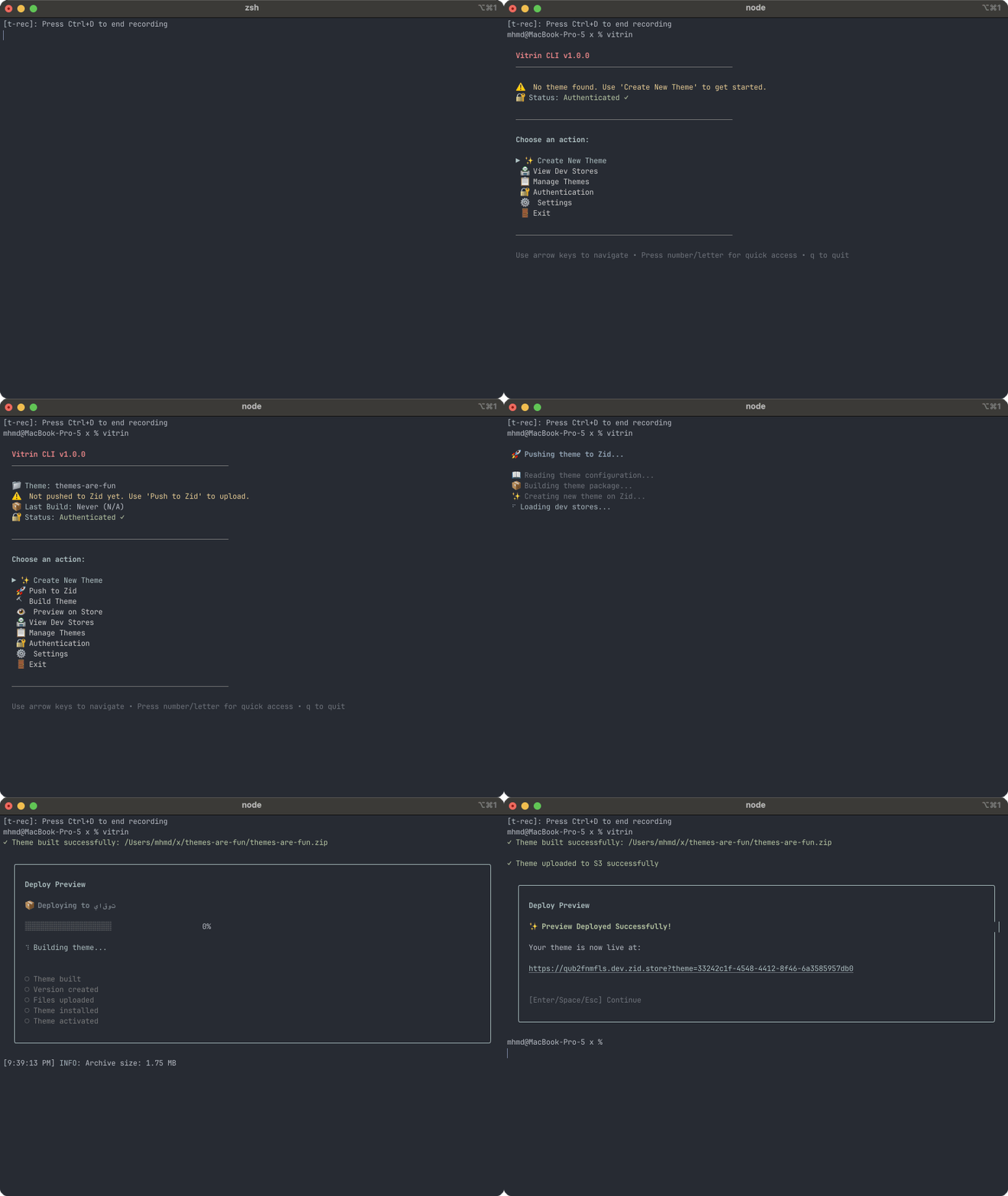
Interactive TUI Mode
Launch the interactive terminal interface (recommended):
vitrinFeatures
✨ Theme-Centric Workflow
- Create new themes from the Growth Theme GitHub template (URL disclosed before clone) or register an existing local directory
- Push themes directly to Zid servers, with pre-push validation
- Automatic Tailwind/Vite asset compilation before zipping
- Track push history and versions
- Switch between registered themes from any cwd via Switch Theme
- Automatic theme detection in current directory
🚀 Streamlined Deployment
- Build and push in one workflow
- Automatic version management
- Install and activate on dev stores
- S3 upload progress tracking
🎨 Theme Management
- List server-side themes
- Update theme versions
- Manage theme metadata
- Generate / refresh translation catalogs from
.jinjatemplates
🔐 Authentication & Settings
- OAuth login flow
- Configure API endpoints
- Persistent settings management
📦 Store Operations
- List and manage dev stores
- Preview themes on stores
- One-click activation
Configuration
Environment Variables
VITRIN_API_URL- API endpoint (default: https://api.zid.sa)VITRIN_PARTNER_URL- Partner dashboard URL (default: https://partner.zid.sa)LOG_LEVEL- Logging level (debug, info, error)
Debug Mode
Run with detailed logging for troubleshooting:
LOG_LEVEL=debug vitrin preview 123File Structure
Expected theme structure (Growth Theme layout):
my-theme/
├── .vitrin/
│   └── theme.json                 # local link/push state (managed by Vitrin)
├── assets/
│   ├── tailwindcss.css            # Tailwind source (input)
│   ├── styles.css                 # Tailwind output — generated by `build:css`
│   ├── js/
│   │   ├── main.js                # Vite entry — bundled to assets/dist/theme.js
│   │   └── cart/controller.js     # Vite entry — bundled to assets/dist/cart-controller.js
│   ├── dist/                      # Vite outputs — generated by `build:js`
│   └── images/
├── components/                    # Reusable .jinja partials
├── sections/                      # Dynamic sections for the theme editor
├── templates/
│   ├── home.jinja
│   ├── product.jinja
│   └── cart.jinja
├── locale/
│   ├── ar/LC_MESSAGES/messages.po # Arabic translations catalog
├── layout.jinja                   # required
├── header.jinja                   # required
├── footer.jinja                   # required (templates/home.jinja is required too)
├── package.json                   # `scripts.build` is invoked before zipping
├── vite.config.js
└── theme.json
Vitrin's global state lives in ~/.vitrin/:
~/.vitrin/
├── config.json   # auth token + saved env vars
└── themes.json   # registry of every theme created/linked, keyed by path
Authentication
Authentication tokens are stored in ~/.vitrin/config.json.
To logout:
vitrin logoutTroubleshooting
Authentication Issues
# Check authentication status
vitrin themes list
# or
vitrin list --themes

# If you see "Authentication required", login again
vitrin login
Build Failures
# Validate theme structure
vitrin build --validate

# Check for common issues
- Missing required directories (assets, templates)
- Invalid package.json
- .DS_Store files (automatically cleaned)
Preview Errors
# Run with debug logging
LOG_LEVEL=debug vitrin preview 123

# Common issues:
- Expired authentication token - run `vitrin login`
- Invalid store ID - check with `vitrin list --stores`
- Theme already exists - will auto-generate unique name
Support
Report issues at: https://github.com/zidsa/vitrin-cli/issues