
@zoompinch/vue
v0.0.41
Published
Vue wrapper for ZoomPinch - reactive pinch & zoom component

Maintainers
 mauriceconrad
Readme
@zoompinch/vue
Vue 3 component for @zoompinch/core - Apply a pinch-and-zoom experience that’s feels native and communicates the transform reactively and lets you project any layer on top of the transformed canvas.
Play with the demo: https://zoompinch.pages.dev
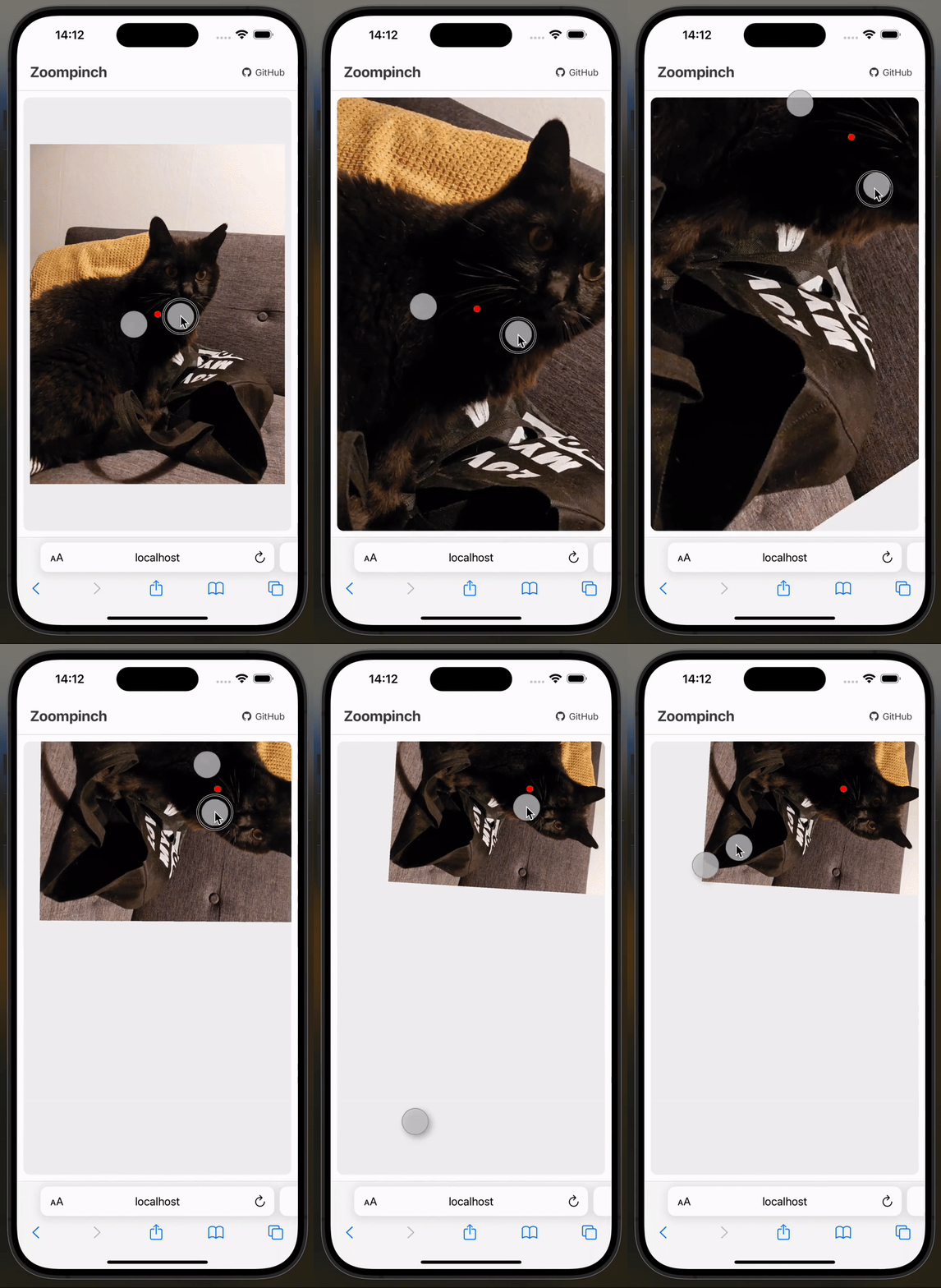
Mathematical correct pinch on touch
Unlike other libraries, Zoompinch does not just uses the center point between two fingers as projection center. The fingers get correctly projected on the virtual canvas. This makes pinching on touch devices feel native-like.
Touch, Wheelm, Mouse and Trackpad Gestures!
Adside of touch, mouse and wheel events, gesture events (Safari Desktop) are supported as well! Try it out on the demo
Installation
npm install @zoompinch/vueComplete Example
<template>
    <zoompinch
        ref="zoompinchRef"
        v-model:transform="transform"
        :offset="{ top: 0, right: 0, bottom: 0, left: 0 }"
        :min-scale="0.5"
        :max-scale="4"
        :clamp-bounds="false"
        :rotation="true"
        :zoom-speed="1"
        :translate-speed="1"
        :zoom-speed-apple-trackpad="1"
        :translate-speed-apple-trackpad="1"
        :mouse="false"
        :wheel="true"
        :touch="true"
        :gesture="true"
        @init="handleInit"
        @click="handleClick"
    >
        <img width="1536" height="2048"  src="https://imagedelivery.net/mudX-CmAqIANL8bxoNCToA/489df5b2-38ce-46e7-32e0-d50170e8d800/public" />
        <template #matrix="{ composePoint, normalizeClientCoords, canvasWidth, canvasHeight }">
            <svg width="100%" height="100%">
                <!-- Center marker -->
                <circle  :cx="composePoint(canvasWidth / 2, canvasHeight / 2)[0]" :cy="composePoint(canvasWidth / 2, canvasHeight / 2)[1]" r="8" fill="red" />
            </svg>
        </template>
    </zoompinch>
</template>

<script setup lang="ts">
import { ref } from 'vue';
import { Zoompinch } from '@zoompinch/vue';
import '@zoompinch/vue/style.css';

const zoompinchRef = ref<InstanceType<typeof Zoompinch>>();
const transform = ref({
  translateX: 0,
  translateY: 0,
  scale: 1,
  rotate: 0
});

function handleInit() {
  // Center canvas on initialization
  zoompinchRef.value?.applyTransform(1, [0.5, 0.5], [0.5, 0.5], 0);
}

function handleTransformUpdate(newTransform) {
  console.log('Transform updated:', newTransform);
}

function handleClick(event: MouseEvent) {
  if (!zoompinchRef.value) return;
  const [x, y] = zoompinchRef.value.normalizeClientCoords(event.clientX, event.clientY);
  console.log('Cliked at', x, y);
}
</script>

<style scoped>
.zoompinch {
    width: 800px;
    height: 600px;
    border: 1px solid #f00;
}
</style>
API Reference
Props
| Prop | Type | Default | Description |
|------|------|---------|-------------|
| transform | Transform | { translateX: 0, translateY: 0, scale: 1, rotate: 0 } | Current transform state (v-model) |
| offset | Offset | { top: 0, right: 0, bottom: 0, left: 0 } | Inner padding/offset within container |
| min-scale | number | 0.5 | Minimum scale (user gestures only) |
| max-scale | number | 10 | Maximum scale (user gestures only) |
| clamp-bounds | boolean | false | Clamp panning within bounds (user gestures only) |
| rotation | boolean | true | Enable rotation gestures |
| mouse | boolean | true | Enable mouse drag |
| wheel | boolean | true | Enable wheel/trackpad |
| touch | boolean | true | Enable touch gestures |
| gesture | boolean | true | Enable Safari gesture events |
Speed Multipliers
The Problem
Pan and zoom interactions behave differently across input devices:
- Apple Trackpads: Provide smooth, precise scroll values with natural momentum
- Mouse Wheels: Send large, discrete jumps (typically ±100 or ±120 per scroll tick)
Without normalization, this causes:
- Uncomfortably large zoom jumps when using mouse wheels
- Panning that's either too slow (trackpad-optimized) or too fast (mouse-optimized)
- Inconsistent user experience across Windows, Mac, and Linux
The Solution
The library automatically detects the input device type and applies different speed multipliers:
- Trackpad gestures use base values for smooth, 1:1 response
- Mouse wheel actions use amplified values for comfortable discrete steps
You can fine-tune these multipliers for your specific use case using the speed props.
| Prop | Type | Default | Description |
|------|------|---------|-------------|
| translate-speed | number | 1 | Pan speed multiplier for mouse wheels |
| zoom-speed | number | 1 | Zoom speed multiplier for mouse wheels |
| translate-speed-apple-trackpad | number | 1 | Pan speed multiplier for trackpads |
| zoom-speed-apple-trackpad | number | 1 | Zoom speed multiplier for trackpads |
Note: min-scale, max-scale, rotation, and clamp-bounds only apply during user interaction. Programmatic changes via ref methods are unrestricted.
Events
| Event | Payload | Description |
|-------|---------|-------------|
| @init | void | Fired when canvas dimensions are available |
| @update:transform | Transform | Fired when transform changes (v-model) |
<zoompinch
  @init="handleInit"
  @update:transform="handleTransformUpdate"
>
  <!-- content -->
</zoompinch>
Template Ref Methods
Access methods via template ref:
const zoompinchRef = ref<InstanceType<typeof Zoompinch>>();

// Call methods
zoompinchRef.value?.applyTransform(scale, wrapperCoords, canvasCoords, rotate?);
zoompinchRef.value?.normalizeClientCoords(clientX, clientY);
zoompinchRef.value?.composePoint(x, y);
zoompinchRef.value?.rotateCanvas(x, y, radians);

// Access properties
zoompinchRef.value?.canvasWidth;
zoompinchRef.value?.canvasHeight;
applyTransform(scale, wrapperCoords, canvasCoords, rotate?)
Apply transform by anchoring a canvas point to a wrapper point.
Parameters:
scale: number- Target scalewrapperCoords: [number, number]- Wrapper position (0-1, 0.5 = center)canvasCoords: [number, number]- Canvas position (0-1, 0.5 = center)rotate?: number- Optional rotation in radians
Examples:
// Center canvas at scale 1
zoompinchRef.value?.applyTransform(1, [0.5, 0.5], [0.5, 0.5]);

// Zoom to 2x, keep centered
zoompinchRef.value?.applyTransform(2, [0.5, 0.5], [0.5, 0.5]);

// Anchor canvas top-left to wrapper center
zoompinchRef.value?.applyTransform(1.5, [0.5, 0.5], [0, 0]);

// Set rotation
zoompinchRef.value?.applyTransform(1, [0.5, 0.5], [0.5, 0.5], Math.PI / 4);
normalizeClientCoords(clientX, clientY)
Convert global client coordinates to canvas coordinates.
Parameters:
clientX: number- Global X from eventclientY: number- Global Y from event
Returns: [number, number] - Canvas coordinates in pixels
Example:
function handleClick(event: MouseEvent) {
  const [x, y] = zoompinchRef.value!.normalizeClientCoords(
    event.clientX,
    event.clientY
  );
  console.log('Canvas position:', x, y);
}
composePoint(x, y)
Convert canvas coordinates to wrapper coordinates (accounts for transform).
Parameters:
x: number- Canvas X in pixelsy: number- Canvas Y in pixels
Returns: [number, number] - Wrapper coordinates in pixels
Example:
// Get wrapper position for canvas center
const [wrapperX, wrapperY] = zoompinchRef.value!.composePoint(
  canvasWidth / 2,
  canvasHeight / 2
);
rotateCanvas(x, y, radians)
Rotate canvas around a specific canvas point.
Parameters:
x: number- Canvas X (rotation center)y: number- Canvas Y (rotation center)radians: number- Rotation angle
Example:
// Rotate 90° around canvas center
const centerX = zoompinchRef.value!.canvasWidth / 2;
const centerY = zoompinchRef.value!.canvasHeight / 2;
zoompinchRef.value?.rotateCanvas(centerX, centerY, Math.PI / 2);
Reactive Properties
Access current canvas dimensions:
const width = zoompinchRef.value?.canvasWidth;   // number
const height = zoompinchRef.value?.canvasHeight; // number
Matrix Slot
Scoped slot for rendering overlay elements that follow the canvas transform.
Scoped Props:
| Prop | Type | Description |
|------|------|-------------|
| composePoint | (x: number, y: number) => [number, number] | Canvas → Wrapper coords |
| normalizeClientCoords | (clientX: number, clientY: number) => [number, number] | Client → Canvas coords |
| canvasWidth | number | Current canvas width |
| canvasHeight | number | Current canvas height |
Note: applyTransform and rotateCanvas are NOT available in the slot. Use component ref instead.
Example:
<zoompinch>
  <img width="1920" height="1080" src="image.jpg" />

  <template #matrix="{ composePoint, normalizeClientCoords, canvasWidth, canvasHeight }">
    <svg width="100%" height="100%">
      <circle
        :cx="composePoint(canvasWidth / 2, canvasHeight / 2)[0]"
        :cy="composePoint(canvasWidth / 2, canvasHeight / 2)[1]"
        r="8"
        fill="red"
      />
    </svg>
  </template>
</zoompinch>
Coordinate Systems
1. Canvas Coordinates (Absolute)
Absolute pixels within canvas content.
- Origin:
(0, 0)at top-left - Range:
0tocanvasWidth,0tocanvasHeight
const [canvasX, canvasY] = normalizeClientCoords(event.clientX, event.clientY);2. Wrapper Coordinates (Absolute)
Absolute pixels within viewport/wrapper.
- Origin:
(0, 0)at top-left (accounting for offset) - Range:
0towrapperWidth,0towrapperHeight
const [wrapperX, wrapperY] = composePoint(canvasX, canvasY);3. Relative Coordinates (0-1)
Normalized coordinates for applyTransform.
- Range:
0.0to1.0 0.5= center,1.0= bottom-right
[0, 0]       // top-left
[0.5, 0.5]   // center
[1, 1]       // bottom-right
Conversion Flow:
Client Coords → normalizeClientCoords() → Canvas Coords → composePoint() → Wrapper CoordsBest Practices
Always specify image dimensions to avoid layout shifts:
<img width="1920" height="1080" src="image.jpg" />Center content on init:
function handleInit() {
  zoompinchRef.value?.applyTransform(1, [0.5, 0.5], [0.5, 0.5]);
}
Prevent image drag:
<img src="image.jpg" draggable="false" style="user-select: none;" />Use clamp bounds:
<zoompinch :clamp-bounds="true" :min-scale="0.5" :max-scale="4">
Styling
Minimal base styles are applied. Customize via class or style:
<zoompinch
  class="my-viewer"
  style="width: 100%; height: 600px; border: 1px solid #ccc;"
>
  <!-- content -->
</zoompinch>
Internal CSS classes:
.zoompinch          /* Container */
.zoompinch > .canvas    /* Canvas wrapper */
.zoompinch > .matrix    /* Matrix overlay */
Browser Support
- ✅ Chrome/Edge (latest)
- ✅ Firefox (latest)
- ✅ Safari (latest, including iOS)
- ✅ Mobile browsers (iOS Safari, Chrome Mobile)
License
MIT
Related
- @zoompinch/core - Core engine
- @zoompinch/react - React
- @zoompinch/elements - Web Components
Built with ❤️ by Elya Maurice Conrad