
@zureltd/az-infra-harness
v0.19.0
Published
Interactive planning tool for Azure infrastructure — generates production-ready Bicep or Terraform code from guided decisions


Readme
Az Infra Harness
AI-assisted Azure infrastructure planning — from requirements to production-ready Bicep or Terraform.
Why this exists
Designing Azure infrastructure for a new application typically means context-switching between documentation, architecture diagrams, decision logs, and IaC code — often before you have a clear picture of your requirements. Important decisions get made informally, never documented, and later become tribal knowledge.
Az Infra Harness was built to fix that. It provides a structured, conversation-driven workflow that guides you through every planning phase — from describing your application to generating production-ready IaC — with your AI coding agent doing the heavy lifting. The result is a complete, auditable record of your infrastructure decisions alongside ready-to-deploy Bicep or Terraform code.
What it does
Az Infra Harness is an interactive planning UI that you run locally next to your coding agent (Claude Code, GitHub Copilot, or OpenCode). You drive the process using slash commands in your agent; the agent asks you questions, captures your answers, and writes structured files that appear in the UI.
The workflow has five phases:
| Phase | What you produce | |-------|-----------------| | 1. Application Definition | Overview, components, non-functional requirements | | 2. Context | Infrastructure landscape, platform services, development workflow | | 3. Application Architecture | Azure service mapping, deployment strategy, architecture diagram | | 4. Architecture Decisions | Architecture Decision Records (ADRs) | | 5. Code Generation | Production-ready Bicep or Terraform modules |
At the end you have a fully documented infrastructure design and IaC code ready to drop into your repository.
Walkthrough
The screenshots below show how Az Infra Harness looks when working through the eShop on Containers reference application — a microservices-based e-commerce app by Microsoft.
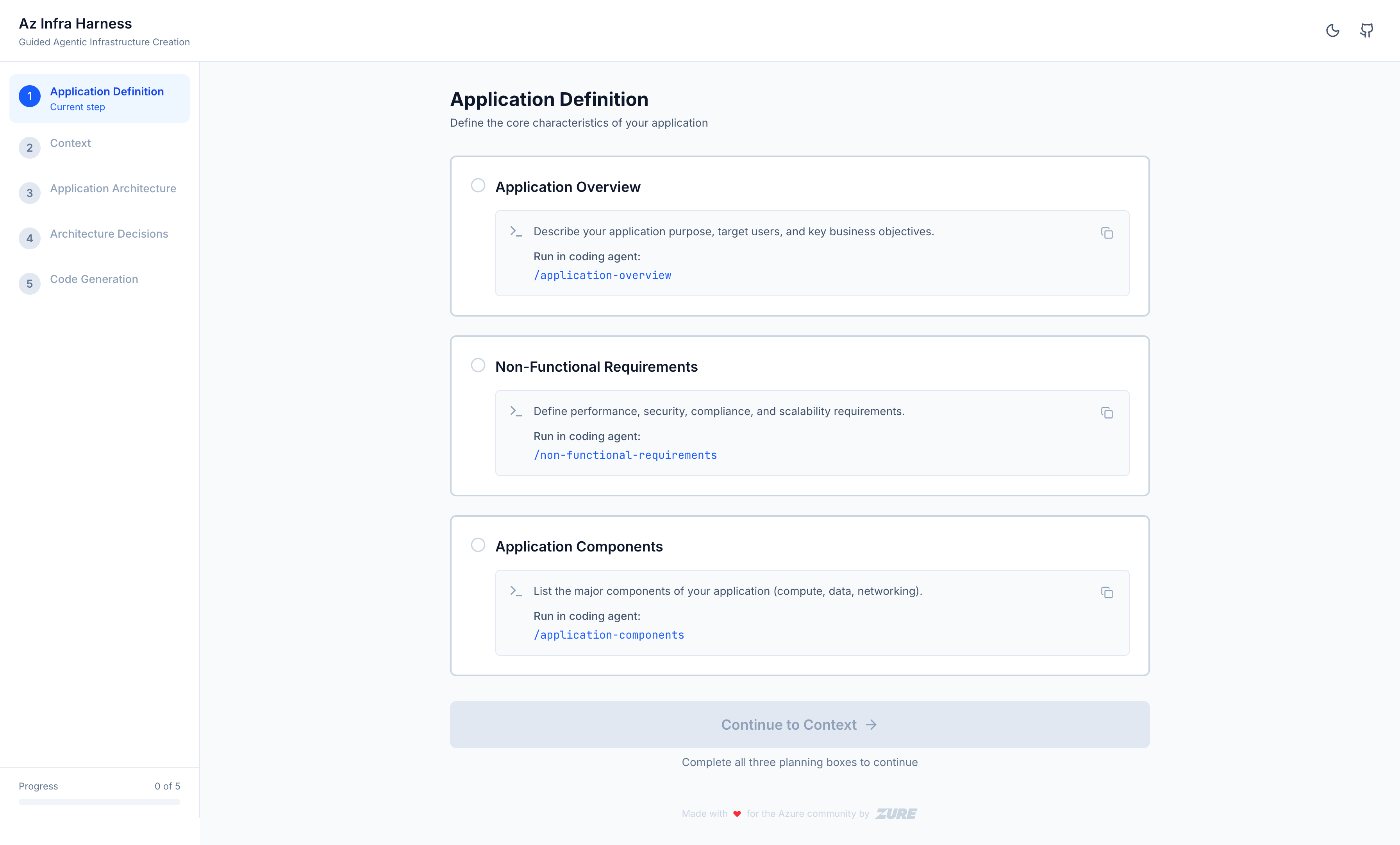
Phase 1 — Application Definition
Start with an empty planning board. All cards are grey, waiting for data.
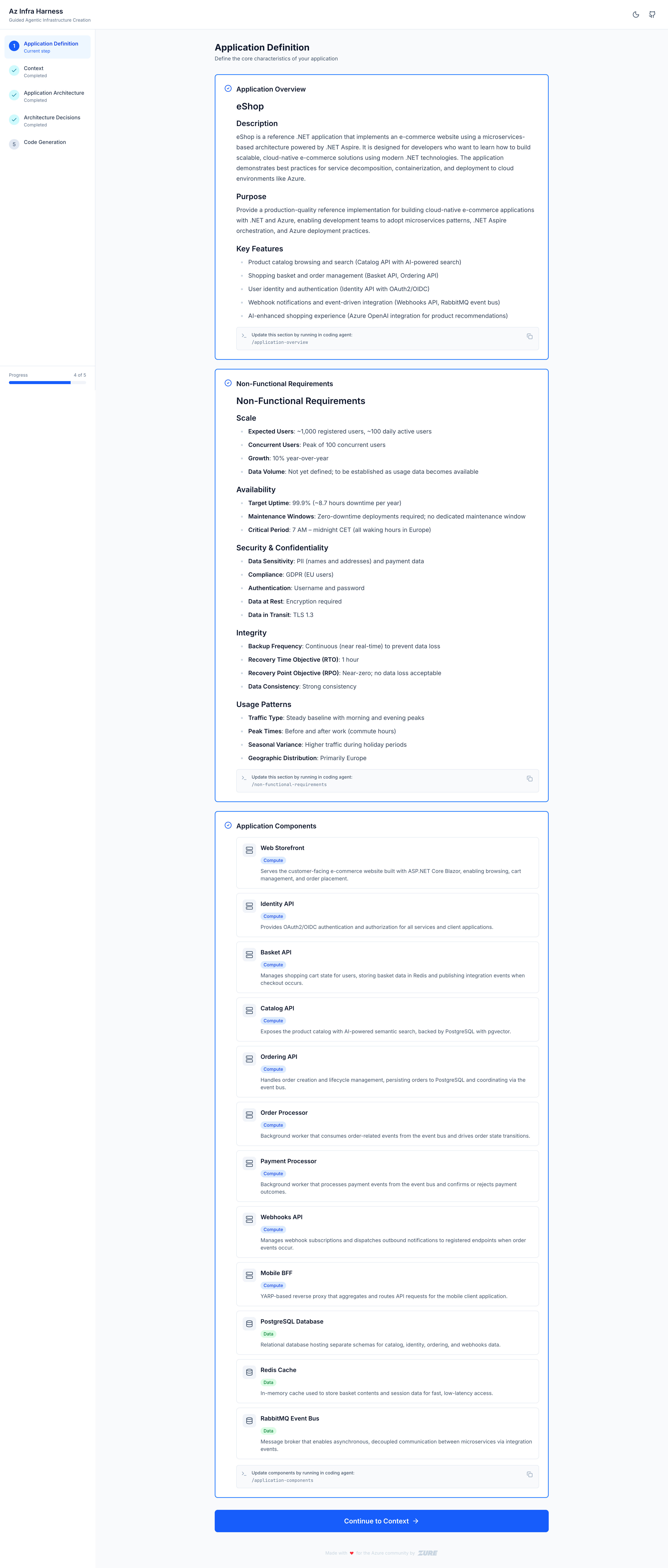
After running /application-overview, /non-functional-requirements, and /application-components, each card turns blue with a checkmark.
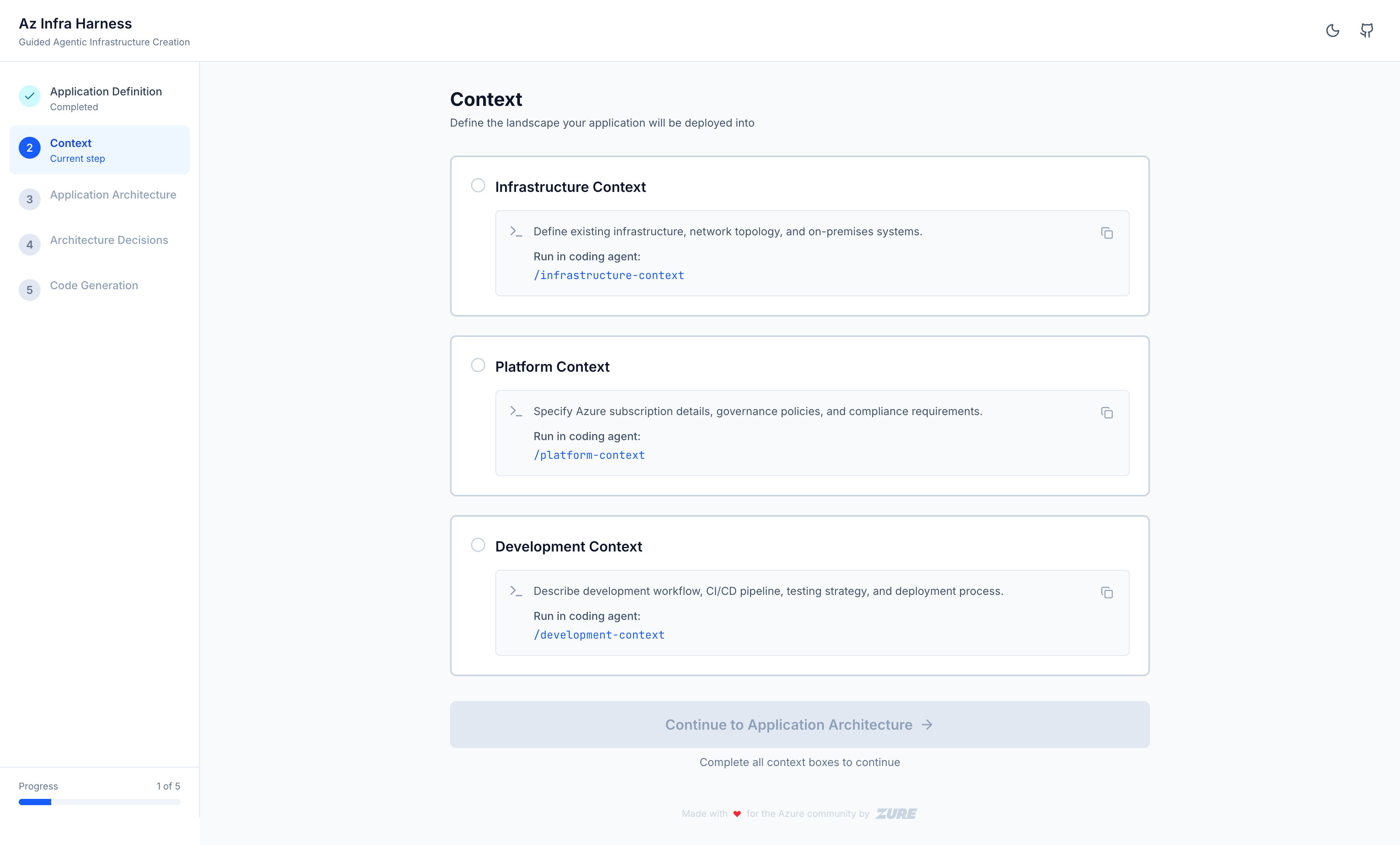
Phase 2 — Context
Describe your existing infrastructure, platform services, and development workflow.
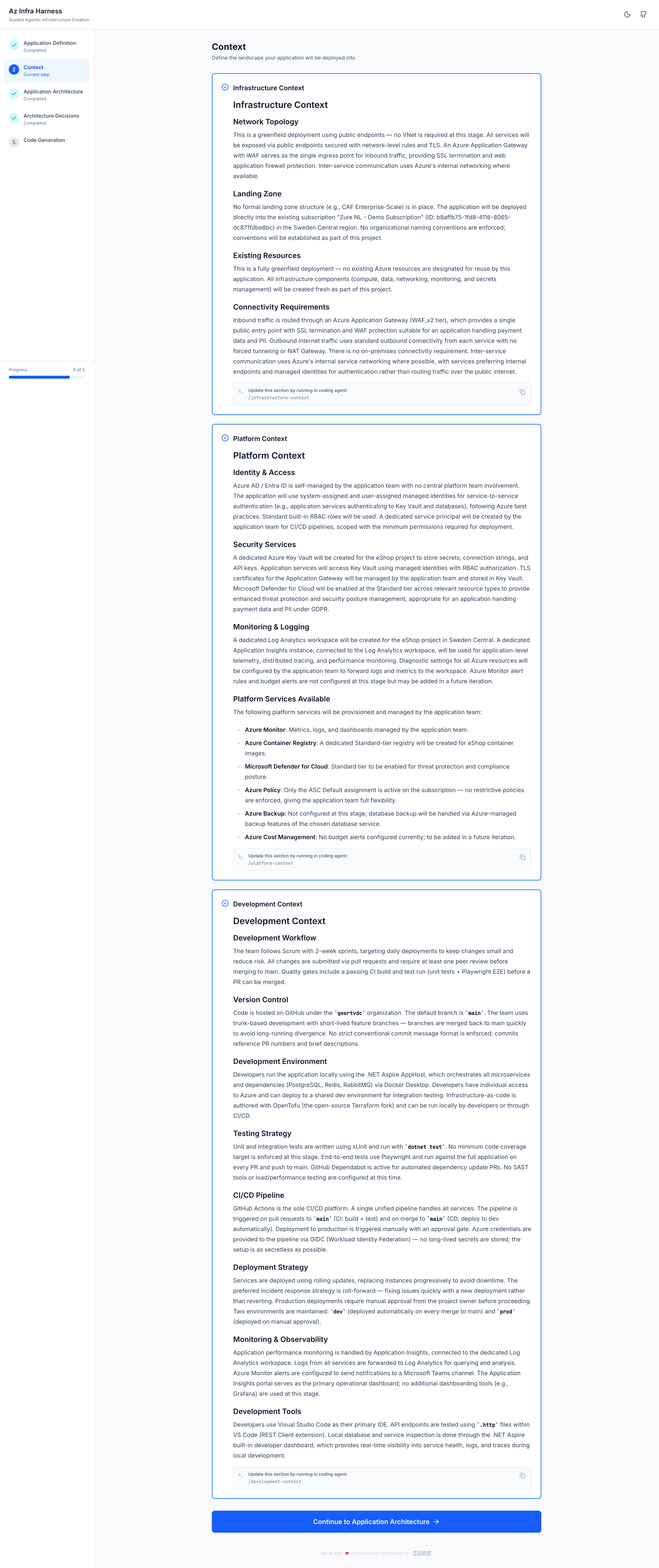
After running /infrastructure-context, /platform-context, and /development-context, all three cards complete.
Phase 3 — Application Architecture
Map your components to Azure services and generate an architecture diagram.
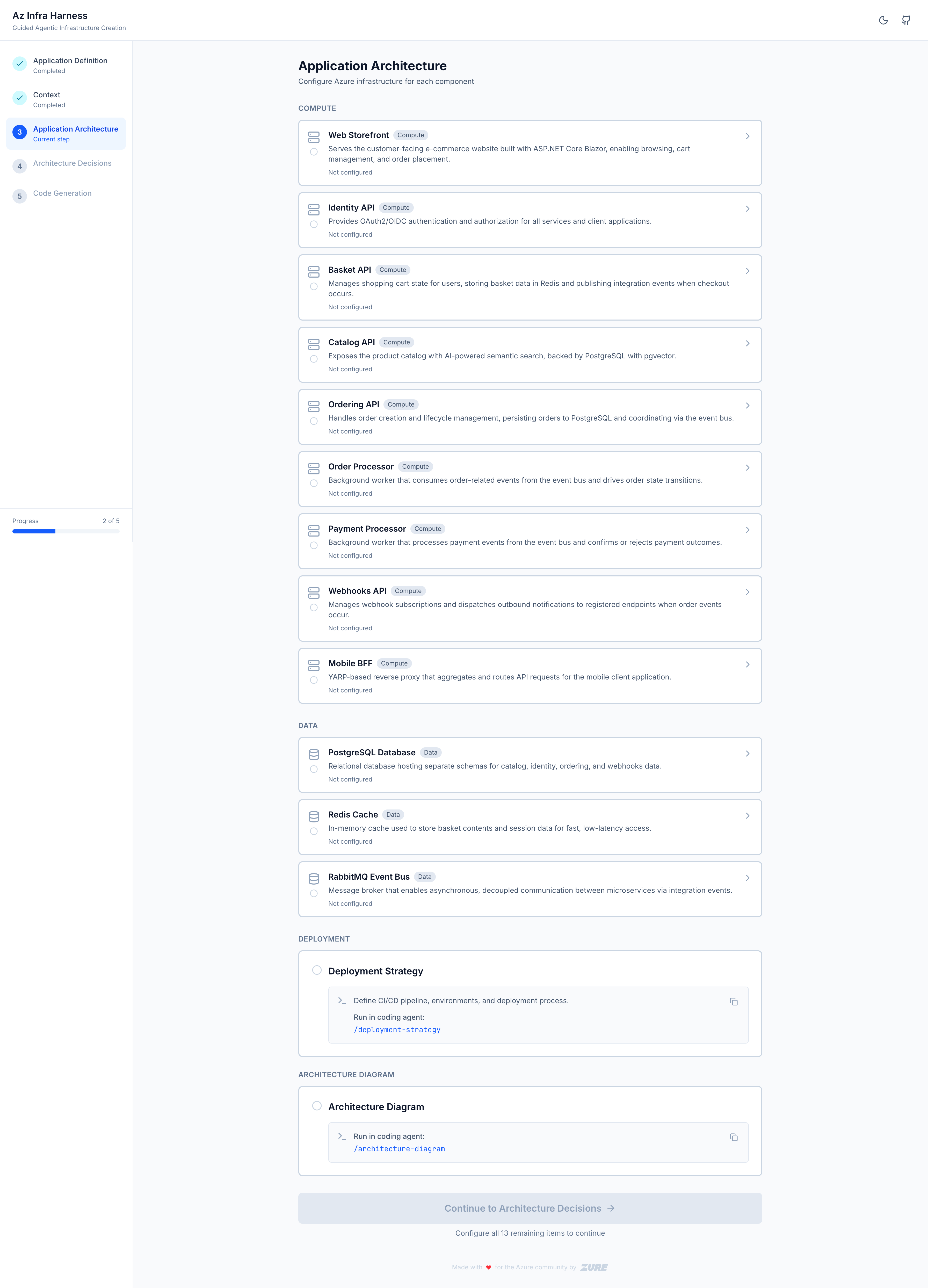
After running /configure-component, /deployment-strategy, and /architecture-diagram, the diagram renders and all component cards are filled in.
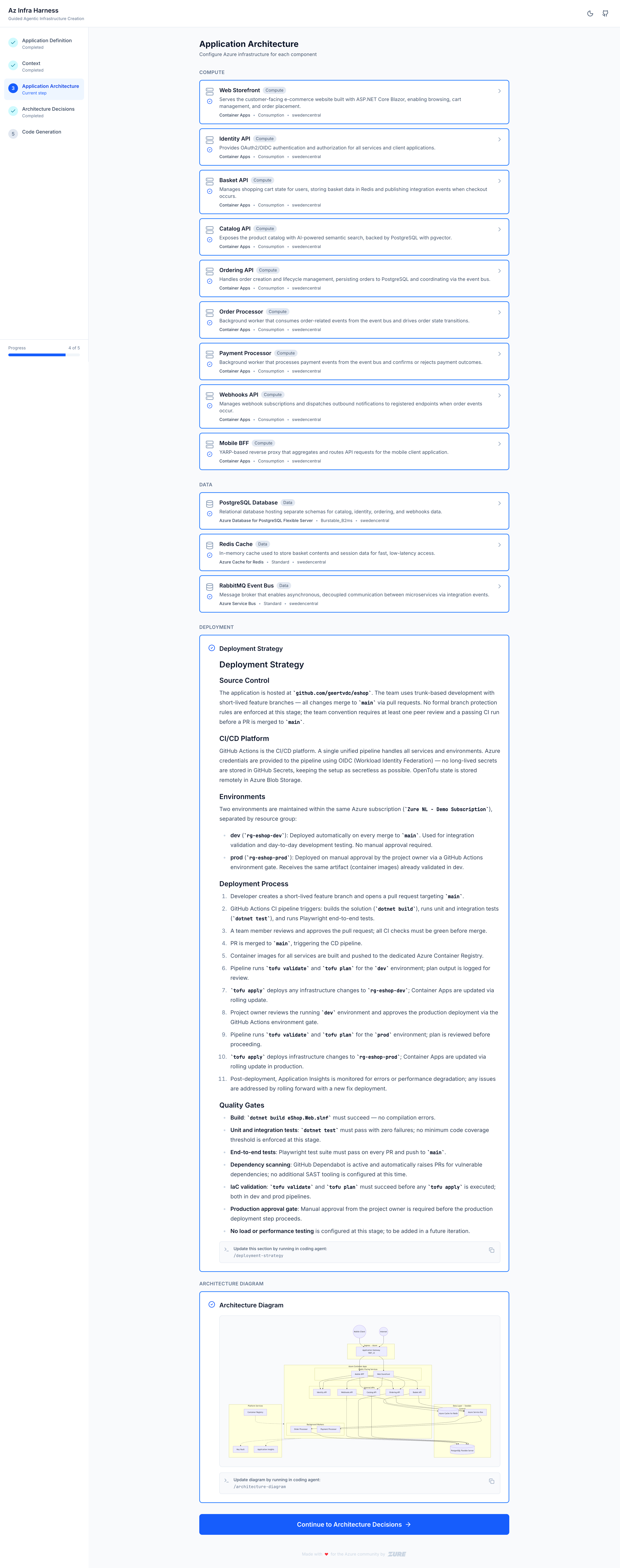
Each component card can be expanded to see the full Azure service configuration.
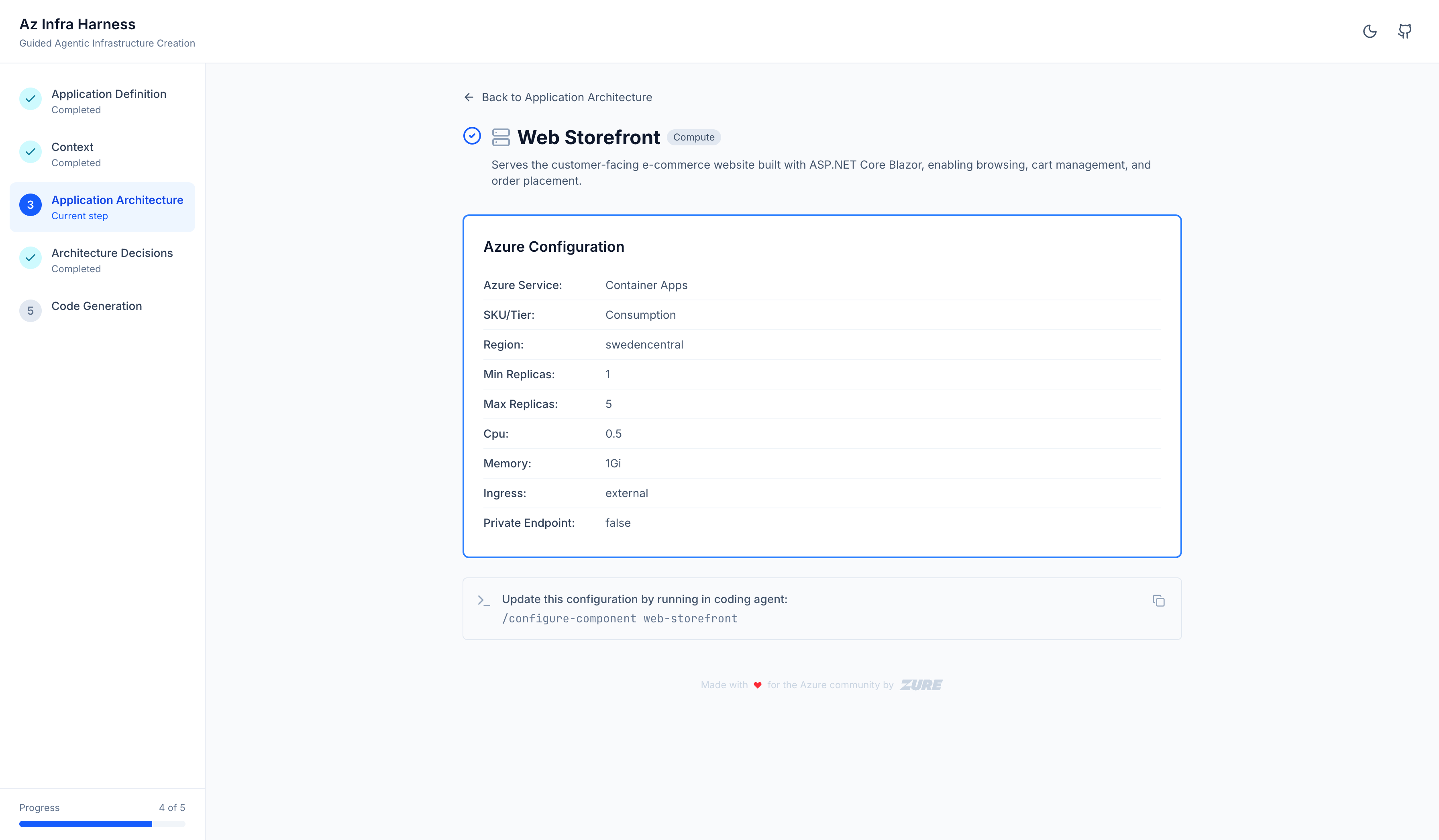
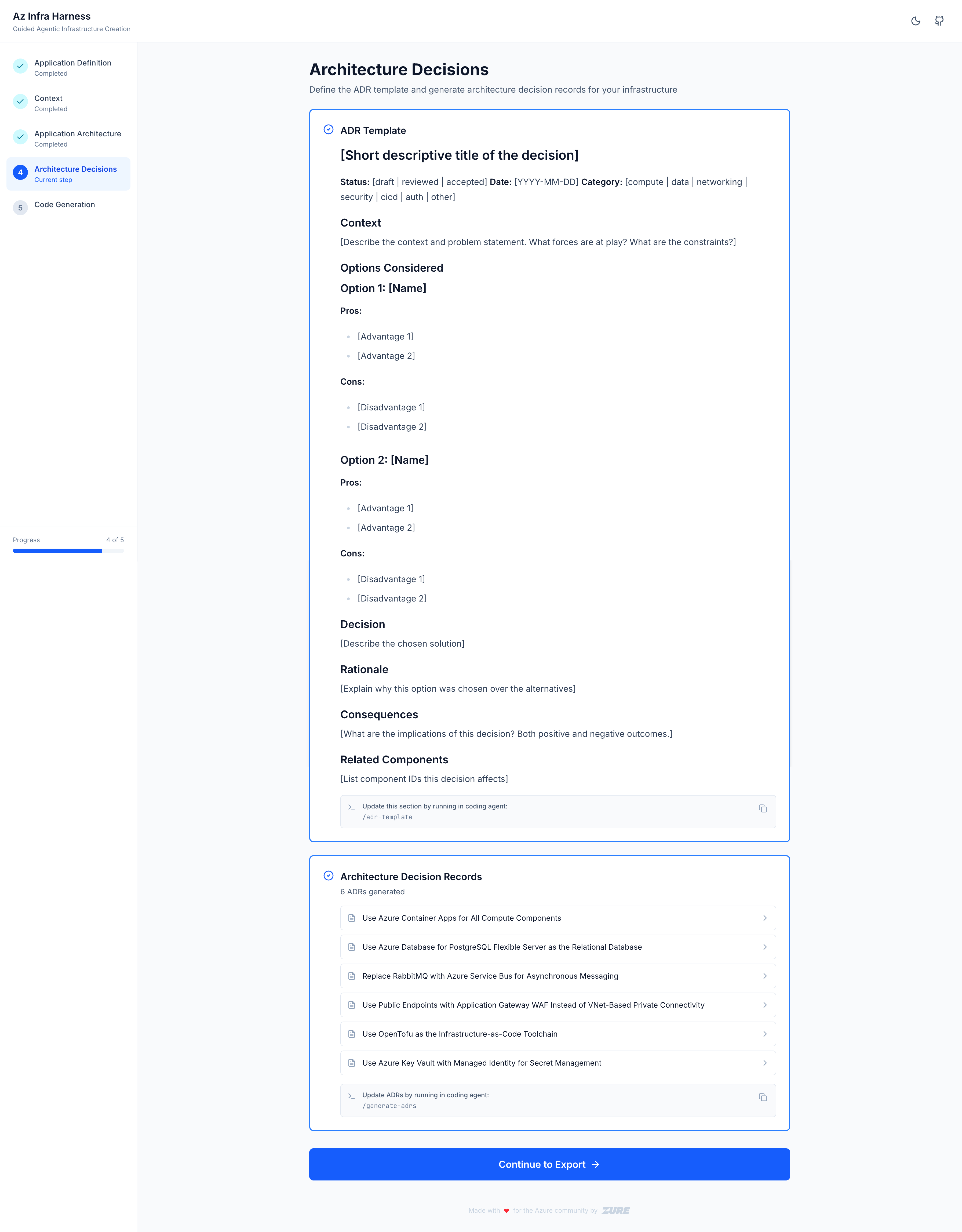
Phase 4 — Architecture Decisions
Document trade-offs using Architecture Decision Records (ADRs).
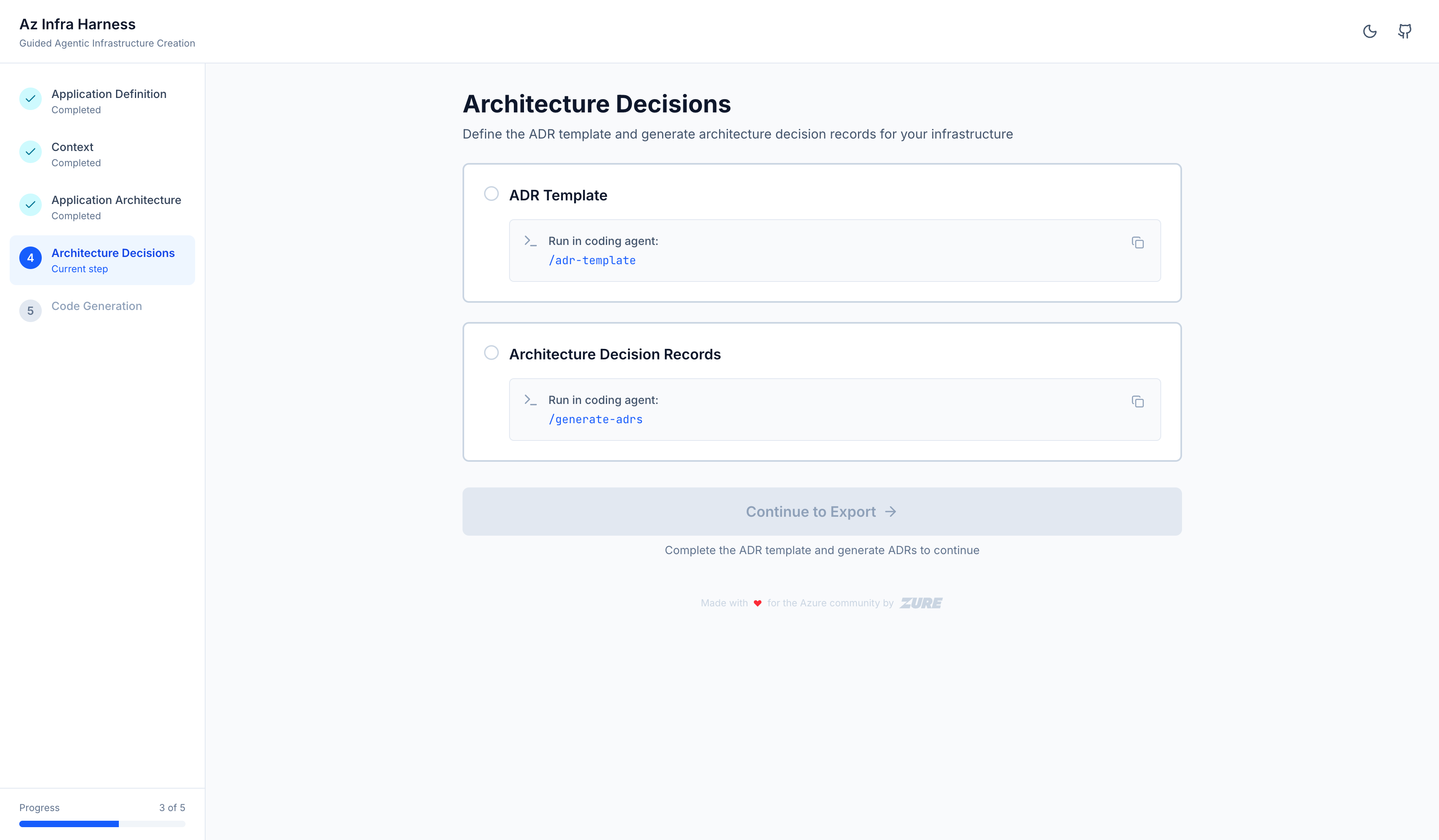
After running /generate-adrs, the agent creates ADRs for each significant decision.
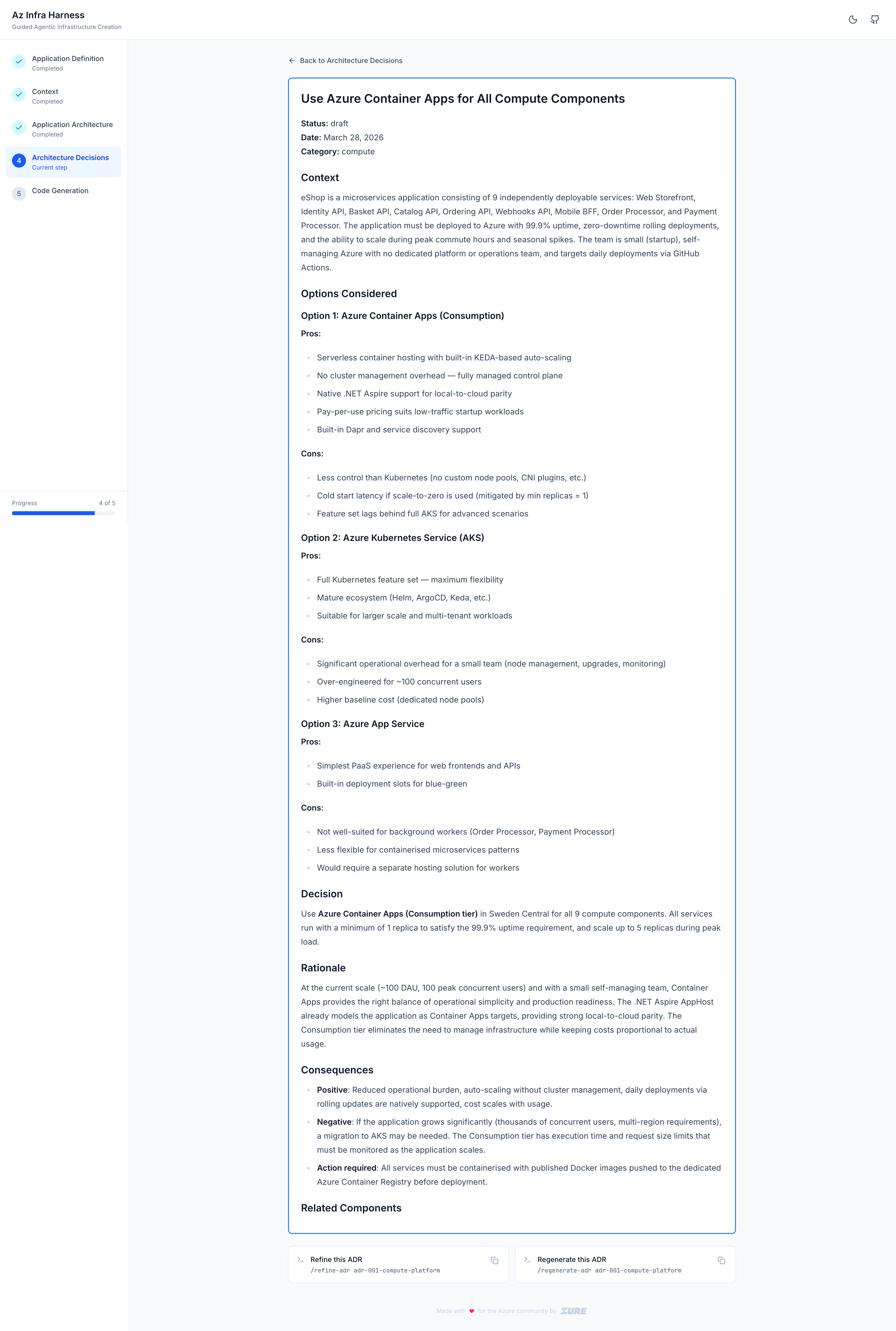
Each ADR shows context, rationale, alternatives, and consequences.
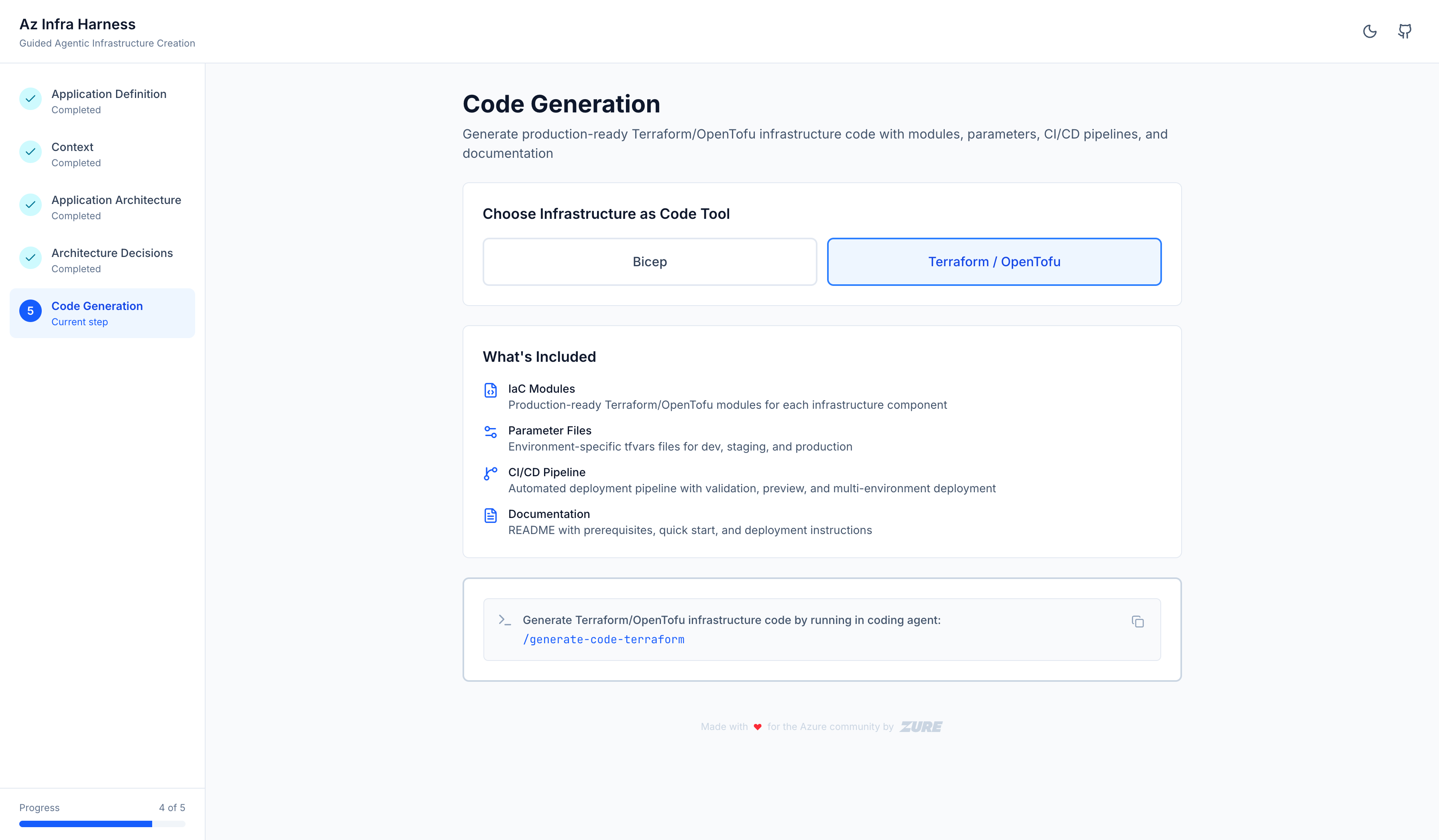
Phase 5 — Code Generation
Generate production-ready Bicep or Terraform from everything captured so far.
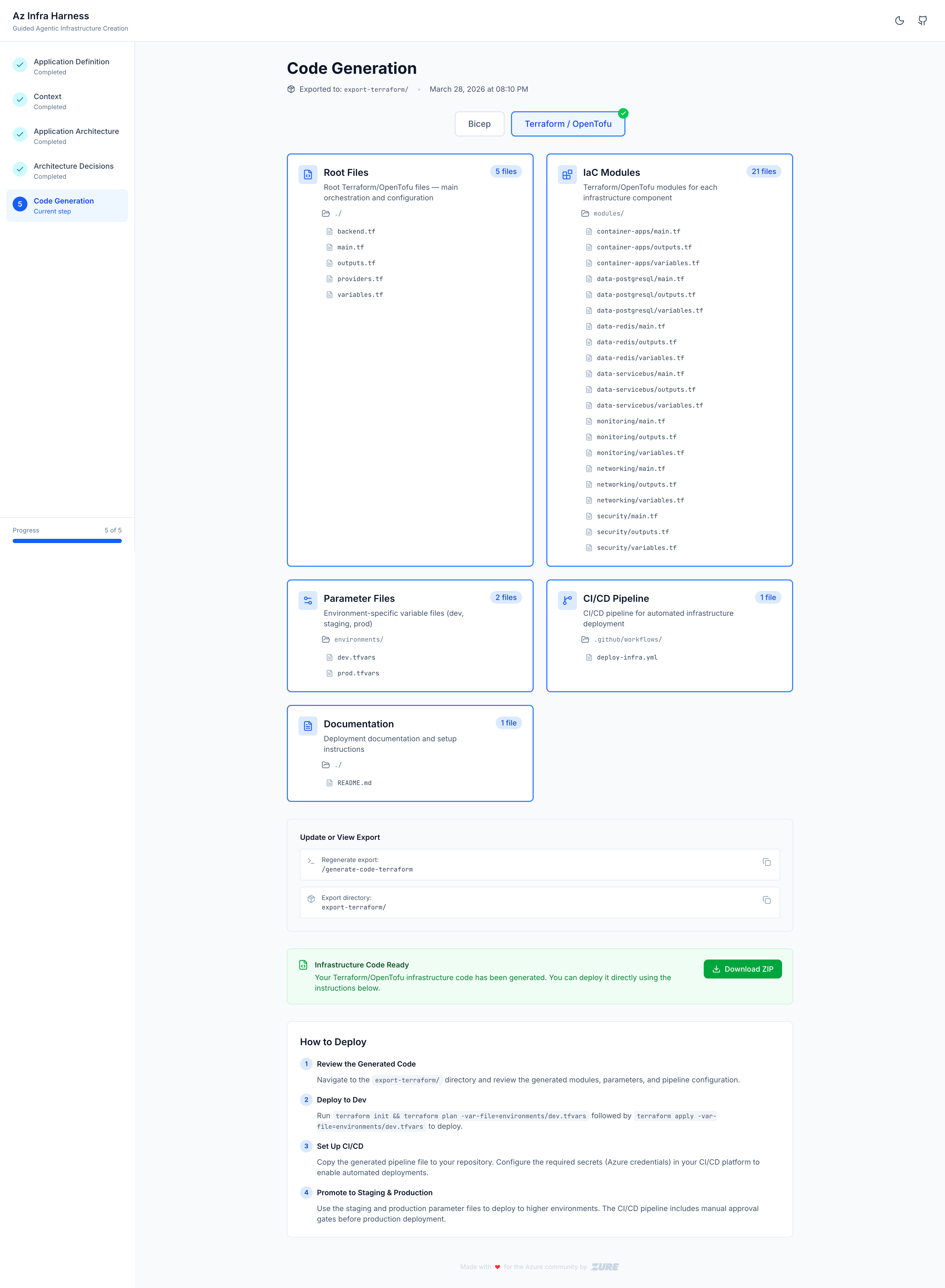
After running /generate-code-terraform (or /generate-code-bicep), the agent creates a complete IaC module structure with root files, per-component modules, parameter files, and a CI/CD pipeline — all downloadable as a ZIP.
Quick start
npx @zureltd/az-infra-harnessThis starts the planning UI at http://localhost:3000.
Options
npx @zureltd/az-infra-harness                        # default port 3000
npx @zureltd/az-infra-harness --port 8080            # custom port
npx @zureltd/az-infra-harness --data-dir ./my-plan   # custom data directory
Install agent commands into your project
Before using the slash commands, install the agent configuration for your coding agent of choice:
npx @zureltd/az-infra-harness init --agent claude    # Claude Code
npx @zureltd/az-infra-harness init --agent copilot   # GitHub Copilot
npx @zureltd/az-infra-harness init --agent opencode  # OpenCode
This copies the slash command definitions and shared skill files into your project so your agent can use them.
Using the slash commands
Once the UI is running and agent commands are installed, open your coding agent and run commands like:
/application-overview
/application-components
/non-functional-requirements
/infrastructure-context
/platform-context
/development-context
/configure-component
/deployment-strategy
/architecture-diagram
/generate-adrs
/generate-code-bicep
/generate-code-terraform
Your agent will ask you questions, then write structured files to src/data/. Refresh the browser to see your progress reflected in the UI.
Requirements
- Node.js >= 18
- A supported coding agent: Claude Code, GitHub Copilot, or OpenCode
Contributing & development
To run from source:
git clone https://github.com/Zure/az-infra-harness
cd az-infra-harness/src
npm install
npm run dev
The app will be available at http://localhost:3000 with hot reload.
npm test          # run unit tests
npm run lint      # run ESLint
npm run build     # build standalone production bundle
License
MIT — see LICENSE.