
adaptorex
v2.11.2
Published
Connect all your live interactive storytelling devices and software


Readme
adaptor:ex server
Server application for the adaptor:ex storytelling engine that connects your digital and physical interfaces.
adaptor:ex is digital duckt tape for multi linear stage plays, theatre games, messenger adventures or escape rooms. The versatile tool is especially suitable to build storytelling games in the Telegram Instant Messenger.
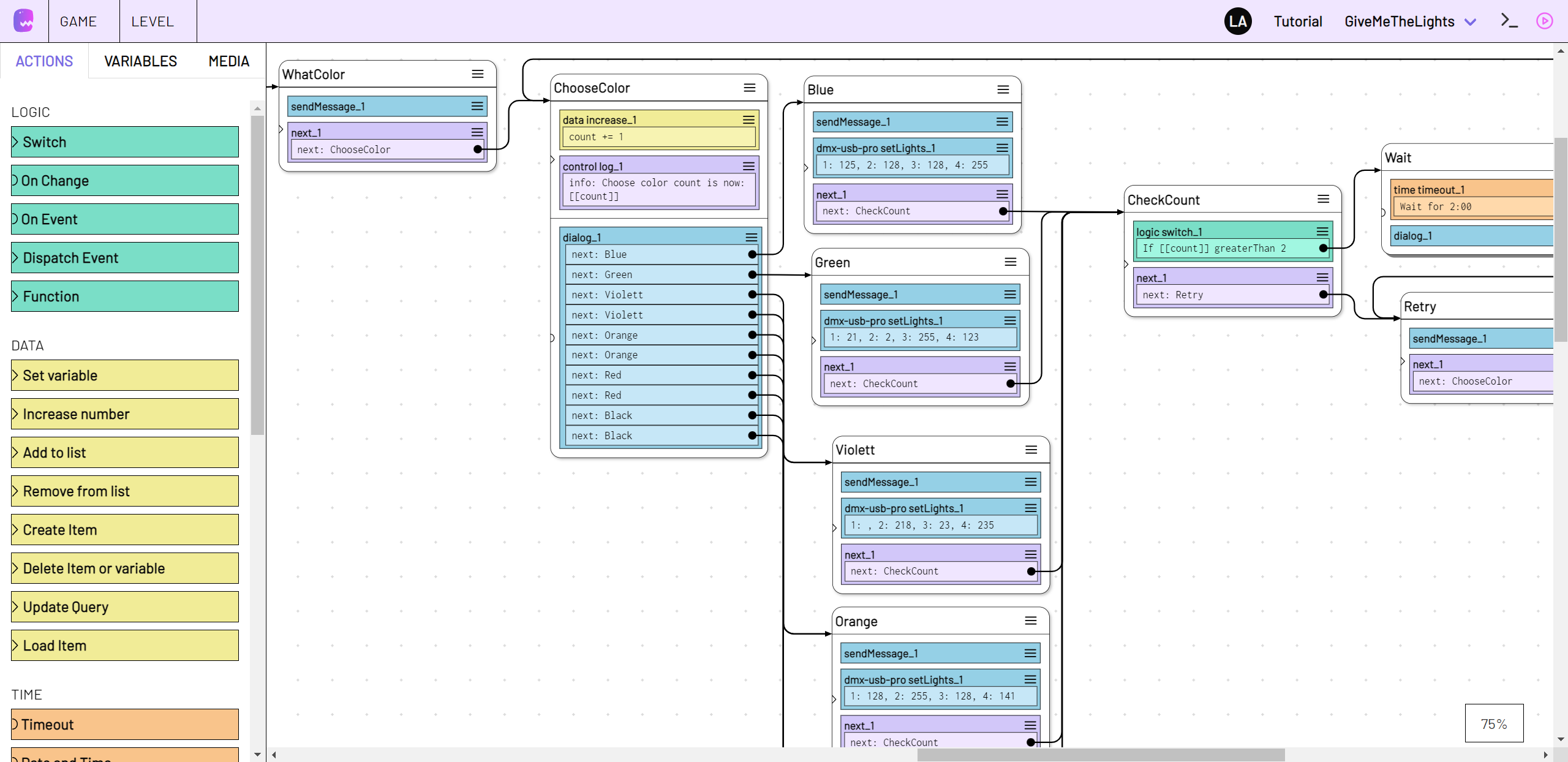
The following pages provide details and customization information about the server setup. If you are just getting startet or need more general information about adaptor:ex, checkout our Documentation Homepage.
Content
Install
If you haven't already, install the latest version of nodejs for your operation system which includes the nodejs package manager npm.
Install npm package as global Command Line Interface
$ sudo npm install -g adaptorex --unsafe-perm
Install alternatives
Besides using NPM you can also download the executable app for your OS or install adaptor:ex from source or inside docker containers. For detailed information see the install page and our server-setup guide on adaptorex.org.
Getting started
Run
$ adaptorex
this will start adaptor:ex server with default settings.
Checkout the Docs if you installed from source.
By default the adaptor:ex web interface will be accessible on http://localhost:8081. Open this URL in an up to date Web browser like Chrome or Firefox.
Learn how to use adaptor:ex in one of our Tutorials at adaptorex.org.
By default adaptor:ex will create a data folder called adaptorex in the current directory. Take a look at Configuration if you want to store data in a different place.
Instead of the embedded database NeDB you can use adaptor:ex with mongodb too.
Configuration
To change basic settings you can start adaptor:ex with additional options.
For example, to run adaptor:ex with a detailed debug log, call adaptorex and append the level option:
$ adaptorex --level debug
All options you provide are stored to a config file. So adaptor:ex server will start based on previously appended options.
By default adaptor:ex creates a config.json file in the ./adaptorex directory. Use the config option to use or create a different config file:
$ adaptorex --config /path/to/my/config.json
More options are listed below.
| opt | long option | param |default | description
|-----|----------------|------------|-----------------|--------------
|-c |--config |[filename] |./adaptorex/config.json |config file you want to use instead of the default config.json
|-f |--files |[dir path] |./adaptorex |Directory to store and load variable data files.
|-p |--port |[portno] |8081 |port number for access to adaptor:ex API
|-h |--host |[webaddress]|http://localhost |address that enables webplugins to reach your adaptor:ex webserver remotely
| |--headless | | |do not serve the included client build website
|-o |--open | | |open a window in the default browser with the editor website (not possible in headless mode)
|-l |--log |[loglevel] |info |level of console output can be set to "trace", "debug","info","warn", "error" or "silent"
|-d |--database |[db type] |nedb |Change database to mongodb (external) or NeDB (embedded)
|-m |--mongodburl |[db url] |mongodb://localhost:27017?replicaSet=adaptor-repl |url to connect to mongodb. Use with -d mongodb
|-a |--auth |[auth type] |disabled |secure the web ui with a login. Set to "disabled" to disable auth or use "basic" to enable basic auth
| |--plugins |[dir path] |[] |Additional directory to search for plugins
|-v |--min-npm-plugin-version |[version] |0.1.0 |Minimum npm version required by plugins from npm to be shown in the UI
| |--python |[py path] |python/python3 |Set the path to, or executable name of your python3 installation. Default is python3 except for Windows OS it's python. Note: As of today there is no plugin known that requires a python install
Client
See the adaptor:ex client readme for customization options to the client web app.
Games
Besides these configuration options, the config file stores what games to load on startup.
Whenever you load or remove a game, config is adjusted accordingly.
If you use a fresh config file adaptor:ex server will not load any games you might have created.
Use the load command to restore game data that has previously been created
Secure with user Authentication
Enable Basic Auth authentication for the web editor interface like this
$ adaptorex --auth basic
If you enable authentication you need to add user logins to the config.json file to gain access to the editor.
Add the users field with a list of user logins to your config.json file:
"users": [
    {
      "login": "ada",
      "password": "secure!?&"
    },
    {
      "login": "grace",
      "password": "secure123"
    }
  ]
Your config file will look similar to this:
{
  "host": "http://localhost",
  "port": 8081,
  "data": "./adaptorex",
  "database": {
    "type": "nedb"
  },
  "level": "info",
  "authentication": "basic",
  "users": [
    {
      "login": "ada",
      "password": "secure!?&"
    },
    {
      "login": "grace",
      "password": "secure123"
    }
  ]
}
then start or restart adaptorex. If you now open the webinterface you should get a prompt to enter username and password.
User roles
Users will be able to access and change all games without restriction unless you assign a role for at least one user.
Add the role property to each user and assign one of the predefined roles admin, owner, developer, author, operator or viewer
"users": [
    {
      "login": "ada",
      "password": "secure!?&",
      "role": "developer"
    },
    {
      "login": "grace",
      "password": "secure123",
      "role": "admin"
    }
]- viewer: View only. Can not edit the game
- operator: Technicians or non-experts who supervise a game during a live show
- author: Text writers, sound designers or graphic designers who mainly produce content for a game
- developer: Engineers who work on a game, especially in terms of technology and structure
- owner: Can create new games and update and access all resources in their own games
- admin: Like Owner but has always access to all games
User game roles
If users should only have access to specific game projects, add the games property. That is an array of objects containing a name and a role property. name must match the name of the respective game. role must match one of the above roles.
"users": [
    {
      "login": "ada",
      "password": "secure!?&",
      "role": "developer",
      "games":[
        {
          "name":"AdasMathAdventures",
          "role":"owner"
        }
      ]
    },
    {
      "login": "katherine",
      "password": "secure#+=",
      "role": "author",
      "games":[
        {
          "name":"Spaceflight",
          "role":"owner"
        },
        {
          "name":"AdasMathAdventures",
          "role":"operator"
        }
      ]
    },
    {
      "login": "grace",
      "password": "secure123",
      "role": "admin"
    }
  ]
With the above config you get the following setup:
- user
adawill only be able to accessAdasMathAdventuresthough has all rights to the project. - user
katherinehas access to the gamesSpaceflightandAdasMathAdventuresthough she has only full access to theSpaceflightproject. InAdasMathAdventuresshe can only control sessions and data items. - user
gracehas full access to both gamesSpaceflightandAdasMathAdventures. If there are any other games not listed in the users config she will be the only user that can work with them.
Once you added the role or games property to at least one user, all users that do not have a role assigned will be treated as viewer. Users that do not have any games assigned will not have access to any game. Only exception are users with the role admin (Full access to all games).
If you use game specific roles, the base role will only anymore distinguish between admins and non admins.
Commands
Basic functionalities of adaptor:ex can be controlled via command line. Commands and arguments are separated by whitespaces.
log debug - Set log to the more verbose debug level
Commands can address the whole setup or specific games. If there are more than one games loaded, you have to address the game you want to interact with by name.
testgame plugin list - get a list of all active plugins in testgame
If there is only one game active, you will address it automatically if you use a valid game command.
plugin list - has the same result as the above if testgame is the only game in your setup.
To forward commands to a specific API topic (levels, sessions, a specific plugin or collection), prepend the topic name after the game name.
testgame level archive restore mylevel - restore the level document with name mylevel
In example, to forward commands to a specific plugin, address it by name.
testgame devices http list - show all http items in the devices plugin
To address documents or items in API topics you can use their name or _id properties
testgame devices http myhttpdevice settings - get the settings for http device myhttpdevice
To address items you can also use their index, that is based on their order in the list of items. Use list to get all items.
testgame players list - get all items in the players collection
Items will have a number assigned. You can use it to address the item instead of using name or _id.
testgame players get 3 - Get details about the players item at index 3.
Be aware that indexes might change when items are removed or added.
To address elements that contain space characters, wrap them in quotes (" or ')
Use the following commands to control adaptor:ex server from command line.
main
|cmd |args |description
|-----------|------------------------- |--------------
|quit |- |close running adaptor:ex server. same as ctrl+c
|games |- |list currently loaded games
|load |[game][template] |load from DB or create new game. Optionally choose template for quick setup.
|unload |[game] |remove game from adaptor:ex server. Keep it in Database
|del/delete |[game] |delete game, including database (!)
|log |[log level] |change log level to "trace" (everything), "debug", "info", "warn", "error" or "silent" (off)
|plugins |- |list all plugins that can be added to games
|plugins |install [plugin][version] |install the selected plugin. Optional: Append version if not latest (NPM only)
|plugins |uninstall [plugin] |remove the selected plugins installation files
|plugins |reload [plugin] |reload the selected plugin module. Will not reinstall dependencies.
|urls |- |print a list of all known urls adaptor server can be accessed with
|api |- |print a list of all known API urls adaptor API can be accessed with
|whitelist |add [url] |add a url to be allowed as cross origin url
|whitelist |remove [url] |remove a url from whitelist for cross origin access
|whitelist |any |allow access from any url (remove whitelist)
|whitelist |none |block access for all urls except localhost (clear whitelist)
game
If you have more then one game loaded, prepend commands with game name.
|cmd |args |description |-----------|---------------------|-------------- |plugin |list |list active plugins |plugin |add [plugin] |activate plugin |plugin |remove [plugin] |deactivate plugin and delete all items |collection |list |list custom collections |collection |create [collection] |create new custom collection |collection |delete [collection] |delete existing custom collection
API topics
Send API commands to view and manage levels, sessions, collections and plugins
Prepend commands with API topic name.
|cmd |args |description |-----------|--------------------|-------------- |list | |list all items in the topic |count | |number of items in the topics collection |get |[name/id/index] |get details about an item in the topics collection |archive |[name/id/index] |remove an item from the collection to the archive |archive |list |get a list of all archived items in the topic |archive |count |get the number of archived documents for this topic |archive |delete [name/id/idx]|remove an item from the archive and permanently delete it |archive |clear [keep] |remove all items in the archive and permanently delete them. [keep] (optional) the newest n items. |restore |[name/id/index] |restore an item and move it back to the original collection. |delete |[name/id/index] |permanently delete an item. Do not move it to archive.
sessions
The session topic has some additional commands on top of the above.
|cmd |args |description |-----------|----------------------|--------------- |launch |[level] [name] [args] |start session with [name] (optional) based on [level] with arguments (optional) |cancel |[name/id/index] |cancel session using [index], [id] or [name] |cancel |[key] [value] |cancel sessions based on a key/value query |cancel |all |cancel all sessions and all their listeners in this game
Examples
Launch a session based on level testlevel with name testsession and Player argument referring to a document with name testplayer
session launch testlevel testsession Player testplayer
Cancel all sessions based on the level testlevel
session cancel level_name testlevel
control a session
You can manage specific sessions via their name or index.
|cmd |args |description |----------|------------------------------------------|-------------- |next |[name] |dispatch a state with [name] in this session |listeners | |list currently active listeners |listener |cancel [name/index] |cancel listener by [name] or [index] |reference |list |show all references assigned to this session |reference |assign [collection] [document name] [name]|create new reference [name], linking to document with [document name] in [collection] |player | |list references in player collection that are assigned to this session |remove |[reference] / [collections] [key] [value] |remove existing reference using [reference] name or specifying a query ([key] [value]) in [collection]
Example
testgame session 4 next MyState- Dispatch state MyState in the session with index 4.
level history
Manage the level revision history.
Address history of a specific level by prepending level <level name> history.
Address revisions by their id property. Get the revision id using the list command (purple number to the left)
|cmd |args |description |--------------|--------------------|-------------- |count | |Count number of revisions for level |list | |Show a list of all level revisions |create |[name] |Create a revision in the level history. Name is optional. |restore |[id] |Restore a revision and overwrite the current level. |delete |[id] |Delete a revision entry. |clear |[keep n entries] |Delete all revisions. Use optional number arg to keep the latest n entries.
Example
create another revision of MyLevel with name NewRevision
testgame level MyLevel history create NewRevision
restore revision 2 of MyLevel with name NewRevision
testgame level MyLevel history restore 2
plugin
Send commands to plugins you added to your game.
Prepend commands with plugin name.
plugin collection items can also be addressed by name property.
use collections command to show available collections for plugin.
|cmd |args |description |-----------|--------------------|-------------- |collections| |list available collections
If plugin has multiple collections prepend collection to address items.
To look into item properties like settings use
|cmd |args |description |-----------|--------------------|-------------- |[property] | |show property
time
|cmd |args |description |----------|--------------------|-------------- |list | |list all running timer
devices
General commands
|cmd |args |description |----------|--------------------|-------------- |list | |list all devices |ports | |get list of midi and serial ports |midi |on/off |enable (on) or disable (off) midi
Commands addressing specific device. Prepend device name
|cmd |args |description
|----------|--------------------|--------------
|send |[json message] |Send message to device. E.g.: {message:"content"}
|settings | |show device settings
|reconnect | |reconnect device with current settings
For example to send a message to your TCP Device 'lightbulb' telling it to go off do:
devices lightbulb send '{switch:"off"}'
twilio
Commands adressing specific twilio phone. Prepend phone name
|cmd |args |description |----------|--------------------|-------------- |routing |sms/answer/status |show current call and/or sms routing. |cancel |sms/answer [number] |cancel routing for incoming sms or call for Telnumber [number] |pending | |Show incoming call or sms events from unregistered telnumbers that were not yet forwarded to a session |lock | |Disable requests to twilio for this phone (E.g. to save costs when testing) |unlock |cancel [name/index] |Enable requests to twilio for this phone
telegram
Commands addressing accounts. Use like this:
> telegram accounts <account name> <command>
|cmd |args |description |-----------|-------------------------|-------------- |routing |-/message |show current message routing. |cancel |message [id] [index] |cancel message routing at [index] for messages from user [id] |pending | |Show incoming messages from unregistered peers that were not yet forwarded to a session |user |[entity] |get user info through telegram API. Use '+' format number to get user by phone number. See also telethon get_entity |add_contact|[phone/id] [first name]/-|add user to accounts contacts. Use [phone] and [first_name] or get user by [id].
ableton
|cmd |args |description |----------|--------------------|-------------- |livesets | |List livesets
d-pro (deprecated)
|cmd |args |description |----------|--------------------|-------------- |shows | |List D-Pro Shows
tradfri (deprecated)
|cmd |args |description |----------|--------------------|-------------- |discover | |Discover Tradfri Gateway and show devices
Docker Guide
To access adaptor:ex server command line inside the docker container use
$ docker attach your_docker-adaptor-server_1
where your_docker-adaptor-server_1 is the name of your adaptor:ex server docker container.
If you used the docker-compose.yml in this repository, the name is composed of the directory in which you installed adaptor:ex and adaptor-server and a number counting up from 1 for each installed docker-compose instance.
Deatach with keys [ctrl] + [P] and then [ctrl] + [Q]
To take a look at the server logs use
$ docker logs your_docker-adaptor-server_1
Restart docker container with
$ docker restart your_docker-adaptor-server_1
MongoDB
By default adaptor:ex server uses the embedded NeDB Database. For larger projects with many sessions it is recommended to use mongodb instead. It's a scalable NoSQL database that is used in many Web Applications.
NeDB was actually built to replace mongodb for smaller, local projects. It has a similar query language, but it is not as advanced as mongodb itself. When you connect adaptor:ex with mongodb you can use it's extensive query language when developing Game Installations.
If you are not using local hardware interfaces we recommend using the docker compose install option which includes mongodb. Otherwise follow beneath instructions.
Install and Setup
Start by following the instructions on how to install mongodb community edition for your operation system.
Adaptor:ex comes with a shell file mongo.sh to setup a database with a so called 'replica set' that is needed for use with adaptor:ex. Unfortunately it can only be used with MacOS or Linux.
Enter the adaptor:ex source directory.
If you did not install adaptor:ex from source, download the mongo.sh file and mongod.conf config template file beforehand:
wget https://gitlab.com/machina_ex/adaptor_ex/adaptor_ex_server/-/raw/main/mongod.conf; wget https://gitlab.com/machina_ex/adaptor_ex/adaptor_ex_server/-/raw/main/mongo.sh
Use the shell file to run the database setup. Make the file executable:
chmod +x mongo.shThen run the script with the setup argument:
./mongo.sh setupand follow the instructions.
Append your adaptor:ex data directory to the command if your data directory is not the default (./adaptorex)
./mongo.sh setup ./my-adaptor-dataSame goes for
startandstop
To create a default mongodb setup that works well on your local machine press enter for the default value on all input prompts.
This creates required database folders, config files and initiates mongo replica sets which are necessary for adaptor:ex change listeners.
Once it is set up, you can always do
sh mongo.sh startto start mongodb before you run the node script and
sh mongo.sh stopto stop the mongodb process.
On the last lines mongo.sh setup will tell you with what options to start adaptor:ex to connect it to the mongodb server.
It should look something like this, depending on your individual options:
adaptorex --database mongodb --mongourl 'mongodb://localhost:27017?replicaSet=adaptor-repl'To see If the mongod service is running properly, use
ps aux | grep -v grep | grep mongodReplika setup is based on this tutorial
Access from a remote location
To access the adaptor:ex game databases from a remote location, it is recommended to enable authentication.
You can use mongo.sh setup to create a root user and enable authentication for mongodb.
When hosting adaptor:ex with remote access you should also secure the webview. See Configuration on how to secure the web editor with login and password.
Once mongo.sh setup asks you to create a user, type a username and press enter.
mongo.sh setup will now ask you to choose a password for this user and if you want to allow remote access to your database.
If you confirm, the mongodb will be bound to ip 0.0.0.0 instead of 127.0.0.1 which allows to access the database on the given port using your server ip or domain.
To allow the adaptor:ex node script to access the secured database, run adaptorex with the following options. Replace <username> and <password> with your mongodb user and password and <port> with your primary replica set port (default would be 27017):
adaptorex --database mongodb --mongourl mongodb://<username>:<password>@localhost:<port>/admin?replicaSet=adaptor-repl
For a quick answer on how
mongo.sh setupcreates authentication for mongodb replica sets see this helpful post
By reusing mongo.sh setup you can always disable authentication or create a new root user for mongodb. Though it is not possible to change the password for an existing user. When creating the same user with a new password your changes to the user will be ignored. See the mongodb user management manual on how to use the mongo shell to change user settings.
Config files for all replica sets are found in the data mongodb folder. If you make changes to the files be aware that using mongo.sh setup, will overwrite these changes.
Remote connection into docker container
If you use adaptor:ex server inside of docker, you might need to access the database via an ssh tunnel. For that you can get the IP address of the running database like this:
sudo docker inspect -f '{{range.NetworkSettings.Networks}}{{.IPAddress}}{{end}}' yourdocker-adaptor_server-1where yourdocker-adaptor_server-1 is the name of your docker instance (depending on your setup)
Backups
Create
When using mongodb the easiest way to create full backups of your games is using mongodump.
Make a command like this, to export a games full database:
mongodump --db <mygame> --username <myuser> --password <mypassword> --authenticationDatabase admin -o /path/to/backupfolderSchedule
Creating a bash script when you automate the backup process helps keeping your backups in order. Make a new file called something like run_backup.sh with the following example content:
#!/bin/sh
DIR=`date +%Y-%m-%d_%H:%M:%S`
DEST=./my-project/backup/$DIR
mkdir $DEST
mongodump --db <mydatabase> --username <myuser> --password <mypassword> --authenticationDatabase admin -o $DEST
To create backups regularly you can make a cron job (Linux/MacOs) that executes the above file in specific time intervals.
Open crontab editor to add a new cronjob:
crontab -u myuser -eadd the following line at the bottom of the crontab editor to make a backup every morning at 5 am:
0 5 * * * ./path/to/file/run_backup.shRestore
Restore a game using mongorestore.
To restore all games you dumped into a folder do:
mongorestore /path/to/backup/To restore a specific game do:
mongorestore --db <mygame> /path/to/backup/mygameIf authentification is enabled, add authentification credentials:
mongorestore --db <mygame> --username <myuser> --password <mypassword> --authenticationDatabase admin /path/to/backupYou can use the adaptor:ex web ui to restore the game by adding a new game with the same name. Or you can use command line, start the adaptor server and load your game from the database:
> load mygame
License
Source code licensed MIT
Authors and Acknowledgment
This is a machina commons project by

sponsored by