
agent-workbench
v0.6.0
Published
Local visual interface for coding-agent CLIs: Claude Code, Codex, OpenCode, Antigravity CLI and Pi

Maintainers
 cevelas
Readme
Agent Workbench



English · Español · 简体中文 · 日本語 · Português (Brasil) · Русский · 한국어 · Français · Deutsch
A visual workbench for the coding agents you already use: the Claude Code, Codex, OpenCode, Antigravity and Pi CLIs. It runs on your computer and opens in your browser. It uses the CLIs you already have installed and logged in, never touches your credentials, and makes no network calls of its own.
npx agent-workbench
How it works
Agent Workbench doesn't talk to any AI service. It starts the CLI you already
have —claude, codex, opencode, agy or pi— inside a real terminal, and
adds around it what a terminal alone doesn't give you: tabs, your past
conversations, the conversation as easy-to-read cards, a context meter, the
files that changed and a file tree.
The terminal is still the terminal: everything you type goes straight to the CLI.
What you get
| | |
|---|---|
| Tabs | Several agents at once, from any CLI, each in its own folder. A dot on each tab tells you whether the agent is working, idle or waiting for you. Reloading the page doesn't stop anything: the CLIs run on the server, not in the browser. |
| Fast start | When you open the app, your tabs come back asleep: you can read them in full, and no CLI starts until you click Open CLI. |
| History | Your projects and past conversations in the sidebar, from every CLI, with a filter. Click one to pick it up where you left it, with its CLI. Archive old sessions or a whole project to tidy up: nothing is deleted, and it can be undone. |
| Conversation | The messages as cards, live, with tool calls folded. Older messages load as you scroll up. Search, copy any message or code block, and jump back to your previous message (↑) or to the end (↓). A row at the bottom says when your message reached the CLI and whether the agent is still working. Depending on the CLI, you can answer the agent's questions right there. A file of the project that the agent names opens in the Files tab with one click. |
| Message box | Room to write, paste images, attach files, and long pasted text kept as a tidy chip. What you're typing survives closing the app, and shows up live in every open window. |
| Context meter | How much of the model's context window the conversation is using. Tokens, never money. |
| Changes | The branch, the changed files and their diff. Read-only: no commit or push buttons. |
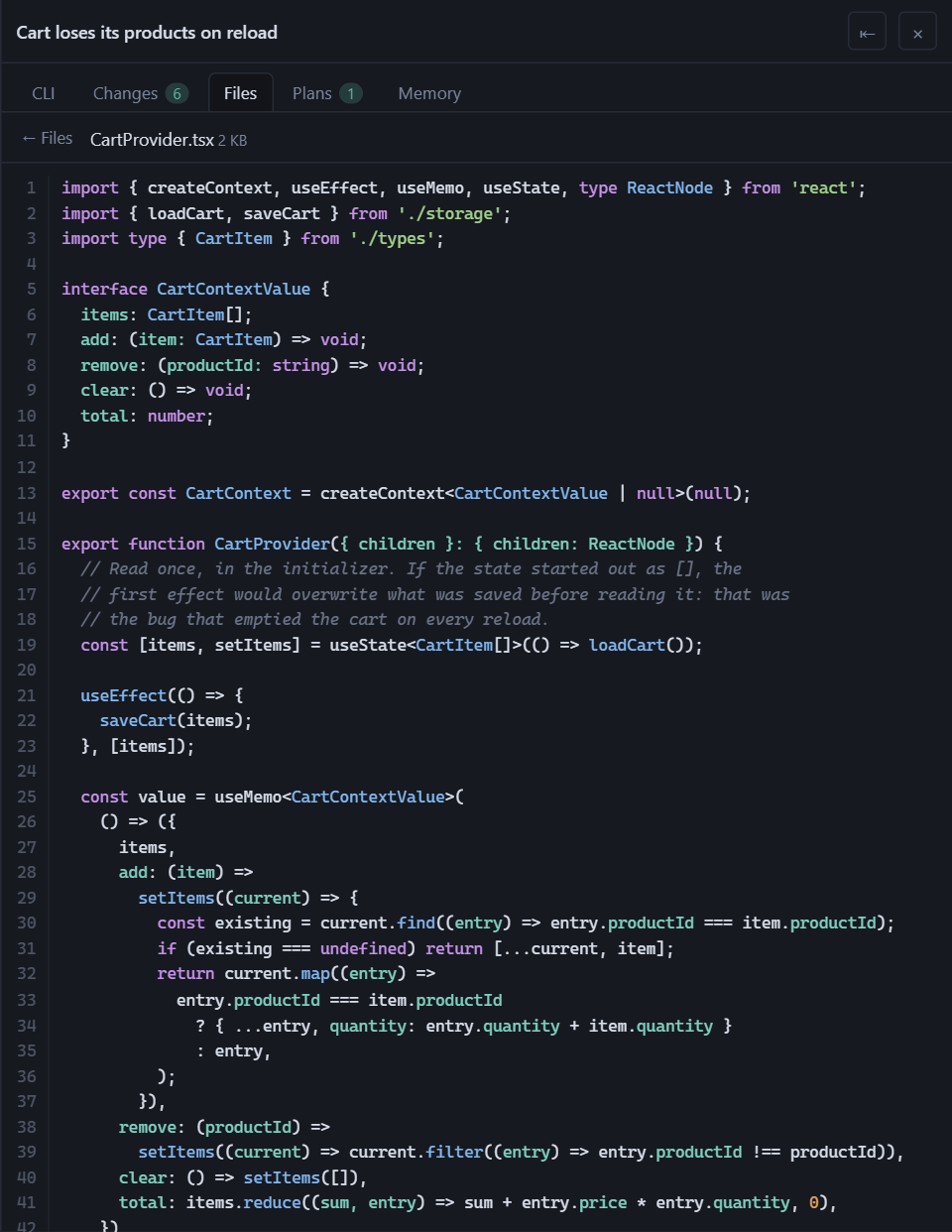
| Files | The project's file tree, with search and a preview with syntax highlighting. Open several files at once, each in its own tab; Markdown files open formatted. One click puts a file's path in your message. |
| Plans | The plans and .md documents the conversation wrote, rendered. One click puts a document's path in your message. |
| Notes | A scratchpad next to the conversation, images included. With Claude Code, one click sends a note to a new conversation. |
| Console | Your system's terminal at the bottom, in the project's folder: PowerShell, cmd or Git Bash on Windows; bash or zsh on macOS and Linux. |
| Continue with… | With more than one CLI, continue a conversation with another one in the same folder. The new agent starts from a transcript of the last turns. |
| Notifications | A sound, and optional system notifications, when an agent finishes or is waiting for you. |
| Settings | ⚙ in the header: the language, the terminal's theme, which panels show, which console opens and which CLIs the app uses. |
| Nine languages | English, Español, 简体中文, 日本語, Português (Brasil), Русский, 한국어, Français and Deutsch. It follows your browser's language. |
| Theme | Light, dark or the system's. The terminal stays dark by default, so the CLIs' colors stay readable. |
Optional, and off by default: shared memory between CLIs, a backup of your history, remote access from another computer or a phone, and an Android app.
With more than one CLI
Each session and each tab shows a small badge with its CLI, and the + for a
new tab lets you pick which one to open. With a single CLI you see none of
this.
Not every CLI shares the same information, so a few features depend on the CLI:
| | Claude Code | Codex | OpenCode | Antigravity CLI | Pi | |---|:---:|:---:|:---:|:---:|:---:| | Tab dot: working, idle, waiting for you | ✓ | — | ✓ ¹ | ✓ ² | ✓ | | Answer the agent's questions from the conversation | ✓ | — | ✓ ¹ | — | — | | Context meter | ✓ | ✓ | ✓ | ✓ ² | ✓ | | Mode and model pickers | ✓ | — | — | ✓ | ✓ ³ | | Paste images | ✓ | ✓ | ✓ | — | ✓ ³ | | Plans tab | ✓ | — | — | — | — | | Send a note to a new conversation | ✓ | — | — | — | — |
The CLI's own terminal is always there for the rest: where there's a "—", questions, for example, are answered in it.
¹ With OpenCode, the app starts a local OpenCode server to get this (details). ² Only if you set up its status line (how). ³ Pi has no permission modes: its pickers are the model and the thinking level. And it doesn't attach what you paste: an image travels as a file path that the model opens itself.
Requirements
- Node.js 20 or later. To see OpenCode's history and Antigravity CLI's conversation titles, 22.13 or later: they're read with the SQLite built into Node since that version. With an older one, everything else works.
- git, for the Changes panel. Everything else works without it.
- At least one CLI, installed and logged in:
| CLI | Command | How to install |
|---|---|---|
| Claude Code | claude | installation guide |
| Codex | codex | guide |
| OpenCode | opencode | documentation |
| Antigravity CLI | agy | guide |
| Pi | pi | pi.dev |
Agent Workbench doesn't include or download any CLI: it finds the ones in your
PATH. If there are none, it tells you so and doesn't open sessions.
Platforms. Built and used every day on Windows 11 with PowerShell. On macOS
and Linux, every change is installed and started automatically, but they get
less daily use: reports are welcome. On Linux, installing compiles the terminal
module, so you need python3, make and a C++ compiler (build-essential on
Debian and Ubuntu).
Install and start
npm install -g agent-workbenchThen, from the folder of the project you want to work on:
agent-workbenchIt opens your browser at an address like this one:
URL http://127.0.0.1:52341/?token=…That address is the only way in: the token changes on every start, and the app
only listens on your own computer (127.0.0.1).
To try it once without installing: npx agent-workbench. It downloads about
60 MB the first time, mostly the terminal's native module. For everyday use,
the global install is better.
Keyboard shortcuts
| Keys | Action |
|---|---|
| Alt+T | New tab |
| Alt+W | Close the tab |
| Alt+← / Alt+→ (or Alt+PgUp / Alt+PgDn) | Previous / next tab |
| Alt+P | Show or hide the right panel |
| Shift+Tab, outside the terminal | Back to the previous tab |
The ? button in the header lists them all, along with the active CLI's own
shortcuts. They use Alt because the browser keeps Ctrl+T, Ctrl+W and
Ctrl+Tab for its own tabs and never passes them to the page.
Every other key —Esc, Ctrl+C, Ctrl+R, Ctrl+O, the arrows, Alt+V to
paste images— reaches the CLI untouched. Ctrl+V too: what it does there is up
to the CLI. Only in the console at the bottom, on Windows, Ctrl+V pastes text,
as in Windows Terminal.
Optional extras
Shared memory between CLIs
Each CLI keeps what it learns about a project in its own place, and the others
can't see it. The Memory tab sets up one memory for all of them: notes in the
project's .agents/memory/ folder, which every CLI reads and writes —from here
or from its own terminal— through AGENTS.md and CLAUDE.md. The tab is hidden
at first: show it from ⚙ Settings.
Preview changes shows, file by file, what would be written, and nothing is touched until you confirm. Setting it up imports the memory Claude Code already had for that project. The app doesn't edit each CLI's global settings: it gives you the snippet to paste yourself.
Backup of your history
Each CLI owns its history, and it can change its format, prune it, or be uninstalled. The backup keeps a copy of your conversations —messages, tool calls and results, images, and each project's memory— in a folder of yours, in files you can read without the app.
It's off by default. Open it with the backup button at the top of the projects sidebar, or from ⚙ Settings. Measure tells you how much space it would take per CLI, without writing anything, and Turn on starts it. From then on it copies everything in the sidebar that isn't archived, and copies a conversation again a minute after it stops changing. It never deletes anything from that folder.
With the backup on:
- Conversations a CLI no longer has stay in the sidebar, marked as backup, and open as Markdown.
- Any project can be exported to Markdown.
- With more than one CLI, the sidebar filter can search In conversations: the text of everything copied, from every CLI.
By default it lives in the app's configuration folder
(%APPDATA%\agent-workbench\vault on Windows). Change folder… copies it to
another one —a synced folder, another drive— without overwriting anything, and
leaves the old one as it was. If you put it in a synced folder or a repository,
your conversations go with it.
Two one-time importers bring in history from tools the app doesn't read. They
run from the source code (below) and write nothing without
--write: without it, they only tell you what they would import.
pnpm vault:import gemini-cli [--cwd <folder>]— the chats left over from Gemini CLI.--cwdis the folder where you used it, to file them under that project.pnpm vault:import antigravity-ide --workspace <folder>— what can be read from the Antigravity IDE conversations in that folder: each one's summary and its.mddocuments. The conversation itself is encrypted, so it's marked as partial history.
Antigravity CLI: status and context meter
Antigravity CLI only tells whether it's working or waiting for you, and how many tokens it has used, through its status line. Without it, its tabs work normally, but the tab's dot says the status is unknown and the meter stays empty. To turn it on:
- Open an Antigravity tab and click Configure, next to the meter.
- Copy the line it shows and add it to what
~/.gemini/antigravity-cli/settings.jsonalready has. The app doesn't edit that file: you do. - Within a couple of seconds, or with Check, the dialog says Configured.
The line runs a small script kept in the app's own folder. It saves only each
conversation's status, mode, model and tokens —not your email, quota, plan or
cost, which the CLI also passes to it— and prints nothing, so the CLI's own
status line stays as it was. Once set, it runs on every agy session,
including the ones you open outside the app, and it needs node in the
PATH.
Remote access over SSH
Leave Agent Workbench running on one computer and use it from another one on
your network, in its browser, with no CLI installed there. The app is never
opened to the network: it still listens only on 127.0.0.1, and the other
computer reaches it through an SSH tunnel. The tunnel is also what makes it
work: through it the other browser sees the app as localhost, which browsers
require for the clipboard and notifications. It's off by default.
1. On the computer that runs the app, once: turn on its SSH server. It's a system change that needs administrator rights, so the app doesn't do it for you.
Windows 10/11 — in PowerShell as administrator. The first line downloads and installs the server and takes a few minutes: wait until the prompt comes back.
Add-WindowsCapability -Online -Name OpenSSH.Server~~~~0.0.1.0
Start-Service sshd
Set-Service -Name sshd -StartupType Automatic
macOS — System Settings → General → Sharing → Remote Login.
Linux — install and turn on your distribution's OpenSSH server. On Debian or Ubuntu:
sudo apt install openssh-server
sudo systemctl enable --now ssh
2. In the app: ⇄ in the header → Turn on remote access, then restart Agent Workbench. The tunnel needs a port that doesn't change, so the app uses a fixed one (24837 by default; you can change it), and the port is chosen at startup. Restarting closes the open CLIs; your tabs come back asleep. Turning it off works right away.
3. On the other computer, each time: open the tunnel. The dialog shows the command ready to copy:
ssh -N -L 24837:127.0.0.1:24837 you@your-computerLeave it running, and use the same port on both ends: with a different
local port the app answers 403. Adding
-o ServerAliveInterval=30 -o ExitOnForwardFailure=yes makes the tunnel notice
a dropped Wi‑Fi instead of hanging. On Windows you can save the command in a
.cmd file and double-click it.
4. Pair that computer, once. In the dialog, Pair a device gives you an
address with a one-time code, like http://localhost:24837/?pair=K7QM-X2RD.
Open it in the other computer's browser within five minutes. From then on, that
browser just opens http://localhost:24837, even after the app restarts. The
dialog lists the paired devices, and Revoke cuts one off at once.
A paired device can use the whole app, except managing remote access and the few things that would open a window on the host computer, like Open with the default app. A Remote badge in the header shows it. Keep in mind that the app includes a console and launches agents, so a paired device can run commands on your computer, just as you can. Pair only devices that are yours.
On a phone or tablet. Through the same tunnel, a phone's browser gets a one-column layout: the projects sidebar slides in from the side, the tabs sit in the header, and a strip switches between the conversation, the CLI, changes, files and the rest. It appears on any window narrower than 768 px. On a touch screen, Enter in the message box starts a new line (the send button sends), and dragging a finger over a terminal scrolls it.
The SSH login is your user's on that computer, so a password or key that opens
the tunnel also opens a full terminal there. You can create a key that is only
good for the tunnel: generate one on the other computer
(ssh-keygen -t ed25519) and add its public half to authorized_keys on the
computer that runs the app, with these options in front:
restrict,port-forwarding,permitopen="127.0.0.1:24837",command="exit" ssh-ed25519 AAAA… other-computerrestrict alone still lets the key run commands; command="exit" is what
closes that door, and the tunnel never asks for a command. On Windows, if your
user is an administrator, that file is
C:\ProgramData\ssh\administrators_authorized_keys, and it must be writable
only by Administrators and SYSTEM; otherwise it's
%USERPROFILE%\.ssh\authorized_keys. To check it, try
ssh you@your-computer whoami with that key: it should print nothing and end
at once, while the -N -L tunnel keeps working.
The Android app
An app for Android 10 and later opens the tunnel for you and shows the same interface, served by your computer, in the phone layout. It stays connected in the background and notifies you when an agent finishes or is waiting for you, even with the screen off; tapping a notification opens that tab. When the Wi‑Fi comes back, it reconnects on its own.
It needs remote access on and the computer's SSH server running (steps 1 and 2
above). Get it on
Google Play,
or build it yourself from android/ as
CONTRIBUTING.md explains.
Pairing, once:
- In the ⇄ dialog, choose Pair a phone. It shows a line to paste in a terminal on this computer, and a QR code. On Windows, if your user is an administrator, the line goes in PowerShell as administrator; the dialog tells you.
- Paste the line. It authorizes the phone's key for the tunnel only: with it, the phone reaches the app and nothing else — no terminal, no commands.
- Scan the QR code with the app. The code works once and for five minutes, and the dialog has to stay open until the phone connects.
The QR code carries the phone's private SSH key. Your computer keeps it only in memory until the phone uses it and never writes it to disk: don't share a picture of that QR code. The phone remembers your computer's SSH fingerprint on the first connection, and if it ever changes, it refuses to connect and tells you.
To remove a phone, Revoke it in the dialog and delete its line from
authorized_keys (it ends in agent-workbench-phone). On the phone,
Settings → Forget this computer deletes its key and its credential.
If notifications arrive late while the phone sits idle, let the app run without
battery restrictions: Settings → Open the app's battery settings. What the
app keeps on the phone and the permissions it asks for are in
PRIVACY.md.
Your data and security
- Agent Workbench sends nothing anywhere. No telemetry, no analytics, no network calls of its own. The Android app talks only to your computer.
- Each CLI still does on its own what it would do if you opened it by hand: it talks to its AI provider, and it may check for updates or send its own usage data. Agent Workbench doesn't add anything to that, and it doesn't turn it off either: it doesn't change any CLI's settings. What each CLI sends is in its own documentation.
- It never touches your credentials. There's no login screen: if a CLI asks you to log in, you do it in its own terminal, and the app doesn't even notice.
- It reads the CLIs' history and writes nothing in their folders. The table below lists what it reads and what it never opens.
- It writes only in its own folders, plus one thing in your projects, and only if you confirm it: the shared memory.
- The server listens only on your computer (
127.0.0.1), on a random port, with a new random token on every start, and it rejects requests coming from other web pages. Remote access doesn't change that: the port becomes a fixed one, still on127.0.0.1, and SSH —which you turn on and control— does the rest. - The Changes panel is read-only. No commit, stage or push: with an agent editing files, a button that writes history is exactly the kind of thing where, later, nobody knows who pressed it.
| CLI | What it reads | What it never opens |
|---|---|---|
| Claude Code | From ~/.claude/: projects/ (the history, and each project's memory, to import it), sessions/ (whether the CLI is waiting for you) and plans/. For the Plans tab, also the .md files the conversation wrote in the project or in that session's temp folder — only the ones named by the conversation you're viewing, without browsing any folder | .credentials.json or any token |
| Codex | From ~/.codex/ (or CODEX_HOME): sessions/ and archived_sessions/ | auth.json, config.toml or its *.sqlite databases |
| OpenCode | Its opencode.db database, opened read-only, and from it only the sessions, messages and parts; and its model catalog, for the context window size | auth.json, opencode.json, or the accounts, credentials, permissions and shared-sessions tables |
| Antigravity CLI | From ~/.gemini/antigravity-cli/: each conversation's transcripts, history.jsonl, the last conversation of each folder, the model and status line from settings.json, and a temporary copy of its conversation index; from ~/.gemini/config/projects/, each project's folder | Its MCP configuration, its entry in the system keychain, the contents of conversations/, and ~/.gemini/antigravity/, which is its IDE |
| Pi | From ~/.pi/agent/ (or PI_CODING_AGENT_DIR): the sessions in sessions/, and models-store.json, its model catalog, for the context window size and the model picker. From the installed Pi package: its package.json, to know the version without running Pi, and its built-in model list | auth.json, models.json, settings.json or its MCP configuration |
The backup importers, when you run them, also read
what their section says. The full list, file by file, is in
ARCHITECTURE.md.
Three footprints worth knowing about:
- Reading the OpenCode database does what SQLite does with any reader: it
creates its
-waland-shmfiles if they're missing and updates the date of-shm. The app never runs an OpenCode command to read it. - If an Antigravity tab's own log doesn't show up, the app reads the CLI's
log/cli-*.logfiles, which contain your messages and the account's email, only to find the conversation's id, and without keeping any line. - With OpenCode, the app runs a local OpenCode server (
opencode serve): just one, from when you open the first OpenCode tab until five minutes after you close the last one, or until you close the app. It listens on127.0.0.1, on a random port, with a different password on every start, even if your OpenCode configuration says otherwise. The app only asks it for the sessions' status, pending permissions and questions, to create a session, to answer a question and to stop a session: nothing about your configuration or your accounts.
Environment variables. The CLIs inherit your environment as it is, with no
login variables added. Two exceptions: the app removes
CLAUDE_CODE_CHILD_SESSION —which turns off history saving— and tells you with
a banner when it does; and it adds one variable to the OpenCode server,
OPENCODE_SERVER_PASSWORD, with that per-start password. It isn't any account's
password, and it doesn't reach any tab: each OpenCode tab gets it on its command
line (attach --password), where other programs running as your user can see
it. It only works for that server and stops working when you close the app.
What Pi sends on its own. When it starts, Pi checks pi.dev for its latest
version and its model catalog, and it reports each install and update there.
You turn that report off in Pi, not here: enableInstallTelemetry: false in
Pi's settings, or the PI_TELEMETRY=0 environment variable.
What the app writes:
- In its own configuration folder: the open tabs, the index cache, the notes, the archived sessions, unsent messages, the Antigravity status line script and, if you turn it on, the backup (or in the folder you choose). With remote access on, also the list of paired devices: a name, two dates and a hash of each one's credential — never the credential itself.
- In the temp folder: the images and files you paste or attach; each Antigravity tab's log, which contains your messages, readable only by you and deleted on the first start after it's 24 hours old; and the transcript of a conversation you continue with another CLI, deleted when you close that tab or after 24 hours.
- In your projects, one thing only, and only if you confirm: the shared
memory. It's limited to
.agents/memory/, to what's between its markers inAGENTS.mdandCLAUDE.md, and to a few lines at the end of.gitignore.
Troubleshooting
"The "claude" command wasn't found in the PATH", followed by "Also works
with: …" — the app didn't find any of the CLIs. Check with
where claude on Windows (which claude elsewhere), and the same with codex,
opencode, agy or pi. CLIs are looked up at startup: if you installed one
while the app was open, restart it.
Pi is installed, but the app doesn't see it. The app doesn't run pi to
find it: it reads the version from Pi's package, next to the command. That
works when Pi was installed with npm or with the pi.dev installer; a standalone
pi binary isn't recognized. And if another program called pi comes first
in your PATH, the app ignores it and says so in its console.
In a Pi tab, the message box says the CLI is waiting for an answer. Pi is asking whether to trust the project folder. Answer it in the CLI tab: the app never answers that for you.
OpenCode's history doesn't show up. Look at the History line when the app
starts. If it says that Node version doesn't include node:sqlite, update Node
to 22.13 or later. If there's no such line, it didn't find the database: it's at
~/.local/share/opencode/opencode.db, or wherever OPENCODE_DB or
XDG_DATA_HOME points.
An OpenCode tab won't open: "Couldn't start the OpenCode server". The reason
comes after the colon. If it isn't clear, open opencode in a regular terminal:
if it doesn't start there either, the problem is that OpenCode installation.
An OpenCode tab says the server closed. Relaunch, in the same bar, starts another server and reconnects the tab to the same session.
An Antigravity tab doesn't show its status or the meter. Look at the
Status line entry when the app starts, under the CLI. If it says it isn't
configured, or that there's another one, follow
these steps. If you configured it
and the CLI's terminal shows Statusline Error, node is most likely not in
that session's PATH.
node-pty doesn't compile on install. It's the terminal's native module. It
usually downloads a ready-made binary; if your Node and platform don't have one,
it has to be compiled:
- Windows: Visual Studio Build Tools with the Desktop development with C++
workload, and Python 3. (
windows-build-toolsfrom npm is no longer maintained.) - macOS:
xcode-select --install. - Linux:
build-essentialandpython3.
The terminal stays blank. The default renderer is canvas on purpose: with
WebGL the tab freezes on Windows 11 + Chrome. To try WebGL anyway, add
?renderer=webgl to the address.
A banner says CLAUDE_CODE_CHILD_SESSION was removed. You started the app
from inside a Claude Code session. That variable turns off history saving, so
the app removes it and lets you know. From a regular terminal you'll never see
this.
From the other computer, ssh can't connect (it times out or is refused).
The SSH server isn't running on the computer with the app, or something between
the two blocks it. On Windows, check that the Wi‑Fi network is set to
Private: the SSH server's firewall rule may not cover Public networks. A
work VPN that blocks the local network also cuts it while it's connected. If
ssh rejects your user, a Microsoft or work account may need the name of your
user folder (C:\Users\<name>) and the account's password, not the PIN.
From the other computer, the page says "Origin not allowed" (403). It was
opened by the computer's name or IP address. Open http://localhost:<port>,
with the tunnel using the same port on both ends.
From the other computer, the page says the session token is missing (401). That browser isn't paired, it was revoked, or remote access is off. Pair it again from the ⇄ dialog.
The ⇄ dialog says the port is busy. Another program —often a second Agent Workbench— is using it. Close it and restart, or choose another port.
The Changes panel says the folder isn't a git repository, and it is one.
Make sure git is in the PATH. If the message is a different one, it's git's
own error, word for word.
From source
To work on the app, or if you'd rather not install anything globally:
corepack enable pnpm
pnpm install
pnpm dev       # with hot reload
pnpm build # builds the interface once
pnpm start # serves the built interfaceOne-click start on Windows: pnpm package builds the interface and leaves
an Agent Workbench.cmd in the root. Double-click it: it installs whatever
is missing, builds if needed and opens the browser. It's a twenty-line text
file you can read before running it.
How it's built
A pnpm monorepo, TypeScript throughout.
packages/
  server/    Node, Express, ws, node-pty, chokidar — serves the interface and runs the terminals
    src/agents/   one adapter per CLI: the only part of the server that knows each one
  web/       Vite, React, xterm.js, highlight.js
  shared/    the protocol types, with no `any` at the edges
android/     the Android app, in Kotlin: the SSH tunnel, the interface, the notifications
Two decisions shape the rest. The terminals live on the server and the browser is just a window onto them: closing or reloading the page doesn't kill a working session. And the generic server doesn't name any CLI: what it knows about each one —where it keeps things, how it's launched, what is read and what is never opened— lives in that CLI's adapter, and the interface shows each control based on what that CLI declares.
ARCHITECTURE.md has the hard rules and the code map,
CONTRIBUTING.md how to work on the repository,
SECURITY.md how to report a vulnerability,
PRIVACY.md what is collected (nothing), and
CHANGELOG.md what changed in each version. Code comments are
in Spanish. The screenshots in this README come from pnpm demo:shots, on
made-up data.
Support the project
If Agent Workbench is useful to you, consider supporting it: Buy Me a Coffee. The app suggests it once per version, in a strip you can close, and never again until the next one.
License
MIT. See LICENSE.
Agent Workbench is an independent project. It works with the Claude Code, Codex, OpenCode, Antigravity and Pi CLIs, but it is not affiliated with or endorsed by Anthropic, OpenAI, the OpenCode authors, Google or Earendil.