
ai-cmd-tool
v1.0.1
Published
An AI command-line tool that processes operating system commands and manipulates files through natural language processing, supporting Ollama, DeepSeek, and OpenAI.
Downloads
193

Maintainers
 roman_123
Readme
AI Command Tool
An AI command-line tool that processes operating system commands and manipulates files through natural language processing, supporting Ollama, DeepSeek, and OpenAI.
Language
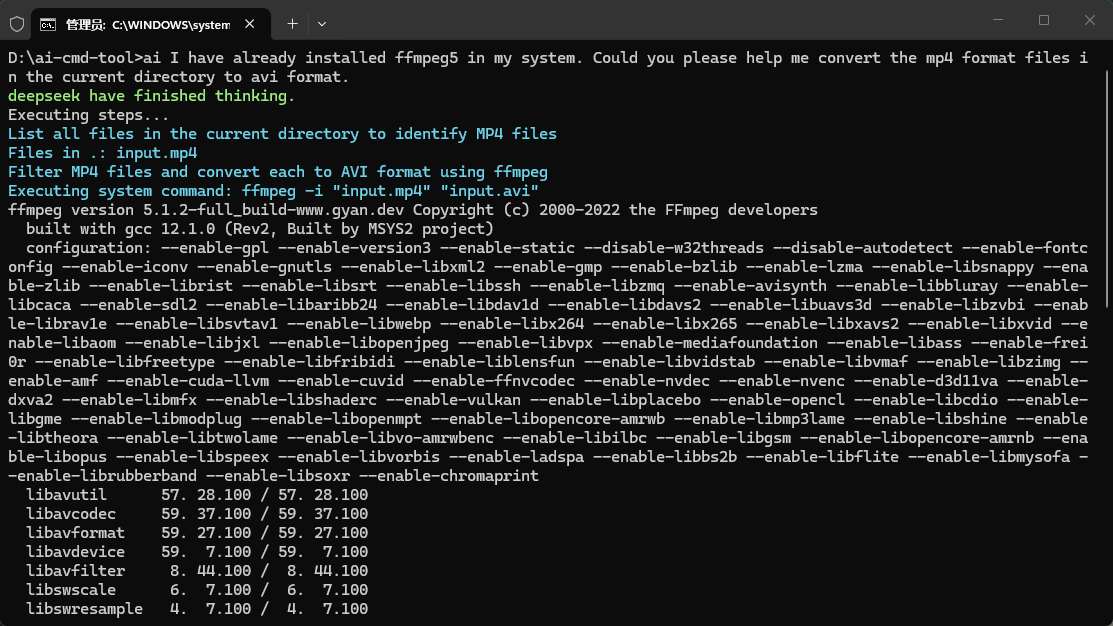
Screenshot
Repository
GitHub: qq306863030/ai-cmd-tool
Installation
Prerequisites
- Node.js (v22.14.0 or higher)
- npm or yarn
Install via npm
npm install -g ai-cmd-toolInstall from source
git clone https://github.com/qq306863030/ai-cmd-tool.git
cd ai-cmd-tool
npm install
npm link
Configuration
Initial Setup
Run the configuration wizard to set up your AI service:
ai config setupThis will prompt you to configure:
- AI Service Type: Choose from Ollama, DeepSeek, or OpenAI
- API Base URL: Default URLs provided for each service
- Model Name: Select the AI model to use
- API Key: Required for DeepSeek and OpenAI
- Temperature: Control response randomness (0-2)
- Max Tokens: Maximum response length
- Streaming Output: Enable/disable streaming responses
Configuration File Structure
The configuration file (~/.ai-cmd.config.js) has the following structure:
module.exports = {
  ai: [
    {
      name: "default", // AI configuration name
      type: "deepseek", // AI service type: "ollama", "deepseek", or "openai"
      baseUrl: "https://api.deepseek.com", // API base URL
      model: "deepseek-reasoner", // AI model name
      apiKey: "", // API key (required for DeepSeek and OpenAI)
      temperature: 1, // Response randomness (0-2)
      maxTokens: 8192, // Maximum response length
      stream: true, // Enable/disable streaming output
    }
  ],
  currentAi: "default", // Current active AI configuration name
  outputAiResult: false, // Whether to output AI result
  plugins: [], // List of plugin file paths
  extensions: [], // List of extension file paths
  file: {
    encoding: "utf8", // File encoding
  },
};
Configuration Commands
Add a new AI configuration:
ai config addList all AI configurations:
ai config lsSet the specified AI configuration as current:
ai config use <name>Delete the specified AI configuration:
ai config del <name>View details of the specified AI configuration:
ai config view [name]Edit configuration file:
ai config editReset configuration:
ai config resetClear configuration:
ai config clearUsage
Interactive Mode
Start an interactive session (multi-turn conversation):
aiOr explicitly:
ai -i or ai -interactiveDirect Command Mode
Execute a single command:
ai "create a new file named hello.txt with content 'Hello World'"Examples
File Operations:
ai "Create 10 text documents and input 100 random texts respectively"
ai "Clear the current directory"
Code Generation:
ai "Create a simple Express server with a /hello endpoint"
ai "Create a browser-based plane shooting game"
System Commands:
ai "List all files in the current directory with their sizes"
ai "Check the disk usage of the current directory"
Media Processing:
ai "I have ffmpeg5 installed on my system, help me convert all MP4 files in the directory to AVI format"File Organization:
ai "Organize all files in the model directory by month into the model2 directory, date format is YYYY-MM"Recommendations
AI Service Selection
Recommendation: Use online AI services (DeepSeek/OpenAI) for best results
While local AI services like Ollama provide privacy and offline capabilities, they may have limitations in:
- Response accuracy: Local models may not be as rigorous or precise as online models
- Code quality: Generated code may require more manual review and correction
- Complex task handling: May struggle with multi-step or complex operations
- Language understanding: Better language models are available through online services
For production use or complex tasks, we recommend using DeepSeek, OpenAI services, or Ollama's cloud service for more reliable and accurate results.
Plugin Development
Creating a Plugin
Plugins allow you to hook into the execution lifecycle and add custom behavior.
Plugin Lifecycle Hooks
const { BasePlugin } = require('ai-cmd-tool');

class MyPlugin extends BasePlugin {
  constructor(aiCli) {
    super(aiCli);
  }

  // Called when plugin is initialized
  async onInitialize() {
    console.log('MyPlugin initialized');
  }

  // Called before AI request, can modify messages
  async onBeforeAIRequest(messages) {
    console.log('Before AI request');
    return messages;
  }

  // Called after AI response, can modify raw data
  async onAfterAIRequest(rawData) {
    console.log('After AI request');
    return rawData;
  }

  // Called after response is parsed, can modify steps
  async onAfterParse(steps) {
    console.log('After parse');
    return steps;
  }

  // Called before each step execution, can modify step
  async onBeforeStep(steps, stepIndex, step) {
    console.log(`Before step ${stepIndex}`);
    return step;
  }

  // Called after each step execution
  async onAfterStep(steps, stepIndex, step, outputList) {
    console.log(`After step ${stepIndex}`);
  }

  // Called after all steps are executed
  async onAfterAllSteps(steps, outputList) {
    console.log('All steps completed');
  }
}

module.exports = MyPlugin;
Registering a Plugin
- Save your plugin to a file (e.g.,
my-plugin.js) - Add it to your configuration:
module.exports = {
  // ... other config
  plugins: [
    '/path/to/my-plugin.js'
  ],
};
Example Plugin: Logging Plugin
const { BasePlugin } = require('ai-cmd-tool');

class LoggingPlugin extends BasePlugin {
  async onBeforeAIRequest(messages) {
    console.log('AI Request:', JSON.stringify(messages, null, 2));
    return messages;
  }

  async onAfterAIRequest(rawData) {
    console.log('AI Response:', rawData);
    return rawData;
  }

  async onAfterStep(steps, stepIndex, step, outputList) {
    console.log(`Step ${stepIndex} completed:`, step.type);
  }
}

module.exports = LoggingPlugin;
Extension Development
Extensions allow you to add custom functions that the AI can use.
Creating an Extension
const { BaseExtension } = require('ai-cmd-tool');

class MyExtension extends BaseExtension {
  // Define your custom functions here
  async myCustomFunction(param1, param2) {
    // Your implementation
    return 'result';
  }

  // Describe your functions for the AI
  getDescriptions() {
    return [
      {
        name: 'myCustomFunction',
        type: 'function',
        params: ['param1', 'param2'],
        description: 'Description of what this function does',
      },
    ];
  }
}

module.exports = MyExtension;
Registering an Extension
- Save your extension to a file (e.g.,
my-extension.js) - Add it to your configuration:
module.exports = {
  // ... other config
  extensions: [
    '/path/to/my-extension.js'
  ],
};
Example Extension: Weather Extension
const { BaseExtension } = require('ai-cmd-tool');

class WeatherExtension extends BaseExtension {
  async getWeather(city) {
    // Implement weather API call
    return `Weather in ${city}: 25°C, Sunny`;
  }

  getDescriptions() {
    return [
      {
        name: 'getWeather',
        type: 'function',
        params: ['city'],
        description: 'Get current weather information for a city',
      },
    ];
  }
}

module.exports = WeatherExtension;
Advanced Usage
Using Relative Paths
The AI always uses relative paths from the current working directory. This ensures portability across different systems.
Troubleshooting
Configuration Issues
If you encounter configuration errors, try resetting:
ai config resetAI Service Connection
- Ollama: Ensure Ollama is running locally on port 11434
- DeepSeek/OpenAI: Verify your API key is correct and you have sufficient credits
Plugin/Extension Not Loading
- Check the file path in your configuration
- Ensure the file exports the correct class
- Verify the file has no syntax errors
Contributing
Contributions are welcome! Please feel free to submit a Pull Request.
License
This project is licensed under the MIT License - see the LICENSE file for details.
Support
For issues and questions, please open an issue on the GitHub repository.