
apus
v0.2.15
Published
Apus Charts: A React charting library built with D3.js, offering interactive and customizable charts.
Downloads
2,196

Maintainers
 harshaattray
Readme
Apus - React Chart Library
A powerful and customizable chart library for React applications, built with D3.js and TypeScript.


📚 View Documentation | 🚀 Live Demo
Features
- 🎯 Built with React 18 and TypeScript
- 📊 Powered by D3.js for powerful data visualization
- 🎨 Customizable and responsive charts
- 📦 Lightweight and easy to integrate
- 🔍 Type-safe with TypeScript support
- 🎨 Modern UI components with Tailwind CSS
Screenshots
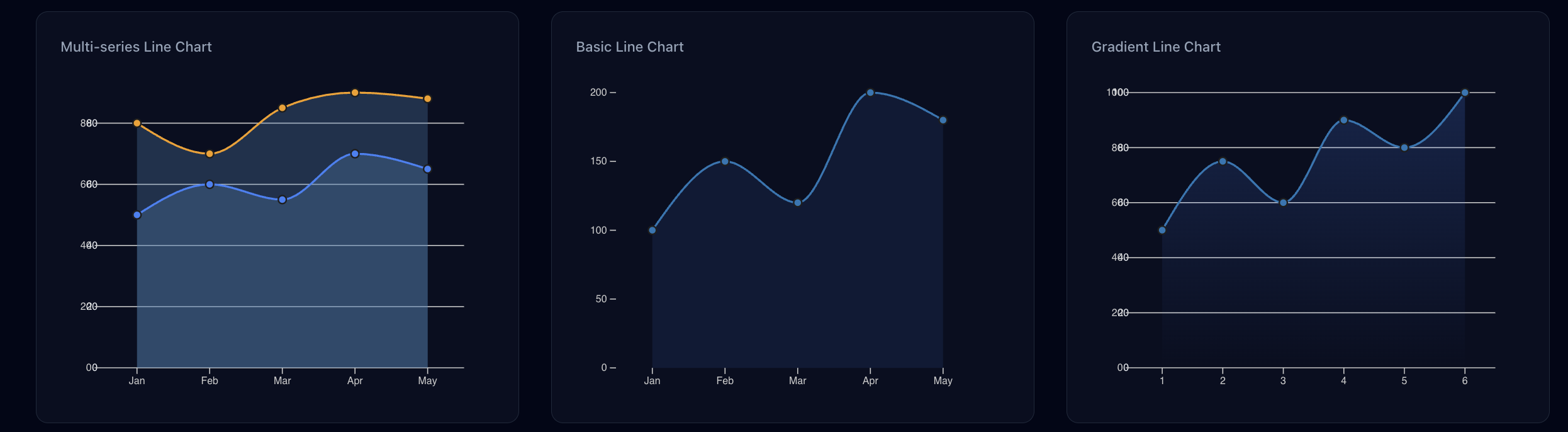
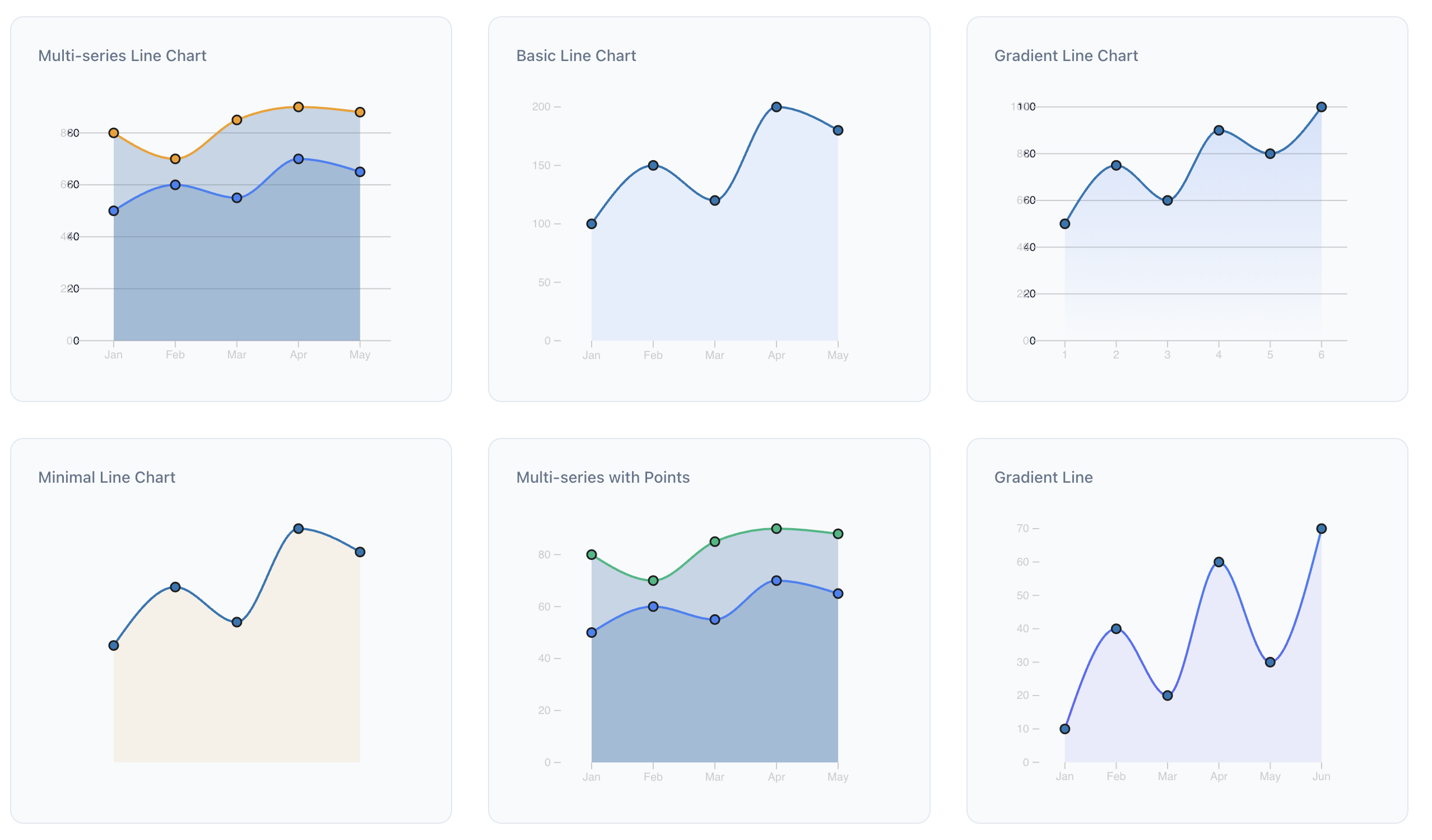 Interactive Line Chart with Multiple Datasets
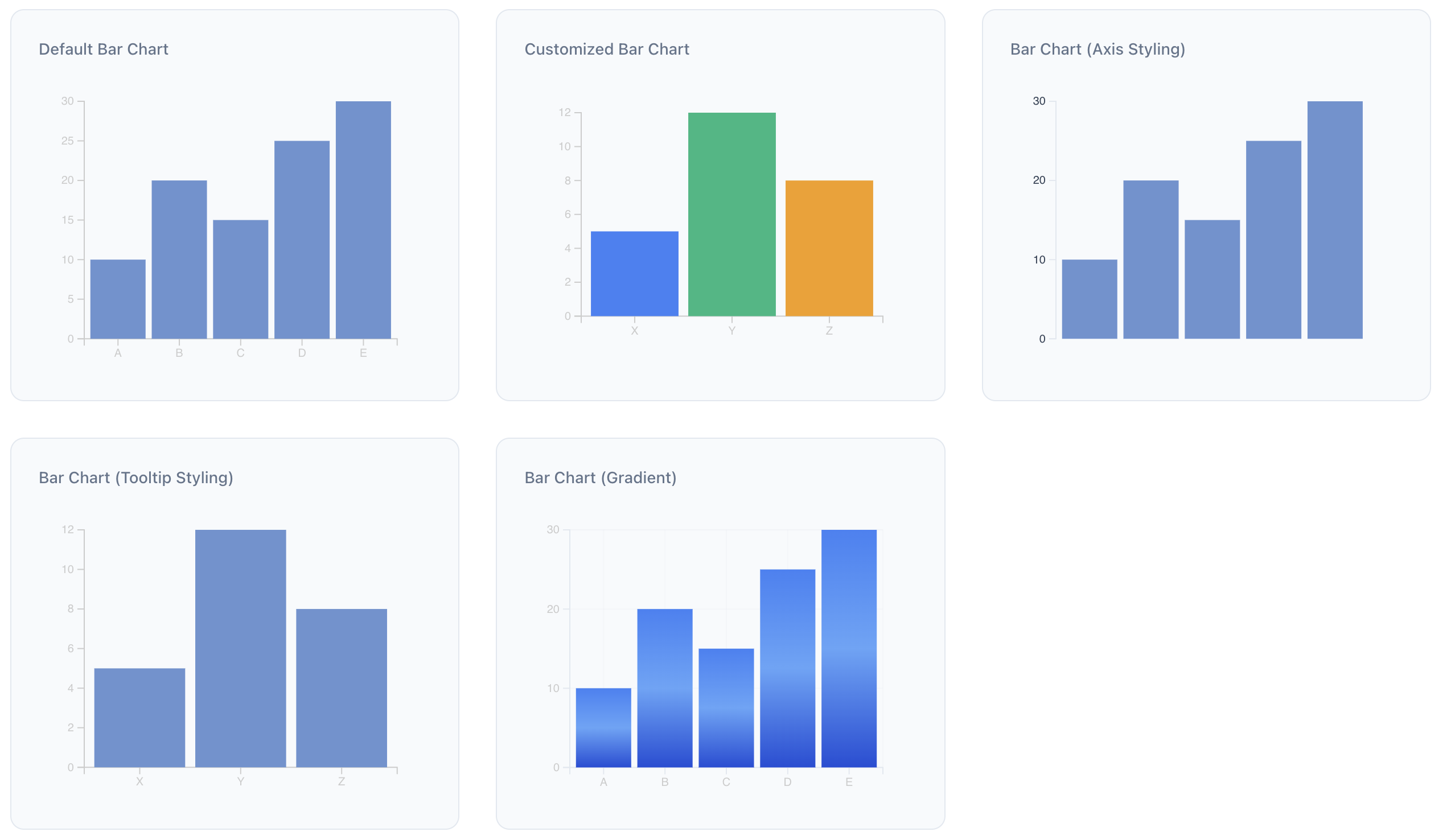 Customizable Bar Chart with Tooltips
 Advanced Scatter Plot with Regression Line
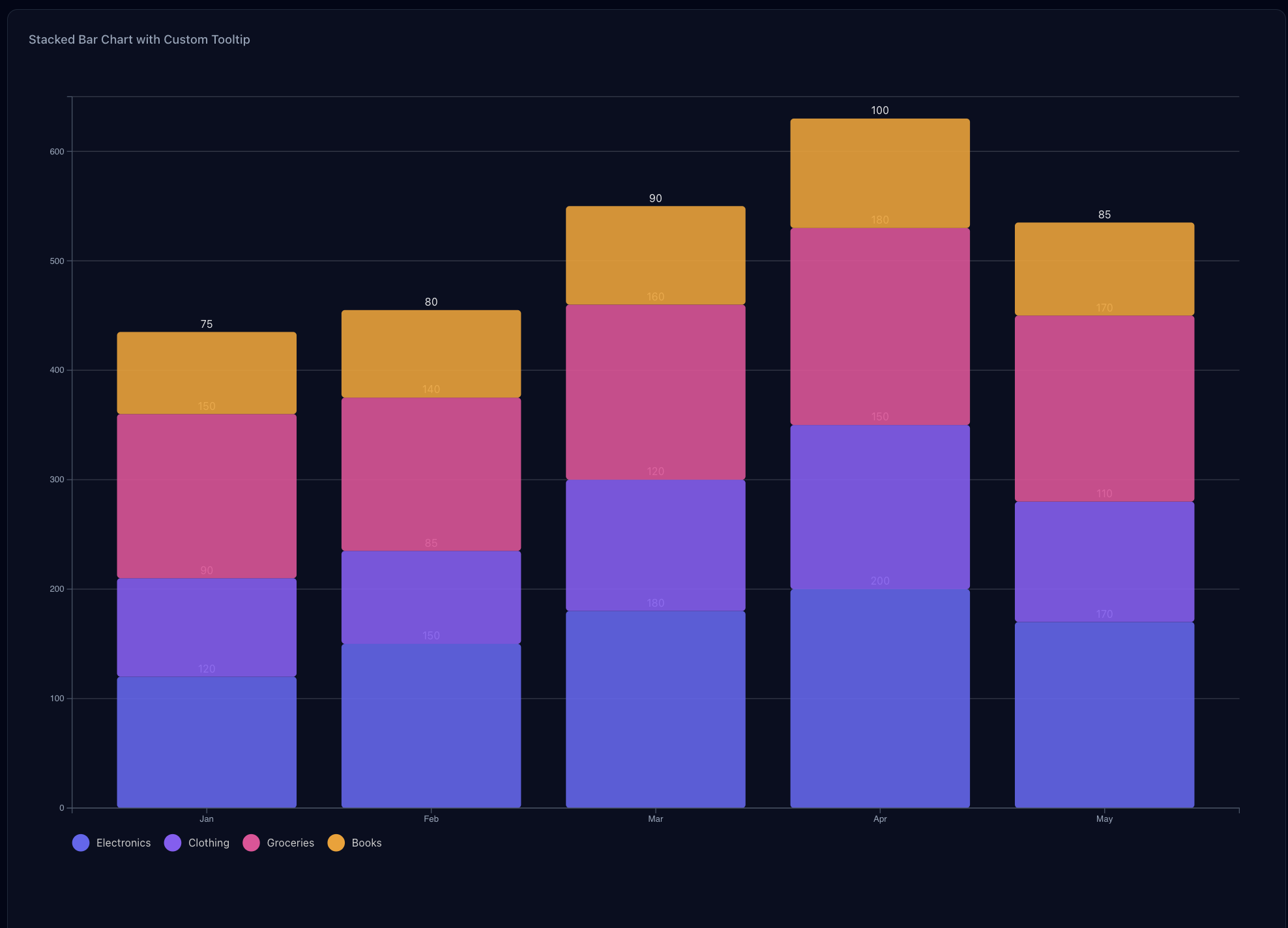 Stacked Bar Chart
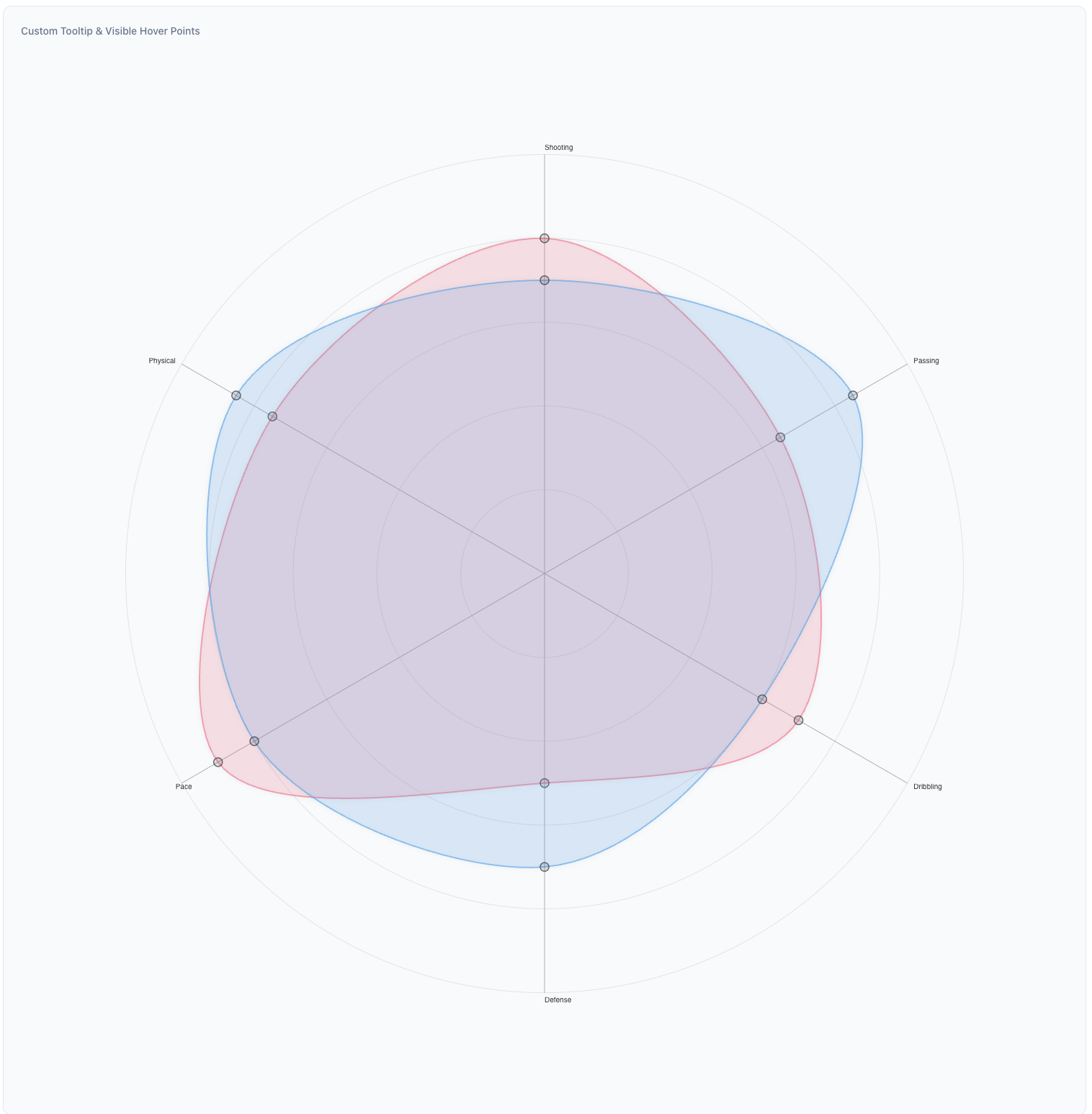 Radar Chart
Installation
# Using npm
npm install apus

# Using yarn
yarn add apus

# Using pnpm
pnpm add apus
Peer Dependencies
This library requires the following peer dependencies:
{
  "d3": "^7.0.0",
  "react": "^18.0.0",
  "react-dom": "^18.0.0"
}
Available Chart Types
1. Line Chart
A versatile chart for displaying trends over time or continuous data. Supports multiple series, area fills, and customization options.
View LineChart Props and Details
import { LineChart } from 'apus';

const lineChartData = [
  {
    name: 'Series 1',
    values: [
      { label: 'Jan', value: 30 },
      { label: 'Feb', value: 40 },
      { label: 'Mar', value: 35 },
    ],
  },
  {
    name: 'Series 2',
    values: [
      { label: 'Jan', value: 50 },
      { label: 'Feb', value: 60 },
      { label: 'Mar', value: 55 },
    ],
  },
];

<LineChart
  data={lineChartData}
  width={600}
  height={400}
  lineColors={['#1f77b4', '#ff7f0e']} // Different color for each line series
  showArea={true}
  areaColor="rgba(70, 130, 180, 0.1)" // A light blue area fill
  pointColor="#88b0de" // Color for data points
  showGridLines={true}
  responsive={true}
  ariaLabel="Sales trend over months"
  xAxisTextColor="#333333" // Color for X-axis labels
  yAxisTextColor="#333333" // Color for Y-axis labels
  axisLineColor="#666666" // Color for axis lines
/>
2. Bar Chart
Ideal for comparing discrete categories. Supports single or multiple colors and responsiveness.
View BarChart Props and Details
import { BarChart } from 'apus';

const barChartData = [
  { label: 'Category A', value: 10 },
  { label: 'Category B', value: 20 },
  { label: 'Category C', value: 15 },
];

<BarChart
  data={barChartData}
  width={600}
  height={400}
  color="#6a93d1" // Single color for all bars
  // or use an array for multiple colors: color={['#ff0000', '#00ff00', '#0000ff']}
  showGridLines={true}
  xAxisTextColor="#333333"
  yAxisTextColor="#333333"
  responsive={true}
  ariaLabel="Comparison of categories"
/>
3. Stacked Bar Chart
Displays data as a series of stacked bars, suitable for showing parts of a whole or comparing cumulative totals across different categories.
View StackedBarChart Props and Details
import { StackedBarChart } from 'apus';

const salesData = [
  { month: 'Jan', apples: 10, oranges: 20, bananas: 15 },
  { month: 'Feb', apples: 12, oranges: 18, bananas: 22 },
  { month: 'Mar', apples: 8, oranges: 25, bananas: 10 },
];

const fruitKeys = ['apples', 'oranges', 'bananas'];

<StackedBarChart
  data={salesData}
  keys={fruitKeys}
  indexBy="month"
  width={700}
  height={450}
  colors={['#4CAF50', '#FF9800', '#FFEB3B']}
  showGridLines={true}
  showLegend={true}
  legendPosition="top"
  ariaLabel="Monthly fruit sales"
/>
Component Props
For detailed props of each component, please refer to their individual README files linked above.
Advanced Usage Examples
1. Custom Styling with Gradients (Line Chart)
<LineChart
  data={lineChartData} // Assuming lineChartData is defined as in the example above
  width={800}
  height={500}
  lineGradientColors={['#FF5733', '#C70039']} // Apply a gradient to the line
  areaGradientColors={['rgba(255, 87, 51, 0.4)', 'rgba(199, 0, 57, 0.1)']} // Apply a gradient to the area
  showArea={true}
  pointColor="#FFC300"
  tooltipBackgroundColor="#2C3E50"
  tooltipTextColor="#ECF0F1"
  yAxisTicks={10} // More ticks on Y-axis
  xAxisTextColor="#34495E" // Dark blue-gray for X-axis labels
  yAxisTextColor="#34495E" // Dark blue-gray for Y-axis labels
  axisLineColor="#7F8C8D" // Medium gray for axis lines
  showLegend={true}
  legendPosition="right"
  legendFontColor="#34495E"
/>
2. Custom Styling with Multiple Colors (Bar Chart)
<BarChart
  data={barChartData} // Assuming barChartData is defined as in the example above
  width={700}
  height={450}
  color={['#FFC300', '#FF5733', '#C70039', '#900C3F', '#581845']} // Colors will cycle for bars
  showGridLines={true}
  axisLineColor="#BDC3C7"
  xAxisTextColor="#7F8C8D"
  yAxisTextColor="#7F8C8D"
  margin={{ top: 30, right: 40, bottom: 50, left: 60 }} // Custom margins
/>

### 3. Charts with Legends

#### Line Chart with Legend

```tsx
// Multi-series line chart with legend on the right
const multiSeriesData = [
  {
    name: 'Series A',
    values: [
      { label: 'Jan', value: 30 },
      { label: 'Feb', value: 45 },
      { label: 'Mar', value: 40 },
      { label: 'Apr', value: 55 },
      { label: 'May', value: 50 },
    ],
  },
  {
    name: 'Series B',
    values: [
      { label: 'Jan', value: 60 },
      { label: 'Feb', value: 50 },
      { label: 'Mar', value: 65 },
      { label: 'Apr', value: 70 },
      { label: 'May', value: 68 },
    ],
  },
];

<LineChart
  data={multiSeriesData}
  width={700}
  height={400}
  lineColors={['#3b82f6', '#f59e0b']}
  showLegend={true}
  legendPosition="right" // Options: 'top', 'right', 'bottom', 'left'
  legendFontColor="#666666"
  legendFontSize="14px"
/>
Bar Chart with Legend
// Bar chart with custom legend labels at the bottom
const barData = [
  { label: 'A', value: 10 },
  { label: 'B', value: 20 },
  { label: 'C', value: 15 },
  { label: 'D', value: 25 },
  { label: 'E', value: 30 },
];

<BarChart
  data={barData}
  width={600}
  height={400}
  color={['#3b82f6', '#10b981', '#f59e0b', '#ef4444', '#8b5cf6']}
  showLegend={true}
  legendPosition="bottom" // Options: 'top', 'right', 'bottom', 'left'
  legendFontColor="#666666"
  // Optional custom legend labels
  legendLabels={['Category A', 'Category B', 'Category C', 'Category D', 'Category E']}
/>
Development
- Clone the repository:
git clone https://github.com/harshattray/apus.git
cd apus- Install dependencies:
npm install- Start the development server:
npm run dev- Build the library:
npm run buildContributing
Contributions are welcome! Please feel free to submit a Pull Request. For major changes, please open an issue first to discuss what you would like to change.
Make sure to update tests as appropriate.
License
Support
If you encounter any issues or have questions, please open an issue on GitHub.
Author
- GitHub: @harshattray
- Medium: @Harshattray