
arduino-nes
v1.1.0
Published
A Library for connecting the serial/original nes controllers to an Arduino and node js.

Maintainers
 dannyvanderjagt
Readme
Arduino Nes
A Library for connecting the serial/original nes controllers to an Arduino and node js.
Installation
Node Js.
npm install arduino-nes
Arduino.
Connect your arduino with an USB to your computer. Upload the code for the arduino to your arduino. See the arduino/arduino.ino
Schematics.
Note: The clock, latch and data wires must be connected to a digital pin on the arduino! Not a analog one!
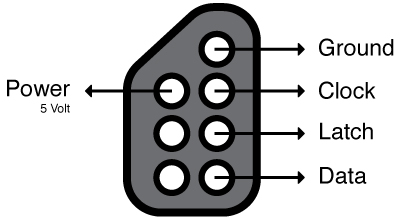
Api.
Constructor:
serial- Required.
In most cases:dev/tty.usbmodem1d1111listen
Start listening to the data stream from the arduino immediatly. (default: true)controllers
An array with 1 object for every controller. The object must contain the pin for the clock, latch and the data pin.Example:
[{clock:2, latch:3, data:4}];Example with more controllers:
[
	{
		clock: 2,
		latch: 3,
		data: 4
	},
	{
		clock: 5,
		latch: 6,
		data: 7
	}
]
Note: at this point there is no maximum number of controllers. Keep in mind that the arduino has to loop through all your controllers!
Functions
startListening
All controllers will listening and emitting events. The eventstartedListeningwill be emitted.stopListening
All controllers will stop listening and emitting events. The eventstoppedListeningwill be emitted.isListening
Will return a boolean.trueif the library is listening andfalseif it doesn't.disconnect
Disconnect the library from the arduino. The arduino is after this clear to use with other programs. The eventdisconnectedwill be emitted when the arduino is actually disconnected.
Events.
connected
Emitted when the arduino is connected with the library.disconnected
Emitted when the arduino is disconnected from the library.error(err)
Emitted when there is an error.readyEmitted when the controller are ready to use.startedListeningEmitted when the library has started listening for data events from the arduino. At this point the controllers can emit events.stoppedListeningEmitted when the library has stopped listening for data events from the arduino.
Controllers
getStatesGet the states of all the buttons of this controller. An object will be returned in this format:
{
	right:		[boolean],
	left:		[boolean],
	down:		[boolean],
	up: 		[boolean],
	start:		[boolean],
	select:		[boolean]
	a:			[boolean],
	b:			[boolean]
}
The boolean will be true when the button is pressed at that moment. False means that the buttons is not pressed.
Events.
When a button of a controller is pressed or released the controller will emit an event.
downdownReleaseupupReleaseleftleftReleaserightrightReleaseselectselectReleasestartstartReleaseaaReleasebbRelease
Wildcard event. Parameters: orginalEventname
*- This has the orginal event name as parameter.
Example
var Nes = require('arduino-nes');

var nes = new Nes({
	serial: "/dev/tty.usbmodem1d1131", // Make sure this is set to your port!
	controllers:[
		{
			clock: 2,
			latch: 3,
			data: 4
		}
	]
});

nes.on('error', function(){
	console.log('error', arguments);
}).on('ready', function(){
	console.log('ready', arguments);
}).on('connected', function(){
	console.log('connected', arguments);
}).on('disconnect', function(){
	console.log('disconnect', arguments);
});

// The first controller.
nes.controller[0].on('*', function(event){
	console.log('controller 0:', event);
})

// When the down button is released.
Nes.controllers[0].on('down', function(){
	// Do something.
});

// When the down button is released.
Nes.controllers[0].on('downReleased', function(){
	// Do something.
});

// Listen for all event from the second controller.
Nes.controllers[0].on('*', function(event){
	// Do something.
});