
astro-caliper
v1.1.0
Published
Astro toolbar app designed to assist developers in converting designs to code. It provides visual aids and inspection tools directly within the browser.

Maintainers
 forde
fordeReadme
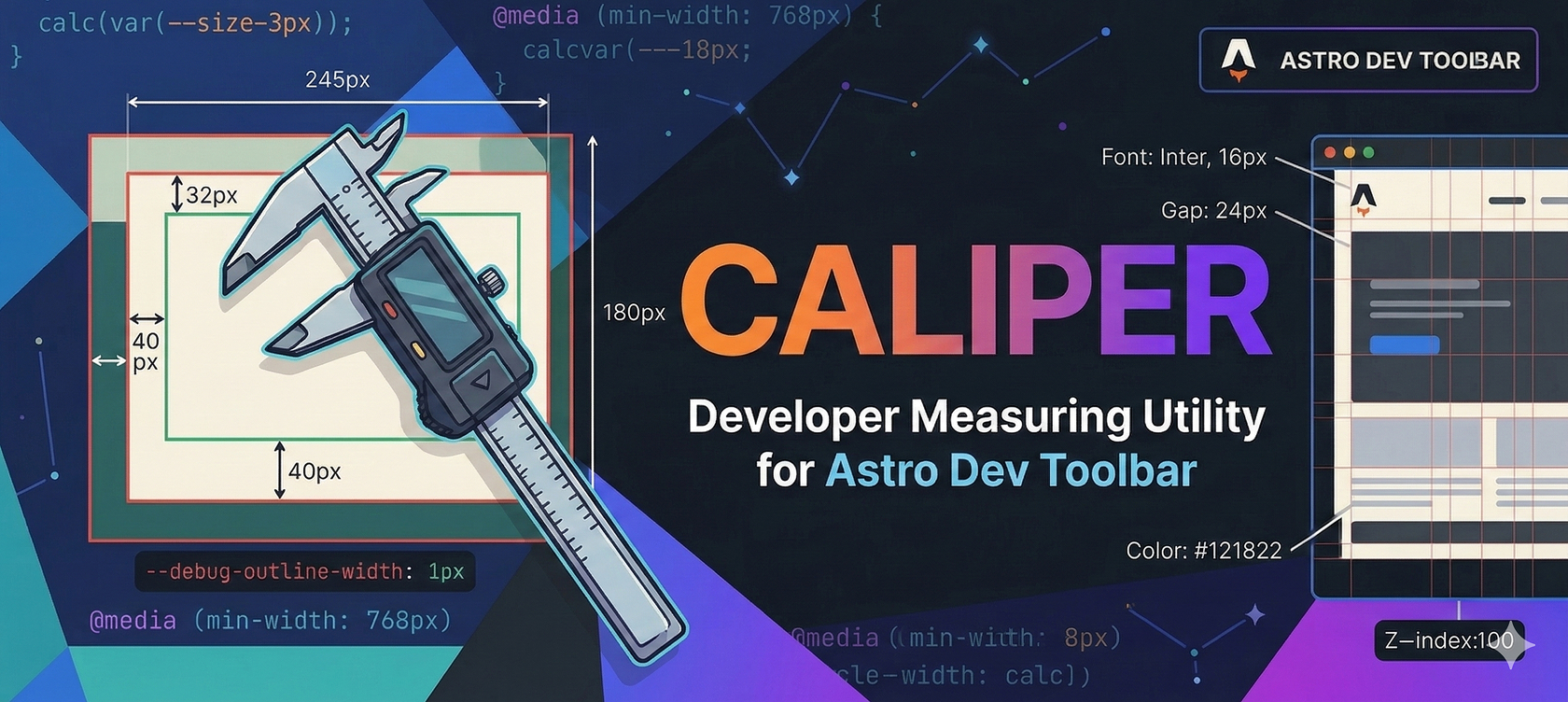
Layout tool for Astro dev toolbar


Caliper is a precision layout tool for the Astro (v 5+) Dev Toolbar. Stop guessing margins and hunting through the "Elements" tab — measure, inspect and check alignment of your components with pixel perfection directly in the browser.
🚀 Quick Features
| Feature | Action / Shortcut | Description |
| :----------------- | :----------------- | :---------------------------------------------------------------------- |
| 🔍 Inspector | Hover Element | View live dimensions, font families, and computed styles. |
| 📏 Ruler | Alt / ⌥ + Drag | Measure pixel-perfect X & Y distances between any two points. |
| 📱 Breakpoints | Top Overlay | Real-time indicator for active CSS breakpoints (SM, MD, LG, etc.). |
| ⚓ Click Trap | Hold P | Disable click events to prevent accidental navigation while inspecting. |
| 🎨 Outlines | Toggle Settings | Visualizes element boundaries to debug layout shifts and alignment. |
| 💾 Persistence | Auto-save | Remembers your "ON" state and settings across page refreshes. |
🔍 Tooltip Inspector
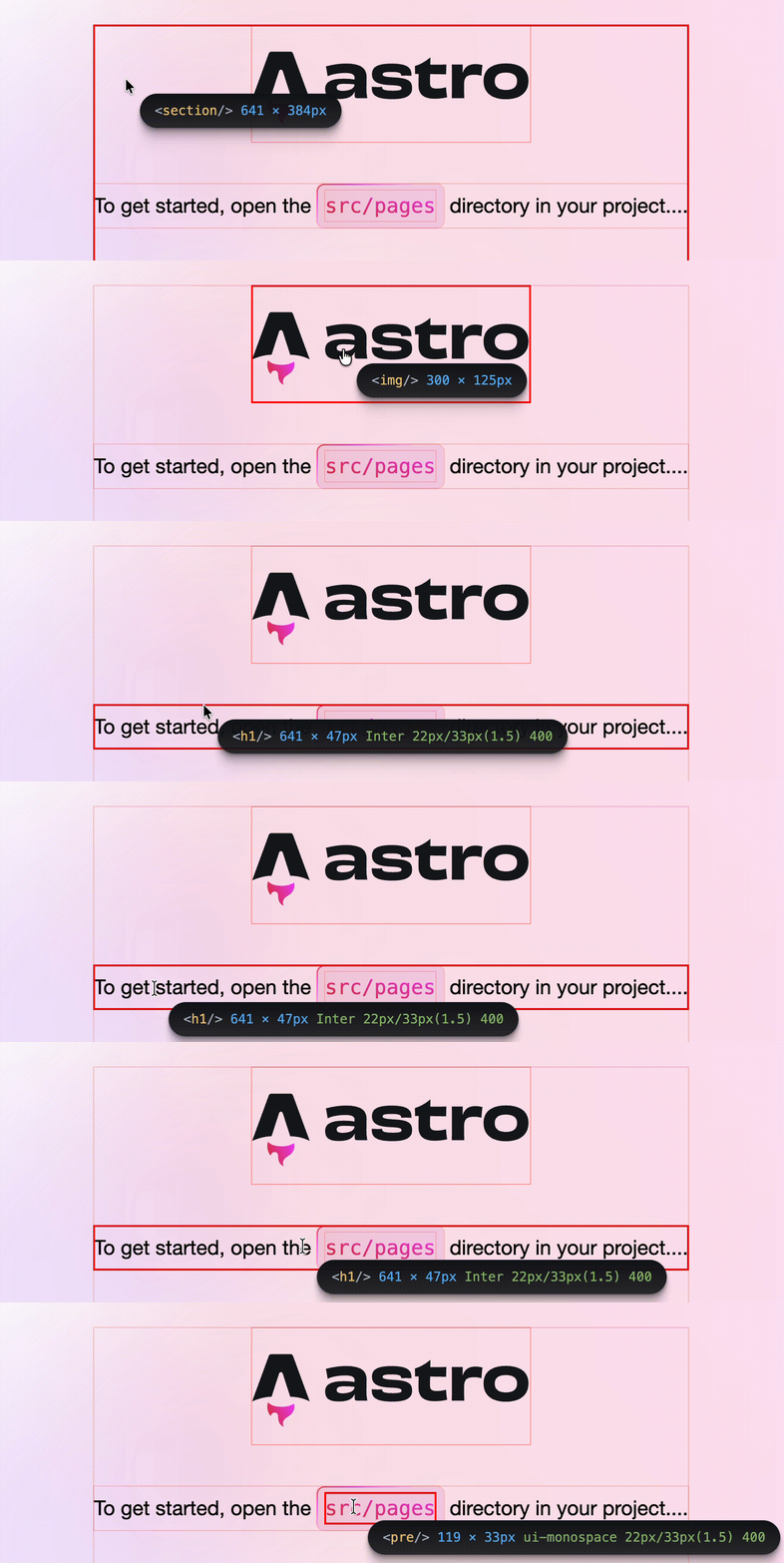
Provides detailed information about element when you hover over it.
- Shows element tag name.
- Shows width and height of hovered element.
- Shows font family, size, line height, and font weight for elements with text content.
- Adds a red outline to all elements and stronger outline to element currently being inspected to reveal its boundaries.
Individual tooltip features can be turned on and off in dedicated settings panel activated through ⚙️ button located on the breakpoint indicator.
📏 Ruler
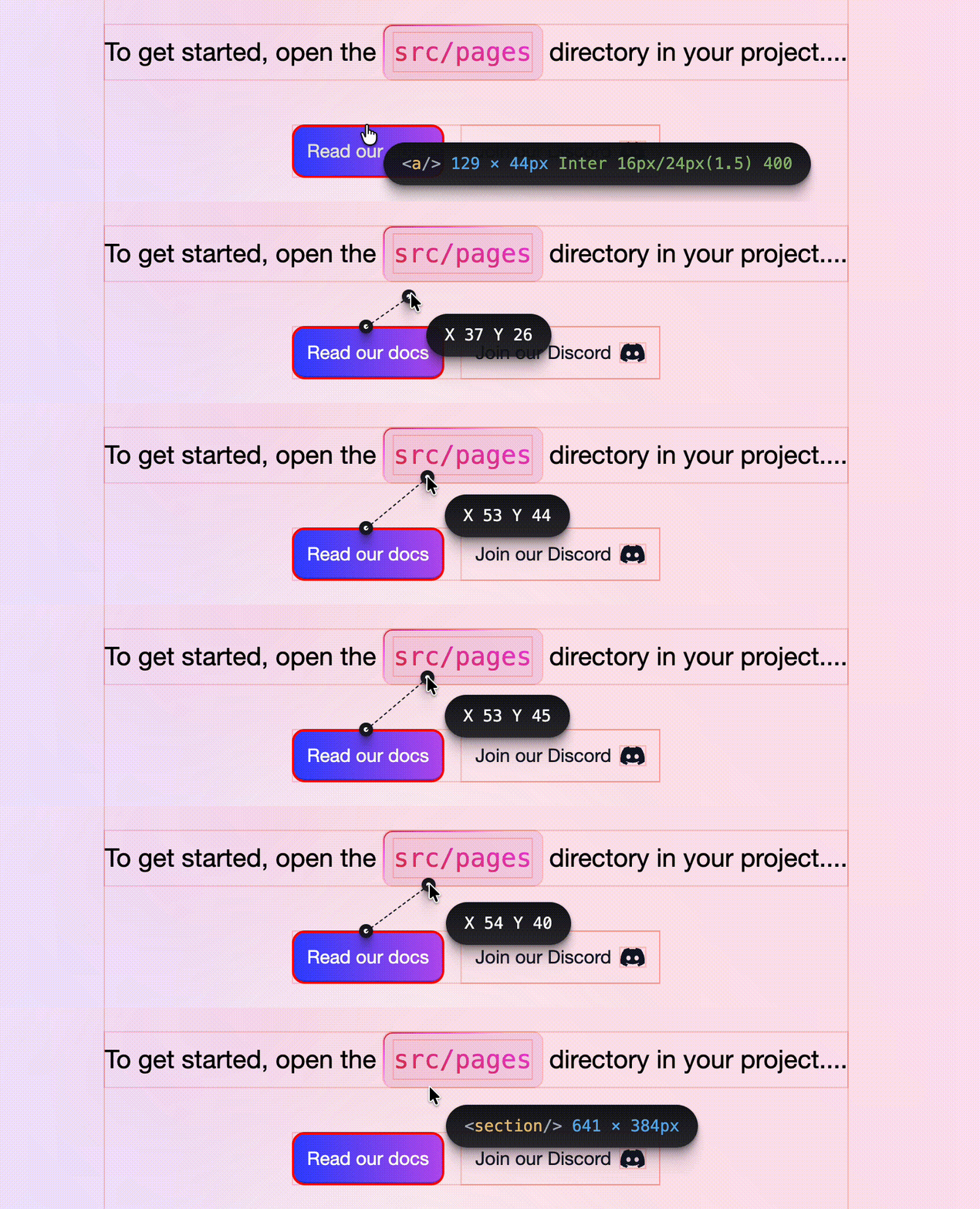
Hold Alt / Option key and drag to measure X & Y distance between elements.
📱 Breakpoint Indicator

Current breakpoint (SM, MD etc.) and screen width is shown at the top of the screen.
⚓ Click trap
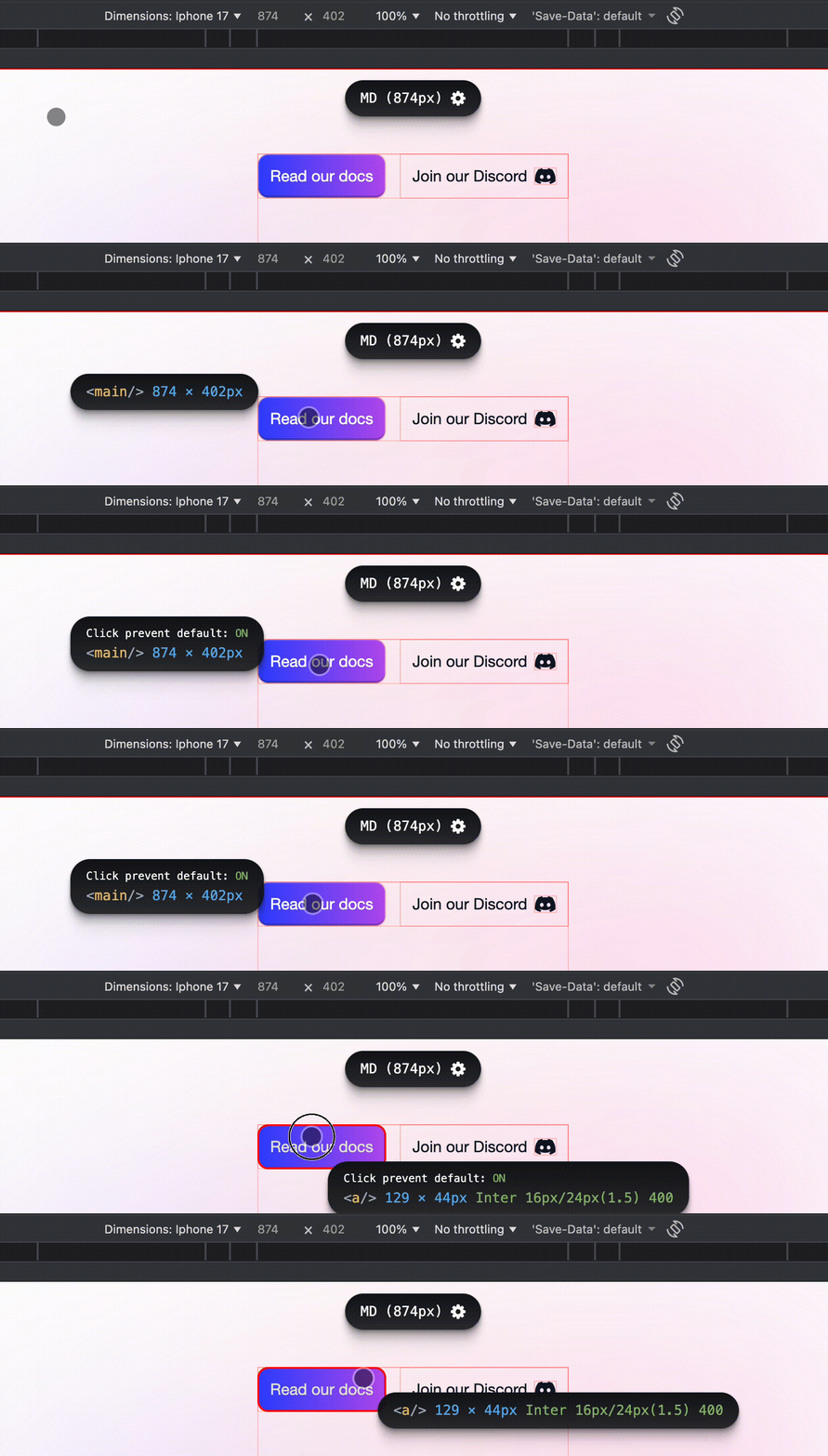
Hold P to disable click events and prevent accidental navigation (ideal for dev tools mobile mode with Touch Emulation).
💾 Persisted ON state
Tool can persist its ON state (trough localstorage) between page reloads and navigation (can be turned off in settings).
Installation
pnpm add -D astro-caliper
# or
npm install --save-dev astro-caliper
Usage
Add to your Astro config:
// astro.config.mjs
import { defineConfig } from "astro/config";
import caliper from "astro-caliper";

export default defineConfig({
  integrations: [caliper()],
});
Configuration
Caliper accepts an optional configuration object:
// astro.config.mjs
import { defineConfig } from "astro/config";
import caliper from "astro-caliper";

export default defineConfig({
  integrations: [
    caliper({
      // Custom breakpoints (defaults to Tailwind CSS breakpoints)
      breakpoints: [
        { name: "XS", minWidth: 0 },
        { name: "SM", minWidth: 640 },
        { name: "MD", minWidth: 768 },
        { name: "LG", minWidth: 1024 },
        { name: "XL", minWidth: 1280 },
        { name: "2XL", minWidth: 1536 },
      ],
      // Outline color for all elements
      outlineColor: "rgba(255, 0, 0, 0.2)",
      // Outline color for the active/hovered element
      activeOutlineColor: "red",
    }),
  ],
});
Options
| Option | Type | Default | Description |
| -------------------- | -------------------------------------- | ------------------------ | ---------------------------------------- |
| breakpoints | { name: string; minWidth: number }[] | Tailwind defaults | Breakpoint definitions for the indicator |
| outlineColor | string | "rgba(255, 0, 0, 0.2)" | Outline color for all elements |
| activeOutlineColor | string | "red" | Outline color for highlighted elements |
All options are optional — Caliper works out of the box with sensible defaults.
Usage
- Run your Astro dev server (
npm run dev). - Open the Astro Developer Toolbar (usually at the bottom of the screen).
- Click on the "Caliper" icon on the Astro dev toolbar in the bottom of the screen.