
auto-iconfont
v1.4.0
Published
自动获取 iconfont 相关资源并下载到本地


Readme
自动获取 iconfont 相关资源并下载到本地
快速开始
安装
npm i -D auto-iconfont

# or
yarn add -D auto-iconfont

# or
pnpm add -D auto-iconfont
安装后需要在 package.json 添加以下脚本命令
{
  "scripts": {
    "icon-build": "auto-icon build"
  }
}
运行
npm run icon-build

# or
yarn icon-build

# or
pnpm icon-build
使用效果
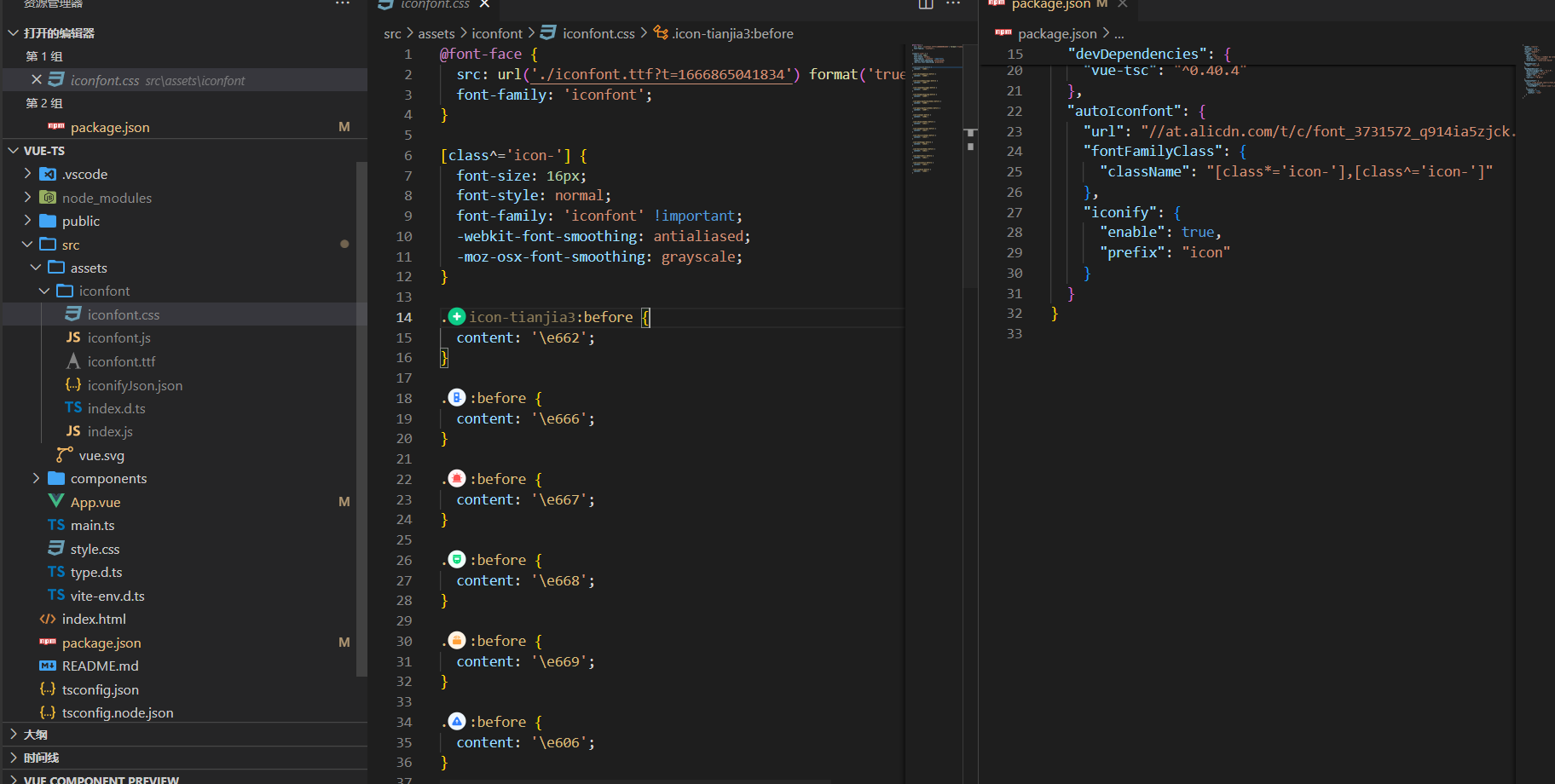
生成文件效果
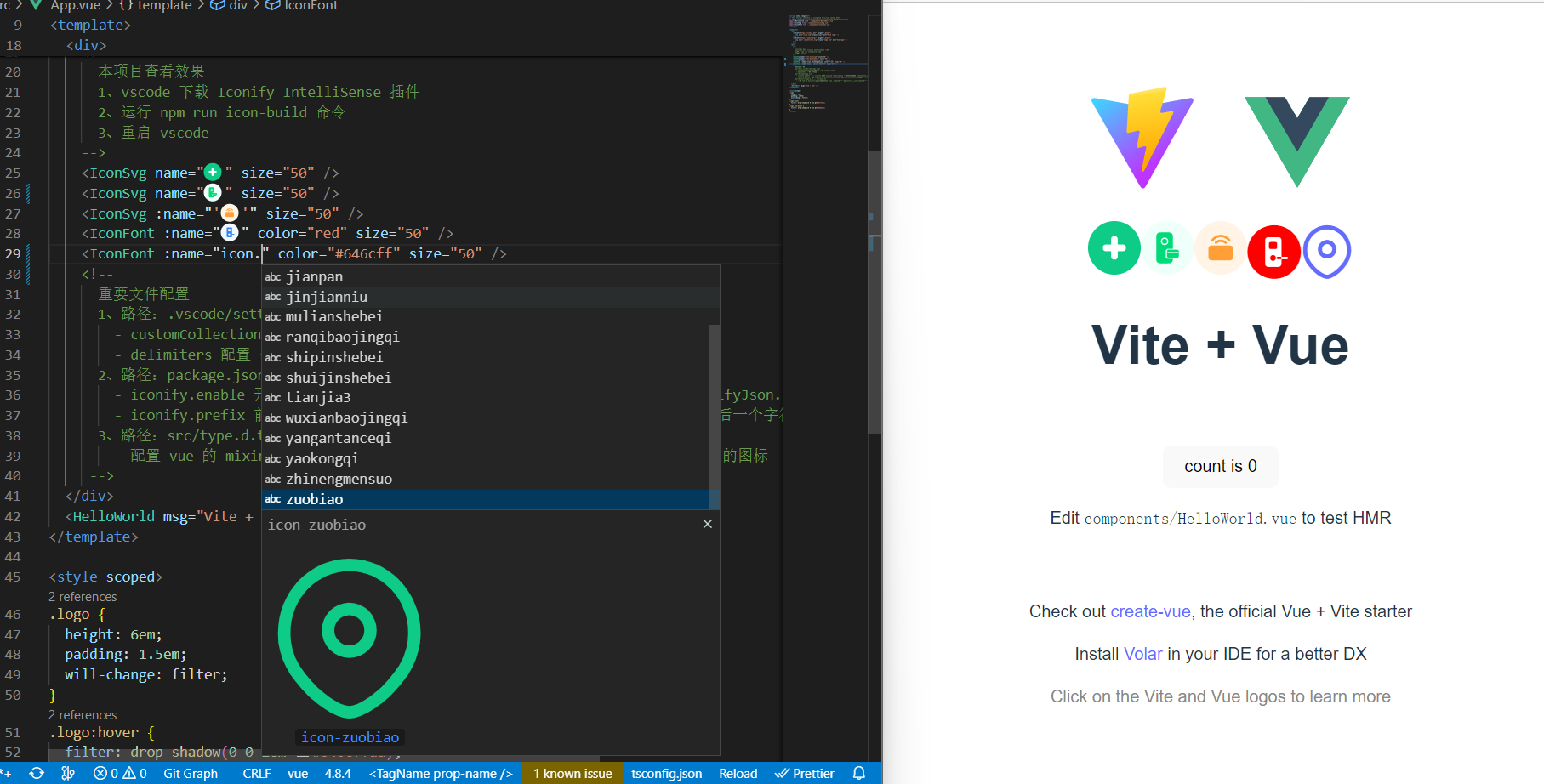
配合 vscode 插件 Iconify IntelliSense 使用效果
配置 iconfont 信息
// 在 package.json 文件添加配置信息
{
  // ...
  "autoIconfont": {

    // 用户认证信息方式获取数据 【方式一】
    "ctoken": "xxx",
    "EGG_SESS_ICONFONT": "xxx",

    // 项目 js 地址方式获取数据 【方式二】
    "url": "xxx",

   // 用户账号信息配置文件地址,用户账号密码方式获取数据 【方式三】
    "userInfoPath": "xxx",

    // 项目ID
    "projectId": "xxx",
    // 文件输出位置,默认值 ./src/assets/iconfont
    "outDir": "xxx",
    // 生成 js 还是 ts 的代码,默认值 js
    "language": "xxx",
    // 修改 .iconfont 的样式
    "fontFamilyClass": {
      // 替换 .iconfont, 如 [class*='icon-'],[class^='icon-']
      "className": "xxx",
      "values": {
        // css 样式
        // "color": "red" // 新增 样式
        // "font-size": "1.6rem" // 修改 font-size 的值
        // "font-size": null // 删除 font-size 样式
      }
    },

    // v1.3.0 版本及以上有效
    // 添加 vscode 插件 Iconify IntelliSense 的显示【在编辑器显示使用的icon效果】
    "iconify": {
      // 是否生成 iconify 文件,默认关闭(false)
      "enable": false,
      // icon 前缀,默认使用iconfont项目设置里的前缀
      "prefix": "xx"
    },
  }
  // ...
}
获取数据方式参数说明
获取 iconfont 项目信息数据方式配置,共有三种方式获取数据,各种方式有不用的优缺点,选择一个适合自己的即可。
其它配置参数说明说明
生成文件类型
- 参数:
projectId - 必传:
用户token 和 用户账号信息 方式必传 - 类型:String | Number
- 默认:
- - 说明:项目 ID。
生成文件类型
- 参数:
language - 必传:
否 - 类型:'js' | 'ts'
- 默认:
js - 说明:生成 js 还是 ts 的代码。
生成文件保存位置
- 参数:
outDir - 必传:
否 - 类型:String
- 默认:
./src/assets/iconfont - 说明:生成文件存放位置
修改 css 文件的 .iconfont 样式
- 参数:
fontFamilyClass - 必传:
否 - 类型:Object
- 默认:
- - 说明:
- 修改 css 文件的
.iconfont样式 fontFamilyClass.className替换.iconfont位置,可以自定义class,如:[class*='icon-'],[class^='icon-']fontFamilyClass.values.xxx, 增删改.iconfont里的样式- eg:
"fontFamilyClass": {
 "className": "[class*='icon-'],[class^='icon-']",
 "values": {
   "color": "red",
   "font-size": null
 }
  }
- 修改 css 文件的
生成 Iconify IntelliSense 配置信息
- 参数:
iconify - 必传:
否 - 类型:Object
- 默认:
- - 说明:
- v1.3.0 版本及以上有效。
- 添加
vscode插件Iconify IntelliSense的显示【在编辑器显示使用的icon效果】 iconify.enable,是否开启,默认关闭。iconify.prefix,icon 前缀,默认使用iconfont项目设置里的前缀。
- 使用:
- 在
vscode安装 Iconify IntelliSense 插件。 - 运行脚本后
outDir目录下会生成一个iconifyJson.json文件。 - 在项目根目录新建
.vscode文件夹,文件里新建settings.json文件【已有可以忽略】 - 在
settings.json文件里,把添加iconifyJson.json文件的路径, 添加到iconify.customCollectionJsonPaths里面,参考 vscode-iconify。注:settings.json文件里iconify.delimiters是prefix和图标名字之间的分隔符。 - 使用
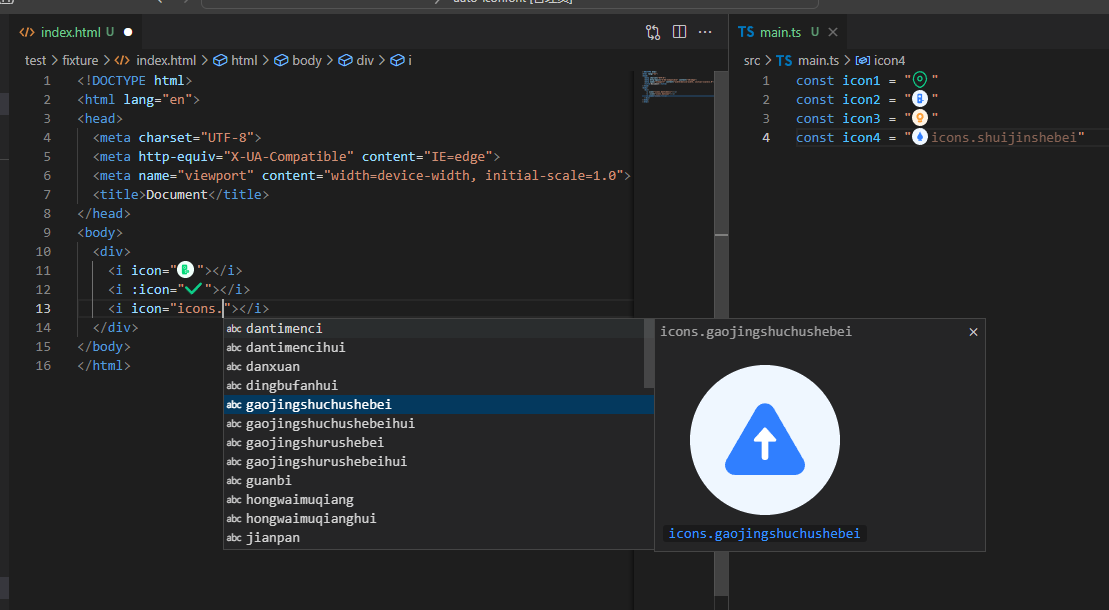
prefix+delimiters+iconName, eg:参考官方例子。 - 修改
iconifyJson.json文件,需要重启vscode才生效。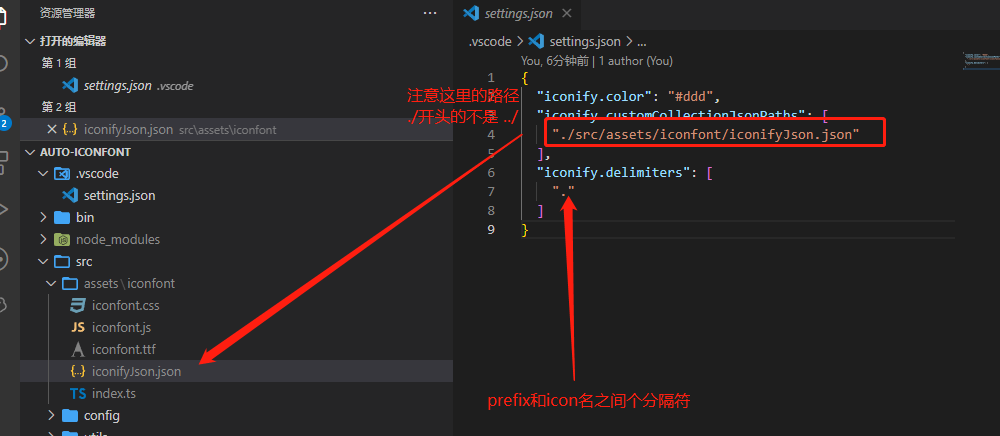
- 在
生成文件说明
使用
引入
把生成文件目录下的 index.js 或 index.ts 文件在项目入口文件引入即可,
// main.js
import icons from '@/assets/iconfont'
如果是 Vue 项目(js 及 ts),可以把 icons 混入到 Vue 原型,然后再把类型提示加上,这样编辑器能提示,使用起来更方便,参考文章 ts类型扩展功能到 Vue 原型(this)上
使用
后续使用,请参考 iconfont 使用帮助