
build-express-api
v1.2.4
Published
Command line interface for instantly building an express rest api

Maintainers
 ognjengt
Readme
Build Express Api
A Command line interface for instantly building an express rest api. Create controllers, models and add routes in matter of seconds.


This CLI only supports Node 6 and over.
- Installation
- Getting Started
- Configuring CLI with active projects
- Creating a new controller
- Adding routes to a controller
- Creating new model
- Creating multiple controllers and models
Installation
Install it once globally:
$ npm install -g build-express-apiGetting Started
Initializing the application structure
$ mkdir my-app
$ cd my-app
$ build-express-api init
Directory structure
my-app
├── package.json
├── beaConfig.json
├── rest
    └── controllers
    └── models
    └── server.js
Install all the needed dependencies:
$ npm installNote: when running all of the further commands, please stay in the my-app directory
Configuring CLI with active projects
If you already started a project, and have a different application structure, no worries.
$ build-express-api create-configor
$ build-express-api cconfigThis command only creates a beaConfig.json file in the root directory, without creating a ./rest folder. Use this file to configure the CLI on where to store the controllers, models, and where is the server.js or app.js file
beaConfig.json initially looks like this
{
  "serverPath": "./rest/server.js",
  "controllersPath": "./rest/controllers",
  "modelsPath": "./rest/models"
}
Configure the paths to your application, so the CLI knows how to execute the commands.
Creating a new controller
$ build-express-api create-controlleror
$ build-express-api ccThe CLI will now take you through series of questions, the example of building a new controller would be:
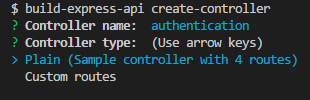
You can choose the plain controller or custom routes controller from the menu.
Plain controller just creates a controller with built in routes in the path provided in beaConfig.json file.
Custom routes controller allows you to manually add your routes, the example of building custom routes controller would be:

Note: make sure that you write the routes in the correct (strict JSON) format such as:
{"routeName":"METHOD"}When the controller is created it will automatically be imported in the file provided in the beaConfig.json as the serverPath.
Adding routes to a controller
$ build-express-api add-routes <controllerName>or
$ build-express-api ar <controllerName>Example:

Creating new model
$ build-express-api create-modelor
$ build-express-api cmExample:

Note: When creating new model, you don't need to provide the properties in strict JSON format, just separate them with the comma
Also models are not automatically imported in server.js, so you will need to import them manually.
This CLI supports only mongoose models for now.
Creating multiple controllers and models
If you need to instantly create multiple controllers, and models, you will need to define a schema object in beaConfig.json file. When defining schema, it must be in a correct format.
Example of beaConfig.json, with schema file:
{
  "serverPath": "./rest/server.js",
  "controllersPath": "./rest/controllers",
  "modelsPath": "./rest/models",

  "schema": {
    "controllers": [
      {
        "name": "foo1",
        "routes": "plain"
      },
      {
        "name": "posts",
        "routes": {
          "getPosts": "GET",
          "createNew": "POST"
        }
      }
    ],
    "models": [
      {
        "name": "User",
        "props": "username: String, password: String"
      },
      {
        "name": "Post",
        "props": "title: String, properties: { isRead: Boolean, DateCreated: Date }"
      }
    ]
  }

}
As you can see, the controllers and models objects are defined as an array of objects containing information about every controller and model.
After the schema is defined, simply run
$ build-express-api build-schemaor
$ build-express-api bsAnd the CLI will create all of the defined controllers, and models in the schema.
When defining schema, if you want to create plain controller, simply set the routes field to "plain", and if you want to add routes to a specific controller, you must define them like in the example above.
If you want to create only multiple controllers, just erase the models array. Same goes when creating only multiple models.
Notes
Note: The experience this CLI provides does not work as smooth in Git Bash terminal, since it is not an interactive terminal, but if you are using Git Bash inside VS Code, then there are no problems, I found no complications using any other terminal.
Feel free to post issues if you run into any.