
byte-datepicker
v3.0.1
Published
Lightweight, accessible React date, time, and date-time picker components.

Maintainers
 rahmannugar
Readme
ByteDatePicker v3
Byte DatePicker v3 adds dedicated time and date-time pickers alongside the existing date picker.
What's new in v3
- Dedicated
ByteTimePickerandByteDateTimePickerexports - Automatic support for pickers rendered inside dialogs and focus-trapped modals
- Keyboard focus containment, Escape dismissal, and focus restoration
- Local form values (
YYYY-MM-DD,HH:mm, andYYYY-MM-DDTHH:mm) without UTC date shifts - The existing
ByteDatePickerAPI remains unchanged
Picker components
V3 exports three focused components:
import {
  ByteDatePicker,
  ByteTimePicker,
  ByteDateTimePicker,
} from "byte-datepicker";
import "byte-datepicker/styles.css";
ByteTimePicker
Use ByteTimePicker when a form needs a local time without a calendar date.
const [time, setTime] = useState<string | null>(null);

<ByteTimePicker
  value={time}
  onChange={setTime}
  hourFormat={12}
  minuteStep={5}
  minTime="09:00"
  maxTime="17:00"
  clearable
/>;
The value is always a local HH:mm string such as "09:30" or "14:45". The component works at minute precision and does not accept or emit seconds. The 12-hour format changes only what the user sees; values still use the stable 24-hour HH:mm format.
Custom time input
Set hideInput and use the children render prop to replace the default time input with your own input or button.
const [time, setTime] = useState<string | null>(null);

<ByteTimePicker value={time} onChange={setTime} hideInput>
  {({ open, isOpen, formattedValue }) => (
    <input
      readOnly
      value={formattedValue}
      placeholder="Select time"
      onClick={open}
      onKeyDown={(event) => {
        if (event.key === "Enter" || event.key === " ") open();
      }}
      aria-haspopup="dialog"
      aria-expanded={isOpen}
      className="border rounded-lg px-4 py-2"
    />
  )}
</ByteTimePicker>;
The render prop provides open, isOpen, selectedTime, formattedValue, and clear.
| Prop | Type | Default | Description |
| ------------- | --------------------------------- | --------------- | -------------------------------------------------- |
| value | string \| null | null | Selected time in HH:mm format |
| onChange | (value: string \| null) => void | — | Called after the user confirms or clears the value |
| hourFormat | 12 \| 24 | 12 | Display the selector in 12-hour or 24-hour format |
| minuteStep | number | 1 | Interval between selectable minutes, from 1 to 60 |
| minTime | string | — | Earliest allowed HH:mm value |
| maxTime | string | — | Latest allowed HH:mm value |
| placeholder | string | "Select time" | Empty input text |
| clearable | boolean | false | Show a clear action when a value exists |
ByteDateTimePicker
Use ByteDateTimePicker for appointments, schedules, bookings, and other values that require a calendar date and local time.
const [appointment, setAppointment] = useState<Date | null>(null);

<ByteDateTimePicker
  value={appointment}
  onChange={setAppointment}
  hourFormat={12}
  minuteStep={15}
  minDateTime={new Date(2026, 7, 16, 9, 0)}
  maxDateTime={new Date(2026, 7, 20, 17, 0)}
/>;
The picker uses a Date → Time flow. Selecting a date moves to the time step without assigning a default time or calling onChange. The completed local Date is emitted only after the user selects a time and presses Done. Seconds and milliseconds are always zero.
Custom date-time input
The date-time picker supports the same custom-input pattern.
const [appointment, setAppointment] = useState<Date | null>(null);

<ByteDateTimePicker
  value={appointment}
  onChange={setAppointment}
  hideInput
>
  {({ open, isOpen, formattedValue }) => (
    <input
      readOnly
      value={formattedValue}
      placeholder="Select date and time"
      onClick={open}
      onKeyDown={(event) => {
        if (event.key === "Enter" || event.key === " ") open();
      }}
      aria-haspopup="dialog"
      aria-expanded={isOpen}
      className="border rounded-lg px-4 py-2"
    />
  )}
</ByteDateTimePicker>;
The render prop provides open, isOpen, selectedDateTime, formattedValue, and clear.
| Prop | Type | Default | Description |
| ------------------ | ------------------------------- | ------------------------ | -------------------------------------------------- |
| value | Date \| string \| null | null | Selected local date and time |
| onChange | (value: Date \| null) => void | — | Called after the user confirms or clears the value |
| minDateTime | Date \| string | — | Earliest allowed date and time |
| maxDateTime | Date \| string | — | Latest allowed date and time |
| dateFormatString | string | "dd month yyyy" | Date portion of the displayed value |
| hourFormat | 12 \| 24 | 12 | Display the time step in 12-hour or 24-hour format |
| minuteStep | number | 1 | Interval between selectable minutes, from 1 to 60 |
| placeholder | string | "Select date and time" | Empty input text |
| clearable | boolean | false | Show a clear action when a value exists |
Both new components also support disabled, required, name, onBlur, error, className, theme, hideInput, and a custom-trigger children render prop, matching the corresponding ByteDatePicker behavior.
When name or required is set, form submission and browser validation continue to work with a custom input because the picker maintains its form value internally.
Dialog and modal support
All three pickers work inside native <dialog> elements and focus-trapped modal libraries without configuration. The picker automatically renders inside the nearest dialog instead of moving its interactive content outside the modal.
const dialogRef = useRef<HTMLDialogElement>(null);

<button type="button" onClick={() => dialogRef.current?.showModal()}>
  Schedule appointment
</button>

<dialog ref={dialogRef}>
  <ByteDateTimePicker value={appointment} onChange={setAppointment} />
  <button type="button" onClick={() => dialogRef.current?.close()}>
    Close
  </button>
</dialog>;
No portal target or rendering-mode prop is required. When there is no surrounding dialog, the picker renders at the document level as usual. The shared overlay also handles Escape dismissal, keyboard focus containment, outside clicks, and restoring focus to the trigger.
How dialog rendering works
The behavior lives inside the shared picker overlay. It finds the closest native or ARIA dialog containing the picker and uses that element as the portal target. If the picker is not inside a dialog, it falls back to document.body.
const portalTarget =
  sourceRef.current?.closest("dialog, [role='dialog']") ?? document.body;

return createPortal(
  <div className="byte-picker-portal">
    <div className="byte-overlay" />
    <div role="dialog" aria-modal="true">
      {children}
    </div>
  </div>,
  portalTarget,
);
This keeps the picker inside the modal's interactive DOM subtree, so native dialog restrictions and modal focus traps do not mistake it for outside content. This logic is internal; applications continue using the picker normally.
Design System
The design system implements a solid, high-contrast interface optimized for both light and dark environments:
- Color Palette: Blue primary (
#3b82f6) with gold accent (#f59e0b) for visual hierarchy - Surface Treatment: Opaque backgrounds with multi-tier shadow system (sm, md, lg, xl, 2xl) for depth perception
- Typography: Enhanced contrast ratios with refined font weights for improved readability
- Interactive States: Transform-based hover effects with cubic-bezier timing functions for smooth transitions
- Visual Feedback: Linear gradient backgrounds on selected states with inset highlights
Dark Mode Implementation
The dark mode theme uses a deep navy color scheme with optimized contrast ratios:
- Background:
#0f172abase with#1e293belevated surfaces - Color Adjustments: Lighter blue and gold variants calibrated for dark backgrounds
- Shadow System: Enhanced shadow depths with adjusted opacity for visibility
- Text Hierarchy: Improved contrast with dedicated secondary and muted text colors
- Overlay Treatment: Theme-specific overlay backgrounds for proper visual separation
Theme selection supports light, dark, or system modes via the theme prop, with system mode automatically detecting OS preferences.
Architecture
- Component Structure: Modular design with separated concerns (CalendarHeader, DayGrid, MonthGrid, YearGrid)
- State Management: Custom
useDatePickerhook for reusable date selection logic - Type Safety: Full TypeScript implementation with comprehensive interface definitions
- Dependencies: Zero runtime dependencies beyond React peer dependencies
- Theming: CSS custom property-based theming system for easy customization
Byte DatePicker
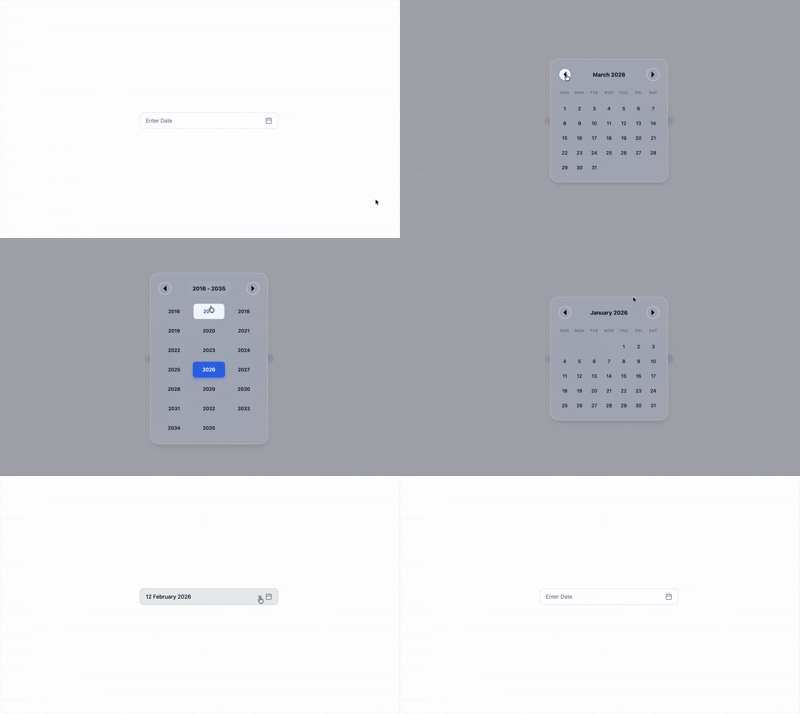
A lightweight, elegant, and highly customizable React datepicker component with support for both month/year and full date selection.


Demo
Features
- Lightweight - Minimal dependencies, small bundle size
- Highly Customizable - Easy to style and theme
- Responsive - Works great on mobile and desktop
- Accessible - Built with accessibility in mind
- Flexible - Month/year picker or full date picker modes
- Modern - Built with TypeScript and modern React patterns
- Beautiful UI - Clean, modern interface with smooth animations
- Custom Input Support - Use your own input/button with full control
- Display Formatting - Easily control how the date is displayed with flexible format tokens
Installation
npm install byte-datepickeryarn add byte-datepickerpnpm add byte-datepickerUsage
Basic Usage
import React, { useState } from "react";
import ByteDatePicker, { DatePickerProps } from "byte-datepicker";
import "byte-datepicker/styles.css";

function App() {
  const [selectedDate, setSelectedDate] = useState<Date | null>(null);

  return (
    <div>
      <ByteDatePicker
        value={selectedDate}
        onChange={setSelectedDate}
        placeholder="Select a date"
      />
    </div>
  );
}
Month/Year Picker (Default)
Perfect for date of birth, expiry dates, or when you only need month and year:

import ByteDatePicker from "byte-datepicker";
import "byte-datepicker/styles.css";

function MonthYearPicker() {
  const [date, setDate] = useState<Date | null>(null);

  return (
    <ByteDatePicker
      value={date}
      onChange={setDate}
      placeholder="Select month and year"
      // includeDays={false} is the default
    />
  );
}
Full Date Picker with Days
For complete date selection including days:

import ByteDatePicker from "byte-datepicker";
import "byte-datepicker/styles.css";

function FullDatePicker() {
  const [date, setDate] = useState<Date | null>(null);

  return (
    <ByteDatePicker
      value={date}
      onChange={setDate}
      includeDays={true}
      placeholder="Select complete date"
    />
  );
}
Custom Input (Hide Default Input)
You can use your own input or button to trigger the datepicker and fully control its styling (e.g., with Tailwind CSS):
import React, { useState } from "react";
import ByteDatePicker from "byte-datepicker";
import "byte-datepicker/styles.css";

function CustomInputExample() {
  const [date, setDate] = useState<Date | null>(null);

  return (
    <ByteDatePicker
      value={date}
      onChange={setDate}
      hideInput
      formatString="dd-mm-yyyy" // Controls display format for formattedValue
    >
      {({ open, formattedValue }) => (
        <input
          readOnly
          value={formattedValue}
          placeholder="Pick a date"
          onClick={open}
          className="border border-blue-600 rounded-lg px-4 py-2 text-lg focus:ring-2 focus:ring-blue-400"
        />
      )}
    </ByteDatePicker>
  );
}hideInputhides the default input.- Use the
childrenrender prop to provide your own input or button. formattedValueis automatically formatted usingformatString.
Custom Display Formatting
You can control how the date is displayed in the input (default or custom) using the formatString prop.
Supported tokens (case-insensitive):
dd– day (e.g.,05)mm– numeric month (e.g.,08)mmm– short month name (e.g.,Aug)month– full month name (e.g.,August)yyyy– year (e.g.,2025)
Examples:
<ByteDatePicker
  value={date}
  onChange={setDate}
  formatString="yyyy/mm/dd" // e.g., 2025/08/14
/>
<ByteDatePicker
  value={date}
  onChange={setDate}
  formatString="dd-mm-yyyy" // e.g., 14-08-2025
/>
<ByteDatePicker
  value={date}
  onChange={setDate}
  formatString="mmm yyyy" // e.g., Aug 2025
/>
<ByteDatePicker
  value={date}
  onChange={setDate}
  formatString="month yyyy" // e.g., August 2025
/>
Note: Format tokens are case-insensitive (
mmm,MMM,mm,MM, etc. all work).
Controlled Component
function ControlledExample() {
  const [selectedDate, setSelectedDate] = useState<Date | null>(new Date());

  const handleDateChange = (date: Date | null) => {
    console.log("Selected date:", date);
    setSelectedDate(date);
  };

  return (
    <ByteDatePicker
      value={selectedDate}
      onChange={handleDateChange}
      placeholder="Pick a date"
    />
  );
}
Min/Max Date
You can restrict the selectable date range using the minDate and maxDate props.
You can pass either a Date object or a string in "YYYY-MM-DD" or "YYYY/MM/DD" format:
import ByteDatePicker from "byte-datepicker";
import "byte-datepicker/styles.css";

function LimitedRangePicker() {
  const [date, setDate] = useState<Date | null>(null);

  return (
    <ByteDatePicker
      value={date}
      onChange={setDate}
      minDate="2020-01-01" // or new Date(2020, 0, 1)
      maxDate="2030-12-31" // or new Date(2030, 11, 31)
      placeholder="Pick a date within range"
      includeDays={true}
    />
  );
}- Dates outside the range will be disabled in the picker.
Clearable Selection
You can add a clear button to the input by setting the clearable prop to true:
<ByteDatePicker
  value={date}
  onChange={setDate}
  clearable={true}
  placeholder="Select a date"
/>
Year Only Picker
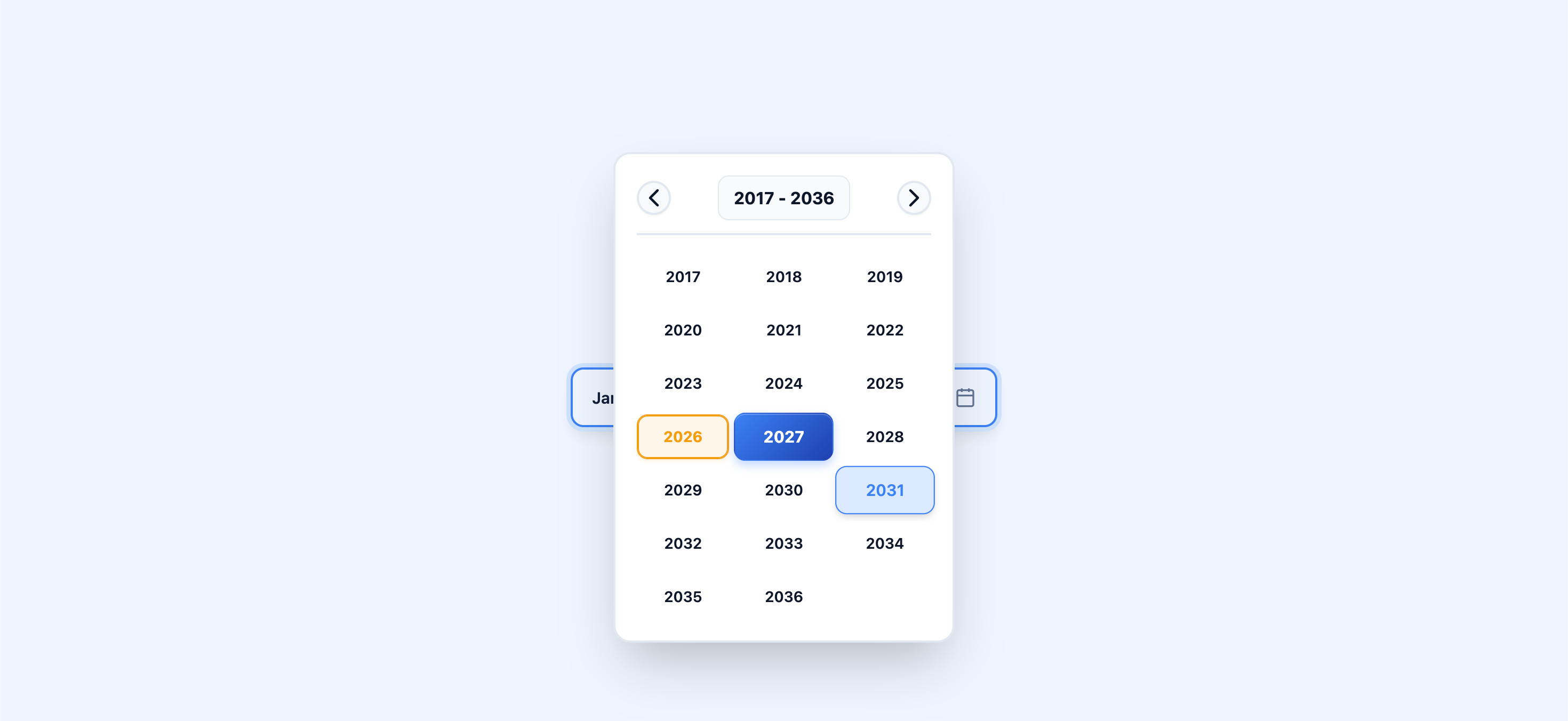
For scenarios where you only want users to select a year (e.g., graduation year, manufacturing year):
import ByteDatePicker from "byte-datepicker";
import "byte-datepicker/styles.css";

function YearOnlyPicker() {
  const [year, setYear] = useState<Date | null>(null);

  return (
    <ByteDatePicker
      value={year}
      onChange={setYear}
      yearOnly={true}
      placeholder="Select year"
      formatString="yyyy" // Only show year in input
    />
  );
}- Set
yearOnly={true}to show only the year selection grid. - The selected value will be a
Dateobject with January 1st of the selected year.
Using the useDatePicker Hook
For advanced use cases where you need full control over the datepicker's rendering and behavior, you can use the useDatePicker hook directly. This hook manages all the internal state and logic, allowing you to build completely custom datepicker UIs.
import { useDatePicker } from "byte-datepicker";

function CustomDatePicker() {
  const {
    selectedDate,
    currentYear,
    setCurrentYear,
    currentMonth,
    setCurrentMonth,
    isOpen,
    setIsOpen,
    viewMode,
    setViewMode,
    handleChange,
    toggleOpen,
    close,
    clear,
  } = useDatePicker({
    value: null,
    onChange: (date) => console.log("Selected:", date),
    includeDays: true,
    minDate: "2020-01-01",
    maxDate: "2030-12-31",
  });

  return (
    <div>
      <button onClick={toggleOpen}>
        {selectedDate ? selectedDate.toLocaleDateString() : "Pick a date"}
      </button>

      {isOpen && (
        <div className="custom-calendar">
          <div>
            <button onClick={() => setCurrentYear(currentYear - 1)}>←</button>
            <span>{currentYear}</span>
            <button onClick={() => setCurrentYear(currentYear + 1)}>→</button>
          </div>

          {/* Build your custom calendar UI here */}
          {/* Use the provided state and handlers */}

          <button onClick={close}>Close</button>
          <button onClick={clear}>Clear</button>
        </div>
      )}
    </div>
  );
}
Hook Return Values:
| Property | Type | Description |
| ----------------- | ------------------------------- | ------------------------------------------- |
| selectedDate | Date \| null | Currently selected date |
| currentYear | number | Year currently being viewed in the calendar |
| setCurrentYear | (year: number) => void | Update the year being viewed |
| currentMonth | number | Month currently being viewed (0-11) |
| setCurrentMonth | (month: number) => void | Update the month being viewed |
| isOpen | boolean | Whether the calendar dropdown is open |
| setIsOpen | (open: boolean) => void | Control the dropdown open state |
| viewMode | "days" \| "months" \| "years" | Current view mode of the calendar |
| setViewMode | (mode: ViewMode) => void | Switch between day, month, and year views |
| min | Date \| undefined | Normalized minimum date |
| max | Date \| undefined | Normalized maximum date |
| handleChange | (date: Date \| null) => void | Call this when a date is selected |
| toggleOpen | () => void | Toggle the dropdown open/closed |
| close | () => void | Close the dropdown and reset view mode |
| clear | () => void | Clear the selected date |
This hook is useful when you need to:
- Build a completely custom UI that doesn't match the default design
- Integrate with existing design systems or component libraries
- Implement custom calendar layouts or interactions
- Have fine-grained control over the datepicker's behavior
Props
| Prop | Type | Default | Description |
| -------------- | ------------------------------- | --------------- | ----------------------------------------------------- |
| value | Date \| string \| null | null | The currently selected date |
| onChange | (date: Date \| null) => void | undefined | Callback function called when a date is selected |
| placeholder | string | "Select Date" | Placeholder text shown when no date is selected |
| disabled | boolean | false | Whether the datepicker is disabled |
| includeDays | boolean | false | Whether to show day selection (full date picker mode) |
| minDate | Date \| string | undefined | Minimum selectable date |
| maxDate | Date \| string | undefined | Maximum selectable date |
| formatString | string | undefined | Controls how the date is displayed (see tokens above) |
| hideInput | boolean | false | Hide the default input and use custom input |
| required | boolean | false | Makes the field required for form validation |
| name | string | undefined | Input name for form submission |
| onBlur | () => void | undefined | Called when the input loses focus |
| error | boolean | false | Whether the field has a validation error |
| className | string | "" | Custom class for the container |
| theme | 'light' \| 'dark' \| 'system' | 'light' | Toggles the UI theme |
| clearable | boolean | false | Shows a clear button in the input |
| children | (props) => React.ReactNode | undefined | Render prop for custom input (includes clear) |
| yearOnly | boolean | false | Show only year selection grid |
className Prop
You can use the className prop to add your own custom CSS class to the outer container of the datepicker.
This is useful for applying custom styles, layout.
Example:
<ByteDatePicker
  value={date}
  onChange={setDate}
  className="my-datepicker-custom-class"
  placeholder="Pick a date"
/>
This will render:
<div class="datepicker-container my-datepicker-custom-class">...</div>You can then target .my-datepicker-custom-class in your CSS to style the datepicker container as needed.
Accepted Date Formats
You can pass a Date object, an ISO string ("YYYY-MM-DD"), or a date string that JavaScript's Date constructor can parse to the value, minDate, and maxDate props.
Examples of accepted values:
<ByteDatePicker value={new Date()} onChange={setDate} />
<ByteDatePicker value="2025-08-16" onChange={setDate} /> // ISO string
<ByteDatePicker value="June 2025" onChange={setDate} />  // Month and year
<ByteDatePicker value="2025" onChange={setDate} />       // Year only (Jan 1)
<ByteDatePicker value="2013-01-01" onChange={setDate} /> // ISO string
<ByteDatePicker value="25 Jan 2019" onChange={setDate} />// Day, month, year
Note:
- Short or ambiguous formats like
"jun 25"or"25/1/2019"may not work reliably in all browsers. - For best results, use ISO strings (
"YYYY-MM-DD"), full month names with year ("June 2025"), orDateobjects.
Styling
Important: You must import the CSS file for the component to display correctly:
import "byte-datepicker/styles.css";Custom Styling
The component uses CSS classes that you can easily override. Here are the main classes:
.byte-datepicker-container {
}
.byte-input {
}
.byte-input:hover {
}
.byte-input.disabled {
}
.byte-dropdown {
}
.byte-overlay {
}
.byte-cell {
}
.byte-cell.selected {
}
.byte-cell.today {
}
.byte-cell-lg {
}
Using Tailwind CSS or Custom CSS
- For the input: Use
hideInputand provide your own input/button with any Tailwind or custom classes. - For the calendar/dropdown: Override the provided CSS classes in your global stylesheet.
Theme Customization
ByteDatePicker v3 is built with CSS variables, making it easy to create custom themes or override specific styles.
Using the theme prop
The easiest way to toggle between light and dark modes is via the theme prop:
<ByteDatePicker theme="light" />(Default)<ByteDatePicker theme="dark" />- Forces dark mode.<ByteDatePicker theme="system" />- Automatically follows user OS preference.
Global Variable Overrides
You can override colors, radii, and fonts globally in your CSS:
:root {
  --byte-primary: #2563eb; /* Primary brand color */
  --byte-radius-lg: 12px; /* Container corners */
  --byte-font: "Inter", sans-serif;
}

/* Custom dark mode overrides */
.byte-dark {
  --byte-bg: #1e293b;
  --byte-dropdown-bg: #0f172a;
}
Examples
Integration with Forms
import { useForm, Controller } from "react-hook-form";
import ByteDatePicker from "byte-datepicker";
import "byte-datepicker/styles.css";

function FormExample() {
  const { control, handleSubmit } = useForm();

  return (
    <form onSubmit={handleSubmit(console.log)}>
      <Controller
        name="birthDate"
        control={control}
        render={({ field: { onChange, value } }) => (
          <ByteDatePicker
            value={value}
            onChange={onChange}
            placeholder="Select birth month/year"
          />
        )}
      />

      <Controller
        name="appointmentDate"
        control={control}
        render={({ field: { onChange, value } }) => (
          <ByteDatePicker
            value={value}
            onChange={onChange}
            includeDays={true}
            placeholder="Select appointment date"
          />
        )}
      />
    </form>
  );
}
Multiple Date Pickers
function MultiplePickers() {
  const [startDate, setStartDate] = useState<Date | null>(null);
  const [endDate, setEndDate] = useState<Date | null>(null);

  return (
    <div className="flex gap-4">
      <ByteDatePicker
        value={startDate}
        onChange={setStartDate}
        placeholder="Start date"
        includeDays={true}
      />
      <ByteDatePicker
        value={endDate}
        onChange={setEndDate}
        placeholder="End date"
        includeDays={true}
      />
    </div>
  );
}
Form Validation Examples
Simple Form Validation
function SimpleFormExample() {
  const [date, setDate] = useState<Date | null>(null);

  const handleSubmit = (e: React.FormEvent) => {
    e.preventDefault();
    if (!date) {
      alert("Please select a date");
      return;
    }
    // Form submission logic here
    console.log("Submitting date:", date);
  };

  return (
    <form onSubmit={handleSubmit}>
      <ByteDatePicker value={date} onChange={setDate} required name="date" />
      <button type="submit">Submit</button>
    </form>
  );
}
Form Validation with props
function FormExample() {
  const [date, setDate] = useState<Date | null>(null);
  const [error, setError] = useState(false);

  const handleSubmit = (e: React.FormEvent) => {
    e.preventDefault();
    if (!date) {
      setError(true);
      return;
    }
    // Form submission logic
  };

  return (
    <form onSubmit={handleSubmit}>
      <ByteDatePicker
        value={date}
        onChange={(newDate) => {
          setDate(newDate);
          setError(false);
        }}
        required
        name="date"
        error={error}
        onBlur={() => setError(!date)}
      />
      {error && <span style={{ color: "red" }}>Date is required</span>}
      <button type="submit">Submit</button>
    </form>
  );
}
The datepicker supports:
- Native HTML form validation
- Custom validation state
- Form library integration (React Hook Form, Formik)
- Required field indication
- Error state styling
Development
Want to contribute? Great! Here's how to get started:
# Clone the repository
git clone https://github.com/Rahmannugar/byte-datepicker.git

# Navigate to the project directory
cd byte-datepicker

# Install dependencies
npm install

# Start development server
npm run dev

# Build the project
npm run build
Bundle Size
Byte DatePicker is designed to be lightweight:
- Unpacked Size: <200KB (includes published bundles, styles, and type declarations)
- Minification: Production bundlers can reduce the component code further
- Zero runtime dependencies (except React peer dependencies)
- Tree-shakeable: Modern bundlers will only include what you use
Contributing
Contributions are welcome! Please feel free to submit a Pull Request. For major changes, please open an issue first to discuss what you would like to change.
- Fork the project
- Create your feature branch (
git switch -c feature/AmazingFeature) - Commit your changes (
git commit -m 'Add some AmazingFeature') - Push to the branch (
git push origin feature/AmazingFeature) - Open a Pull Request
Acknowledgments
- Built with ❤️ by Rahman Nugar
- Inspired by the need for a simple, customizable React datepicker