
ccstatusline
v2.2.32
Published
A customizable status line formatter for Claude Code CLI

Maintainers
 sirmalloc
Readme
ccstatusline
🎨 A highly customizable status line formatter for Claude Code CLI Display model info, git branch, token usage, and other metrics in your terminal






📚 Table of Contents
- Recent Updates
- Features
- Localizations
- Quick Start
- Windows Support
- Usage
- Development
- Contributing
- License
- Related Projects
🆕 Recent Updates
v2.2.32 - Safer imports, proxy handling, and rendering fixes
- 📥 Review imported commands - Config imports show new shell commands in full and require confirmation with Cancel selected by default; control characters are displayed as escaped text.
- 🔒 Private settings stay private - Saves preserve restrictive settings-file permissions, Claude settings backups inherit the source permissions, and installation stops rather than overwriting unreadable Claude settings.
- 🌐 Proxy exclusions and deadlines - Usage and Claude Status requests honor
NO_PROXYandno_proxyand have total five-second deadlines; JJ commands also time out after five seconds. - ⏳ Accurate cache timer state - Interrupts and local slash commands such as
/costno longer leave Cache Timer reportingHOT. - ⚡ Faster Git and text rendering - Git widgets skip unnecessary calls outside repositories and keep separate caches per working directory; text-width calculations reuse Unicode measurements, and Git file/URL parsing avoids quadratic slowdowns.
- 📏 Reliable styled-text truncation - Width limits remain correct when ANSI styling or hyperlinks split an emoji or another display cluster.
- 🛡️ Command and file handling - Update versions are validated before installation, fonts download into private temporary folders, branch/host names stay literal CLI arguments, and Skills logs reject unsafe session IDs.
- 🔄 Reliable usage backoff - Successful usage requests preserve rate-limit backoff written by concurrent renders.
v2.2.31 - Cost tracking, customization, and broad reliability improvements
Across the updates since the September 3 release, 64 PRs have been incorporated, plus additional security fixes and test isolation.
- 🩹 Miscellaneous bug fixes - 29 dedicated bug-fix PRs since September 3 cover usage/account caching, transcript reading, Git/JJ and directory displays, Unicode truncation, Powerline colors and layout, keyboard controls, settings recovery, hooks, and installation/update flows.
- 🔒 Security fixes - Three additional fixes restrict repository-controlled Git commands, resolve Windows helper executables from PATH, and filter terminal control sequences while preserving colors and hyperlinks.
- 💰 Session Cost Rate - Track session cost per hour of active API time or total session time, with a one-minute minimum before showing a rate.
- 📅 Extra Usage Daily Budget - Spread the remaining monthly spending limit over the remaining UTC days, with an option to skip future weekend days.
- 🏷️ Editable labels - Press
eto customize text labels. - ⚡ Faster rendering - Piped status lines skip loading the interactive TUI, reducing startup work on every repaint.
- 🧰 Maintenance - Shared widget and editor implementations, broader regression coverage, more reliable tests, dependency updates, and CI actions pinned to commit SHAs.
v2.2.29 - v2.2.30 - Faster rendering, command caching, and reliable usage
- ⚡ Faster terminal width detection - Linux can probe the terminal directly without subprocesses, portable fallbacks skip shell wrappers, and configurable caching reuses failed width probes across renders while detected widths refresh on the next render.
- 🔧 Custom command caching and timeouts - Opt into output caching for up to 60 seconds from Configure Status Line, and enforce command timeouts even when descendants retain output pipes.
- 🔣 More customizable Git/JJ symbols - Press
gto edit insertion/deletion signs, Git clean/dirty markers, and the JJ Revision prefix, including empty glyphs for compact layouts. - 🙈 Hide reset-timer placeholders - Block Reset Timer and Weekly Reset Timer can hide loading and error output through
h; useffor 12/24-hour format andofor weekly hours-only display. - 👤 Reliable usage account selection - macOS usage lookup respects the active config profile's Keychain credentials, and access-token refreshes preserve cached usage when the refresh token is unchanged.
- 📊 Unused model quotas show zero - Weekly model usage widgets recognize an explicit 0% quota even before the API supplies a reset timestamp.
- ↔️ Full-width layouts by default - New configurations and settings without an explicit flex mode now use Full width always.
- ⏱️ Bounded Git commands - Cached Git commands have a five-second timeout so a stalled Git invocation cannot block the status line indefinitely.
v2.2.28 - v2.2.29 - Service health, flexible formatting, and resilient rendering
- 🩺 Claude service health - Added a
Claude Statuswidget with live severity, a cached 48-hour incident-history strip, stale-data fallback, and graceful?output when status data is unavailable. - 🙈 Unified conditional hiding - Numeric, Git, JJ, usage, cache, and other widgets now share an
hchecklist for supported hide conditions, with automatic migration of existing settings and optional merge-target hiding for decorative text or symbols. - 🔢 Configurable number formatting - Numeric widgets can use precise, compact, or whole-number styles per widget or globally by token, speed, percent, memory, and cost type, while advanced configs can set decimal precision explicitly.
- 📜 Faster, reliable large-session rendering - Transcript-backed token, duration, speed, compaction, effort, and session-name metrics now stream JSONL records through one shared scan instead of loading an entire transcript into a single string, while no-active-block results are briefly cached to avoid repeated full-history scans.
- ⚠️ Git conflict display controls - Git Conflicts can hide when the count is zero or show either
⚠0or a customizable clean glyph when the tree is conflict-free. - 🩹 Self-healing usage locks - Usage widgets ignore impossible fetch-lock deadlines more than 24 hours ahead, allowing poisoned locks caused by clock jumps or old test artifacts to recover on the next render.
- 🧹 Bounded Git cache cleanup - Failed persistent Git-cache writes clean up their temporary file and reuse one stable fallback name, preventing Windows file locks from leaking thousands of orphaned temp files.
- 📊 Consistent timer bars - Block Timer, Block Reset Timer, and Weekly Reset Timer now round progress-bar fill to the nearest cell, matching the other progress widgets.
v2.2.27 - Portable configuration import and export
- 📦 Config import/export - Export the current TUI configuration to JSON, validate and preview imports, then replace all settings or merge only supplied fields while preserving local installation metadata and leaving the result unsaved for review.
v2.2.25 - v2.2.26 - Fable usage, migrated usage API support, compaction accuracy, and rendering reliability
- 🪄 Weekly Fable usage - Added a
Weekly Fable Usagewidget with percentage, progress-bar, remaining-mode, and time-cursor controls. - 📊 Reshaped usage API support - Session and all-model weekly usage can fall back to the newer
limits[]response, while Sonnet, Opus, and Fable weekly widgets read authoritativeweekly_scopedentries so migrated accounts do not show stale or frozen values. - 🧠 Correct post-compaction context - Context length and percentage widgets reset immediately from
compact_boundary.postTokensafter/compact, then switch to the first new turn instead of retaining the pre-compaction size. - 🧹 Reliable hidden-widget separators - Manual separators now look past widgets that render empty, preserve the intended visible boundary, and inherit colors from the actual preceding visible widget.
- ⚡ Non-blocking Git PR/CI refreshes - Git PR and CI widgets render from a versioned disk cache while stale data refreshes in the background, preventing slow
ghcalls from blocking the status line.
v2.2.22 - v2.2.24 - Powerline flex mode, cache/CI/sandbox visibility, layout controls, composable metrics, and safer config

- ⏳ Prompt cache timer - Added a
Cache Timerwidget with liveHOTstate, TTL countdown, configurable 5-minute/1-hour windows, and customizable state glyphs. - ✅ GitHub CI status - Added a
Git CI Statuswidget that summarizes failing, pending, and successful checks for the current branch's pull request. - 🔒 Sandbox status - Added a
Sandbox Statuswidget with glyph, text, and Nerd Font formats that follows Claude Code's layered sandbox setting on each refresh. - ↔️ One-sided default padding - Default widget padding can now apply to both sides, the left only, or the right only in standard and Powerline layouts.
- ⚡ Powerline flex mode - Flex separators now work in Powerline mode, letting Powerline status lines right-align content or absorb available width.
- 🌗 Per-widget dim styling - The color editor can dim an entire widget or only parenthesized text, with reset and clear-all actions covering dim state.
- 🧯 Safer settings recovery - Invalid
settings.jsonfiles are left untouched, defaults render in memory, and the status line shows an invalid-config warning. - 🧭 Selective Powerline alignment - Press
xin the line editor to let a widget and the rest of its line keep their natural widths while earlier Powerline columns stay auto-aligned. - 📏 Git widget width limits -
Git BranchandGit Root Dircan cap their visible width with ellipsis-safe truncation while preserving hyperlink targets. - 🔣 Current directory glyphs -
Current Working Dircan prepend an optional custom glyph, including in raw-value mode. - 🧠 Configurable context fallback -
CCSTATUSLINE_CONTEXT_SIZE_FALLBACKoverrides the default 200k last-resort context window when Claude Code and the model name do not report one. - 🧩 Composable compaction metrics -
Compaction Countercan render count, auto, manual, unknown, or reclaimed-token values independently for custom layouts. - 🏷️ CLI version flag -
ccstatusline --versionnow prints the installed package version and exits. - 🛡️ Guarded invalid-config saves - The TUI warns when it loaded defaults for an invalid settings file and requires confirmation before replacing that file.
- 🔄 Usage display and cache fixes - Used/remaining direction now works in every percentage mode, account switches invalidate cached usage, and fetch locks no longer cause repeated requests or stale timeout output.
- ⏱️ Calmer reset timer startup - Reset timers show labeled loading placeholders instead of transient rate-limit errors while Claude Code's embedded usage-window data is still arriving.
- 🔇 Quieter install detection - Best-effort npm and Bun probes no longer leak expected package-manager errors into the TUI.
v2.2.21 - Cache widgets, compaction details, extra usage currency, and package fixes
- 🔣 Custom widget glyphs - Git and JJ symbol widgets can override or suppress their built-in glyphs from the TUI.
- 🔁 Compaction counter details -
Compaction Counternow counts explicitcompact_boundarymarkers and can optionally show trigger splits plus tokens reclaimed. - 💸 Extra usage improvements - Added
Extra Usage Usedand formats extra usage amounts with the billing currency reported by the usage API. - 📏 Custom command width context -
Custom Commandwidgets receiveterminal_widthin stdin JSON when ccstatusline can detect the terminal width. - 🧠 Prompt cache widgets - Added
Cache Hit Rate,Cache Read, andCache Writewidgets with turn/session scopes and hide-when-empty behavior. - 🔢 Token rounding fix - Token counts from
999950through999999now render as1.0Minstead of1000.0k.
v2.2.20 - Gradients, token accuracy, usage reliability, and Git PR/MR fixes
- 🌈 Gradient colors - Added per-widget and whole-line foreground gradients with named presets, custom hex stops, TUI picker support, and Powerline-aware rendering. Press
gon the Edit Colors screen for widget gradients, or pressgfor Override FG Color in Global Overrides for a line-wide gradient. - 🎯 More accurate token counts -
Tokens InputandTokens Outputnow prefer cumulative transcript metrics before falling back to context-window totals. - 💸 Extra usage no-limit fix - Extra usage widgets no longer get stuck on
[Timeout]for accounts with overage enabled but no monthly limit configured. - 🔁 Compaction glitch filtering -
Compaction Counterignores transient below-1% context readings so incomplete status frames do not create false compaction counts. - 🔀 SSH alias Git PR/MR detection - Git PR/MR detection resolves SSH host aliases while preserving canonical GitHub and GitLab hosts for CLI selection and fallback repo links.
- 🧪 Usage test cache isolation - Usage-fetch test probes now isolate
HOME,USERPROFILE,CLAUDE_CONFIG_DIR, and proxy variables so local tests cannot touch the real ccstatusline cache. - 📦 Dependency refresh - Refreshed React/React DOM and Bun lockfile development-tooling resolutions for the release.
v2.2.14 - v2.2.19 - Version pinning, npm provenance, usage overage widgets, and Git lock avoidance
- 📌 Version pinning support - Added support for pinned global installs so Claude Code can keep running a specific ccstatusline version.
- 🔐 npm provenance attestations - Published packages now use trusted publishing provenance so users can verify where releases were built while avoiding long-lived npm publish tokens.
- 🔄 Moving from auto-update installs - If you currently use an auto-updating install, use the TUI uninstall option first, then reinstall to go through the version pinning flow. Your ccstatusline settings are preserved when uninstalling.
- 💸 Extra usage widgets - Added Extra Usage Utilization and Extra Usage Remaining widgets for monthly pay-as-you-go overage limits, with null rate-limit buckets handled as zero usage.
- 🔒 Git lock avoidance - Git helpers now pass
--no-optional-locksso background status checks avoid creatingindex.lockraces. - 🧱 Older Git compatibility - Git widgets avoid newer command forms so repository status works on older Git installations.
- ⚡ Persistent Git cache - Git command output is cached under
~/.cache/ccstatusline/git-cachewith configurable TTL and.git/HEAD/.git/indexmtime checks to reduce repeated subprocess work. - 🧭 Install flow polish - Pinned global install is now the default install option, with clearer wording for install and migration flows.
- 🪟 Hidden helper processes - Runtime child processes set
windowsHideso helper commands do not open extra windows on Windows. - 📏 Terminal width override -
CCSTATUSLINE_WIDTHcan provide an explicit terminal width when automatic probing is unavailable.
v2.2.13 - Weekly model usage, voice status, hooks, and docs
- 📊 Weekly Sonnet/Opus usage widgets - Added separate weekly usage widgets for Sonnet and Opus API buckets, matching Claude Code's
/usagemodel split. - 🎤 Voice Status widget - Added a widget that shows whether Claude Code voice input is enabled, with icon, text, word, and optional Nerd Font display modes.
- 📉 Timer short bars - Block Timer, Block Reset Timer, and Weekly Reset Timer now support compact short-bar progress displays.
- 🔕 Quieter hook output - Hook handling now suppresses no-op JSON output so non-status updates stay silent.
v2.2.9 - v2.2.12 - GitLab support, reset timers, context, compaction, and git widgets
- 🦊 GitLab PR/MR support -
Git BranchandGit PR/MRnow support GitHub, GitLab, and compatible self-hosted remotes, usingghorglabas appropriate. - 🔄 Status line refresh interval - Installed configs can set Claude Code's
statusLine.refreshIntervalfrom the TUI when Claude Code >=2.1.97 supports it. - 🧭 Wrap-around TUI navigation - Menu/list navigation and move/reorder modes now wrap at the first and last items.
- 📋 Clone widget shortcut - Press
kin the item editor to duplicate the selected widget, with fresh Powerline background color for cloned Powerline items. - 📊 Short bar display modes - Context percentage, Context Bar, Session Usage, Weekly Usage, Block Timer, and reset timer widgets can use compact bar variants.
- ⏱️ Usage time cursor - Session Usage and Weekly Usage progress bars can show the elapsed time position within the current usage window.
- 🕒 Reset timer timestamps - Block and Weekly Reset Timer widgets can show exact reset timestamps with compact formatting, 12/24-hour display, IANA time zones, and locale selection.
- 🪟 Context Window widget - Added a
Context Windowwidget for total model window size, keepingContext Lengthfocused on current context usage. - 🔁 Compaction Counter widget - Added a
Compaction Counterwidget that tracks session context compactions, with icon/text/number formats, optional Nerd Font icon, and hide-when-zero behavior. - 🧮 Git file status widgets - Added
Git Staged Files,Git Unstaged Files,Git Untracked Files, andGit Clean Statusfor file counts and clean/dirty state. - 🏷️ Clear context percentage labels -
Context %andContext % (usable)now label rendered values as used or left when toggling used/remaining mode. - ⚡ More Powerline caps - The Powerline separator editor now supports more than three start/end caps.
- 🧠 Thinking Effort updates - Added
xhigh, showdefaultwhen no effort is set, mark unknown future effort levels with?, and track live status JSON plus/effortcommand changes. Claude Code reports Ultracode asxhighin status line data. - 🧮 More accurate token counts - Streaming duplicate JSONL entries are deduped so token widgets do not overcount live Claude Code output.
- 🏷️ Cleaner model display - The Model widget strips trailing context suffixes like
(1M context); useContext Windowwhen you want the total window size shown. - 🧹 Cleaner empty-widget separators - Manual separators now collapse around widgets that render empty, avoiding dangling separators when hide-when-empty widgets disappear.
- 🧱 More resilient Git helpers - Git widgets handle missing or unusual git command output more defensively.
v2.2.8 - Git widgets, smarter picker search, and minimalist mode
- 🔀 New Git PR widget - Added a
Git PRwidget with clickable PR links plus optional status and title display for the current branch. - 🧰 Major Git widget expansion - Added
Git Status,Git Staged,Git Unstaged,Git Untracked,Git Ahead/Behind,Git Conflicts,Git SHA,Git Origin Owner,Git Origin Repo,Git Origin Owner/Repo,Git Upstream Owner,Git Upstream Repo,Git Upstream Owner/Repo,Git Is Fork,Git Worktree Mode,Git Worktree Name,Git Worktree Branch,Git Worktree Original Branch, andCustom Symbol. - 👤 Claude Account Email widget - Added a session widget that reads the signed-in Claude account email from
~/.claude.jsonwhile respectingCLAUDE_CONFIG_DIR. - 🧼 Global Minimalist Mode - Added a global toggle in
Global Overridesthat forces widgets into raw-value mode for a cleaner, label-free status line. - 🔎 Smarter widget picker search - The add/change widget picker now supports substring, initialism, and fuzzy matching, with ranked results and live match highlighting.
- 📏 Better terminal width detection - Flex separators and right-alignment now work more reliably when ccstatusline is launched through wrapper processes or nested PTYs.
- 🎨 Powerline theme continuity - Built-in Powerline themes can now continue colors cleanly across multiple status lines instead of restarting each line.
v2.2.0 - v2.2.6 - Speed, widgets, links, and reliability updates
- 🚀 New Token Speed widgets - Added three widgets: Input Speed, Output Speed, and Total Speed.
- Each speed widget supports a configurable window of
0-120seconds in the widget editor (wkey). 0disables window mode and uses a full-session average speed.1-120calculates recent speed over the selected rolling window.
- Each speed widget supports a configurable window of
- 🧩 New Skills widget controls (v2.2.1) - Added configurable Skills modes (last/count/list), optional hide-when-empty behavior, and list-size limiting with most-recent-first ordering.
- 🌐 Usage API proxy support (v2.2.2) - Usage widgets honor the uppercase
HTTPS_PROXYenvironment variable for their direct API call to Anthropic. - 🧠 New Thinking Effort widget (v2.2.4) - Added a widget that shows the current Claude Code thinking effort level.
- 🍎 Better macOS usage lookup reliability (v2.2.5) - Improved reliability when loading usage API tokens on macOS.
- ⌨️ New Vim Mode widget (v2.2.5) - Added a widget that shows the current vim mode, with ASCII and optional Nerd Font icon display.
- 🔗 Git widget link modes (v2.2.6) -
Git Branchcan render clickable GitHub branch links, andGit Root Dircan render clickable IDE links for VS Code and Cursor. - 🤝 Better subagent-aware speed reporting - Token speed calculations continue to include referenced subagent activity so displayed speeds better reflect actual concurrent work.
v2.1.0 - v2.1.10 - Usage widgets, links, new git insertions / deletions widgets, and reliability fixes
- 🧩 New Usage widgets (v2.1.0) - Added Session Usage, Weekly Usage, Block Reset Timer, and Context Bar widgets.
- 📊 More accurate counts (v2.1.0) - Usage/context widgets now use new statusline JSON metrics when available for more accurate token and context counts.
- 🪟 Windows empty file bug fix (v2.1.1) - Fixed a Windows issue that could create an empty
c:\dev\nullfile. - 🔗 New Link widget (v2.1.3) - Added a new Link widget with clickable OSC8 rendering, preview parity, and raw mode support.
- ➕ New Git Insertions widget (v2.1.4) - Added a dedicated Git widget that shows only uncommitted insertions (e.g.,
+42). - ➖ New Git Deletions widget (v2.1.4) - Added a dedicated Git widget that shows only uncommitted deletions (e.g.,
-10). - 🧠 Context format fallback fix (v2.1.6) - When
context_window_sizeis missing, context widgets now infer 1M models from long-context labels such as[1m]and1M contextin model identifiers. - ⏳ Weekly reset timer split (v2.1.7) - Added a separate
Weekly Reset Timerwidget. - ⚙️ Custom config file flag (v2.1.8) - Added
--config <path>support so ccstatusline can load/save settings from a custom file location. - 🔣 Unicode separator hex input upgrade (v2.1.9) - Powerline separator hex input now supports 4-6 digits (full Unicode code points up to
U+10FFFF). - 🌳 Bare repo worktree detection fix (v2.1.10) -
Git Worktreenow correctly detects linked worktrees created from bare repositories.
v2.0.26 - v2.0.29 - Performance, git internals, and workflow improvements
- 🧠 Memory Usage widget (v2.0.29) - Added a new widget that shows current system memory usage (
Mem: used/total). - ⚡ Block timer cache (v2.0.28) - Cache block timer metrics to reduce JSONL parsing on every render, with per-config hashed cache files and automatic 5-hour block invalidation.
- 🧱 Git widget command refactor (v2.0.28) - Refactored git widgets to use shared git command helpers and expanded coverage for failure and edge-case tests.
- 🪟 Windows UTF-8 piped output fix (v2.0.28) - Sets the Windows UTF-8 code page for piped status line rendering.
- 📁 Git Root Dir widget (v2.0.27) - Added a new Git widget that shows the repository root directory name.
- 🏷️ Session Name widget (v2.0.26) - Added a new widget that shows the current Claude Code session name from
/rename. - 🏠 Current Working Directory home abbreviation (v2.0.26) - Added a
~abbreviation option for CWD display in both preview and live rendering. - 🧠 Context model suffix fix (v2.0.26) - Context widgets now recognize the
[1m]suffix across models, not just a single model path. - 🧭 Widget picker UX updates (v2.0.26) - Improved widget discovery/navigation and added clearer, safer clear-line behavior.
- ⌨️ TUI editor input fix (v2.0.26) - Prevented shortcut/input leakage into widget editor flows.
- 📄 Repo docs update (v2.0.26) - Migrated guidance from
CLAUDE.mdtoAGENTS.md(with symlink compatibility).
v2.0.16 - Add fish style path abbreviation toggle to Current Working Directory widget
v2.0.15 - Block Timer calculation fixes
- Fix miscalculation in the block timer
v2.0.14 - Add remaining mode toggle to Context Percentage widgets
- Remaining Mode - You can now toggle the Context Percentage widgets between usage percentage and remaining percentage when configuring them in the TUI by pressing the 'u' key.
v2.0.12 - Custom Text widget now supports emojis
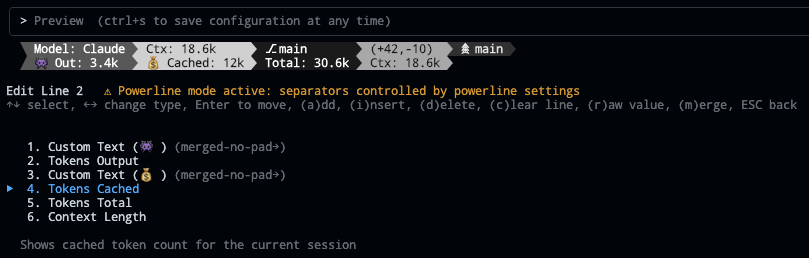
- 👾 Emoji Support - You can now paste emoji into the custom text widget. You can also turn on the merge option to get emoji labels for your widgets like this:
v2.0.11 - Unlimited Status Lines
- 🚀 No Line Limit - Configure as many status lines as you need - the 3-line limitation has been removed
v2.0.10 - Git Updates
- 🌳 Git Worktree widget - Shows the active worktree name when working with git worktrees
- 👻 Hide 'no git' message toggle - Git widgets now support hiding the 'no git' message when not in a repository (toggle with 'h' key while editing the widget)
v2.0.8 - Powerline Auto-Alignment
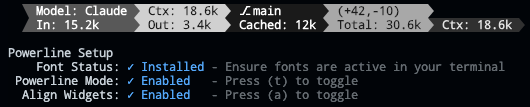
- 🎯 Widget Alignment - Auto-align widgets across multiple status lines in Powerline mode for a clean, columnar layout (toggle with 'a' in Powerline Setup)
v2.0.7 - Current Working Directory & Session Cost

- 📁 Current Working Directory - Display the current working directory with configurable segment display
- Set the number of path segments to show (e.g., show only last 2 segments:
.../Personal/ccstatusline) - Supports raw value mode for compact display
- Automatically truncates long paths with ellipsis
- Set the number of path segments to show (e.g., show only last 2 segments:
- 💰 Session Cost Widget - Track your Claude Code session costs (requires Claude Code 1.0.85+)
- Displays total session cost in USD
- Supports raw value mode (shows just
$X.YZvsCost: $X.YZ) - Real-time cost tracking from Claude Code session data
- Note: Cost may not update properly when using
/resume(Claude Code limitation)
- 🐛 Bug Fixes
- Fixed Block Timer calculations for accurate time tracking across block boundaries
- Improved widget editor stability with proper Ctrl+S handling
- Enhanced cursor display in numeric input fields
v2.0.2 - Block Timer Widget

- ⏱️ Block Timer - Track your progress through 5-hour Claude Code blocks
- Displays time elapsed in current block as hours/minutes (e.g., "3hr 45m")
- Progress bar mode shows visual completion percentage
- Two progress bar styles: full width (32 chars) or compact (16 chars)
- Automatically detects block boundaries from transcript timestamps
v2.0.0 - Powerline Support & Enhanced Themes
- ⚡ Powerline Mode - Beautiful Powerline-style status lines with arrow separators and customizable caps
- 🎨 Built-in Themes - Multiple pre-configured themes that you can copy and customize
- 🌈 Advanced Color Support - Basic (16), 256-color (with custom ANSI codes), and truecolor (with hex codes) modes, plus multi-stop gradients (per-widget or spanning the whole line)
- 🔗 Widget Merging - Merge multiple widgets together with or without padding for seamless designs
- 📦 Easy Installation - Install directly with
npxorbunx- no global package needed - 🔤 Custom Separators - Add multiple Powerline separators with custom hex codes for font support
- 🚀 Auto Font Install - Automatic Powerline font installation with user consent
✨ Features
- 📊 Real-time Metrics - Display model name, git branch, token usage, Sonnet/Opus/Fable weekly usage, extra usage limits, voice input state, session duration, compaction count, block timer, and more
- 🎨 Fully Customizable - Choose what to display and customize colors for each element
- ⚡ Powerline Support - Beautiful Powerline-style rendering with arrow separators, caps, and custom fonts
- 📐 Multi-line Support - Configure multiple independent status lines
- 🖥️ Interactive TUI - Built-in configuration interface using React/Ink
- 🔎 Fast Widget Picker - Add/change widgets by category with search and ranked matching
- ⚙️ Global Options - Apply consistent formatting across all widgets (padding, separators, bold, minimalist mode, and color overrides)
- 📦 Portable Configurations - Export settings to JSON and preview replace-or-merge imports for backups and sharing
- 🚀 Cross-platform - Works seamlessly with both Bun and Node.js
- 🔧 Flexible Configuration - Supports custom Claude Code config directory via
CLAUDE_CONFIG_DIRenvironment variable - 📏 Smart Width Detection - Automatically adapts to terminal width with flex separators
- ⚡ Zero Config - Sensible defaults that work out of the box
🌐 Localizations
The localizations in this section are third-party forks maintained outside this repository. They are not maintained, reviewed, or endorsed by this repository, so review their code and releases before using them.
- 🌏 中文版 (Chinese): ccstatusline-zh
🚀 Quick Start
No installation needed! Use directly with npx or bunx:
# Run the configuration TUI with npm
npx -y ccstatusline@latest

# Or with Bun (faster)
bunx -y ccstatusline@latest
Both commands launch the same TUI. During the initial setup flow, choose Pinned global install if you want Claude Code to stay on the ccstatusline version you are running instead of following @latest; the TUI will install that version globally with npm or Bun and write the pinned ccstatusline command to Claude Code settings. After a pinned install, you can run ccstatusline directly to launch the TUI in the future.
The interactive configuration tool provides a terminal UI where you can:
- Configure multiple separate status lines
- Add/remove/reorder status line widgets
- Customize colors for each widget
- Configure flex separator behavior
- Configure Claude Code status line refresh interval when supported
- Edit custom text widgets
- Export JSON backups and preview imported configs before replacing or merging settings
- Install/uninstall to Claude Code settings
- Preview your status line in real-time
💡 Tip: Your settings are automatically saved to
~/.config/ccstatusline/settings.json
🔧 Custom Claude Config: If your Claude Code configuration is in a non-standard location, set the
CLAUDE_CONFIG_DIRenvironment variable:# Linux/macOS export CLAUDE_CONFIG_DIR=/custom/path/to/.claude
🌐 HTTPS proxy: Usage and Claude Status requests honor uppercase
HTTPS_PROXY, with exclusions from bothNO_PROXYandno_proxy. See proxy settings for host, domain, and port matching.
🪟 Windows Support: PowerShell examples, installation notes, fonts, troubleshooting, WSL, and Windows Terminal configuration are in docs/WINDOWS.md.
🫥 Status line empty in one folder? Claude Code only runs the status line command in trusted workspaces, and nested git repositories stopped inheriting trust in Claude Code 2.1.232. See Status line empty in one folder.
When you install from the TUI, ccstatusline writes a statusLine command object to your Claude Code settings:
{
  "statusLine": {
    "type": "command",
    "command": "npx -y ccstatusline@latest",
    "padding": 0,
    "refreshInterval": 10
  }
}
refreshInterval is written only when your Claude Code version supports it (>=2.1.97). The TUI can set it to 1-60 seconds, or remove it by leaving the input empty.
Other supported command values are:
bunx -y ccstatusline@latestccstatusline(for self-managed/global installs)
The status line command runs once per repaint, so what it costs to invoke is paid over and over. Under
Bun that cost depends on the specifier: bunx re-resolves the latest dist-tag against the registry
on every run, because a dist-tag is not cacheable. Measured on Windows with a warm cache, median of
five runs of --version, which exits before rendering:
| command | median |
| --- | --- |
| bunx -y ccstatusline@latest | 633 ms |
| bunx -y [email protected] | 202 ms |
| bunx -y ccstatusline | 207 ms |
Dropping @latest is worth about 430 ms per repaint there. npm does not behave this way: npx -y
ccstatusline@latest and npx -y [email protected] measured 1082 ms and 1135 ms, so pinning buys
nothing under npx. A Pinned global install, which writes "command": "ccstatusline", avoids the
resolution entirely on both.
For pinned installs, launch the TUI with npx -y ccstatusline@latest or bunx -y ccstatusline@latest, then choose Pinned global install. The TUI pins the active version by installing it globally and writing "command": "ccstatusline" to settings.json; afterward, you can run ccstatusline directly to open the TUI.
🤝 Contributing
Contributions are welcome! Please feel free to submit a Pull Request.
- Fork the repository
- Create your feature branch (
git checkout -b feature/amazing-feature) - Commit your changes (
git commit -m 'Add some amazing feature') - Push to the branch (
git push origin feature/amazing-feature) - Open a Pull Request
Support
If ccstatusline is useful to you, consider buying me a coffee:
📄 License
MIT © Matthew Breedlove
👤 Author
Matthew Breedlove
- GitHub: @sirmalloc
🔗 Related Projects
- ccstatusline-editor - A visual editor for building ccstatusline configurations — drag, drop, preview, ship.
- tweakcc - Customize Claude Code themes, thinking verbs, and more.
- ccusage - Track and display Claude Code usage metrics.
- ccsidekick - A Claude Code status-line with a reactive character plus cost, git, and usage widgets.
- codachi - A tamagotchi-style statusline pet that grows with your context window.
- AIWatch - Live status monitor for 30+ AI APIs and apps; pairs with a Custom Command widget to surface provider outages in your status line.
- ccsessions - CLI session manager for Claude Code; includes
cc-session-num, a Custom Command widget that shows the current session's rank (#1,#2, …). - crispy-recall - Searchable memory for your Claude Code and Codex sessions. Local, fast, no daemon.
- statuslin.es - Community gallery of Claude Code status lines with live, sandbox-rendered previews.
- claude-carbon - Live CO2 estimate for your Claude Code sessions, next to the cost. Ships a
--segmentmode built to embed as a Custom Command widget. - claudenews - Developer news in your status line while the agent works: Hacker News, GitHub Trending, and per-language sources, with optional translation and short summaries. Ships a
--segmentmode built to embed as a Custom Command widget.
🙏 Acknowledgments
- Built for use with Claude Code CLI by Anthropic
- Powered by Ink for the terminal UI
- Made with ❤️ for the Claude Code community
Star History
🌟 Show Your Support
Give a ⭐ if this project helped you!






