
claude-devloop
v4.2.0
Published
Automate iterative development with Claude Code

Maintainers
 aabaaiaaa
Readme
DevLoop
Build entire projects unattended with Claude Code. Define what you want, walk away, come back to working code.
DevLoop breaks your project into small tasks, executes them one by one (or in parallel) using Claude, tracks progress, and handles failures automatically. Each task runs in a fresh context, so there's no degradation over long runs.
Quick Start
npm install -g claude-devloop

cd my-project
devloop init          # Plan requirements and tasks with Claude
devloop run           # Execute tasks ($10 cost limit by default)
devloop status        # Check progress at any time
devloop continue      # Resume, iterate, or clean up
How It Works
1. Plan with devloop init
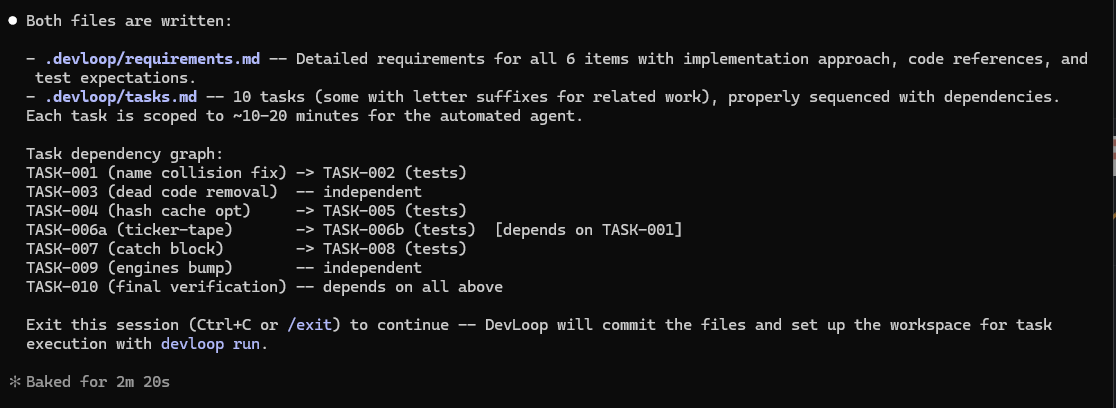
An interactive Claude session where you describe what you want to build. Claude asks questions to understand the scope, then produces a requirements doc and a dependency-ordered task list — each task scoped to ~10-20 minutes of automated work.
2. Review with devloop status
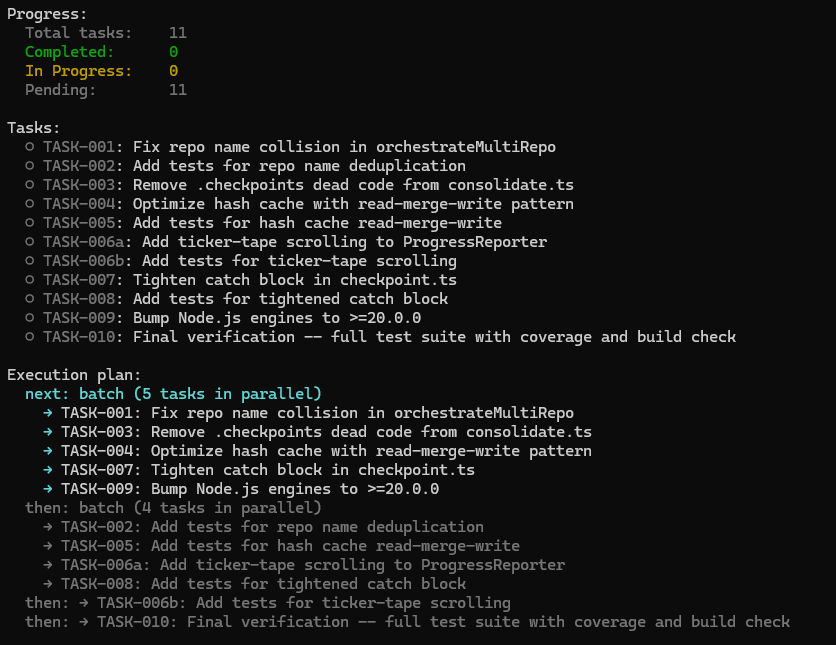
See all tasks, their dependencies, and an execution plan showing how tasks will be batched. Tasks with no dependency conflicts run in parallel (up to 5 per batch by default).
3. Execute with devloop run
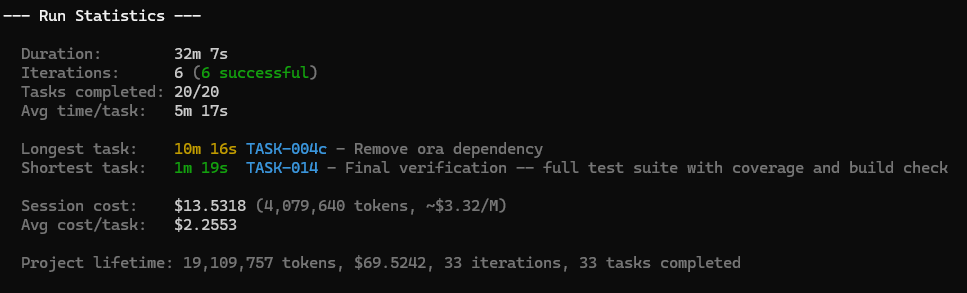
DevLoop picks eligible tasks, spawns Claude to complete them, verifies the work, commits to git, and repeats. When all tasks finish, a consolidated test suite runs followed by a full code review written to .devloop/review.md.
4. Iterate with devloop continue
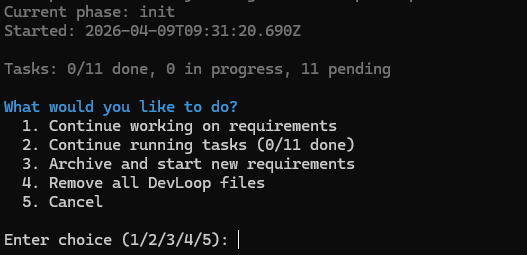
When tasks are still in progress, resume the run or refine requirements:
When all tasks are done, DevLoop shows the review and offers iteration options:
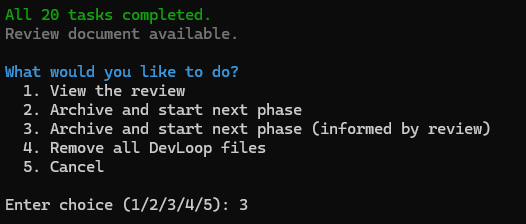
Choose "Archive and start next phase (informed by review)" to start the next iteration. DevLoop archives your current work, passes the review recommendations to Claude, and opens a new planning session:
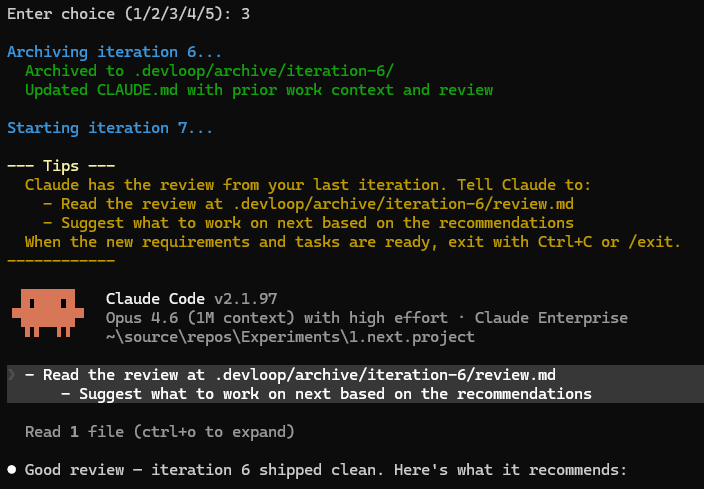
Claude reads the review, suggests what to work on next, and builds the next set of requirements and tasks. Exit the session and run devloop run again. Repeat as many times as you like — each phase builds on the last.
Example: Iterative Development
Here's a typical multi-phase workflow:
Phase 1: Build the core
  devloop init              # Describe the project
  devloop run               # Claude builds it, runs tests, writes review

Phase 2: Address review feedback
  devloop continue          # Select "Archive and start next phase (informed by review)"
                            # Claude reads the review, suggests improvements
                            # You agree on new requirements and tasks, then exit
  devloop run               # Claude implements the improvements

Phase 3: Add features
  devloop continue          # Archive again, plan the next set of features
  devloop run               # Claude builds them

...repeat as needed
Each phase archives its requirements, tasks, progress, and review to .devloop/archive/iteration-{N}/. Claude always has context from prior phases, so it builds on previous work rather than starting from scratch.
Key Features
Parallel execution — Tasks with no dependency conflicts are batched into a single Claude invocation using the Agent tool. Up to 5 tasks per batch by default.
Automatic recovery — Failed tasks retry on the next iteration. Interrupted runs commit partial work to git and pick up where they left off.
Cost and time controls — Default $10 session limit (configurable up to $500). Token limits, iteration limits, and per-task timeouts (default 2.5 hours). Real-time cost tracking after every task.
Consolidated verification — Quick checks (typecheck, lint) run per-task. Full test suites are deferred until all tasks complete, then run once. If tests fail, Claude fixes the code and retries up to 3 times.
Final code review — After verification passes, Claude reviews the entire project against requirements: gaps, code quality, security, test coverage, and recommendations.
Git integration — Every task completion is committed. Auto-generated commits use Conventional Commits by default (e.g., feat: T14 - Add token tracking), driven by each task's Type field. Tasks with a Breaking field add a BREAKING CHANGE: footer. Set devloopCommitFormat to override with a custom template if your repo requires a different format. Batch commits include a body listing each task's status and title. Interrupted work is preserved.
Graceful shutdown — Press Q to stop after the current task (press again to cancel). Press Q during verification to skip tests. Ctrl+C force-stops.
Configuration
devloop run -c 20                       # $20 cost limit for this run
devloop run -i 50                       # Max 50 iterations
devloop run --task-timeout 60           # Kill tasks after 60 minutes
devloop run --max-parallel-tasks 3      # Limit parallel batch size
devloop run --verify-each-task          # Test per-task instead of consolidated

devloop config set devloopCommitFormat "chore(devloop): {action}"
devloop config set maxParallelTasks 2
devloop config list
Safety
DevLoop runs Claude with --dangerously-skip-permissions for unattended operation. It mitigates this with:
--add-dir <workspace>restricts file operations to your workspace.claude/settings.jsonblocks dangerous commands (sudo, rm -rf /, etc.).devloop/and.claude/are deny-listed so Claude can't edit its own config- All changes are committed to git for easy rollback
These are guardrails, not a sandbox. For additional isolation, run in a VM or container.
File Structure
my-project/
├── .devloop/
│   ├── requirements.md    # Planning document (you + Claude)
│   ├── tasks.md           # Task list with dependencies and verification
│   ├── progress.md        # Iteration logs (auto-generated)
│   ├── review.md          # Code review report (auto-generated)
│   ├── session.json       # Session state and crash recovery
│   ├── logs/              # Full Claude output per task/batch
│   └── archive/           # Previous iteration files
└── .claude/
    ├── CLAUDE.md          # Context for Claude (auto-generated)
    └── settings.json      # Permission rules (auto-generated)
Task Format
Tasks in .devloop/tasks.md:
### TASK-001: Set up project structure
- **Status**: pending
- **Dependencies**: none
- **Description**: Initialize with package.json and tsconfig.json.
- **Verification**: Run `npm install` and `npx tsc --noEmit` successfully.
Install / Uninstall
npm install -g claude-devloop       # Install
npm uninstall -g claude-devloop     # Uninstall

# Remove global config
rm -rf ~/.devloop                   # macOS/Linux
rmdir /s /q %USERPROFILE%\.devloop  # Windows
Workspace files: use devloop continue > "Remove all DevLoop files", or rm -rf .devloop .claude.
Dependencies
Production: chalk (terminal colors) and commander (CLI parsing). Zero transitive dependencies.
Dev: typescript, tsx, @types/node, c8 (coverage).
Requires: Node.js >= 20, Claude Code CLI installed and authenticated.