
cockpit.js
v0.0.6
Published
Easy Web UI for Node
Downloads
11


Readme
cockpit.js
A quick UI mockup toolkit for creating simple interfaces based on events.
How to use
The following is an example demonstrating most of the basics.
var clicked = 0; // Only applicable to this example

var ui = require ('cockpit.js')({
  port: 3000, // Port to serve the UI on
  theme: 'stone', // billiard, stone, sea, simple, bright, setting, grid
  elements: [
    {
      name: 'myButton', // Every element should have a unique name
      type: 'button', // duh.
      x: 20, y: 20, w: 60, h: 60, // All values in percentage of display size (the smaller dimension)
      icon: 'lightbulb-outline', // For a list of icon names see: https://design.google.com/icons/
      fontColor: '#000', // Color of the icon
      text: 'Clicked 0 times', // Text to display under the icon (blank for none)
      server: {
        // This event is run in the server context
        click: function(el, ev, io, remote) {
          // log on the server side
          console.log('button [' + el.name + '] was clicked.');
          // run a method on the object on the client side (element_name, method_name, parameters)
          remote('myButton', 'setText', ['Clicked ' + ++clicked + ' times']);
        }
      }
    }
  ]
});
The above example will appear / operate something like this.
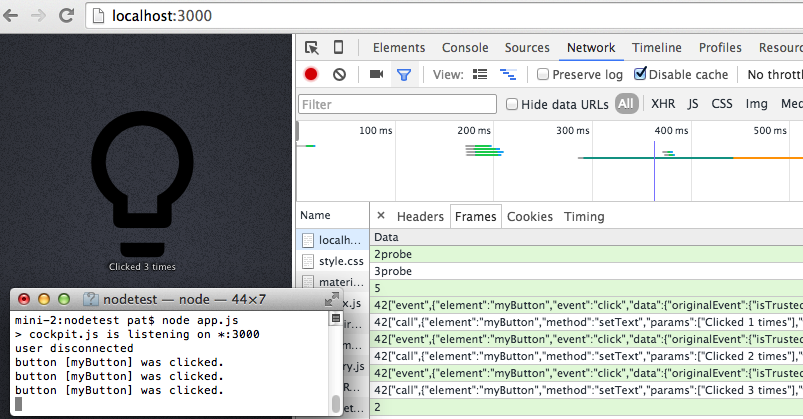
Example with a node-static web server
This is as general an example as I could imagine that might be more applicable to a larger audience. Say you have a web, mail or FTP server of some sort, and you would like a privately available admin UI to turn features on or off, initiate a backup, or set some throttling. Here is a node-static example that has had a simple UI thrown onto another port to allow turning the service on or off.
var nodeStatic = require('node-static');

var file = new nodeStatic.Server('./public');
var currentlyServing = true;
require('http').createServer(function (request, response) {
  if (currentlyServing) {
    file.serve(request, response, function (err, res) {
      console.log("> " + request.url + " - " + res.message);
    });
  } else {
    file.serveFile('/503.html', 404, {}, request, response);
  }

}).listen(8080);
console.log("> node-static is listening on http://127.0.0.1:8080");

function toggleServeStatus(el, ev, io, remote) {
  currentlyServing = !currentlyServing;
  var message = 'Site is ' + (currentlyServing ? 'online' : 'offline');
  console.log(message);
  remote('maintenance', 'setText', [message]);
  remote('maintenance', 'setFontColor', [currentlyServing ? 'black' : 'red']);
}

var ui = require ('cockpit.js')({
  port: 3000, theme: 'sea', elements: [
    {
      name: 'maintenance', type: 'button', x: 20, y: 20, w: 60, h: 30,
      icon: 'block-helper', text: 'Site is online', server: { click: toggleServeStatus }
    }
  ]
});
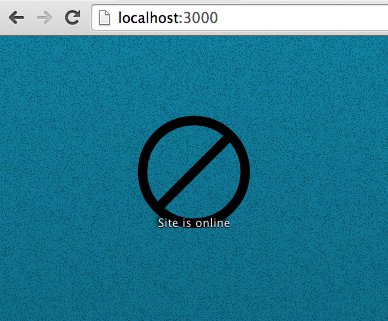
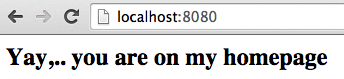
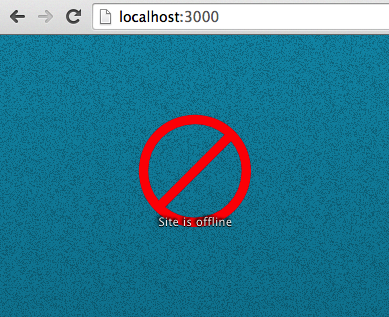
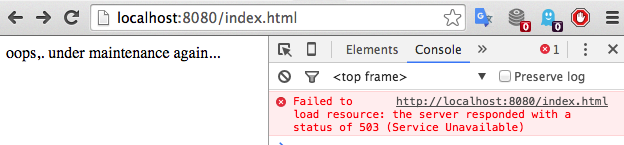
In the example above, a subfolder with two files (index.html and 503.html) was setup. When running the example the following two UI's were available.
| The Private Admin UI (Port 3000) | The Public Site (port 8080) |
| --- | --- |
|  |
|  |
|
|
|  |
|  |
|
License
MIT