
color-calendar
v3.0.0
Published
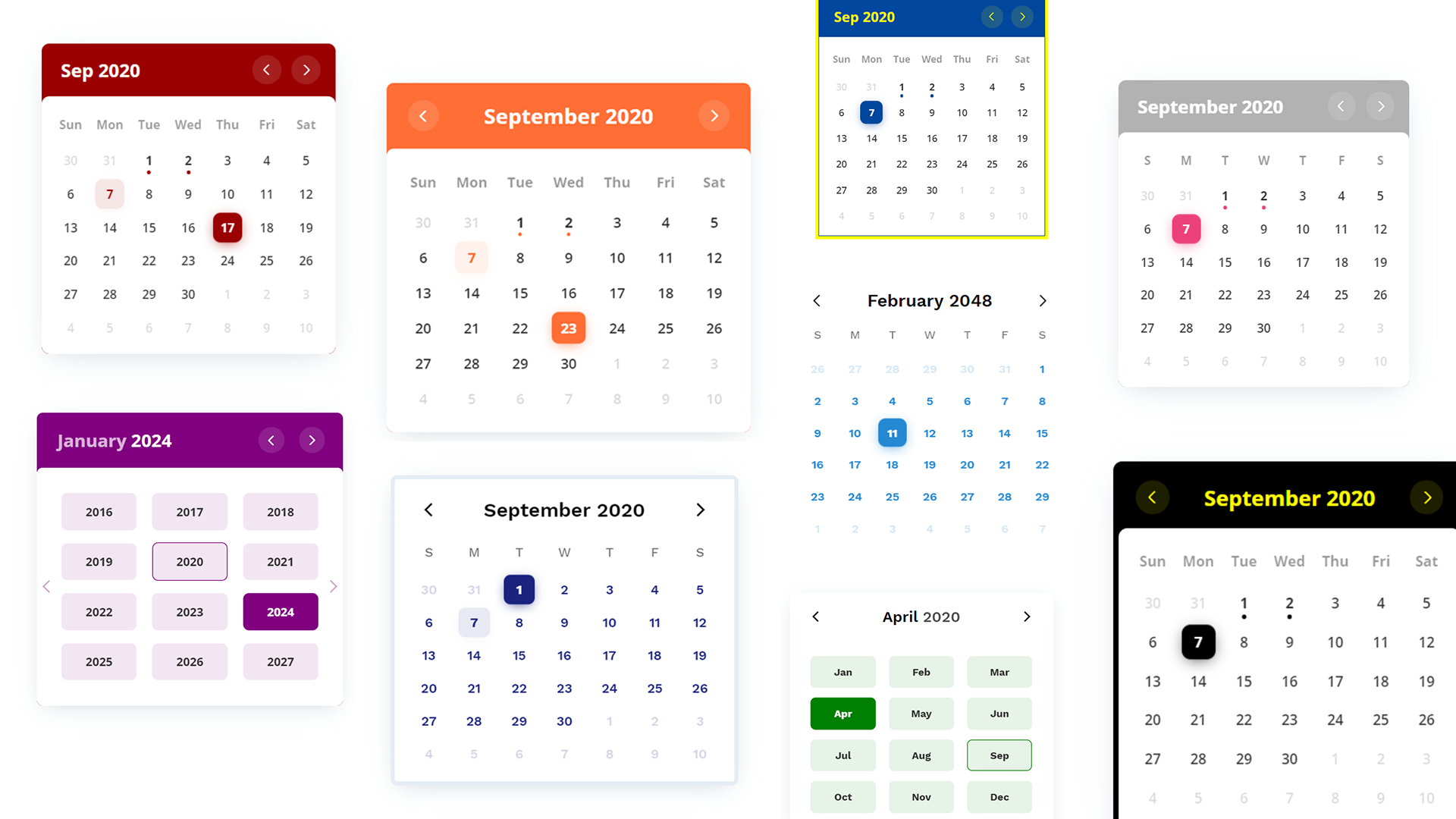
A zero-dependency, customizable events calendar widget with themes and event colors.
Downloads
5,464

Maintainers
 pawankolhe
Readme
⚛️ React wrapper available
- Features
- Getting Started
- Usage
- Options
- Events
- Methods
- Types
- Themes
- Bug Reporting
- Feature Request
- Release Notes
- License
🚀 Features
- 🏎️ Zero Dependencies: Lightweight and fast
- 🎉 Event Support: Add events to calendar with individual event colors
- 🔵 Configurable Event Bullet Modes: Show multiple bullets or single bullet per day
- 📅 Month and Year Picker: Built-in navigation controls
- 🎨 Multiple Themes: Choose from various color schemes and design styles
- 🛠️ Fully Customizable: Using CSS variables, options parameters, or CSS overrides
- 📱 Responsive Design: Works seamlessly across desktop and mobile devices
- ♿ Accessibility: Built with WCAG guidelines in mind
- ⚛️ React Integration: Dedicated React wrapper component with TypeScript support
- Request more features...
📦 Getting Started
NPM
You might need to use a module bundler such as webpack, rollup, parcel, etc.
Installation
npm i color-calendarImport
import Calendar from "color-calendar";CSS
import "color-calendar/dist/css/theme-<THEME-NAME>.css";Check the themes section for available themes.
CDN
JavaScript
<script src="https://cdn.jsdelivr.net/npm/[email protected]/dist/bundle.js">Also available on unpkg.
CSS
Pick a css file according to the theme you want.
<link
  rel="stylesheet"
  href="https://cdn.jsdelivr.net/npm/[email protected]/dist/css/theme-basic.css"
/>
<!-- or -->
<link
  rel="stylesheet"
  href="https://cdn.jsdelivr.net/npm/[email protected]/dist/css/theme-glass.css"
/>
Fonts
Get fonts from Google Fonts
<link
  href="https://fonts.googleapis.com/css2?family=Open+Sans:wght@400;600;700&display=swap"
  rel="stylesheet"
/>
Check what fonts the theme needs or pass your own fonts in options.
🔨 Usage
Basic
JavaScript
new Calendar();Or you can pass in options.
new Calendar({
  container: "#color-calendar",
  calendarSize: "small",
  initialSelectedDate: new Date(2024, 5, 15) // June 15, 2024
});
HTML
<div id="color-calendar"></div>Function-Based ID
// Using a function that returns an HTMLElement
new Calendar({
  container: () => document.getElementById("my-calendar")
});

// Dynamic element creation
new Calendar({
  container: () => {
    const container = document.createElement("div");
    document.body.appendChild(container);
    return container;
  }
});

// Using HTMLElement directly
const myElement = document.getElementById("my-calendar");
new Calendar({
  container: myElement
});
Event Colors and Bullet Modes
new Calendar({
  container: "#calendar",
  eventBulletMode: "multiple", // or "single"
  eventsData: [
    {
      start: '2024-09-15T00:00:00',
      end: '2024-09-20T23:59:59',
      name: 'Red Event',
      color: '#ff0000'
    },
    {
      start: '2024-09-15T00:00:00',
      end: '2024-09-15T23:59:59',
      name: 'Blue Event',
      color: '#0000ff'
    },
    {
      start: '2024-09-24T00:00:00',
      end: '2024-10-05T23:59:59',
      name: 'Cross-Month Event',
      color: '#00ff00'
    }
  ]
});
React
Color Calendar includes a dedicated React wrapper component with full TypeScript support:
import React, { useState } from 'react';
import { ColorCalendar } from 'color-calendar/react';

function App() {
  const [selectedDate, setSelectedDate] = useState(new Date());

  return (
    <ColorCalendar
      calendarSize="large"
      theme="basic"
      selectedDate={selectedDate}
      onSelectedDateChange={(date, events) => {
        console.log('Selected date:', date);
        console.log('Events:', events);
        setSelectedDate(date);
      }}
    />
  );
}
Key Features:
- 🚀 React Integration: Built specifically for React applications
- 📱 TypeScript Support: Full type safety and IntelliSense
- 🔄 Controlled Component: Use
selectedDateprop for controlled date selection - 🎛️ Imperative API: Programmatic control via refs
⚙️ Options
container
Type: String | HTMLElement | Function
Default: #color-calendar
Selector referencing HTMLElement where the calendar instance will bind to.
String: CSS selector string (e.g., "#my-calendar", ".calendar-container")
HTMLElement: Direct reference to an HTMLElement
Function: Function that returns an HTMLElement or null
// Function-based container example
const calendar = new ColorCalendar({
  container: () => document.getElementById("my-calendar"),
  // ... other options
});

// Dynamic element creation
const calendar = new ColorCalendar({
  container: () => {
    let container = document.getElementById("calendar-container");
    if (!container) {
      container = document.createElement("div");
      container.id = "calendar-container";
      document.body.appendChild(container);
    }
    return container;
  },
  // ... other options
});

// Using HTMLElement directly
const myElement = document.getElementById("my-calendar");
const calendar = new ColorCalendar({
  container: myElement,
  // ... other options
});
initialSelectedDate
Type: Date | null
Default: undefined (uses current date)
Sets the initial selected date when the calendar is first rendered. The calendar will open with this date selected and the view will be set to the month containing this date.
undefined: Defaults to today's dateDate: Sets the specified date as selectednull: No date is selected initially (calendar shows current month but no day is highlighted)
// Default behavior - selects today's date
new Calendar({
  container: "#calendar"
});

// Select a specific date
new Calendar({
  container: "#calendar",
  initialSelectedDate: new Date(2024, 5, 15) // June 15, 2024
});

// No initial selection
new Calendar({
  container: "#calendar",
  initialSelectedDate: null // No date selected
});
calendarSize
Type: String
Default: large
Options: small | large
Size of calendar UI.
layoutModifiers
Type: LayoutModifier[]
Default: []
Example: ['month-left-align']
Modifiers to alter the layout of the calendar.
eventsData
Type: EventData[]
Default: []
[
    {
        start: '2020-08-17T06:00:00',
        end: '2020-08-18T20:30:00',
        name: 'Blockchain 101',
        color: '#ff0000'
      ...
    },
    ...
]
Array of objects containing events information.
Note: Properties
startandendare required for each event in the ISO 8601 date and time format. You can optionally choose to add other properties.
theme
Type: String
Default: basic
Options: basic | glass
Choose from available themes.
primaryColor
Type: String
Default: based on theme
Example: #1a237e
Main color accent of calendar. Pick a color in rgb, hex or hsl format.
headerColor
Type: String
Default: based on theme
Example: rgb(0, 102, 0)
Color of header text.
headerBackgroundColor
Type: String
Default: based on theme
Example: black
Background color of header. Only works on some themes.
weekdaysColor
Type: String
Default: based on theme
Color of weekdays text. Only works on some themes.
weekdayDisplayType
Type: String
Default: long-lower
Options: WeekdayDisplayType (short | long-lower | long-upper)
Select how weekdays will be displayed. E.g. M, Mon, or MON.
monthDisplayType
Type: String
Default: long
Options: MonthDisplayType (short | long)
Select how month will be displayed in header. E.g. Feb, February.
startWeekday
Type: Number
Default: 0
Options: 0 | 1 | 2 | 3 | 4 | 5 | 6
Starting weekday. Mapping: 0 (Sun), 1 (Mon), 2 (Tues), 3 (Wed), 4 (Thurs), 5 (Fri), 6 (Sat)
fontFamilyHeader
Type: String
Default: based on theme
Example value: 'Open Sans', sans-serif
Font of calendar header text.
fontFamilyWeekdays
Type: String
Default: based on theme
Font of calendar weekdays text.
fontFamilyBody
Type: String
Default: based on theme
Font of calendar days as well as month and year picker text.
dropShadow
Type: String
Default: based on theme
Set CSS of calendar drop shadow.
border
Type: String
Default: based on theme
Example value: 5px solid black
Set CSS style of border.
borderRadius
Type: String
Default: 0.5rem
Set CSS border radius of calendar.
disableMonthYearPickers
Type: Boolean
Default: false
If month and year picker should be disabled.
disableDayClick
Type: Boolean
Default: false
If day click should be disabled.
disableMonthArrowClick
Type: Boolean
Default: false
If month arrows should be disabled.
customMonthValues
Type: String[]
Default: undefined
Set custom display values for Month.
customWeekdayValues
Type: String[]
Default: undefined
Set custom display values for Weekdays.
["Lun", "Mar", "Mer", "Jeu", "Ven", "Sam", "Dim"];eventBulletMode
Type: String
Default: multiple
Options: multiple | single
Controls how event bullets are displayed when multiple events exist on the same day.
multiple: Shows one bullet per event, positioned side by side (maximum 5 bullets to prevent overflow)single: Shows only one bullet per day, using the first event's color
new Calendar({
  container: "#calendar",
  eventBulletMode: "single", // or "multiple"
  eventsData: [
    {
      start: '2024-09-15T00:00:00',
      end: '2024-09-15T23:59:59',
      name: 'Red Event',
      color: '#ff0000'
    },
    {
      start: '2024-09-15T00:00:00',
      end: '2024-09-15T23:59:59',
      name: 'Blue Event',
      color: '#0000ff'
    }
  ]
});
🖱 Events
onSelectedDateChange
Type: Function
Props:
currentDate- Type:
Date - Currently selected date
- Type:
filteredDateEvents- Type:
EventData[] - All events on that particular date
- Type:
const options = {
    ...
    onSelectedDateChange: (currentDate?: Date, filteredDateEvents?: EventData[]) => {
        // do something
    };
    ...
}
Emitted when the selected date is changed.
onSelectedDateClick
Type: Function
Props:
currentDate- Type:
Date - Currently selected date
- Type:
filteredMonthEvents- Type:
EventData[] - All events on that particular month
- Type:
Emitted when the selected date is clicked.
onMonthChange
Type: Function
Props:
currentDate- Type:
Date - Currently selected date
- Type:
filteredMonthEvents- Type:
EventData[] - All events on that particular month
- Type:
Emitted when the current month is changed.
🔧 Methods
reset()
Reset calendar to today's date.
// Example
let myCal = new Calendar();
myCal.reset();
setSelectedDate()
Props: | Props | Type | Required | Description | |-------|------|----------|--------------------| | date | Date | null | required | New date to be set, or null to clear selection |
Set new selected date or clear selection.
// Set a specific date
myCal.setSelectedDate(new Date());

// Clear selection (no date selected)
myCal.setSelectedDate(null);
getSelectedDate()
Return:
- Type:
Date | null - Description:
Currently selected date, or null if no date is selected
Get currently selected date. Returns null if no date is currently selected.
getEventsData()
Return:
- Type: EventData[]
- Description:
All events
Get events array.
setEventsData()
Props: | Props | Type | Required | Description | |--------|------------|----------|------------------| | events | EventData[] | required | Events to be set |
Return:
- Type:
Number - Description:
Number of events set
Set a new events array.
addEventsData()
Props: | Props | Type | Required | Description | |--------|------------|----------|--------------------| | events | EventData[] | required | Events to be added |
Return:
- Type:
Number - Description:
Number of events added
Add events of the events array.
setWeekdayDisplayType()
Props: | Props | Type | Required | Description | |--------|------------|----------|--------------------| | weekdayDisplayType | WeekdayDisplayType | required | New weekday type |
Set weekdays display type.
// Example
myCal.setWeekdayDisplayType("short");
setMonthDisplayType()
Props: | Props | Type | Required | Description | |--------|------------|----------|--------------------| | monthDisplayType | MonthDisplayType | required | New month display type |
Set month display type.
💎 Types
EventData
{
    start: string,    // ISO 8601 date and time format
    end: string,      // ISO 8601 date and time format
    color?: string,   // Optional color for event bullet (hex, rgb, hsl)
    [key: string]: any,
}
Properties:
start(required): Event start date in ISO 8601 formatend(required): Event end date in ISO 8601 formatcolor(optional): Color for the event bullet. Accepts any valid CSS color value (hex, rgb, hsl, etc.). Falls back toprimaryColorif not specified.- Additional properties: Any other properties can be added and will be preserved
WeekdayDisplayType
"short" | "long-lower" | "long-upper"
// "short"
M T W ...

// "long-lower"
Mon Tue Wed ...

// "long-upper"
MON TUE WED ...
MonthDisplayType
"short" | "long"
// "short"
Jan Feb Mar ...

// "long"
January February March ...
LayoutModifier
"month-align-left"
EventBulletMode
"multiple" | "single"
Controls how event bullets are displayed when multiple events exist on the same day.
"multiple": Shows one bullet per event, positioned side by side"single": Shows only one bullet per day, using the first event's color
🎨 Themes
Currently 2 themes available. More on the way.
basic
CSS Custom Properties
--cal-color-primary: #000000;--cal-font-family-header: "Work Sans", sans-serif;--cal-font-family-weekdays: "Work Sans", sans-serif;--cal-font-family-body: "Work Sans", sans-serif;--cal-drop-shadow: 0 7px 30px -10px rgba(150, 170, 180, 0.5);--cal-border: none;--cal-border-radius: 0.5rem;--cal-header-color: black;--cal-weekdays-color: black;
glass
CSS Custom Properties
--cal-color-primary: #EC407A;--cal-font-family-header: 'Open Sans', sans-serif;--cal-font-family-weekdays: 'Open Sans', sans-serif;--cal-font-family-body: 'Open Sans', sans-serif;--cal-drop-shadow: 0 7px 30px -10px rgba(150, 170, 180, 0.5);--cal-border: none;--cal-border-radius: 0.5rem;--cal-header-color: white;--cal-header-background-color: rgba(0, 0, 0, 0.3);
🐛 Bug Reporting
Feel free to open an issue on GitHub if you find any bug.
⭐ Feature Request
- Feel free to Open an issue on GitHub to request any additional features you might need for your use case.
- Connect with me on LinkedIn. I'd love ❤️️ to hear where you are using this library.
📋 Release Notes
Check here for release notes.
📜 License
This software is open source, licensed under the MIT License.