
computer-use-capture
v0.2.2
Published
Turn Codex Computer Use sessions into polished macOS product-demo videos.


Readme
Computer Use Capture turns a Codex Computer Use session into a polished product-demo video. Codex starts recording, uses Computer Use normally, and stops recording. The recorder passively reconstructs the factual cursor path and produces a directed 60fps render with smooth camera movement, a native macOS cursor, motion blur, and proven waiting time removed.
The recorder does not wrap or replace Computer Use. It is a local, macOS-only MCP server for Codex. Every Codex task connects to one shared local recorder daemon, so a recording started in one task is visible to subsequent MCP calls from that task even when Codex creates a fresh MCP stdio process.
Demo
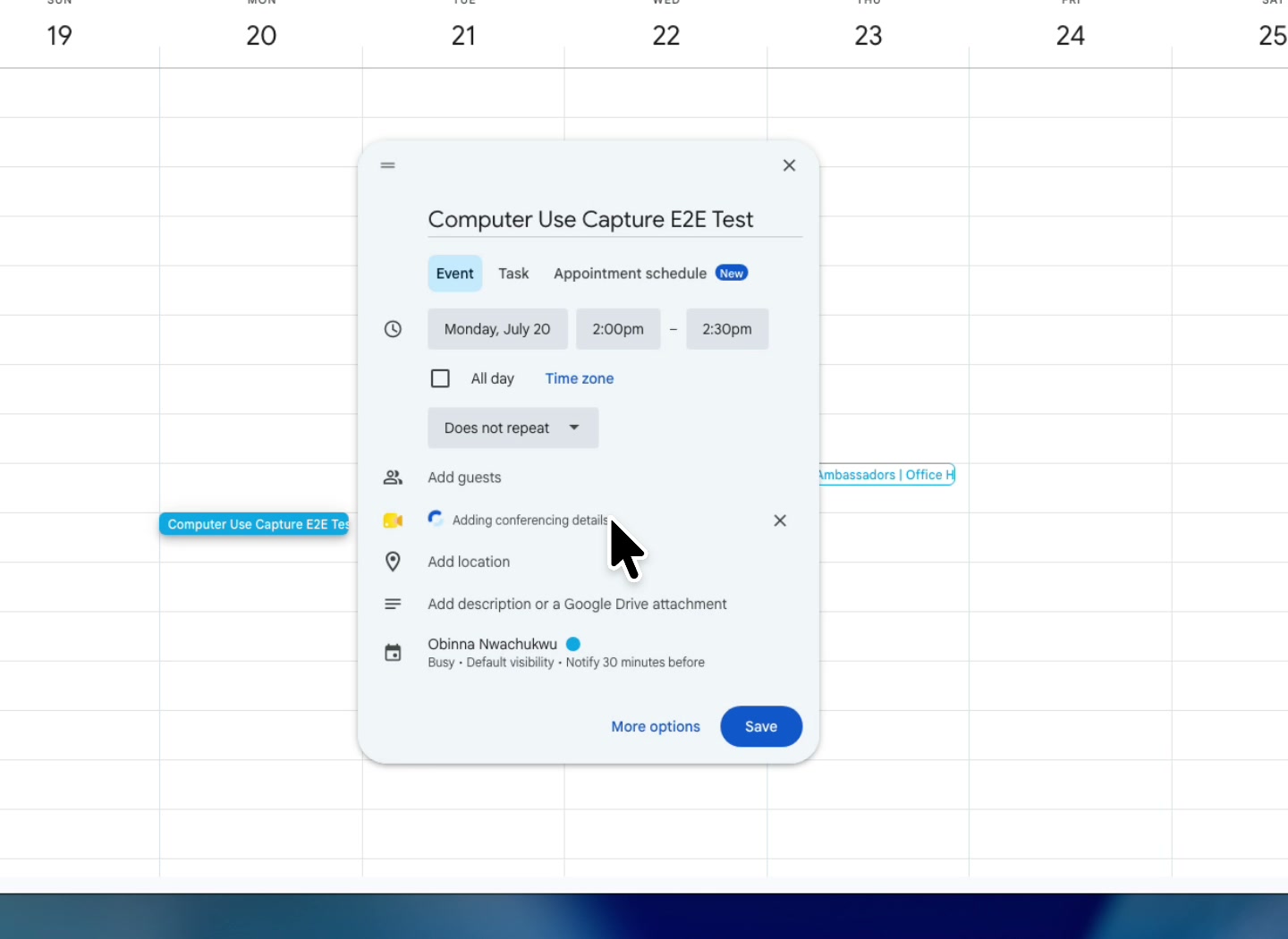
This 38-second demo was recorded end to end by Codex creating and configuring a Google Calendar event through Computer Use.
Requirements
- macOS 14 or later
- Apple Silicon
- Codex with Computer Use
- Node.js 20 or later and npm
- Screen Recording and Accessibility permission
- Exactly one eligible window for the app being recorded
Install
codex mcp add computer-use-capture -- npx -y computer-use-capture@latestThe npm package includes stripped, ad-hoc-signed Apple Silicon binaries, so users do not need the source repository, Xcode, or Swift. Verify the registration with:
codex mcp get computer-use-captureRestart Codex after registration. An already-running Codex process will not discover the new MCP server.
To remove it later:
codex mcp remove computer-use-captureRecord with Codex
Open the app and page you want to demonstrate before recording. Then ask Codex:
Use Computer Use Capture to record a product demo in Safari. Check recorder capabilities first, start recording only after the page is ready, use Computer Use normally to complete the demo, stop recording, wait for the render to finish, and return the final video URI.
Codex should follow this sequence:
- Call
recorder_capabilitiesand resolve any macOS permission or window errors. - Call
recorder_startwith the target bundle identifier, such ascom.apple.Safari. - Use the normal Computer Use tool. Do not report individual actions to the recorder.
- Call
recorder_stopwith the returned recording ID. The default render is queued automatically. - Poll
recorder_getwith the render ID until it is completed, failed, or canceled. - Return the completed render's
file://artifact URI.
The first permission check may open macOS Privacy & Security prompts. Grant Screen Recording and Accessibility access to the relevant Codex host, then restart Codex before retrying.
MCP tools
| Tool | Purpose |
| --- | --- |
| recorder_capabilities | Check permissions, visible targets, adapter health, and defaults. |
| recorder_start | Start ScreenCaptureKit capture and return once frames are being committed. |
| recorder_stop | Stop capture, reconstruct the action timeline, and optionally queue a render. |
| recorder_get | Read recording state or poll render progress and artifacts. |
| recorder_edit | After inspecting a completed render, apply a specific high-level correction and re-render. |
| recorder_cancel | Cancel a queued or active render without deleting the recording. |
| recorder_discard | Permanently delete a recording and all of its artifacts. |
The complete wire contract is docs/mcp-tools.schema.json.
Defaults and guarantees
The default product-demo render uses automatic semantic framing, a native 3x macOS cursor, motion blur, and 100 ms handles around proven-idle cuts. Factual action intervals remain at normal speed; otherwise-waiting intervals with verified UI motion play at a conservative 2x instead of being removed. A periodic insertion caret may be treated as idle only when its exact narrow pixel delta stays inside a text field identified by Computer Use or Accessibility evidence; generic spinners and other application animation remain visible motion. Before calling recorder_edit, inspect a completed render and provide its render ID plus the specific visual defect being corrected; duration or quality metadata alone is not a review. recorder_edit can set waiting.motionRate from 1 to 6.
The default wallpaper and cursor are loaded from the Mac's installed system
resources. They can be replaced for a re-render with recorder_edit:
{
  "recordingId": "rec_...",
  "intents": {
    "background": { "type": "solid", "color": "#F6F7F9" },
    "cursor": {
      "asset": {
        "type": "image",
        "path": "/absolute/path/cursor.png",
        "metadataPath": "/absolute/path/cursor.json"
      }
    }
  }
}
For a custom wallpaper, use background: {"type":"image","path":"/absolute/path/image.png"}.
Use system-wallpaper and cursor asset type system to restore the macOS
defaults. Custom files are copied into the private recording project before the
render, so moving the original file does not break later edits.
Computer Use is authoritative about which actions occurred. Direct coordinates and verified Accessibility matches can render a cursor; unresolved targets remain cursorless rather than being shown at a guessed location. Every factual click or drag that is rendered must remain visible throughout its interaction.
All apps use a display-bound selected-window filter cropped to the target window. This preserves the source at native pixel density, excludes overlapping windows from other applications, and retains app-owned menus and popovers in the controlled macOS test matrix. System-owned permission, open, and save panels may not appear in the captured surface.
Privacy and storage
Capture, reconstruction, analysis, and rendering run locally. Projects are stored under:
~/Library/Application Support/ComputerUseCapture/projectsThe recorder stores source video, a value-redacted Accessibility sidecar, the reconstructed timeline, diagnostics, and renders until recorder_discard is called. Raw Accessibility observations are temporary, typed values are redacted, and private Codex session paths are omitted from persisted output.
Current limitations
- The action adapter supports Codex Computer Use task logs and screenshot coordinates; this is not a generic MCP screen recorder.
- The target window cannot move or resize during a recording without invalidating affected direct coordinates or leaving the selected-window crop.
- System-owned surfaces may be absent from the selected-window capture.
- Capture and composition are video-only; audio is not supported.
- Ambiguous or unavailable action evidence fails open to a cursorless timeline.
Product documentation
- Capture truth and waiting reduction
- Computer Use compatibility
- Accessibility vocabulary and matching
- Motion-field detector
- Production camera planner
- Global camera scheduler architecture
Build from source
Building requires Apple Silicon macOS 14 or later, Node.js 20 or later, and the Swift 6 toolchain from Xcode or Xcode Command Line Tools.
git clone https://github.com/obinnanwachukwu1/computer-use-capture.git
cd computer-use-capture
npm ci
swift build -c release
Register that checkout as a separate development MCP server:
codex mcp add computer-use-capture-source -- node "$PWD/scripts/mcp-server.mjs"
codex mcp get computer-use-capture-source
Source checkouts use the executables in .build/release. Run the verification
suite with:
npm test
swift test
Build the npm package
npm ci
npm run build:prebuilt
npm run verify:prebuilt
npm pack
build:prebuilt compiles the release runtime, strips it, ad-hoc signs it, checks
that every binary is arm64-only, rejects embedded local build paths, and writes
checksums under vendor/darwin-arm64. Ad-hoc signing does not require an Apple
Developer account. npm pack repeats the build and verification through the
package's prepack hook and creates computer-use-capture-<version>.tgz.
License
Licensed under the MIT License.