copilot-lens
v1.0.16
Published
A local dashboard to visualize and analyze your GitHub Copilot CLI sessions
Downloads
90
Maintainers
Readme
Copilot Lens 👓
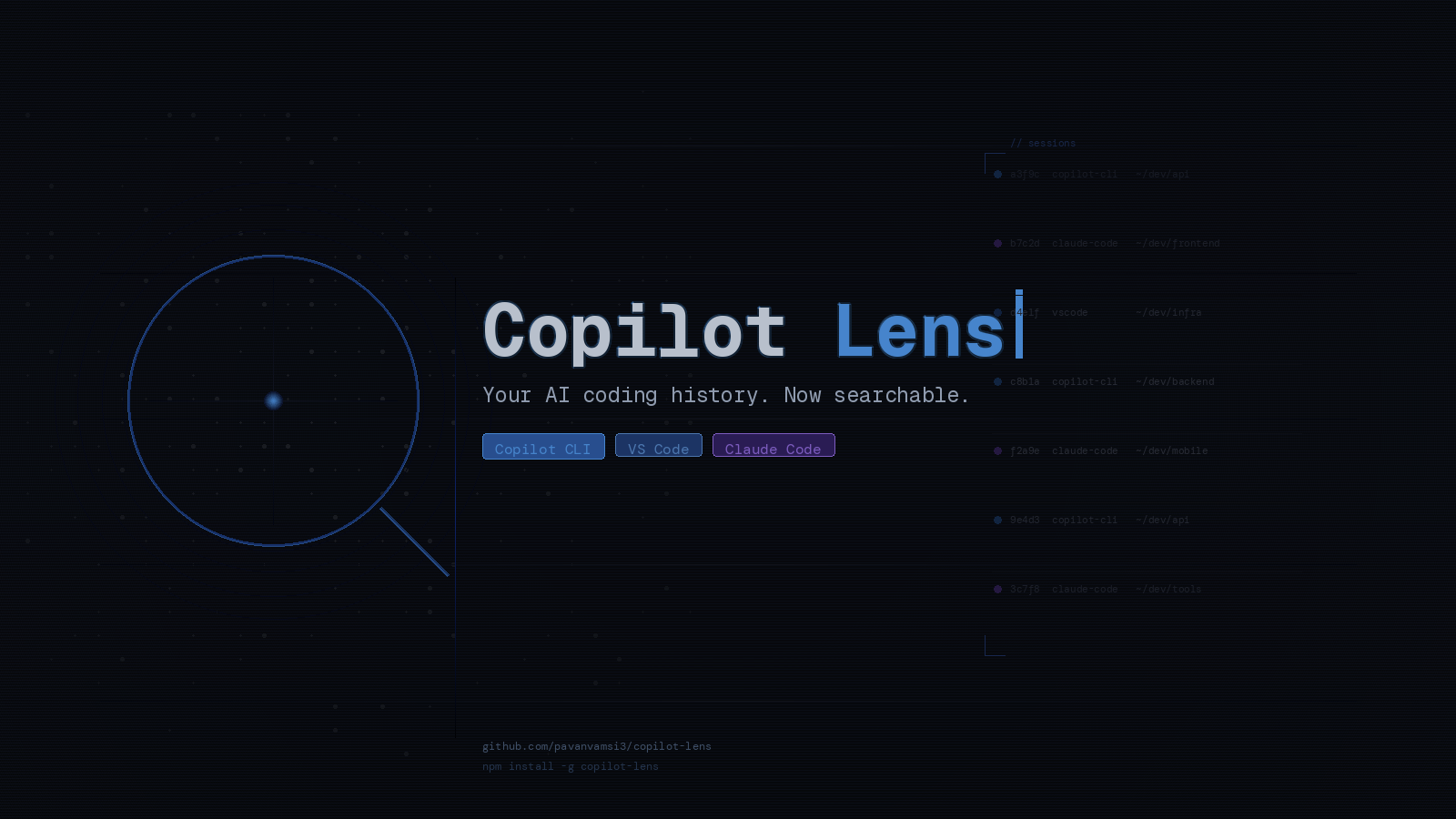
Your Copilot history has answers. Now you can actually find them.
Copilot Lens is a local memory layer for AI coding assistants — search and browse everything you've ever discussed with Copilot or Claude, across Copilot CLI terminal sessions, VS Code Copilot Chat, and Claude Code. All on your machine. No cloud. No sign-in.

Why
Copilot and Claude sessions are ephemeral by default. You solve a problem, close the terminal, and it's gone. Days later you need that same approach, that regex, that architecture decision — and you have nothing to reference.
These tools store all of this locally. Copilot Lens makes it accessible.
Install
npm install -g copilot-lens# Or without installing
npx copilot-lens --openUsage
copilot-lens # Start the dashboard
copilot-lens --open # Start and open in browser
copilot-lens --port 8080| Flag | Default | Description |
|------|---------|-------------|
| --port | 3000 | Port number |
| --host | localhost | Host address |
| --open | off | Auto-open browser |
Features
🔍 Search — Find anything in your Copilot history
Search across every conversation you've ever had with Copilot — CLI and VS Code — in one place.
- Full-text search over all session content
- Ranked results with inline highlights showing context around each match
- Filter results by source (Copilot CLI, VS Code, or Claude Code), date range, or working directory
- Results update as you type (debounced)
- Works offline, entirely on your machine
Example: Search
"redis connection pool"and instantly find the session from three weeks ago where you worked through that implementation.
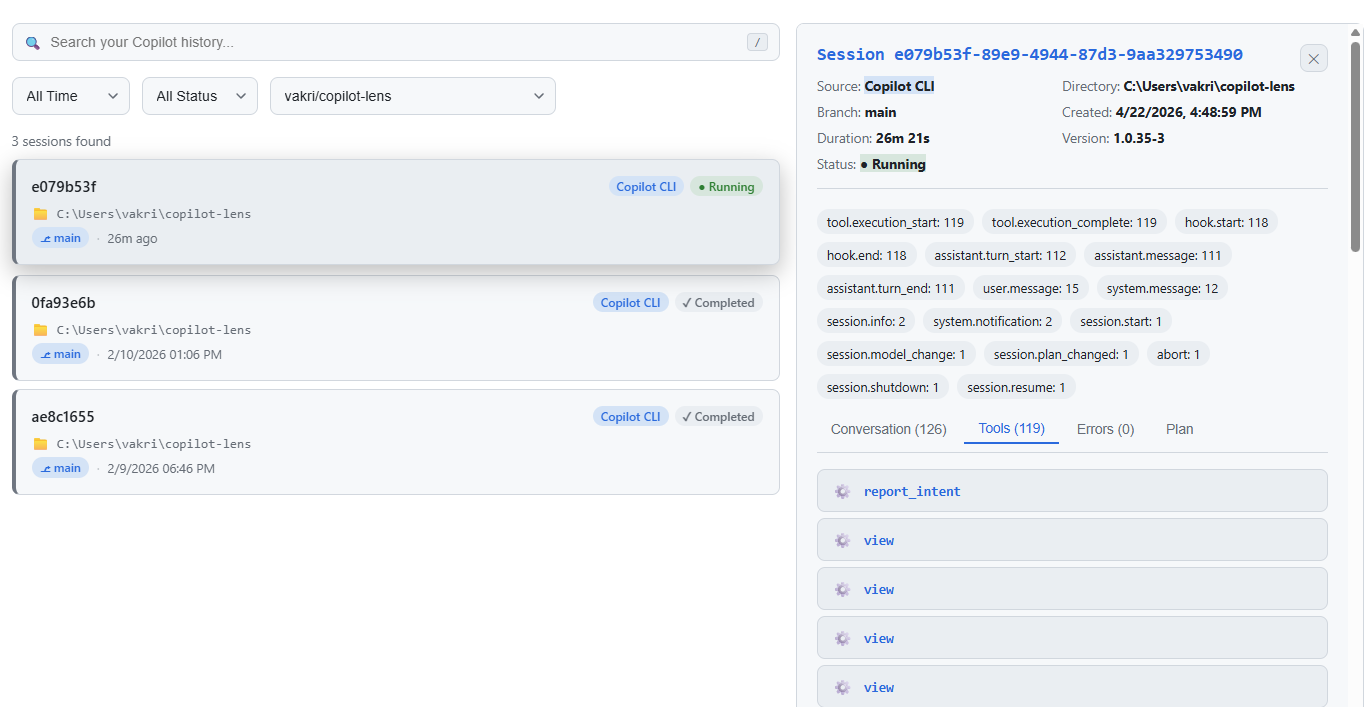
📋 Session Browser — Review your conversations
Browse the full history of your Copilot sessions in a searchable, filterable list.
- Unified view — Copilot CLI, VS Code Copilot Chat, and Claude Code sessions side by side
- Source badges — see at a glance whether a session came from Copilot CLI, VS Code, or Claude Code
- Color-coded by directory — each project gets a distinct accent color
- Status detection — Running, Completed, or Error
- Filter by time range, status, and working directory
- Click any session to open the full conversation
Conversation view:
- Chat-style layout — your prompts on the right, Copilot responses on the left
- Agent thinking — collapsible reasoning blocks shown inline between messages (click "💭 View thinking" to expand)
- Tool calls made during the session
- Errors that occurred
- Session plans (if created)
Thinking support by source: Claude Code and VS Code Copilot Chat sessions surface thinking blocks when the model was run with extended thinking enabled. Copilot CLI sessions do not include thinking — the CLI processes reasoning internally and does not persist it to disk.

📊 Analytics — Understand your usage patterns
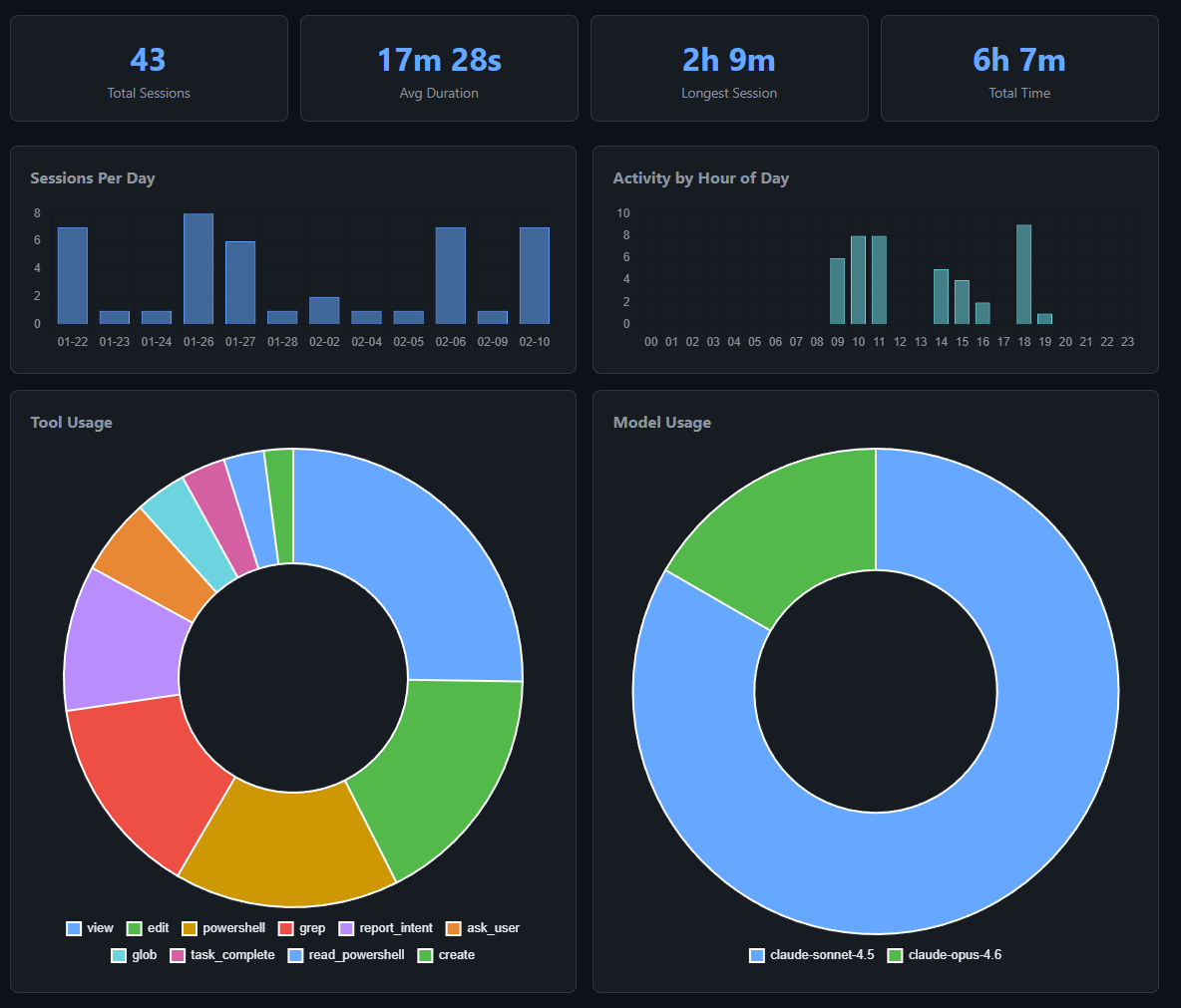
Eight interactive charts that show how and when you use Copilot and Claude. Filter by source (All / Copilot CLI / VS Code / Claude Code) to see per-tool breakdowns.
| Chart | What It Shows | |-------|---------------| | Sessions Per Day | Daily activity over time | | Activity by Hour | When during the day you use Copilot most | | Tool Usage | Most-used tools (grep, edit, glob, etc.) | | Model Usage | Which AI models you've used | | Top Working Directories | Which projects you use Copilot in most | | Time Per Branch | Active Copilot time per git branch | | Time Per Repo | Active Copilot time per repository | | MCP Servers Used | Which MCP servers appear across sessions |
Dark and light mode. Interactive chart legends. Manual refresh.

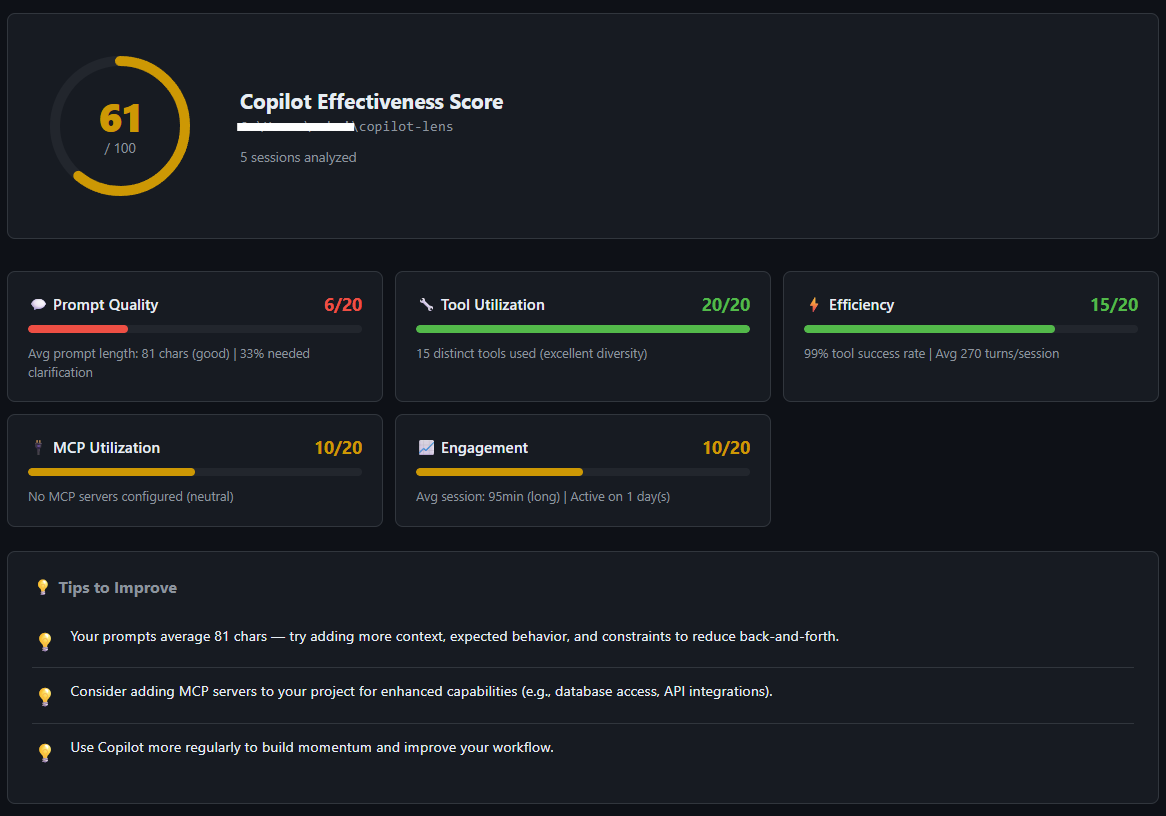
🏆 Effectiveness Score — See how well you're using Copilot
A 0–100 score per repository (CLI) and globally (VS Code) with actionable improvement tips.
| Category | What It Measures | |----------|-----------------| | Prompt Quality | Average prompt length, clarification rate | | Tool Utilization | Diversity of tools used across sessions | | Efficiency | Tool success rate, turns per session | | MCP Utilization | Configured vs. actually used MCP servers | | Engagement | Session duration and usage consistency |

How It Works
Copilot Lens reads session data from three local sources — no network requests, no external APIs.
Copilot CLI Sessions
- Location:
~/.copilot/session-state/ workspace.yaml— session metadata (directory, git branch, timestamps)events.jsonl— full event log (messages, tool calls, errors)plan.md— session plans, if created
VS Code Copilot Chat Sessions
- Index:
state.vscdb(SQLite) — session list with titles and timing - Content:
emptyWindowChatSessions/{id}.json— full conversation
Supported platforms and paths:
| Platform | Path |
|----------|------|
| macOS | ~/Library/Application Support/Code/ |
| Windows | %APPDATA%/Code/ |
| Linux | ~/.config/Code/ |
VS Code Insiders is also supported. Sessions with pasted images (which can exceed 100MB) are automatically stripped of image data. Files over 200MB are skipped.
Claude Code Sessions
- Location:
~/.claude/projects/{sanitized-project-path}/{sessionId}.jsonl - Each file is a JSONL stream of events with types
user,assistant,progress, and others userevents contain the prompt;assistantevents contain model responses and tool callsassistantevents may include{ type: "thinking" }content blocks (extended thinking) — these are surfaced as collapsible reasoning blocks in the conversation view- Sidechain events (warmup/internal) are filtered out automatically
- Session title comes from the
slugfield (e.g.happy-seeking-whistle)
Duration Calculation
Durations are calculated from actual event activity, not wall-clock time. Gaps longer than 5 minutes between events are excluded — so a session you paused and resumed doesn't show an inflated duration.
Tech Stack
| Layer | Technology |
|-------|-----------|
| Backend | Node.js + Express + TypeScript |
| Frontend | Vanilla HTML/CSS/JavaScript |
| Charts | Chart.js |
| Data | YAML, JSONL, SQLite (better-sqlite3) |
| Testing | Vitest (97 tests) |
Development
git clone https://github.com/pavanvamsi3/copilot-lens.git
cd copilot-lens
npm install
npm run dev # Start with tsx (no build step)
npm run build # Compile TypeScript
npm test # Run tests
npm start # Run compiled versionOptional: Custom Local Hostname
For a cleaner URL like http://copilot.lens:3000:
macOS/Linux:
echo "127.0.0.1 copilot.lens" | sudo tee -a /etc/hostsWindows (run as Admin):
echo 127.0.0.1 copilot.lens >> C:\Windows\System32\drivers\etc\hostsThen: copilot-lens --host copilot.lens
License
MIT