cordova-plugin-google-maps-sdk
v3.0.0
Published
Google Maps native SDK for Android and iOS, and Google Maps JavaScript API v3 for browser.
Downloads
149

Maintainers
 manuelbeck
Readme
Cordova Google Maps SDK Plugin - Version 3.0.0
)
)
[!NOTE] This is the continuation of cordova-plugin-googlemaps
This plugin allows you to display a native Google Maps layer with the Google Maps SDK in your application and uses the following libraries:
| Platform | Library | Minimum Requirements | Notes | | --- | --- | --- | --- | | Android | Google Maps SDK for Android:com.google.android.gms:play-services-maps:20.0.0Location SDK:com.google.android.gms:play-services-location:21.3.0For accessing the device's location | - cordova-android 13- Android 7.0 | | | iOS | Google Maps SDK for iOS Version 10.12.0 | - cordova-ios 7.0.0- iOS 16.0- XCode 26 | - cordova-ios 7 will use CocoaPods (deprecated)- cordova-ios 8 will use Swift Package Manager (SPM), minimum cordova-ios 8.0.1 is needed | | Browser |Google Maps JavaScript API | | |
Why using Google Maps SDK instead of Google Maps JavaScript API?
This plugin allows Cordova apps to use the native Google Maps SDK for iOS and Android instead of the Google Maps JavaScript API. Using the native SDK offers several important advantages:
- High performance: The map is rendered as a native GPU-accelerated view, delivering smooth animations, fast interactions, and excellent performance even with many markers or overlays.
- Native touch gestures: Pinch-to-zoom, rotation, and panning behave exactly like in a fully native app, without conflicts with the WebView.
- Mobile-first experience: The map feels and responds like a real native component, giving your app a more polished and professional user experience.
- Access to native features: Includes capabilities not available in the JS API, such as vector maps, indoor maps, native “My Location” controls, better marker handling, and offline caching.
- Scales for complex use cases: Ideal for apps that need real-time tracking, many overlays, high interaction frequency, or advanced map features.
- Restrict access to your API key by the package name of your app.
If your app only needs a simple, static map, the Google Maps JavaScript API may be sufficient. But if you want performance, smooth gestures, native behavior, and advanced map capabilities, the native SDK provides a clearly superior experience.
In Browser platform, this plugin uses Google Maps JavaScript API.
In order to work for all platforms, this plugin provides its own API instead of each original APIs. You can write your code similar to the Google Maps JavaScript API. You can read more about here What is the difference between this plugin and Google Maps JavaScript API v3?
Guides
Installation
NPM
You can install from NPM since version 2.9.3.
Latest Version
cordova plugin add cordova-plugin-google-maps-sdkSpecific Version
cordova plugin add cordova-plugin-google-maps-sdk#2.9.3GitHub
Latest Master
You can install directly from GitHub, when you need the latest updates:
cordova plugin add https://github.com/GitToTheHub/cordova-plugin-google-maps-sdkSpecific Version
You can install a specific version from GitHub if you need a version older than 2.9.3:
cordova plugin add https://github.com/GitToTheHub/cordova-plugin-google-maps-sdk#v2.9.0Upgrade from cordova-plugin-googlemaps repository
To upgrade from plugin version 2.7.1 from the old reposiotry to Version 2.8.0 or newer of this respository you have to remove the old plugin and old iOS Google Map dependency:
cordova plugin remove cordova-plugin-googlemaps
cordova plugin remove com.googlemaps.ios
Also you have to remove the old GoogleMaps dependency from your package.json and package-lock.json manually:
"cordova-plugin-googlemaps-sdk": "github:mapsplugin/cordova-plugin-googlemaps-sdk",Remove also the follwoing from the package-lock.json:
"node_modules/cordova-plugin-googlemaps-sdk": {
  "version": "3.9.0",
  "resolved": "git+ssh://[email protected]/mapsplugin/cordova-plugin-googlemaps-sdk.git#f16676a612b1bf50fb482d2dd0ad9109daabc2b1",
  "dev": true
},
After that, you can add this plugin:
cordova plugin add cordova-plugin-google-maps-sdkGoogle Maps SDK for iOS
Google Maps SDK for iOS 10.0.0 is used since plugin version 2.9.0 and requires a minimum deployment-target of iOS 16. To achieve this, the plugin sets the deployment-target to iOS 16.0 in your config.xml, but only, if you didn't specify it. iOS 16 is compatible with iPhones from iPhone 8 (from the year 2017) and newer, including iPhone SE (2nd and 3rd generation). Since Google Maps SDK version 7.3.0 it's possible to run the plugin on a simulator on a Mac with a M CPU (Apple Silicon) using the Metal renderer.
Swift Package Manager
Since plugin version 2.9.4 the Google Maps SDK dependency will be managed by Swift Package Manager (SPM) when using cordova-ios 8, but needs minimum cordova-ios 8.0.1 to get this working correctly. If you use cordova-ios 7, CocoaPods will be used, which is deprecated and will only receive updates until summer 2026.
Deprecation of CocoaPods
CocoaPods is deprecated and will be a read-only respository after 2. December 2026. Google will support CocoaPods till Sommer 2026. After that, no updates will be published to CocoaPods and instead Swift Package Manager (SPM) has to be used to continue receiving updates. Since plugin version 2.9.4 SPM can be used and using cordova-ios 8.0.1.
Long installation time with CocoaPods
If you use cordova-ios 7, which uses the deprecated CocoaPods, the installation can keep a long time when the plugin is installed for iOS, because CocoaPods loads the Google Maps SDK for iOS which can have many hundreds of MBs. It's not an error if you see a long time the message and nothing seems to happen anymore:
Cloning into 'cocoapods'...If this task takes a huge amount of time, you could have a bad internet connection.
CocoaPods error when adding the plugin
If you get a CocoaPods error, that a compatible version for GoogleMaps couldn't be found, when adding the plugin:
[!] CocoaPods could not find compatible versions for pod "GoogleMaps":
  In Podfile:
    GoogleMaps (~> 10.0.0)
You can update the CocoaPods source repos with pod repo update executing it in platforms/ios of your Cordova project.
Setup API-Keys
Setup you Google Maps API keys for Android & iOS in your config.xml as follows:
<widget ...>
  <preference name="GOOGLE_MAPS_ANDROID_API_KEY" value="(api key)" />
  <preference name="GOOGLE_MAPS_IOS_API_KEY" value="(api key)" />
</widget>
For the browser platform you need to specify the API-Key in JavaScript before calling plugin.google.maps.Map.getMap():
plugin.google.maps.environment.setEnv({
  // for `https:` protocol
  'API_KEY_FOR_BROWSER_RELEASE': '(YOUR_API_KEY_IS_HERE)',
  // for `http:` protocol
  'API_KEY_FOR_BROWSER_DEBUG': ''  // optional
});

// Create a Google Maps native view under the map_canvas div.
var map = plugin.google.maps.Map.getMap(div);
Optional variables to be set in config.xml
Android
GOOGLE_MAPS_PLAY_SERVICES_VERSION: Defaults to20.0.0GOOGLE_MAPS_PLAY_SERVICES_LOCATION_VERSION: Defaults to21.3.0
iOS
LOCATION_WHEN_IN_USE_DESCRIPTION: This message is displayed when your application requests location permission for only necessary times.LOCATION_ALWAYS_USAGE_DESCRIPTION: This message is displayed when your application requests location permission for always.
Release Notes
See CHANGELOG.md
Demos
You can see a demo in your browser:
https://mapsplugin.github.io/HelloGoogleMap

Documentation
You can find the documentation in its own repository:
https://github.com/GitToTheHub/cordova-plugin-google-maps-sdk-doc
It's sourced out, so this repository gets not too big and takes less space when added to a project.
Quick examples
What is the difference between this plugin and Google Maps JavaScript API v3?
Google Maps JavaScript API v3 works on any platforms, but it does not work if device is offline.
This plugin uses three different APIs:
- Android : Google Maps Android API
- iOS : Google Maps SDK for iOS
- Browser : Google Maps JavaScript API v3
In Android and iOS applications, this plugin displays native Google Maps views, which is faster than Google Maps JavaScript API v3. And it even works if the device is offline.
In Browser platform, this plugin displays JS map views (Google Maps JavaScript API v3). It should work as PWA (progressive web application), but the device has to be online.
In order to work for all platforms, this plugin provides own API instead of each original APIs.
You can write your code similar to the Google Maps JavaScript API v3.
Feature comparison table
| | Google Maps JavaScript API v3 | Cordova Plugin (Android,iOS) | Cordova Plugin (Browser) | |----------------|-----------------------------------|---------------------------------------|---------------------------------------| |Rendering system| JavaScript + HTML | JavaScript + Native API's | JavaScript | |Offline map | Not possible | Possible (only your displayed area) | Not possible | |3D View | Not possible | Possible | Not possible | |Platform | All browsers | Android and iOS applications only | All browsers | |Tile image | Bitmap | Vector | Bitmap |
Class comparison table
| Google Maps JavaScript API v3 | Cordova Plugin | |-----------------------------------|---------------------------------------| | google.maps.Map | Map | | google.maps.Marker | Marker | | google.maps.InfoWindow | Default InfoWindow, and HtmlInfoWindow| | google.maps.Circle | Circle | | google.maps.Rectangle | Polygon | | google.maps.Polyline | Polyline | | google.maps.Polygon | Polygon | | google.maps.GroundOverlay | GroundOverlay | | google.maps.ImageMapType | TileOverlay | | google.maps.MVCObject | BaseClass | | google.maps.MVCArray | BaseArrayClass | | google.maps.Geocoder | plugin.google.maps.geocoder | | google.maps.geometry.spherical | plugin.google.maps.geometry.spherical | | google.maps.geometry.encoding | plugin.google.maps.geometry.encoding | | google.maps.geometry.poly | plugin.google.maps.geometry.poly | | (not available) | MarkerCluster | | google.maps.KmlLayer | KmlOverlay | | (not available) | LocationService | | google.maps.StreetView | StreetView :sparkles: | | google.maps.Data | (not available) | | google.maps.DirectionsService | (not available) | | google.maps.DistanceMatrixService | (not available) | | google.maps.TransitLayer | (not available) | | google.maps.places.* | (not available) | | google.maps.visualization.* | (not available) |
How does this plugin work (Android, iOS)?
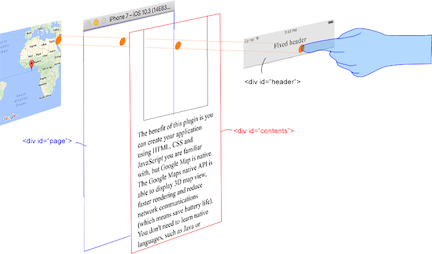
This plugin generates native map views, and puts them under the browser.
The map views are not HTML elements. This means that they are not a <div> or anything HTML related.
But you can specify the size and position of the map view using its containing <div>.
This plugin changes the background to transparent in your application.
Then the plugin detects your touch position, which is either meant for the native map or an html element
(which can be on top of your map, or anywhere else on the screen).

The benefit of this plugin is the ability to automatically detect which HTML elements are over the map or not.
For instance, in the image below, say you tap on the header div (which is over the map view). The plugin will detect whether your tap is for the header div or for the map view and then pass the touch event appropriately.
This means you can use the native Google Maps views similar to HTML elements.