
csv-compare-cli
v1.0.3
Published
A beautiful CLI tool to compare CSV files with an interactive web interface

Maintainers
 mohanchinnappan
Readme
📊 CSV Compare CLI



A beautiful command-line tool to compare CSV files with an interactive web interface
Features • Installation • Usage • Examples • Screenshots
✨ Features
🎯 Core Functionality
- Side-by-Side Comparison - Compare two CSV files with intelligent difference detection
- Multiple View Modes - Switch between horizontal and vertical layouts
- Smart Diff Highlighting - Color-coded differences (additions, deletions, changes)
- CSV Parsing - Robust parsing with PapaParse library
🎨 User Interface
- Dark Theme - Beautiful, modern dark UI with Tailwind CSS
- Responsive Design - Works perfectly on desktop, tablet, and mobile
- Gradient Accents - Eye-catching gradient text and smooth transitions
- Professional Layout - Clean, organized interface with glassmorphism effects
🔧 Data Management
- Column Sorting - Click any column header to sort (ascending/descending)
- Pagination - Choose from 10, 25, 50, or 100 rows per page
- Real-time Search - Filter data across all columns instantly
- CSV Export - Export filtered/sorted data back to CSV format
📈 Analytics
- Live Statistics - Track row counts, differences, and match rates
- Match Rate Calculation - See percentage of matching rows at a glance
- Difference Counter - Know exactly how many rows differ
🚀 Installation
Prerequisites
- Node.js 14.0.0 or higher
- npm or yarn
Global install
npm install -g csv-compare-cliQuick Start
💻 Usage
Basic Command
csv-compare -s <source-file> -t <target-file>Command Line Options
| Option | Alias | Description | Required | Default |
|--------|-------|-------------|----------|---------|
| --source | -s | Source CSV file path | ✅ Yes | - |
| --target | -t | Target CSV file path | ✅ Yes | - |
| --port | -p | Port number for web server | ❌ No | 3000 |
Examples
Compare two CSV files:
csv-compare -s data/customers_old.csv -t data/customers_new.csvUse a custom port:
csv-compare -s sales_q1.csv -t sales_q2.csv -p 8080📖 How It Works
- Start the tool with your source and target CSV files
- Server launches on the specified port (default: 3000)
- Browser opens automatically with the comparison interface
- Explore differences using the interactive UI
Understanding the Highlights
| Color | Meaning | |-------|---------| | 🟢 Green | Row/cell exists in target but not in source (addition) | | 🔴 Red | Row/cell exists in source but not in target (removal) | | 🟡 Yellow | Cell value changed between source and target | | ⚪ White | No difference detected |
🎨 Screenshots
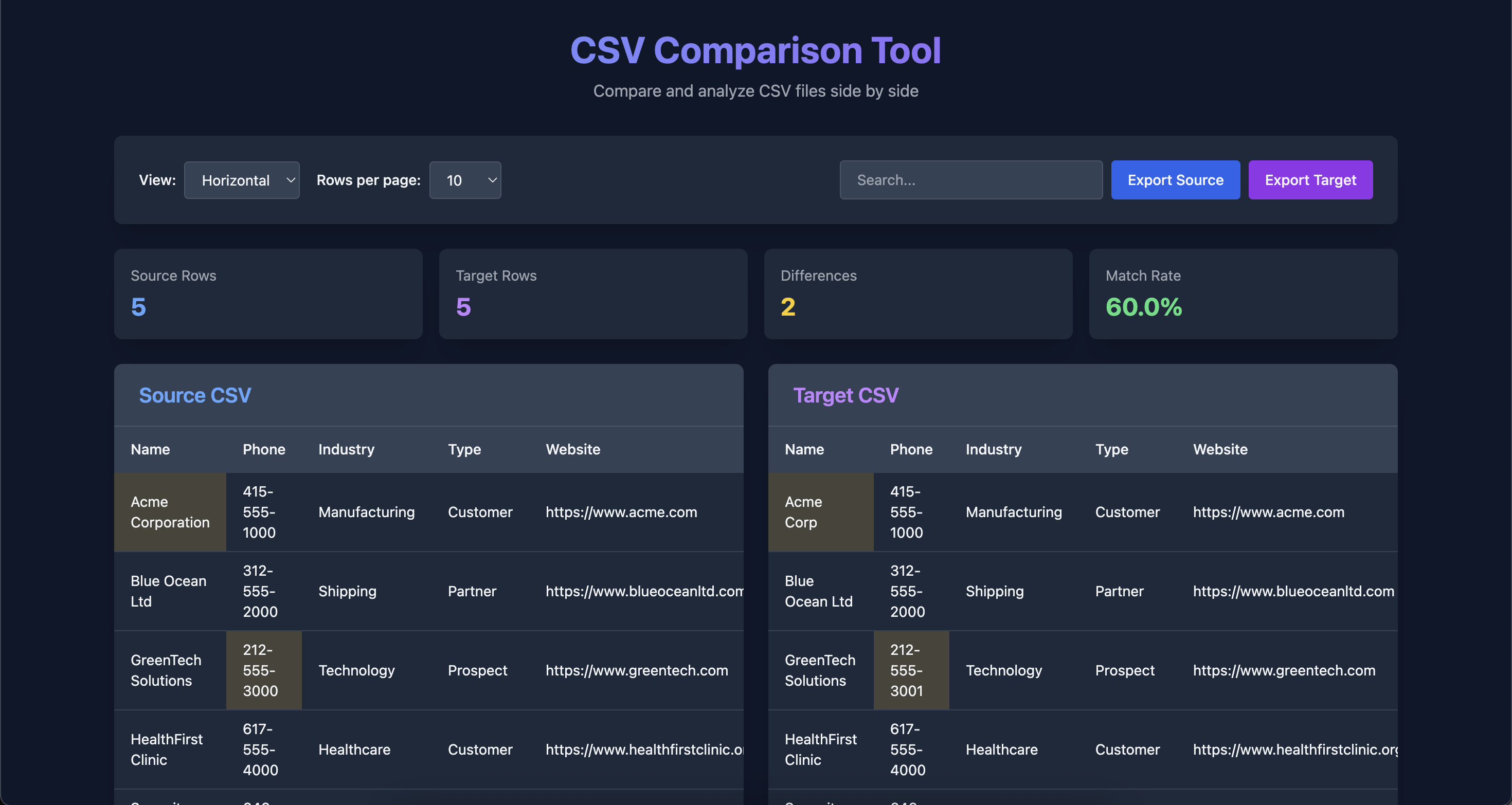
Horizontal View (Side-by-Side)
┌─────────────────────────────────────────┐
│  Source CSV        │  Target CSV        │
│  ┌──────────────┐  │  ┌──────────────┐  │
│  │ Row 1        │  │  │ Row 1        │  │
│  │ Row 2 (red)  │  │  │ Row 2 (green)│  │
│  │ Row 3        │  │  │ Row 3        │  │
│  └──────────────┘  │  └──────────────┘  │
└─────────────────────────────────────────┘
Vertical View (Stacked)
┌─────────────────────────────────────────┐
│  Source | Col1 | Col2 | Col3           │
│  Source | Data | Data | Data           │
│  Target | Col1 | Col2 | Col3           │
│  Target | Data | Data | Data (yellow)  │
└─────────────────────────────────────────┘
🛠️ Features in Detail
Sorting
- Click any column header to sort
- First click: ascending order (↑)
- Second click: descending order (↓)
- Click another column to sort by that column
Search
- Type in the search box to filter rows
- Searches across ALL columns
- Case-insensitive matching
- Results update in real-time
Pagination
- Navigate through large datasets easily
- Choose your preferred page size
- Use Previous/Next buttons
- See current page number and total pages
Export
- Export Source - Download the source CSV with current filters
- Export Target - Download the target CSV with current filters
- Exports maintain the original CSV format
🎯 Use Cases
- Data Migration - Compare before/after data migrations
- Quality Assurance - Verify data transformations
- Version Control - Track changes between dataset versions
- Data Auditing - Identify discrepancies in exports
- ETL Validation - Confirm extract-transform-load processes
- Database Synchronization - Compare database exports
🚦 Troubleshooting
Port Already in Use
If port 3000 is busy, specify a different port:
csv-compare -s file1.csv -t file2.csv -p 8080File Not Found
Ensure your CSV file paths are correct:
# Use relative paths
csv-compare  -s ./data/file1.csv -t ./data/file2.csv

# Or absolute paths
csv-compare -s /Users/name/documents/file1.csv -t /Users/name/documents/file2.csv
Browser Doesn't Open
If the browser doesn't open automatically:
- Check the console output for the URL
- Manually open your browser and navigate to
http://localhost:3000
Large CSV Files
For very large files (>100MB):
- Node.js might need more memory:
node --max-old-space-size=4096 index.js -s file1.csv -t file2.csv - Use pagination to view data in smaller chunks
- Consider filtering/splitting your CSVs first
📝 CSV Format Requirements
- Files must be valid CSV format
- First row should contain column headers
- Supported encodings: UTF-8 (recommended), ASCII
- Both files should have similar structure for best comparison results
🤝 Contributing
Contributions are welcome! Here are some ways you can help:
- 🐛 Report bugs
- 💡 Suggest new features
- 📖 Improve documentation
- 🔧 Submit pull requests
📄 License
This project is licensed under the MIT License - see the LICENSE file for details.
Made with ❤️ for data enthusiasts