dirserve
v0.0.1
Published
Serve files or an app with Directus by using filename or file paths.
Downloads
15

Maintainers
 nmerget
Readme
Directus Extension Serve
Serve files or an app with directus by using filename or file paths.
Install
Search for "dirserve" in the Marketplace of your app settings, navigate to the extension page, and click "Install Extension"
Goto your Directus URL with the path /dirserve like this http://localhost:8055/dirserve.
You should see the response "Content not found".
Configure serve folder
Goto your /admin/files like http://localhost:8055/admin/files and create a new folder. Copy the generated folder id:

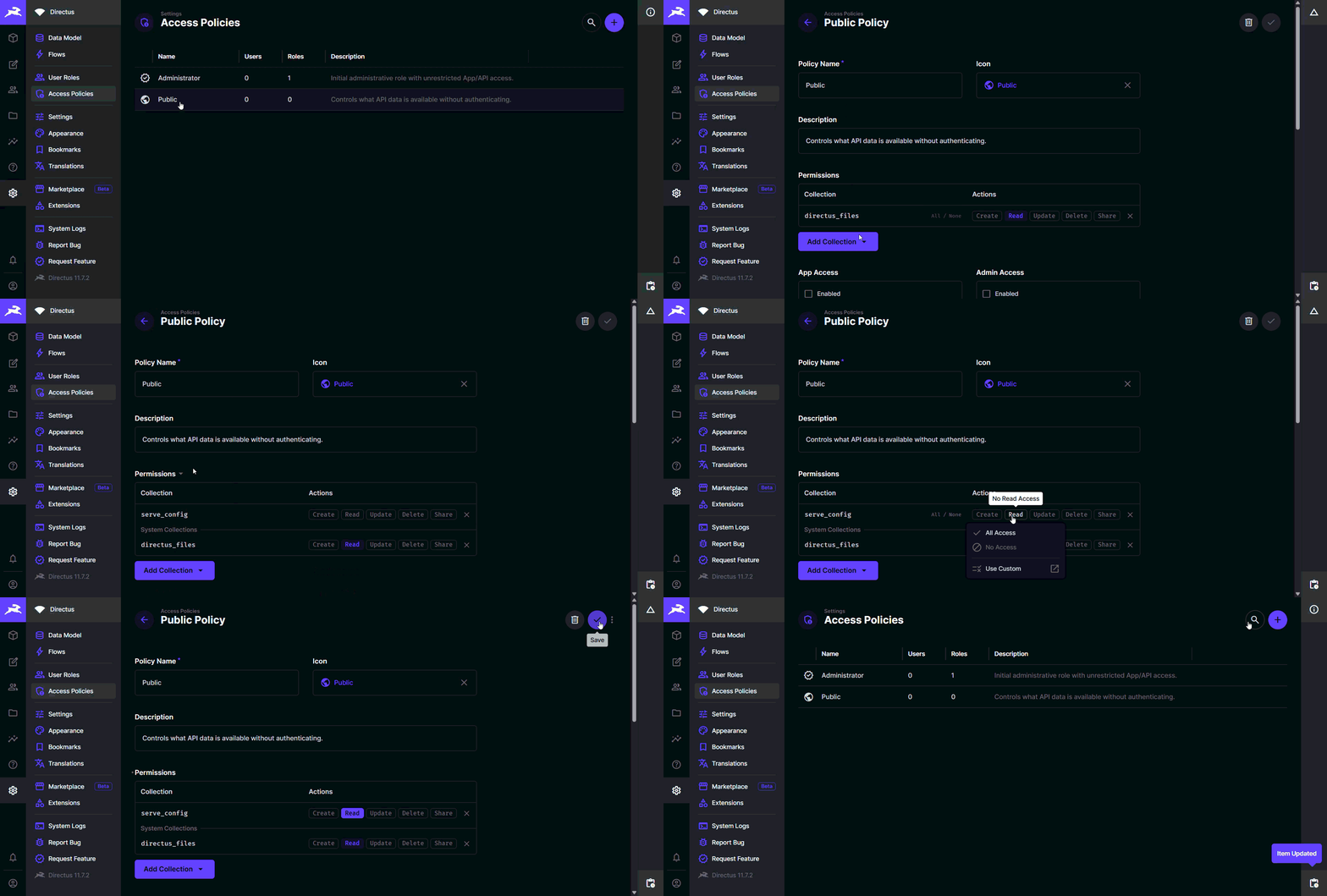
Next goto /admin/settings/policies like http://localhost:8055/admin/settings/policies and click on the Public policy.
Scroll to Permissions and click on Add Collection and search for directus_files.
Select the directus_files and click on Read tag and select Use Custom.
Click on Add filter, search for folder and select it.
Use equals or is one of and paste your generated folder id into the field.
Next you need to set the field permissions. Select these fields:
idfilename_downloadtagslocation
NOTE: Every file inside your created folder will be publicly available. Make sure you don't leak any sensitive documents.
Test your serve folder
Goto your /admin/files like http://localhost:8055/admin/files and open the generated folder.
Upload a file like test.txt with some content.
Goto your Directus URL with the path /dirserve/test.txt like this http://localhost:8055/dirserve/test.txt.
You should see the content of your file.
Deploy a Website or App
You can upload a index.html file to serve a static website under your /dirserve path.
All static assets will be served from the same directus folder.
By default, the dirserve extension will fetch the first
file with the path name you provide.
For example, if you upload a file with the name index.css,
it wouldn't matter if your index.html references index.css or /assets/index.css.
It will just check the file name.
To change this behavior, you can use the location property in the directus_files collection,
to specify different paths for your files, if they have the same name.
Check out the Configuration section below for more details.
Deploy a Single Page Application (SPA)
You can deploy a Single Page Application (SPA) like React, Vue, or Angular with this serve extension.
We recommend to use the directus-serve-cli to upload your dist or build folder.
You can use the upload command to upload your files to the Directus instance.
npx directus-serve-cli upload --directusUrl http://localhost:8055 --src ./dist --uploadFolder <your-folder-id> --directusToken <your-access-token>NOTE: Make sure to replace
<your-folder-id>with the folder id you created in the previous step and<your-access-token>with a Directus access token for a user with the permission to upload files. For more details, check out the directus-serve-cli.
Configuration
There are some additional configurations for this extension.
You enable them by creating a new singleton collection called
serve_config.
You can add the following optional fields to this collection:
latest:string- A version string that will be used to determine the latest version of the files you want to serve.
- Use it with the
tagsfiled in thedirectus_filescollection.
versionQueryParam:string- The query parameter to use for the versioning of the files.
- Default:
version - Use it like this
/dirserve/test.txt?version=1.0.0.
contentNotFound:string- Message to show when the requested file is not found.
- Default:
Content not found
Make sure to set permissions for the serve_config collection.
Add a new policy for the Public role and set the permission to Read.