
dropster
v1.5.1
Published
Drag and drop file uploads made simple

Maintainers
 pkrll
pkrllReadme
Dropster
Dropster abstracts and simplifies drag and drop and enables file uploads with AJAX. Since version 1.5.0, a pure Javascript plugin.
Usage
Download the Dropster plugin and include it in your html code like this:
  <link rel="stylesheet" href="/path/to/dropster.css" media="screen" charset="utf-8">
  <script src="/path/to/dropster.js" charset="utf-8"></script>
You can also install it using npm:
$ npm install dropsterUse the plugin as follows (the url property is required):
document.getElementById("dragAndDropElement").dropster({
   url: "/path/to/upload.php"
});
// You can also initialize the plugin using jQuery:
$("#dragAndDropElement").dropster({
    url: "/path/to/upload.php"
});
Drag the file(s) over the drop zone, and just release. Easy schmeezy.
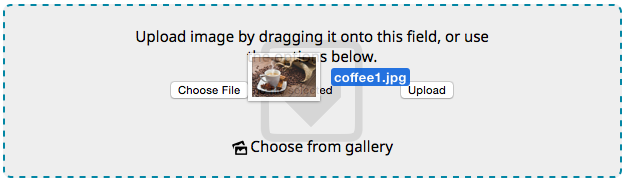
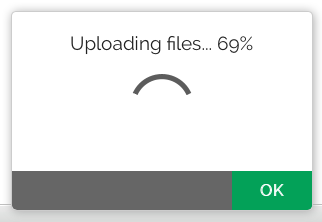
Let the upload commence!

Options
.dropster({
        url               : "/path/to/server/upload/",
        auto              : true,
        createArea        : false,
        uploadLimit       : 2,
        loaderImagePath   : "/path/to/image.png",
        extensions        : ["jpg", "jpeg", "gif", "png"],
        onDownload        : function(progressEvent)   { },
        onUpload          : function(progressEvent)   { },
        onChange          : function(state, status)   { },
        onReady           : function(responseText)    { },
        onError           : function(errorMessage)    { }
    });
Properties
url: The request URL path (required).auto: If set true (default), automatically uploads file when a file is chosen using the file input browse button. The file input element must be inside the drop target.createArea: If true, the plugin will automatically create and style a drop target zone, with an file input element inside it.uploadLimit: Sets the limit on how many files should be uploaded at once.loaderImagePath: Path to the loader image. Will be displayed if the default progress method is used.extensions: List of allowed extension. Files with any other extensions will not be uploaded.onDownload: Callback function, called during the XMLHttpRequests onprogress event, and is passed a progressEvent object.onUpload: Callback function, called during the XMLHttpRequests upload.onprogress event, and is passed a progressEvent object.onChange: Callback for when the onreadystatechange is triggered, and request is not finished (readyState < 4 && status !== 200).onReady: Callback function, called when the request has finished and response is ready (readyState === 4). This method is passed the responseText property of the XMLHttpRequest object and will be in charge of parsing the server response.
Customization
Dropster's default progress monitoring can easily be overridden and tailored to fit your exact needs. Custom callbacks can also access the default progress methods, like so:
   onReady: function(responseText) {
      // .. do something here
      this.defaultOnReady();
   }
The custom callbacks also have access to these variables and methods:
totalSizeToLoad: The total number of files that are to be uploaded. (read-only).totalSizeLoaded: Number of files that as of accessing this variable has been uploaded. (read-only).resetFileInput: This method resets the file input element (if it exists inside the drop area).
Stylesheet customization
When a dragged object enters the designated drop area, the plugin will attach the class dropster-highlight to it. To change the default style (a 2px white border), you need to override that class.
.dropster-highlight {
    border: none;
    background: rgba(200,200,200,0.5);
}
Do note that if you want to override the default stylings, you need to add your stylesheet file after including Dropster's.
Customization example
Below follows an example, where the ProgressBar plugin is used instead of the default dialog window. (This example uses jQuery.)
<div id="targetArea">
    <p>Drag and drop files here</p>
    <p>or, if you'd like, use the browse button below</p>
    <p><input type="file" /></p>
</div>
/**
* Add the Dropster plugin to the element with
* id targetArea, with customized settings.
*/
$("#targetArea").dropster({
url: "/upload/image",
auto: true,
uploadLimit: 5,
extensions: ["jpg", "jpeg", "png", "gif"],
onUpload: $.fn.onUpload,
onDownload: $.fn.onDownload,
onReady: function (response) {
// Reset the file input and
// remove the progressbar
this.resetFileInput();
this.monitor.remove();
var parsedResponse = jQuery.parseJSON(response);
// Print out the response
console.log(parsedResponse);
}
});
/**
* Override Dropster's default onUpload function.
*
* @param progressEvent
*/
$.fn.onUpload = function (event) {
// Access the plugin's public interface using
// the "this" keyword, enabling a place to store
// the progressbar element, instead of declaring
// it as a global variable.
var self = this;
// Create the progress bar object, and
// connect it to the Dropster plugin, if
// it already does not exist. But keep it
// inside a conditional statement, so that
// we do not create loads of progress bars.
if ($("#progress-bar-container").length < 1) {
var element = $("<div>").attr({
"id": "progress-bar-container"
}).appendTo("body");
self.monitor = new ProgressBar ({ parentElement: element });
self.monitor.createBar();
}
// Calculate upload progress
var completed = 0;
if (event.lengthComputable) {
// The uploading process is only part
// one of the whole process in this
// example, that also includes server
// side computation. Therefore, divide
// this status by two, and handle the
// rest of it through the onDownload function.
completed = Math.round((event.loaded / event.total * 1000) / 10 / 2);
self.monitor.setProgress(completed);
}
}
/**
* Override Dropster's default function onDownload function,
* for when the server sends information back.
*
* @param progressEvent
*/
$.fn.onDownload = function (event) {
// onDownload will monitor the response from the server,
// for example if the server is streaming information
// back in real time. In this example, we will assume
// the server is sending back information about the
// images, one by one as they are being processed.
var totalSizeToLoad = this.totalSizeToLoad;
var currentProgress = this.monitor.getProgress();
// Calculate the percental of each item uploaded and
// add it to the current progress of the progress bar.
var completed = (Math.round((1 / totalSizeToLoad * 1000) / 10 / 2) + currentProgress);
// Set the new status of the progress bar.
this.monitor.setProgress(completed);
}Author
- Dropster was created by Ardalan Samimi.