
ff-tooltip
v8.0.0
Published
[](https://travis-ci.org/frontendfreelancerdk/ff-tooltip)


Readme

ff-tooltip
Installing
Npm
ff-tooltip has one important dependency
npm i ff-overlay --savethen just install ff-tooltip
npm install ff-tooltip --saveand include FFTooltipModule to your root module
app.module.ts
import {NgModule} from '@angular/core';

import {AppComponent} from './app.component';
import {FFTooltipModule} from 'ff-tooltip';

@NgModule({
  declarations: [
    AppComponent
  ],
  imports: [
    FFTooltipModule
  ],
  bootstrap: [AppComponent]
})
export class AppModule { }
Usage
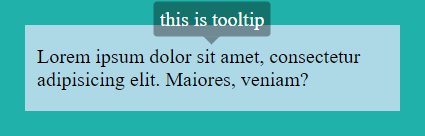
Just add [ffTooltip] directive to your whatever you want element, which need to have a tooltip. Input [ffTooltip] binding text.
<p [ffTooltip]="'I am tooltip'">
  Lorem ipsum dolor sit amet, consectetur adipisicing elit. Maiores, veniam?
</p>
You can specify position (relative to your element) with [ffTooltipPosition] input. Available values : 'top', 'bottom', 'left', 'right' and 'center'. The default is 'top'.
<p [ffTooltip]="'I am tooltip'"
   [ffTooltipPosition]="'left'">
  Lorem ipsum dolor sit amet, consectetur adipisicing elit. Maiores, veniam?
</p>
You can set delays for show or hide. Use [ffTooltipShowDelay] and [ffTooltipHideDelay] inputs that get value in MS (type number)
<p [ffTooltip]="'I am tooltip with delay'"
   [ffTooltipShowDelay]="1000"
   [ffTooltipHideDelay]="2000">
   Lorem ipsum dolor sit amet, consectetur adipisicing elit. Maiores, veniam?
</p>
You can disable tooltip - just use [ffTooltipDisabled]. Value must be of type boolean
<p [ffTooltip]="'I am tooltip'"
   [ffTooltipDisabled]="myDisabledFlag">
  Lorem ipsum dolor sit amet, consectetur adipisicing elit. Maiores, veniam?
</p>
Directive has methods show / hide / toggle for force them. Directive uses "exportAs": ffTooltip . So you can get it in your code.
    <p [ffTooltip]="'this is some tooltip for p'"
<!-- just get ffTooltip with angular template reference variable -->
       #tooltip="ffTooltip">
       Lorem ipsum dolor sit amet, consectetur
    </p>
<!-- And then use that from view  -->
    <button (click)="tooltip.show()">show</button>
    <button (click)="tooltip.hide()">hide</button>
    <button (click)="tooltip.toggle()">toggle</button>
You can also completely control the tooltip from the component.
app.component.ts
import {AfterViewInit, Component, ViewChild} from '@angular/core';
import {FFTooltipDirective} from 'ff-tooltip';

@Component({
  selector: 'ff-root',
  template: '<p ffTooltip #myTooltip="ffTooltip">Lorem ipsum dolor sit amet</p>',
  styleUrls: ['./app.component.scss']
})
export class AppComponent implements AfterViewInit{
  @ViewChild('myTooltip') tooltip: FFTooltipDirective;

  constructor() {
  }

  ngAfterViewInit(): void {
    this.tooltip.text = 'text from component';
    this.tooltip.position = 'bottom';
    this.tooltip.showDelay = 500;
    this.tooltip.hideDelay = 1500;
    this.tooltip.show();
  }
}
Api
  @Input('ffTooltip') set text(text: string)
  @Input('ffTooltipPosition') set position(pos: TooltipPosition)
  @Input('ffTooltipShowDelay') set showDelay(ms: number)
  @Input('ffTooltipHideDelay') set hideDelay(ms: number)
  @Input('ffTooltipDisabled') set disabled(value: boolean)

  show(): void
  hide(): void
  toggle(): void
Styling
.ff-tooltip{
/* ... */
}
License
MIT � Frontend Freelancer