
front-debugger
v0.0.4
Published
テスト環境だけでデバッグを表示するライブラリ。


Readme
FrontDebugger



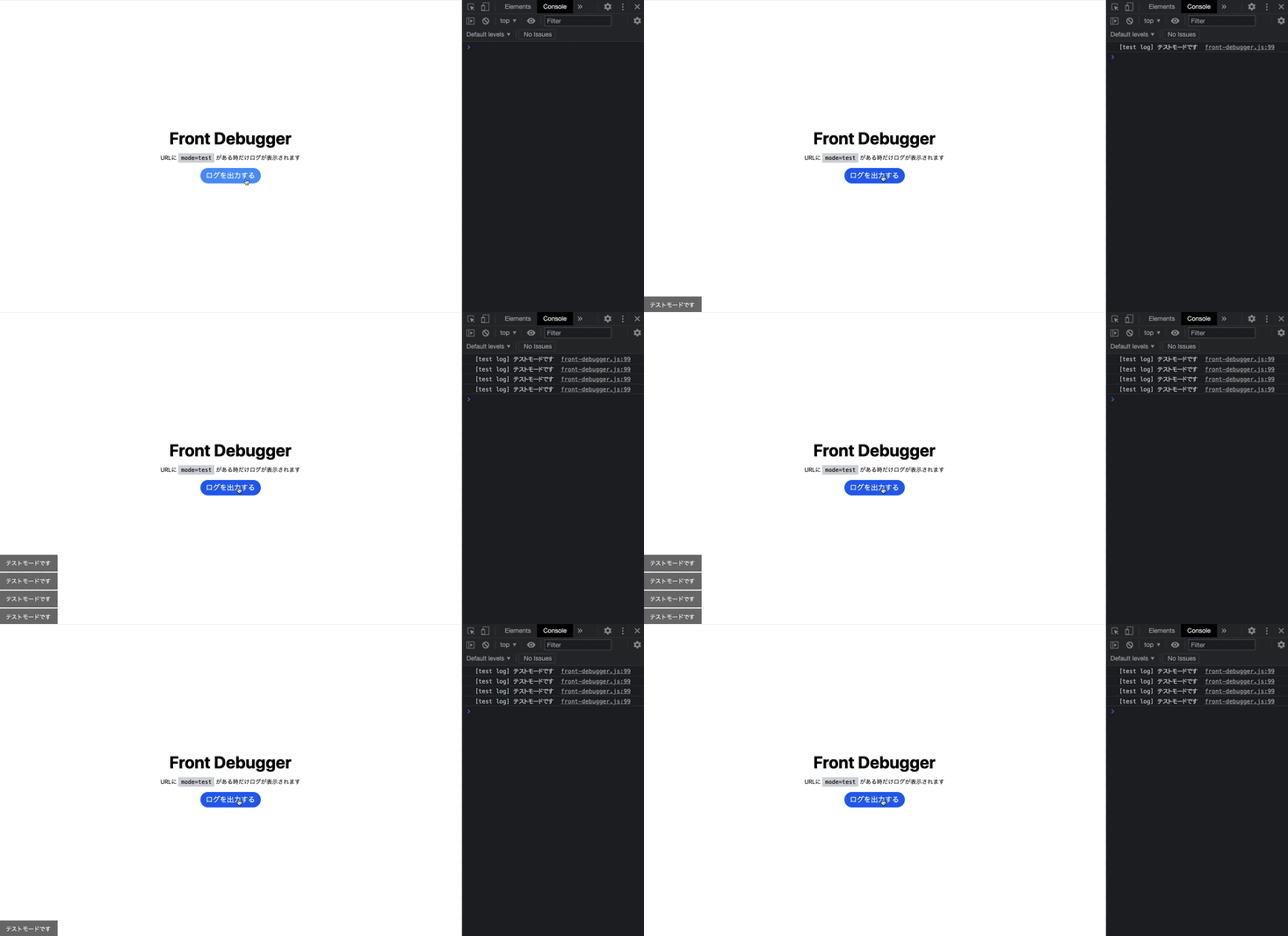
テスト用に入れた console.log をあとで全部消すのってめんどうですよね。
本番反映後も動きを確認したかったり何かあったときの調査のために console.log はそのままの方が何かと便利...という場面もあると思います。
このライブラリを使えば、テスト環境のときにだけ表示される console.log を簡単に用意することができます。
テスト環境の判定は自分で調整できるので、開発用のURLで判定したり、特定のパラメータがある時をテストモードと判定することができます。
また、スマホでのテストやエンジニア以外が見ることも考慮してフロント側にもログを表示する機能があります。
DEMO
デフォルトではURLに mode=test があるときだけコンソールと画面にデバッグ文言が表示されます。
テスト環境の判定は好きに変更ができます。
何も表示されない
https://yuki-sakaguchi.github.io/FrontDebugger/example/
デバッグが表示される
https://yuki-sakaguchi.github.io/FrontDebugger/example/?mode=test
導入
CDN
<script src="https://unpkg.com/front-debugger@latest/lib/front-debugger.min.js"></script>npm install
npm install front-debugger使い方
FrontDebugger というクラスが使えるようになるので、インスタンスを生成して console.log の代わりに log() メソッドを使うだけです。
使用感は console.log と全く変わりません。
このメソッドを使うと開発中判定の時だけコンソールと画面上にログが表示されます。
インスタンス生成時にオプションを設定できるので、画面上の表示はさせないようにしたり、開発中判定処理をカスタマイズすることができます。
デフォルトではURLに mode=test というパラメータがある時だけ開発中判定になります。
import FrontDebugger from 'front-debugger';

const fd = new FrontDebugger();
fd.log('テストモードの時にだけ表示されるログ');
オプション
const fd = new FrontDebugger({
  test: () => location.search.indexOf('mode=test') >= 0,
  isFront: true,
  isBackground: true,
  prefix: '[test log]',
  displayedTime: 2000,
  parent: 'body',
  className: 'front-debugger',
});
test: () => boolean
テストモードかどうかを判定する処理
デフォルトでは location.search.indexOf('mode=test') >= 0
isFront: boolean
フロント側にログを表示するかどうかのフラグ
デフォルトは true
isBackground: boolean
デベロッパーツールのコンソールにログを表示するかのフラグ
デフォルトは true
prefix: string
デベロッパーツールのコンソールにログを表示する際に付与される接頭語
デフォルトでは [test log]
空にすれば無視されます
displayedTime: number
フロント側にログを表示する場合のログの表示時間
単位は ms
デフォルトでは 2000
parent: string
フロント側にログを表示する場合、表示用に生成されるDOMを配置するセレクター
デフォルトでは body
className: string
フロント側にログを表示する場合に生成されるDOMに付与するクラス名
デフォルトでは front-debugger