
generator-jhipster-azure-container-apps
v1.0.9
Published
CLI for JHipster Azure Container Apps

Maintainers
 hangwan
Readme

Introduction
JHipster Azure Container Apps enables developers to rapidly create and deploy full-stack Java applications on Azure Container Apps with minimal steps. This integration simplifies the deployment process, allowing seamless scalability and management for both frontend, backend and database services on Azure.
Prerequisites
As this is a JHipster blueprint, we expect you have JHipster basic knowledge:
The following prerequisites arer equired to run this application locally. Please ensure that you have them all installed locally.
- Java 17 or later - for API backend
- Node.js - for the Web frontend
- Maven - for local build
The following prerequisites arer equired to deploy this application to Azure.
- Azure Subscription: Try Azure Container Apps for free. You can start with the free tier: The first 180,000 vCPU per second, 360,000 GiB/s, and 2 million requests each month are free.
- Docker
🚀 Get Started
npm install -g generator-jhipster-azure-container-apps🚁 How to run locally
To use JHipster Azure Container Apps, run the below command
jhipster-azure-container-appsYou can look for updated azure-container-apps blueprint specific options by running
jhipster-azure-container-apps app --helpTo run locally:
- For back-end, you can build manually under src/api with:
mvn clean package -DskipTests
java -jar target/{artifactname}-0.0.1-SNAPSHOT.jar- The back-end can be accessed at:
http://localhost:3100/- For front-end, you can build manually under src/web with:
npm install
npm run dev- The front-end can be accessed at:
http://localhost:3000/🎉 How to deploy on Azure with free grants
JHipster Azure Container Apps provides multiple ways to deploy on Azure, you can deploy with the built-in Terraform, Bicep, Azure Developer CLI(AZD) or directly from source code.
Terraform
- Make sure you marked
Terraformwhen generating the project. - Make sure you have Terraform installed and configured.
- Change into the Terraform folder:
cd terraform - Run the following command to initialize Terraform:
terraform init - Once finished, privision the necessary resource on Azure with:
terraform apply -auto-approve - Now you can deploy the project with:
- Linux/MacOS:
.\deploy.sh. You can run the deployment script by adding optionssubId,regionandresourceGroupName. - Windows:
.\deploy.ps1. You will be prompted to providesubId,region, andresourceGroupName.
- Linux/MacOS:
Bicep
- Make sure you marked
Bicepwhen generating the project. - Make sure you have Azure CLI installed and configured.
- Change into the bicep folder:
cd bicep - Setup bicep with:
az deployment sub create -f ./main.bicep --location=eastus2 --name jhipster-aca --only-show-errorsHere you can replace thelocationand thenameparameters with your own choices. - Now you can deploy the project with:
- Linux/MacOS:
.\deploy.sh. You can run the deployment script by adding optionssubId,regionandresourceGroupName. - Windows:
.\deploy.ps1. You will be prompted to providesubId,region, andresourceGroupName.
- Linux/MacOS:
Azure Developer CLI(AZD)
- Make sure you have Azure Developer CLI installed and configured.
- Log in to AZD, only required once per-install.
azd auth login- If you are on Windows, install powershell
- Navigate to the generated project directory and run
azd upMake sure your docker is running when executing this.
After the command is executed, you can see the following log signs that the deployment was successful.
SUCCESS: Your up workflow to provision and deploy to Azure completed in <deployment-time>.Deploy from artifact, source code, IDE and more
In addition to the options mentioned, Azure Container Apps offers a variety of deployment methods, all simplified by its built-in Java support. Explore how to easily deploy your project by visiting: Launch your first Java application in Azure Container Apps.
The output Deploying service api and Deploying service web are the endpoints to access the todo application.
❤️ Next Steps
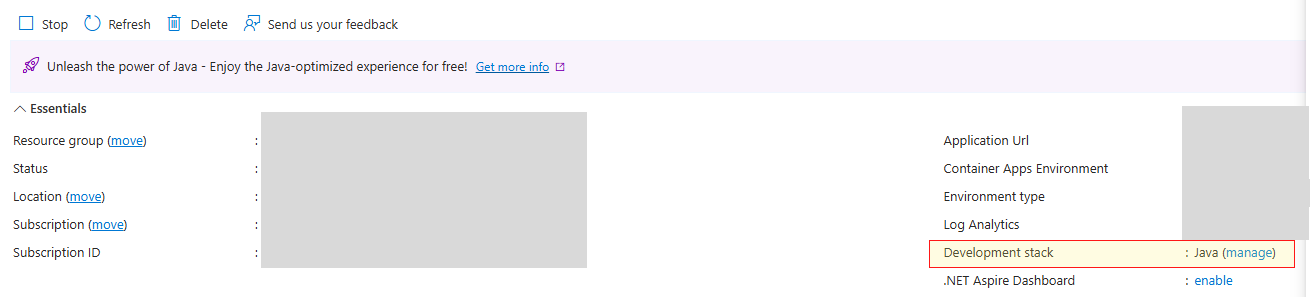
Azure Container Apps has built-in Java support to enhance your Java applications with automatic memory fitting, diagnostics and managed spring componnets, learn more.
You can easily turn on the Java support feature by clicking on the manage of the Development stack and choose Java on your overview page.
 .
.