
gitbook-plugin-terminal
v0.3.2
Published
Change code blocks to look more like a terminal
Downloads
71

Maintainers
 david.mogar
Readme
Terminal plugin for GitBook
Take it easy. This is not a real terminal. The aim of this plugin is to simulate a terminal in which there is a line for the prompt and the command, and multiple lines for the output.
So... why you should use it? It's way easier to catch the attention of your users when the code block looks fancy, isn't it?
Cool, can I see it working?
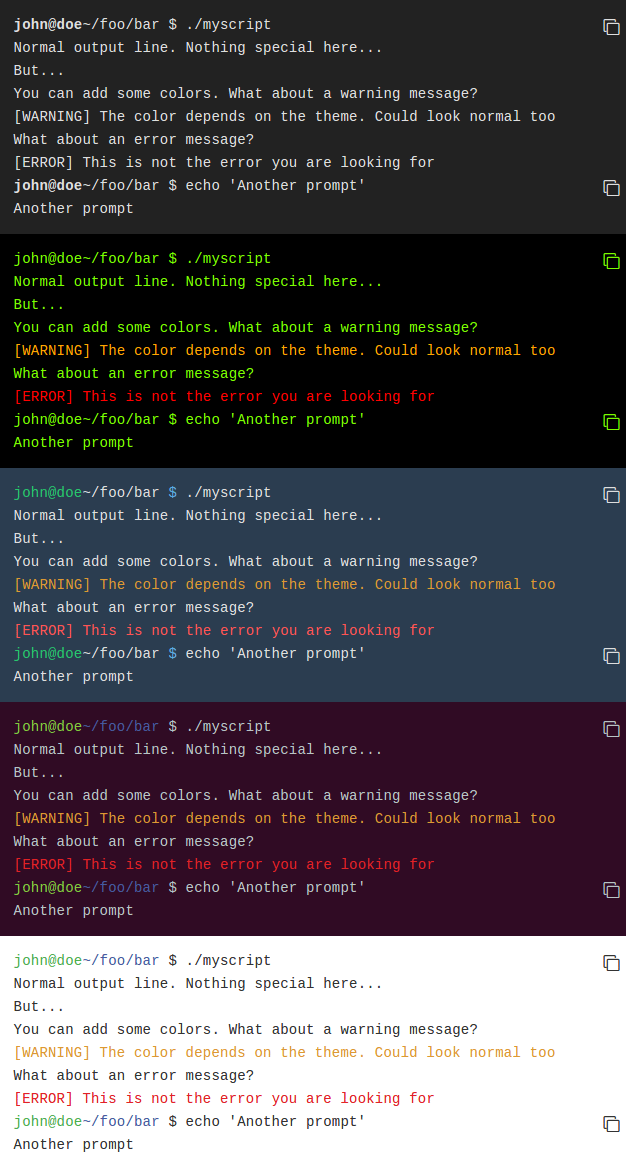
The next animated gif shows all the styles you can use:
How can I use this plugin?
You only have to edit your book.json and modify it adding something like this:
"plugins" : [ "terminal" ],This will set up everything for you. If you want some more control over the behaviour or the style of your terminal, just add this section too:
"pluginsConfig": {
  "terminal": {
    "copyButtons": false,
    "fade": false,
    "style": "classic",
  }
}
Now, to define your terminal you will have to create a Markdown code block where the first line will contain the token **[terminal] and after that, the text for the terminal.
The whole list of tokens is defined here:
- command: Command "executed" in the terminal.
- delimiter: Sequence of characters between the prompt and the command.
- error: Error message.
- path: Directory path shown in the prompt.
- prompt: Prompt of the user.
- warning: Warning message.
The next example shows how to use all of them:
So, as you can see, a token will be something like **[token value] where value can be any text.
So, what is the actual list of styles?
Terminal has 5 styles:
- black: Just that good old black terminal everybody loves.
- classic: Looking for green color font over a black background? This is for you.
- flat: Oh, flat colors. I love flat colors. Everything looks modern with them.
- ubuntu: Admit it or not, but Ubuntu have a good looking terminal.
- white: Make your terminal to blend in with your GitBook.
Is there anything else I can customize?
Sure! As you can see in the previous examples, there are two more options:
- copyButtons: If enabled, handy copy button will appear next to the commands. On click, the command will be copied to the clipboard.
- fade: When enabled, every time the cursor is over the terminal, the text will be fade out to highlight the command.
Anything else I should know?
Not much. Just a quick note about the plugin parameters:
- copyButtons: Adds button to copy the commands (defaults to
true). - fade: If true, the text will fade to highlight the command (defaults to
true). - style: Style for the terminal (defaults to
flat).