
goldsync
v0.1.39
Published
Automatic native Roblox asset synchronization for Rojo projects.
Downloads
999

Maintainers
 returndead
Readme
GoldSync
GoldSync synchronizes Roblox Studio assets with native .rbxm files. It saves complete models, UI, effects, and embedded scripts so your team can track them in Git. Rojo handles the separate source directories mapped in your project.
Install
GoldSync runs on Windows with Node.js 20 or newer. From your game repository, run:
npx --yes goldsync@latest installThe installer sets up the background service, Studio plugin, project registration, and Windows startup entry. Save and restart Studio after installation or an update. Allow localhost access if Studio asks.
Open the repository, run rojo serve, and connect Studio through Rojo. GoldSync selects the matching project automatically. Cursor, VS Code, and Zed use the same service; an editor extension is not required.
Configure your roots
Create goldsync.project.json in the game repository:
{
  "version": 2,
  "name": "My Game",
  "projectId": "my-game",
  "roots": [
    {
      "id": "assets",
      "mode": "tree",
      "studioPath": ["ReplicatedStorage", "Assets"],
      "directory": "assets/ReplicatedStorage/Assets"
    },
    {
      "id": "main",
      "mode": "tree",
      "studioPath": ["StarterGui", "Main"],
      "directory": "assets/StarterGui/Main"
    }
  ]
}
List only the top roots. Do not map the same hierarchy through both Rojo and GoldSync.
GoldSync reads the Rojo project name and port from default.project.json and detects active port overrides. Set rojo.projectFile if you use a different project filename.
Include the generated session marker in your Rojo project tree:
"ServerStorage": {
  "__GoldSyncSession": {
    "$path": ".goldsync/rojo-session.model.json"
  }
}
The service generates the marker. Keep .goldsync/ ignored by Git. The marker binds the Studio window to its active Rojo session and repository.
How files are grouped
Below a configured root, each Folder becomes a directory. The first descendant that is not a Folder becomes one file with its entire subtree. Folders inside that asset remain inside its file.
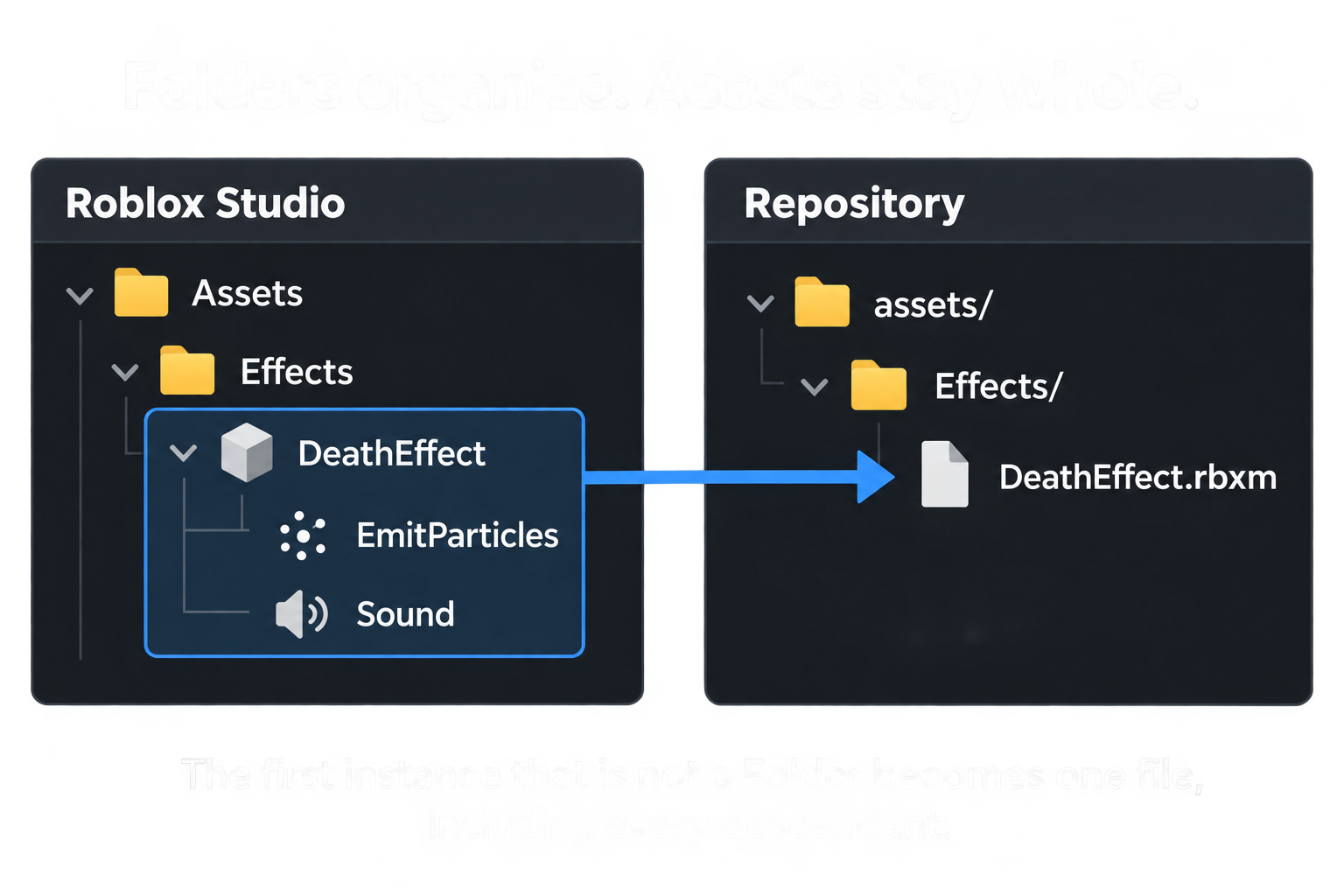
For example, if Effects is a Folder and DeathEffect is a Model, edits anywhere inside DeathEffect change Effects/DeathEffect.rbxm. If DeathEffect is a Folder instead, GoldSync keeps walking until it reaches each child asset.
Configured top roots always act as containers, even for a ScreenGui such as Main. Plain, nonempty Folders need only a directory. Container properties, attributes, tags, empty Folders, and non-archivable Folders are preserved with _root.rbxm where needed.
To save each page or HUD component separately without changing its Studio class, add "splitPaths": [["Pages"], ["HUD"]] to the Main tree root. Paths are relative to that root. Each listed container keeps its properties in _root.rbxm; each direct child becomes one file containing its entire subtree, even when that child is a Folder. Normal sync and restore-studio use the same rules. This requires GoldSync 0.1.37 or newer.
Configuration for larger assets
Use a Roblox Configuration instance in place of a Folder when a collection should stay in one file. Configuration has a gear icon in Studio.
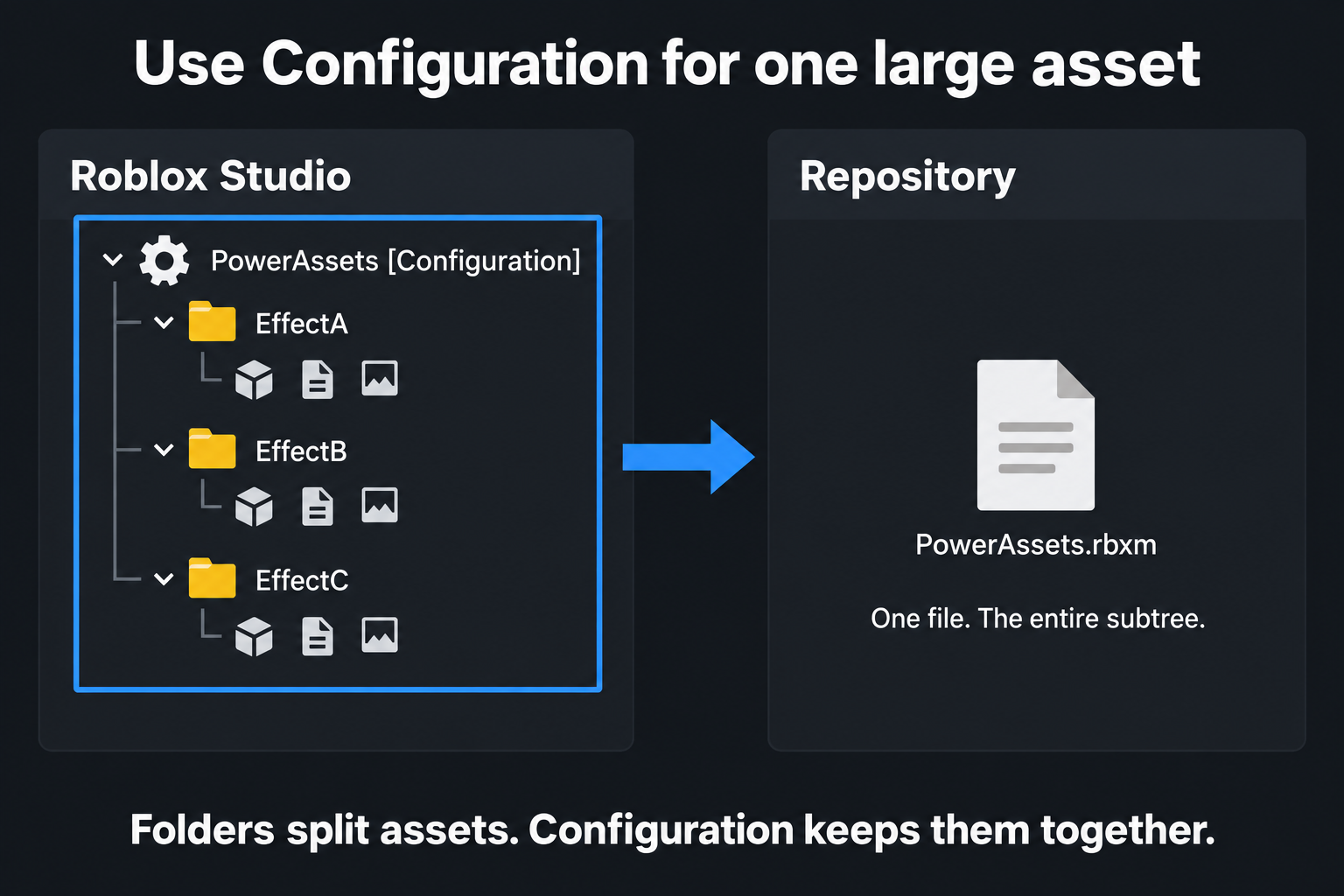
A Configuration named PowerAssets becomes PowerAssets.rbxm, including all effects, folders, and scripts below it. Pull replaces that complete subtree. Camera keyframes and effects whose children reference each other are useful candidates for this grouping.
Folders let teammates edit separate files independently. Configuration groups the collection into one Git change and one conflict unit. Keep referenced instances together when they belong to the same asset.
When changing a Folder to another class, Push the changed parent. GoldSync verifies the exported subtree and backs up the previous files before replacing their layout.
Daily use
To make local files authoritative and replace the configured Studio roots completely, run:
npx --yes goldsync@latest restore-studio --yesYou can also click the red Restore Studio button beside Unsynced, then confirm the replacement from local files. The button uses the same restore operation and shows progress or any error.
Update GoldSync, restart Studio, and connect Rojo first. This command discards unsaved Studio changes inside the configured roots, removes extra instances, and resets their sync state. Other Studio roots and local files are unchanged. It validates every snapshot before replacing the roots and reports completion in the terminal. It requires version 2 tree roots.
The command uses the files currently on disk. It does not fetch Git or remove old local .rbxm files. Restore the local assets from your intended Git revision first if that is the copy you want in Studio.
Matching assets synchronize automatically. When an entry needs attention, choose the copy you want to keep:
| Control | Direction | | --- | --- | | Push → | Studio to repository file | | ← Pull | Repository file to Studio |
Attention entries appear under collapsible parent paths with short child names. Use an individual arrow for one asset, or the attention section's Push All / Pull All controls for all unresolved entries.
Missing Studio assets require an explicit Pull to restore them. Push an intentionally removed Folder to remove its saved subtree with a backup and file-version checks. Configured roots cannot be deleted this way. Completed deletions do not need another Push.
GoldSync pauses normal syncing while Rojo is disconnected.
Duplicate names and embedded scripts
Same-named siblings keep their Studio names. Their files use suffixes such as Crack1.rbxm, Crack1 (1).rbxm, and Crack1 (2).rbxm. A saved GoldSyncId attribute maintains each duplicate's identity. Do not edit it manually. Assigned suffixes remain stable when siblings are removed.
Scripts, LocalScripts, and ModuleScripts inside assets are saved with their source. Keep separately managed game code in Rojo's source directories.
Git conflicts
GoldSync pauses conflicted files while other assets continue syncing. Expand an affected item and select Open Merge Workspace.
The workspace under ServerStorage.GoldSync Conflicts contains Base, Yours, Theirs, and an editable Result. Use Property Diff, copy selected properties with Use Yours or Use Theirs, or edit Result directly in Studio.
Check Result, then select Resolve Result. GoldSync writes the resulting RBXM, stages it in Git, and clears the conflict.
Development
Run the automated tests with npm test. The source includes the companion service, Studio plugin, installer, and optional editor extension.