
gridbash
v0.1.6
Published
Windows-native terminal grid for running Codex, Claude, Gemini, and other CLI agents side by side.

Maintainers
 jasonmatthewsuhari
Readme
GridBash






Run every CLI coding agent in one fast terminal grid.
GridBash by Jason Suhari is a Windows-native Rust TUI for agent-heavy development. Launch Codex, Claude, Gemini, Aider, OpenCode, Goose, Amp, Cursor, Copilot, Git Bash, PowerShell, or any custom command into a real PTY grid, then select exactly which panes receive your prompt.
Official site: jasonsuhari.github.io/gridbash
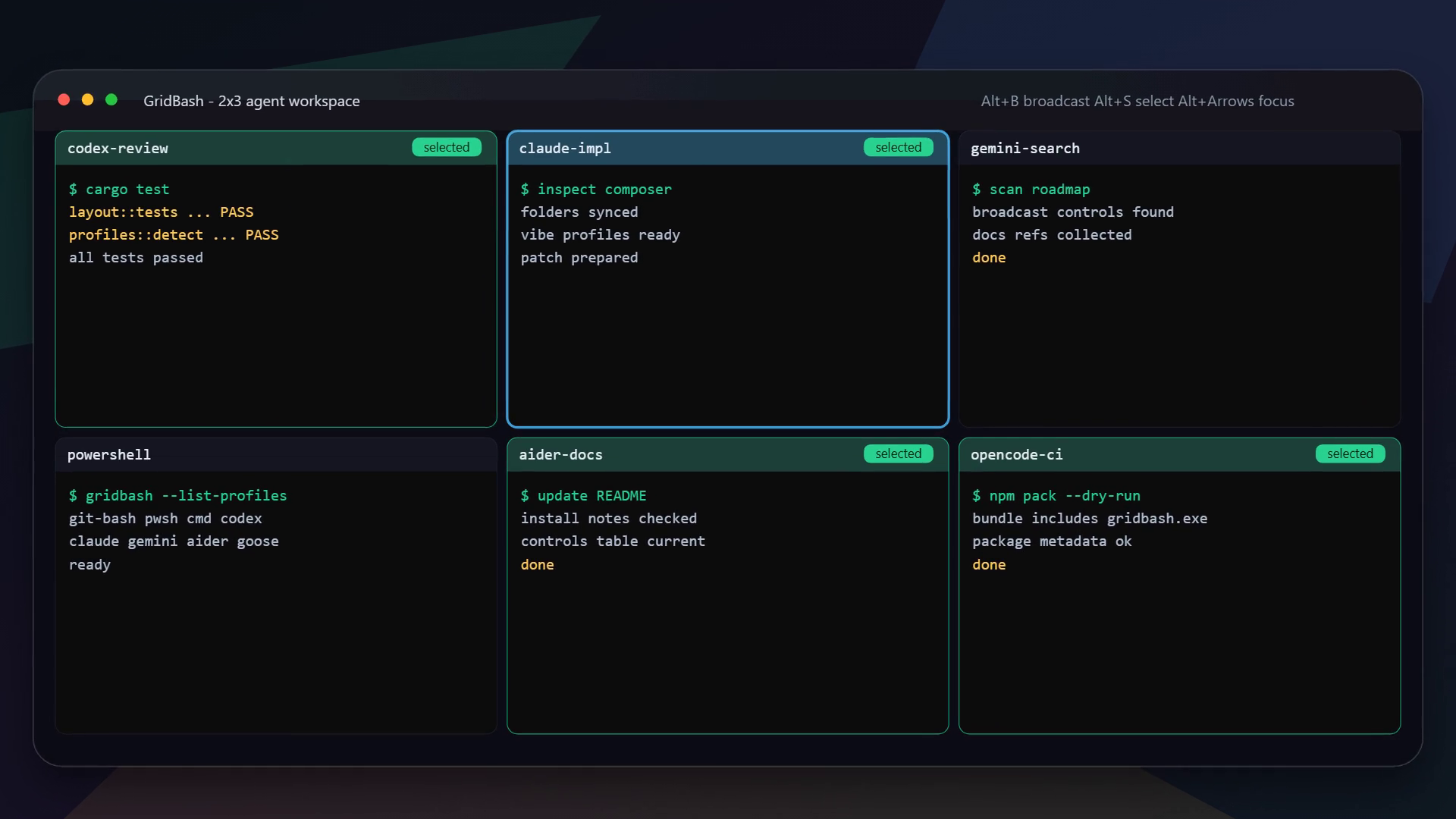
GridBash is built for developers who want parallel CLI-agent work without juggling terminal windows, browser tabs, or accidental cross-pane input.
V1 is intentionally single-process. Closing GridBash closes its child agents. Daemon detach/reattach is the next major frontier.
Quickstart
Install the published Windows x64 npm package:
npm install -g gridbash
gridbash
Open a focused CLI-agent grid:
gridbash 2x3 --profile codexLaunch every pane in a separate repo-local git worktree:
gridbash 2x3 --profile codex --worktreesWhy Developers Try It
- Run up to 100 PTY-backed panes from one terminal process.
- Send input to one pane, selected panes, or every pane in the grid.
- Start panes in isolated repo-local git worktrees for safer parallel agent work.
- Use modeless Alt shortcuts and mouse selection without leaving normal terminal mode.
- Launch common CLI agents with built-in profiles for Codex, Claude, Gemini, Aider, OpenCode, Goose, Amp, Cursor, and Copilot.
What GridBash Is For
GridBash is for CLI agent orchestration in the terminal: compare ideas from multiple coding agents, run review/build/test loops in parallel, keep shells visible, and send a prompt only to the panes that should receive it.
Its niche is Windows-native, PTY-backed, agent-first terminal grids. Traditional terminal multiplexers are still great; GridBash focuses on the workflows that appear when Codex, Claude, Gemini, Aider, and other CLI agents are all part of the same development session.
Release Status & Devlogs
- Latest npm version is shown by the npm badge above and on the npm package page.
- Latest GitHub release is shown by the GitHub release badge above and on the GitHub Releases page.
- Devlogs live in
docs/devlogs/. - Versioned release notes live in
docs/releases/and are used for GitHub release notes. - npm packages include
docs/devlogs/anddocs/releases/so published package contents carry the logs too.
Highlights
- Real PTY-backed panes through Windows ConPTY via
portable-pty. - Up to 100 panes in one terminal process.
- Configurable default terminal profile: Git Bash, PowerShell, cmd, agents, or custom.
- Pane-contained drag selection that copies selected terminal text without crossing into sibling panes.
- Sleeping panes stay visually hidden until hovered, then wake without crossing input into other panes.
- Normal terminal keys pass through to the focused pane, or to selected panes when multiple panes are selected.
- Modeless Alt shortcuts for pane focus, selection, rename, settings, and quit.
- Compact dark theme with focus, selection, sleep, exit, usage, and quiet-output cues.
- Claude, Codex, and other agent panes show a compact conversation summary in the footer line.
- Built-in launch profiles for common CLI coding agents.
- Startup dimension picker with a live grid preview.
- Optional managed git worktrees so every pane can work in an isolated checkout.
Demo Assets
- Watch the OpenVid-style demo:
docs/assets/gridbash-openvid-demo.mp4. - See the source scene and OpenVid recreation recipe in
docs/demo/openvid-gridbash-demo.md. - Use
docs/assets/gridbash-social-preview.pngas the GitHub social preview image.
Install From This Repo
For local development installs:
npm run install:localThen run GridBash from anywhere:
gridbashBuild a publishable npm tarball:
npm packThe package ships a Node command shim that launches the bundled Windows x64 gridbash.exe.
Release automation and devlog workflow are documented in docs/RELEASING.md.
Use npm run install:local for local development installs. It installs from a packed tarball so the global gridbash command points at a stable package copy, not whichever .worktrees/ checkout last ran npm install -g ..
PR Workflow
Pull requests can be merged directly after they have been reviewed. Before merging, check the diff, confirm the intent is clear, and make sure the relevant validation has passed.
Install From Source
Install Rust first:
winget install --id Rustlang.Rustup -eBuild GridBash:
git clone https://github.com/jasonsuhari/gridbash
cd gridbash
cargo build --release
The executable will be:
target\release\gridbash.exeUse
Open the startup grid picker:
gridbashOn first launch, if no default profile is configured, GridBash opens an animated setup screen and asks you to choose from the detected terminal profiles. The choice is saved to:
%APPDATA%\GridBash\config.tomlThe startup picker asks for rows and columns, updates the preview grid as you change them, and launches every pane in the directory where you started gridbash.
Set the default terminal profile:
gridbash --set-default powershellOpen a specific grid:
gridbash 2x3 --profile git-bashOpen 12 panes and auto-arrange them:
gridbash --count 12 --layout auto --profile claudeList detected profiles:
gridbash --list-profilesStart in a repo:
gridbash 3x4 --profile codex --cwd C:\Users\Jason\Documents\GitHub\fluentPassing grid, count, profile, or cwd arguments bypasses the startup picker and uses the direct launch path.
Launch every pane in a separate repo-local git worktree:
gridbash 2x3 --profile codex --worktreesWith --worktrees, GridBash creates or reuses .worktrees/gridbash-<base>-NN folders and gridbash/<base>-pane-NN branches. Panes keep the same relative folder as the directory where you launched GridBash, so starting from repo\app opens each terminal in the matching app folder inside its managed worktree. GridBash refuses this mode outside a git repo or when tracked changes are present in the base checkout.
You can also run gridbash --worktrees and choose the grid dimensions in the startup picker.
Agent Control MCP
GridBash can expose a local, opt-in control API for agents running inside its panes:
gridbash --agent-api 2x3 --profile codexWhen enabled, child panes receive GRIDBASH_CONTROL_ADDR, GRIDBASH_CONTROL_TOKEN, and GRIDBASH_PANE_INDEX. Configure an agent MCP server command to run:
gridbash --mcpThe MCP server exposes:
gridbash_show_imageto display a local png, jpg, gif, or webp in a GridBash overlay.gridbash_send_commandto send command text to one or more 1-based pane numbers.gridbash_set_statusto update the GridBash status bar.
The control API binds to localhost, uses a per-session token, and is off by default.
Startup Picker Controls
| Input | Action | | --- | --- | | Left / Right | Switch between rows and columns | | Up / Down | Increase or decrease the active dimension | | r / c | Select rows or columns | | 1-9 / 0 | Set the active dimension directly, with 0 meaning 10 | | Enter | Launch the grid | | Esc / q | Quit |
Controls
GridBash captures drag selection so selected text stays inside the pane where the drag started. Releasing the drag sends the selected terminal text to the host clipboard through the standard OSC 52 terminal clipboard sequence. App controls use Alt shortcuts and do not require switching modes.
| Input | Action | | --- | --- | | Drag mouse | Select/copy terminal text within the source pane | | Right-click pane | Toggle that pane in or out of the selected set | | Alt+Left / Alt+Right | Focus previous / next pane | | Alt+Up / Alt+Down | Focus pane above / below | | Alt+Shift+Up / Alt+Shift+Down | Remove / add a row when safe | | Alt+Shift+Left / Alt+Shift+Right | Remove / add a column when safe | | Alt+s | Toggle focused pane selection | | Alt+a | Select all panes, or clear selection when all panes are selected | | Alt+p | Open settings for the focused pane; use Reload past history to refresh its visible conversation snapshot | | Alt+r | Rename the focused pane | | Alt+t | Restart exited focused pane; when multiple panes are selected, restart exited selected panes | | Alt+z | Put the focused pane to sleep; when multiple panes are selected, sleep the selected panes | | Hover sleeping pane | Wake the pane and make its terminal contents visible again | | Alt+o | Open settings | | Alt+q | Quit |
In focused-pane settings, press Enter, Space, or r to reload the visible
conversation history snapshot. Press Esc, q, or Alt+p to close it, or
Alt+o to switch to overall settings.
When the focused pane has exited, GridBash shows a recovery dialog. Press Enter,
r, or t to restart it, or press z to put it to sleep. Alt+t still restarts
exited target panes directly when your terminal reports Alt shortcuts as modified
key events.
Typing goes to selected panes whenever multiple panes are selected. With zero or one pane selected, input goes to the focused pane.
Renamed pane headers replace the numeric prefix for the current session. Saving a blank name restores the default number.
Pane titles add a small quiet-output marker after roughly three seconds without output. The marker means a pane produced output and then went idle; it does not mean the process exited or completed its task.
The settings screen includes sample controls plus live color controls for the accent, focus, selected, quiet, and exited grid roles. Palette changes apply immediately for the current run.
Profiles
Built-in profile keys:
git-bash pwsh powershell cmd codex claude gemini opencode aider amp goose copilot cursorGridBash resolves Windows .exe and .cmd shims before extensionless npm shims, so common Node-based CLIs launch correctly.
Optional config file:
%APPDATA%\GridBash\config.tomlExample:
[defaults]
profile = "powershell"

[profiles.review]
command = "codex"
args = ["--model", "gpt-5.5"]
title = "Codex Review"
Then run:
gridbash 2x4 --profile reviewDefault profile resolution order:
--profile > GRIDBASH_PROFILE > [defaults].profile > git-bashDesign Goals
GridBash is inspired by agent-first multiplexers such as Mato and terminal workspaces such as Zellij, but V1 takes a different path: Windows-native, single binary, visual selection, scoped multi-pane input, and a hard bias toward fast multi-agent grids.
Community
- Read
CONTRIBUTING.mdbefore opening a pull request. - See
docs/ROADMAP.mdfor the release roadmap. - Use GitHub Issues for actionable bugs, tasks, and feature requests.
- Use GitHub Discussions for questions, ideas, and longer design conversation.
- Follow
SECURITY.mdfor private vulnerability reports.
Legacy Launcher
The old Windows Terminal launcher is still useful for quick split-pane grids, but it cannot support true subset pane input because Windows Terminal does not expose subset pane selection. The Rust app is the path forward.