
gsynchro
v0.1.15
Published
Bidirectional sync of selected project files with a locally mounted folder

Maintainers
 fvilli
Readme
gsynchro
Bidirectional synchronization for a selected set of project files and a local directory.
gsynchro is a small Node.js command-line tool for keeping documentation and other text files in a project synchronized with a second directory. The second directory can be a locally available Google Drive folder, provided by Google Drive for desktop on Windows and macOS, or a mount managed with rclone on Linux or other supported platforms.
The “G” in gSynchro has a useful double reading: Google Drive is the shared transport, while governance is the project context being synchronized.
gsynchro was designed with Google Drive specifically in mind, because a Drive folder is a natural, familiar place to keep the governance documents behind a ChatGPT Project (or a similar chatbot workspace) — the same folder a design conversation already reads from. In practice, though, gsynchro never talks to Google Drive itself: it only synchronizes the repository with an ordinary local directory (destination in the configuration). The Drive connection is made entirely outside gsynchro, by a separate client — Google Drive for desktop, an rclone mount, or any other tool that keeps a local directory mirrored with a remote one. Anything that can expose a folder locally works the same way: another cloud drive, a network share, a second repository, or a plain local folder with no cloud involved at all.
Project governance and focused context
A software project contains three broad kinds of files:
| Project material | Examples | Main purpose |
| --- | --- | --- |
| Code | Source files, tests, scripts, assets | Implements the product |
| Configuration and delivery setup | package.json, JSON/YAML settings, Dockerfiles, CI/CD workflows | Describes how the software is built, configured, tested, and deployed |
| Documentation | Markdown, text, Word documents | Explains the product, its design, operation, and constraints |
Documentation serves both people and AI agents. The subset written to guide agents is the project's governance: the durable instructions and decisions that tell an agent what the project is for, how it should behave, what boundaries it must respect, and how work is accepted. Governance can include the product brief, goals and non-goals, requirements, architecture, design decisions, coding conventions, security constraints, task templates, and completion criteria. Files such as AGENTS.md, DECISIONS.md, and docs/architecture.md are examples; governance is a role the documentation plays, not a special file format.
The preferred workflow keeps high-level product and architecture discussions out of the code editor. During that phase, use ChatGPT Projects or another chatbot with access to a current Google Drive source folder containing the project's governance documents. Give the conversation this focused context without asking it to inspect the source tree. This keeps design reasoning centered on goals, requirements, constraints, and decisions instead of spending context on implementation details before they are needed.
Once a design decision is ready to implement, turn it into an explicit task file. gsynchro can synchronize that task and the selected governance documents into the local repository. The coding agent then reads the task and governance, opens the code and relevant configuration, and implements the approved change. This separates deciding what to build and why from deciding how to change the code.
In this model, gsynchro moves the governed project context and task handoffs between Drive and the repository. It does not synchronize source code. By default it allows .md, .txt, .png, .jpg, .jpeg, .svg, and .pdf — documentation, task files, and the mockups or diagrams referenced from them; the extensions setting can narrow or extend that list per project, and items selects which paths of those eligible files should travel.
Agentic development scenarios
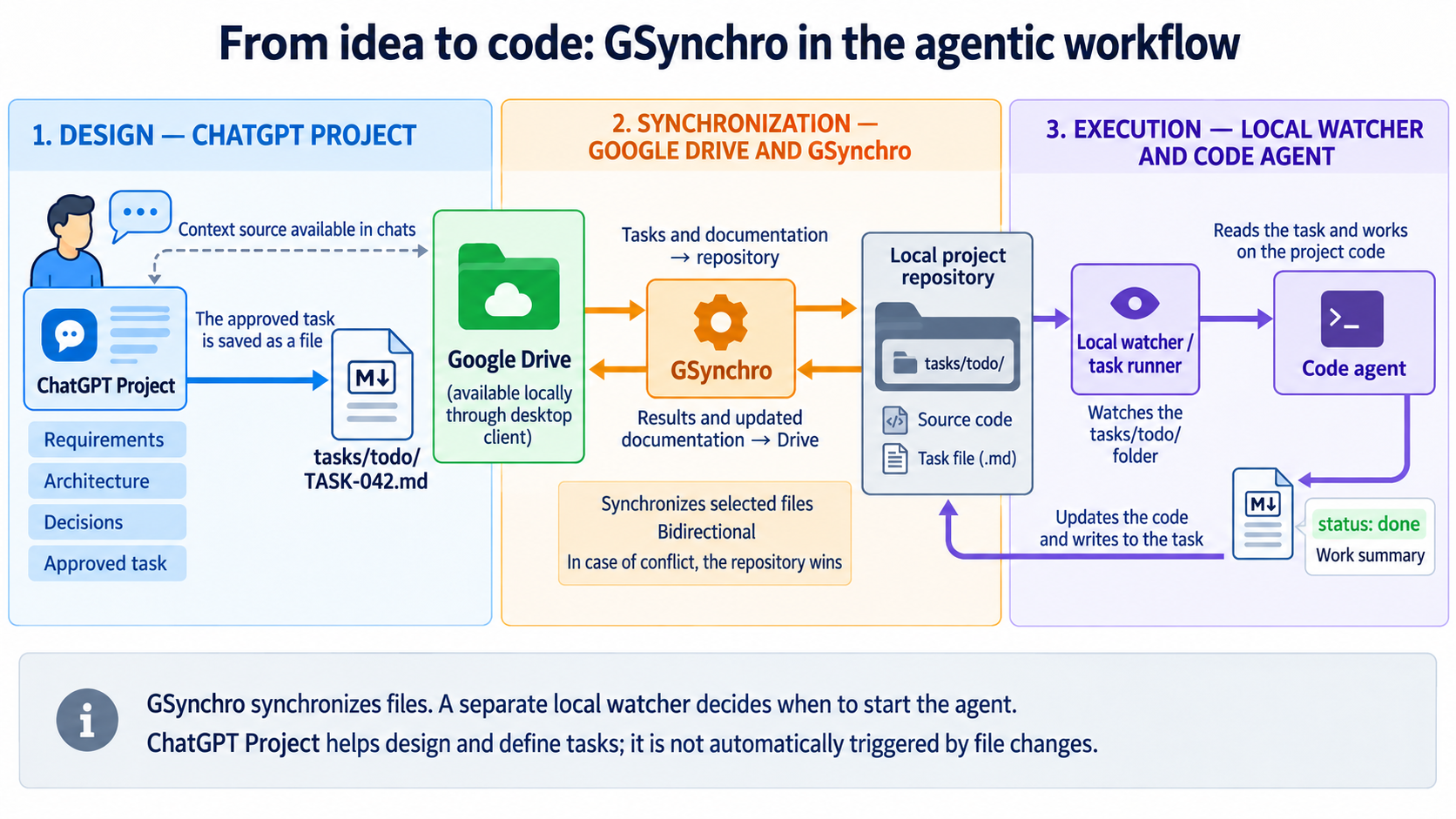
The schema above shows the role gsynchro can play in an agentic workflow: it is the file bridge between a conversational AI workspace, Google Drive, and the repository where coding agents work. This is not limited to ChatGPT Projects. Any chatbot can be the conversational interface if it can connect to the project's Google Drive folder and read the current source files. Connectors differ: some retrieve files on demand, while others use an index that refreshes periodically. Check the provider's access, file-type, freshness, and write capabilities before relying on it for a live handoff.
The workflow separates four roles:
- Conversational AI for product thinking. Discuss the problem, explore alternatives, design the architecture, record decisions, and draft implementation tasks. ChatGPT Projects are one option; a cloud Project uses connected sources and is distinct from a local project that reads a folder on the computer. See OpenAI's Projects and chats documentation.
- Google Drive for shared project files. Keep the approved Markdown documentation and task files in a project-specific Drive folder. The chatbot connector lets conversations consult Drive; a desktop client or
rclonemakes the same files available to the machine running the agent. gsynchrofor synchronization. Copy only the selected files between the repository and the mounted Drive folder. A task such astasks/todo/TASK-042.mdcan arrive in the repository, and the agent's updated task and documentation can travel back to Drive.- An agent runner for execution. A separate local process watches a designated task inbox. It waits for a complete task, starts a coding agent in the repository, and records the result.
gsynchrosynchronizes files; it does not interpret tasks, run the coding agent, or connect a filesystem event to a chatbot conversation.
The Drive connection is a source for chatbot conversations; it is not an operating-system mount or a file-change trigger. If a chatbot connector is read-only or does not write Markdown files, save or export the approved task to Drive yourself. The local watcher, after the file has arrived in the repository, is what turns that handoff into an automatic agent run.
Other conversational AI and storage combinations
The ChatGPT Project + Google Drive pattern is one useful combination, not a requirement. Comparable options include:
- Microsoft Copilot Notebooks + OneDrive/SharePoint for Microsoft 365-centric teams.
- Perplexity Spaces + file connectors for research-oriented, connected file search.
- Mistral Le Chat + Libraries or MCP connectors for managed knowledge bases and custom integrations.
- Gemini Notebook + Google Drive for read-only, automatically refreshed Drive sources.
- Claude Projects + connectors for project knowledge and connected services.
- AnythingLLM for local-first workspaces, document knowledge, and controlled agents.
- Open WebUI + oikb for a self-hosted knowledge base backed by local folders, Git, cloud storage, or other supported sources.
See alternative scenarios and their trade-offs for current capabilities, limits, and how each option relates to gsynchro.
Scenario A: a development computer at home
Leave the development computer on with the repository, Drive client or mount, gsynchro, and the separate agent runner available. You can discuss requirements from ChatGPT or another connected chatbot, save an approved task into the Drive folder, and let the computer carry out the implementation locally. Source code stays in the repository; gsynchro synchronizes the selected task and documentation files.
OpenAI currently documents ChatGPT Voice in the desktop app for Chat, Work, and Codex. ChatGPT Projects can contain Chat and Work conversations, so voice can be used in a Project conversation where the voice control is available. OpenAI also documents Remote on iOS after pairing a phone with a desktop host. Availability depends on account, workspace, and rollout; see ChatGPT Voice. This voice control can steer supported ChatGPT/Codex work. It does not automatically control an unrelated custom watcher or agent daemon: that runner still needs an explicit integration, or you can hand work to it as a task file in Drive.
Typical local flow:
ChatGPT / another Drive-connected chatbot
       ↓ approved task saved in Google Drive
Google Drive for desktop
       ↓ local project folder
gsynchro ⇄ local repository
       ↓ tasks/todo/*.md appears
local task runner → coding agent → repository changes
       ↓ task result and selected docs
gsynchro → Google Drive → available to chatbot conversations
The machine, mount, gsynchro, and runner must be active for automatic local execution. If the computer is off or the mount is unavailable, the task stays in Drive until synchronization and the runner resume.
Scenario B: an always-on cloud server
Run the repository and agent runner on a Linux server or VM instead of a home workstation. Install the coding agent's runtime there, clone the project repository, mount the Google Drive folder with rclone, and keep both gsynchro and the task runner running as services. In this setup, rclone exposes the cloud folder as a filesystem path and gsynchro connects that path to the server's repository.
For example, if rclone mounts Drive at /srv/gdrive, the gsynchro configuration can point at a dedicated subdirectory:
destination: /srv/gdrive/projects/my-project
debounce: 5
items:
  - "README.md"
  - "AGENTS.md"
  - "docs/**/*.md"
  - "tasks/**/*.md"
The task-file flow is the same: an approved Markdown task is written to tasks/todo/ in Drive, rclone exposes it on the server, gsynchro copies it into the repository, and the server-side runner starts the coding agent. The server then writes task status and documentation updates locally, and gsynchro sends those selected files back to Drive. Keep the Drive mount, gsynchro, and the runner under a service manager so they recover after a reboot; the gsynchro and runner services need their own service definitions. See the Linux rclone setup guide for the rclone remote, mount, and systemd setup.
The chatbot remains the planning and control surface. To control a server-side runner directly, provide a separate remote interface or integration; a Drive source link alone does not execute commands on the server. A task file in the mounted Drive folder is a simple asynchronous handoff that the runner can observe.
Example project layout
my-project/
├── .gsynchro/
│   └── gsynchro.yml
├── docs/
│   ├── architecture.md
│   └── decisions.md
├── milestones/
│   └── M-003-service-observability.md
├── tasks/
│   ├── todo/
│   ├── in-progress/
│   └── done/
└── src/
For example, select the project guidance, milestones, and task files in .gsynchro/gsynchro.yml:
destination: /absolute/path/to/drive/my-project
debounce: 5
items:
  - "README.md"
  - "AGENTS.md"
  - "docs/**/*.md"
  - "milestones/**/*.md"
  - "tasks/**/*.md"
src/ is intentionally not selected: this tool is designed for a controlled set of documentation and task files, not for synchronizing the source tree. The local agent works directly in the repository source tree.
Development milestone example
First discuss and approve a coherent development outcome in your chatbot, then save or export it as a Markdown milestone under the Drive folder's milestones/ directory. A milestone gives people and agents durable context: it explains the outcome, scope, constraints, and evidence of completion before the work is split into individual tasks. For example, create milestones/M-003-service-observability.md:
---
id: M-003
status: planned
target: 0.3.0
owner: platform
---

# Service observability baseline

## Outcome

Operators can determine whether the service is live, ready to receive traffic, and failing requests without inspecting application logs manually.

## Scope

- Add liveness and readiness endpoints.
- Publish request count, error count, and latency metrics.
- Document local verification and the production dashboard or alert assumptions.

## Constraints

- Follow the boundaries and conventions in `docs/architecture.md`.
- Do not expose secrets, customer data, or internal implementation details through an endpoint or metric label.
- Keep the initial implementation compatible with the current deployment environment.

## Done when

- Liveness and readiness behavior is documented and covered by automated checks.
- The selected metrics are available in the supported monitoring path.
- Alert thresholds and ownership are recorded in `docs/operations.md`.
- The milestone is linked to its implementation tasks and their results.
The milestone travels as shared project context:
ChatGPT Project
  └─ design, architecture, approved milestone
       ↓ save milestone Markdown in the linked Drive folder
Google Drive folder
       ↓ local client makes files available
gsynchro
       ↓ copies milestones/M-003-*.md into the repository
People and coding agents
       └─ use the milestone to create, prioritize, and complete smaller tasks
A milestone is planning and governance context; it does not by itself start an agent run. Derive a focused file under tasks/todo/ when work is ready to execute, then let a separate runner observe that task directory.
Local runner responsibilities
The runner is a separate component that must be installed and kept running on the development machine. A typical runner should:
- watch only
tasks/todo/*.md, rather than launching work for every filesystem event; - wait until a new or changed task file is stable before reading it;
- accept only tasks with a unique ID and
status: todo; - claim a task atomically or keep a durable run record to prevent duplicate execution;
- start the coding agent in the intended repository and pass the task file and project instructions;
- record
in-progress,done, orblockedplus a short outcome in the task file or a run log; - handle restart and failure cases without silently losing a task.
The runner may move a task through todo/, in-progress/, and done/, or update its status in place. Choose one convention and use it consistently. If it changes a synchronized file on the repository side while a different edit is made to the same path in Drive, the repository version wins under gsynchro's conflict rule.
Example project instructions for a chatbot
Instructions configured in a chatbot project or workspace can keep design discussions and task handoffs consistent. For example:
Use the linked project documentation and decisions as the source of truth.
Help me clarify requirements and architecture before proposing implementation tasks.
When I approve a task, produce a Markdown task file with a unique ID, status,
objective, context, constraints, and testable acceptance criteria. Target
tasks/todo/ and do not claim that code has been changed or verified.
The chatbot produces the task content; saving it as a .md file in the Drive inbox is the handoff that the runner can observe. The connected Drive source and the local filesystem watcher serve different roles.
gsynchro works with local filesystems. It does not connect to Google Drive or use Google APIs; authentication, local availability, and remote caching are managed by the Google Drive client or filesystem mount tool.
Features
- Watches only the directories that can contain configured items, then reconciles selected files after a configurable quiet period.
- Copies new and changed files in either direction.
- Propagates deletions using a saved synchronization state.
- Resolves simultaneous changes in favor of the project directory.
- Moves propagated deletions to a local
.trash/directory where possible. - Restricts synchronization to configurable file extensions (default:
.md,.txt,.png,.jpg,.jpeg,.svg,.pdf) up to 10 MiB. - Supports glob patterns relative to the project root.
- Writes a generated
GSYNCHRO.mdnotice in the destination root so Drive-side collaborators and AI workspaces can see the configured sync scope.
Requirements
- Node.js 20 or later.
- A destination directory that exists and is accessible before
gsynchrostarts. - If synchronizing a cloud drive, a working local mount managed separately, such as rclone.
Installation
Install gsynchro as a development dependency in the project you want to synchronize:
npm install --save-dev gsynchroNo further changes to package.json are required. npm install puts the gsynchro binary in the project's local node_modules/.bin, and npx resolves it there automatically, so it can be run straight from the project root:
npx gsynchroIf .gsynchro/gsynchro.yml does not exist yet, this runs an interactive setup wizard first. It asks for the destination directory, then shows its default file extensions and discovers common document-oriented directories already present in the repository. It always includes eligible files in the project root (not recursively), and proposes only existing directories named adr, decisions, docs, mockups, prompts, tasks, stack, documents, documentation, milestones, governance, ai, agents, or architecture. You can add extensions, folders, or glob patterns without having to type the defaults; remove any unwanted defaults later in the configuration file. Before accepting the selection, the wizard scans both the repository and the destination with the exact resulting patterns and extensions, and shows how many files match on each side. Files found only on the destination are what a first sync would copy into the repository, so the wizard lists a sample of them and, past 20 files or 2 MiB, defaults the confirmation to "no" so a mistyped destination does not flood the repository with unrelated files. You can review or re-run the wizard any time with --setup:
npx gsynchro --setup--setup keeps the current destination, extensions, and locations, and lets you add more before asking for confirmation to overwrite .gsynchro/gsynchro.yml. Edit the file directly to remove entries. At the end of either flow it asks whether to start watching immediately; answering no leaves the file in place so you can review it before the first run — see the safety note below.
Once started, the process stays active while it watches both directories. Stop it with Ctrl+C or a termination signal.
Optional: a package.json script
npm install cannot add scripts to package.json on its own — gsynchro does not attempt this either, since a package silently rewriting a project's own package.json on install is more surprising than helpful. If you would rather type npm run gsynchro than npx gsynchro, add the script yourself:
{
  "scripts": {
    "gsynchro": "gsynchro"
  }
}
npm run gsynchro
npm run gsynchro -- --setupConfiguration
The setup wizard creates .gsynchro/gsynchro.yml for you. On a first setup, its items list always starts with eligible files in the project root and then includes only common documentation directories that actually exist in that repository. To write or edit the file by hand instead, create it in the project root. This example represents a project that has docs/ and tasks/:
# Existing local directory or mount point for the other side of the sync.
destination: /home/alex/Drive/projects/my-project

# Seconds of inactivity before reconciling filesystem changes.
debounce: 5

# File extensions eligible for synchronization (case-insensitive).
extensions:
  - ".md"
  - ".txt"
  - ".png"
  - ".jpg"
  - ".jpeg"
  - ".svg"
  - ".pdf"

# Glob patterns relative to the project root. `*.*` means eligible files in
# the project root only; `**` makes the selected directory recursive.
items:
  - "*.*"
  - "docs/**/*.*"
  - "milestones/**/*.*"
  - "tasks/**/*.*"
Configuration fields
| Field | Required | Description |
| --- | --- | --- |
| destination | Yes | Path to the existing destination directory. Relative paths are resolved from the process working directory; an absolute path is recommended. |
| items | Yes | A non-empty list of glob patterns, relative to the project root, that selects files for synchronization. *.* selects eligible files in the project root only. On first setup, the wizard adds that pattern plus only existing directories named adr, decisions, docs, mockups, prompts, tasks, stack, documents, documentation, milestones, governance, ai, agents, or architecture, each recursively. |
| extensions | No | A non-empty list of file extensions eligible for synchronization, each written with its leading dot (.md, not md); matching is case-insensitive. Defaults to .md, .txt, .png, .jpg, .jpeg, .svg, .pdf. Narrow it (e.g. to just .md) or extend it (e.g. add .docx, .csv, .json) to fit what the project's governance actually needs. |
| debounce | No | Quiet period in seconds before a reconciliation. Defaults to 3; 0 runs without an additional delay. |
Patterns in items are evaluated against both roots, and a file must also have one of the extensions in extensions to be eligible. This split is deliberate: once extensions says what kinds of files are in scope, items can use broader patterns like docs/**/*.* instead of repeating the extension in every pattern. For example, docs/**/*.md selects Markdown files below docs/ on both sides, while docs/**/*.* selects every file below docs/ whose extension is currently listed in extensions. Files still need to pass the fixed safety rules described below.
Drive-side synchronization notice
After a configuration is saved and whenever gsynchro starts, it writes GSYNCHRO.md into the root of destination. This generated notice lists the configured extensions and path patterns, explains that a file must match both to be synchronized, and tells Drive-side collaborators how to request a change to the scope. It is intended for people and AI workspaces that work from the Drive folder without access to the local repository.
GSYNCHRO.md is one-way metadata: it is generated from the repository configuration, never copied back into the repository, and does not prove that a watcher is currently running. Do not edit it; changes are replaced at the next run. The name is reserved in the destination root. If a non-generated file with that name already exists, gsynchro stops and asks you to rename or move it rather than overwriting it.
Platform setup examples
The gsynchro configuration format and npm commands are the same on Windows, Linux, and macOS. Only the destination path and the way the remote directory is mounted differ. In each example, mount the remote first, set destination to a project-specific directory inside the mount, and start gsynchro from the project root.
The destination directory must already exist. gsynchro deliberately does not create it: if the mount is unavailable, creating the mount point as an ordinary local directory could lead to changes being written to the wrong place. Keep the project root and destination as separate directories that do not contain one another.
Windows: Google Drive for desktop
On Windows, the simplest setup for Google Drive is the official Google Drive for desktop client. After signing in, it makes My Drive available in File Explorer. In streaming mode it appears as a virtual drive (usually G:, though the drive letter can be changed); in mirroring mode My Drive is stored in a local folder. See Google's guide to streaming and mirroring for setup details.
For predictable local file access, use Mirror files, or keep the specific project folder available offline when using Stream files. Streaming saves disk space, but files may need to be downloaded when accessed and require Drive for desktop to be running. gsynchro reads selected files to calculate hashes, so the client must be able to provide their contents.
In File Explorer, find the exact path to My Drive and create a project-specific destination folder inside it. For example, if My Drive is shown under G::
New-Item -ItemType Directory -Force 'G:\My Drive\projects\my-project'Use that path in .gsynchro/gsynchro.yml. Forward slashes work in YAML on Windows:
destination: 'G:/My Drive/projects/my-project'
debounce: 5
items:
  - "*.*"
  - "docs/**/*.*"
If you use mirroring, set destination to the corresponding local folder selected in Drive for desktop preferences, for example C:/Users/Alex/My Drive/projects/my-project. The exact drive letter and folder layout depend on your Drive for desktop settings.
Start the watcher from the project root in PowerShell:
Set-Location C:\work\my-project
npx gsynchro
Keep Drive for desktop running and signed in. Wait for it to finish uploading local changes before shutting down or disconnecting the computer.
Linux: rclone (recommended for Google Drive)
Do not use the Google Drive entry offered by Ubuntu/GNOME Online Accounts as the destination for gsynchro. That integration is convenient in the file manager, but its GVfs filesystem can expose opaque Google file IDs rather than the human-readable file and directory names to command-line programs. It is therefore not a reliable normal filesystem for this tool.
Use rclone instead. It authenticates with Google Drive and exposes a regular FUSE mount where the names and folder layout are usable by gsynchro. First configure a Google Drive remote named gdrive with rclone config, then create an existing local mount point and mount it:
mkdir -p "$HOME/GDrive"
rclone mount gdrive: "$HOME/GDrive" --vfs-cache-mode writes
In another terminal, create a project-specific directory inside the mount and point the configuration at it:
mkdir -p "$HOME/GDrive/projects/my-project"destination: /home/alex/GDrive/projects/my-project
debounce: 5
items:
- "*.*"
- "docs/**/*.*"Start gsynchro from the project root in another terminal:
cd ~/work/my-project
npx gsynchro
--vfs-cache-mode writes buffers writes locally and supports normal filesystem write operations; rclone retries failed uploads. The required FUSE support and permissions depend on the distribution and mount configuration. For the complete Ubuntu setup — rclone installation, Google OAuth configuration, verification, write test, and persistent user-level systemd service — see the Linux rclone guide. Consult the rclone mount documentation for mount options and troubleshooting.
macOS: Google Drive for desktop
On macOS, the official Google Drive for desktop client is a practical option. It exposes Drive in Finder and supports both streaming and mirroring. Google's macOS guide describes the setup and permissions.
For the most predictable access from gsynchro, select Mirror files in Drive for desktop preferences. Mirroring stores My Drive in a regular local folder and keeps it available offline. Choose or note the mirrored folder location in Drive preferences, then create a project-specific subfolder there:
mkdir -p "$HOME/Google Drive/projects/my-project"Set destination to the actual path you selected. For example:
destination: '/Users/alex/Google Drive/projects/my-project'
debounce: 5
extensions:
  - ".md"
  - ".png"
  - ".jpg"
items:
  - "*.*"
  - "docs/**/*.*"
This variant also syncs mockups and screenshots referenced from the docs (.png, .jpg): extensions narrows the file types actually eligible, and docs/**/*.* then picks up anything under docs/ matching one of them, instead of listing each extension as a separate items pattern.
If you prefer Stream files, first locate Google Drive in Finder under Locations and use the path shown there. On macOS 12.1 and later, streaming uses Apple's File Provider; Google documents ~/Library/CloudStorage as the default location, and macOS may control the folder location. On the legacy streaming method, the default is /Volumes/GoogleDrive. These paths can vary with macOS version and Drive settings, so inspect the actual location rather than copying either default blindly. Make the project folder available offline before running gsynchro; streaming files may otherwise need to be downloaded when read.
Use the verified absolute path to that folder as destination; do not copy a generic File Provider path because the folder name and location can vary. If Drive cannot access the chosen folder or an external volume, review its macOS privacy permissions in System Settings.
Start the watcher from the project root in Terminal:
cd ~/work/my-project
npx gsynchro
Keep Drive for desktop running and signed in, and wait for local changes to finish syncing before shutting down. See Google's guides to streaming and mirroring and customizing Drive locations for current settings.
Running and diagnostics
Start the watcher from the project root:
npx gsynchroEnable detailed watcher and reconciliation logs with:
npx gsynchro --debugWhen run in an interactive terminal, gsynchro uses color and compact status icons to make synchronization activity easier to scan. Set the standard NO_COLOR environment variable, or pass --no-color, for plain output; output is also plain when redirected to a file or another process.
Debug output includes timestamps and filesystem events, filter decisions, debounce activity, and the reconciliation plan. The watcher uses polling for the destination directory to improve change detection on mounted filesystems. Remote changes become visible according to the mount client's cache behavior; gsynchro cannot detect a remote change before the mounted filesystem reports it.
Synchronization behavior
gsynchro treats filesystem events as a signal to rescan both roots. It compares SHA-256 file hashes with the last saved common state, builds a reconciliation plan, applies the plan, rescans to verify the result, and only then saves the new state. Re-running reconciliation without external changes should not produce additional file operations.
Initial run
On the first run, there is no previous state to compare against:
- A selected file present only in the project is copied to the destination.
- A selected file present only in the destination is copied to the project.
- If the same path exists on both sides with different contents, the project copy wins.
- If both copies already match, no copy is needed.
Review the configured patterns and destination before the first run, especially if both locations already contain files with the same paths.
Changes and conflicts
After the first successful reconciliation, gsynchro uses the saved common hash to determine which side changed:
| Project | Destination | Result |
| --- | --- | --- |
| Changed | Unchanged | Copy project file to destination |
| Unchanged | Changed | Copy destination file to project |
| Changed | Changed | Project file wins and is copied to destination |
| Deleted | Unchanged | Move destination file to its .trash/, if possible |
| Unchanged | Deleted | Move project file to its .trash/, if possible |
| Deleted | Changed | Project deletion wins; move destination file to its .trash/, if possible |
The project directory always wins a conflict, including a conflict between a project-side deletion and a destination-side edit.
Deletions and trash
When a deletion is propagated, gsynchro attempts to move the affected file into .trash/ on the side where the file is being removed. The two trash directories are independent and are never synchronized. Trash is a recovery aid; synchronization decisions are based on the saved status file, not on trash contents.
Safety rules
The following rules are always applied, regardless of the configured items patterns:
- Only files whose extension is listed in
extensionsare eligible (default:.md,.txt,.png,.jpg,.jpeg,.svg,.pdf); matching is case-insensitive. Unlike the other rules below, this one is configurable — see Configuration fields. - Files larger than 10 MiB are skipped.
.git/,node_modules/,.gsynchro/, and.trash/directories are excluded.- The generated destination-root
GSYNCHRO.mdnotice is excluded from ordinary synchronization. - Symbolic links are not followed or synchronized.
- The project root and destination cannot be the same directory or contain one another.
- Both roots are validated before missing files can be interpreted as deletions.
- Files outside the eligible set are invisible to synchronization and are not treated as deleted.
State and Git ignore
.gsynchro/gsynchro.status is created automatically after a successful reconciliation. It stores the hashes and presence state needed to distinguish a deletion from a file that has never been synchronized. Do not edit or commit it.
Add the generated state file to the project's .gitignore:
.gsynchro/gsynchro.status
.gsynchro/gsynchro.status.tmp
Keep the status file between runs. Removing it resets synchronization history; the next run is treated as an initial synchronization and may replace different destination content with the project version when paths overlap.
Troubleshooting
destination does not exist or cannot be accessed
Start or repair the filesystem mount and confirm that the configured directory exists and is readable and writable by the current user. gsynchro will not create the destination directory.
A file is not synchronized
Check that its path matches an items pattern, its extension is listed in the configured extensions (default: .md, .txt, .png, .jpg, .jpeg, .svg, .pdf), it is no larger than 10 MiB, and it is not inside an excluded directory. Run with --debug to inspect watcher and filter output.
Remote changes appear late
The destination watcher polls the mounted filesystem, but remote visibility depends on the mount client's cache and refresh behavior. Check the rclone mount and its cache configuration.
Linux reports ENOSPC: System limit for number of file watchers reached
This is an inotify watcher limit, not a disk-space error. gsynchro watches only directories that can match items; update to a version with that behavior if an older release is watching unrelated trees such as generated data, volumes/, or build output. Keep items focused: a pattern containing ** from the repository root intentionally watches the whole repository.
If the selected directories are genuinely very large, or other programs already consume the limit, inspect the current limit with sysctl fs.inotify.max_user_watches. A Linux administrator can raise it temporarily with, for example:
sudo sysctl fs.inotify.max_user_watches=524288Make a persistent change only after confirming the required value and your distribution's recommended sysctl.d configuration.
A conflict was resolved unexpectedly
The project directory wins simultaneous changes. Check .gsynchro/gsynchro.status is present and has not been reset; it is the baseline used to tell which side changed.
Development
Source code and issues are on GitHub; see CONTRIBUTING.md for the contribution workflow. Before opening a pull request, fork the repository, create a focused branch, and keep the README and Linux guide current when a user-facing behavior changes.
Clone the repository, then install dependencies and validate the change:
npm install
npm run typecheck
npm run build
npm pack --dry-run
The published package includes only the compiled CLI, this README, the license, and the diagram; inspect the exact tarball before every release:
npm pack --dry-runTo publish a release, select the next unused semantic version with npm version patch, npm version minor, or npm version major, review the generated commit and tag, then publish from an npm account with access:
npm publishprepublishOnly runs the typecheck and build immediately before publishing. Enable npm two-factor authentication for publishing; consider npm trusted publishing with OpenID Connect when releases are automated.
License
MIT. See LICENSE.