
homebridge-androidtv-ultimate
v0.5.2
Published
Local-first Android TV control for Homebridge using the Remote Service v2 pairing protocol.

Maintainers
 tharunpkarun
Readme
[!NOTE] AndroidTV Ultimate communicates directly with Android's Remote Service v2. It does not require ADB, a cloud account, a vendor API, analytics, or telemetry.
| Start here | Learn more | Get help | | :---: | :---: | :---: | | 🚀 Quick start | ✨ Capabilities | 🧰 Troubleshooting | | 📦 Installation | 📡 Discovery and IP recovery | 🔐 Security | | 📺 Pair a TV | ⚙️ Configuration | 🤝 Contribute |
Why AndroidTV Ultimate?
An unreachable TV should not appear as On. Each configured device gets its own connection, credentials, state machine, and reconnect loop. The accessory becomes On only after its authenticated remote connection succeeds, and returns to Off after the configured disconnect grace period.
The plugin also follows DHCP changes automatically. It discovers the same device again, updates the cached IP address, and reconnects without changing its HomeKit identity or Android TV pairing credentials.
Installation
Homebridge UI
Search for homebridge-androidtv-ultimate in Plugins, install it, then add the AndroidTV Ultimate platform.
npm
npm install -g homebridge-androidtv-ultimateQuick start
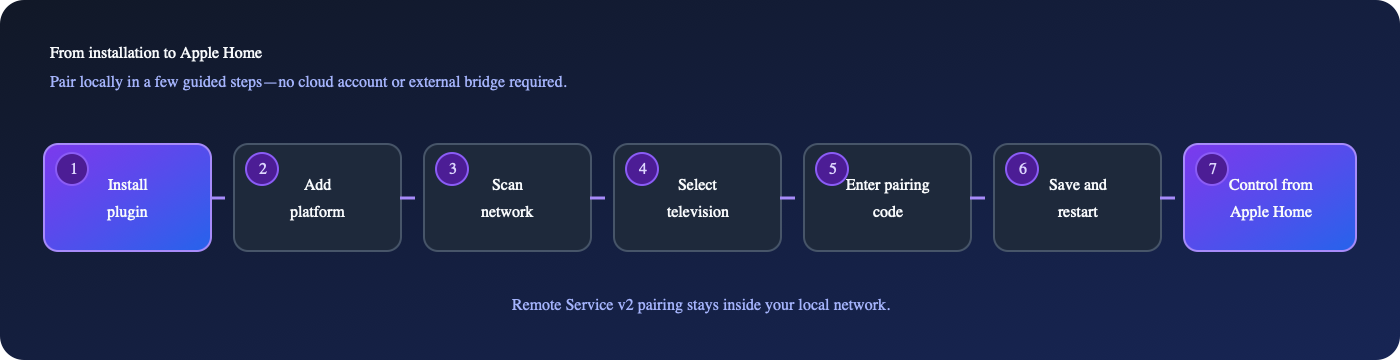
- Put Homebridge and the Android TV device on the same local network.
- Open the AndroidTV Ultimate settings dashboard.
- Select Scan Network.
- Choose a discovered device and select Pair.
- Enter the six-character hexadecimal code displayed by the TV.
- Save the configuration and restart Homebridge.
The paired device appears in Apple Home as a Television accessory. AndroidTV Ultimate uses cached platform accessories under the main bridge or its configured child bridge; it does not publish a separate external bridge for every TV.
Capabilities
| Capability | Status | Notes |
| --- | :---: | --- |
| Remote Service v2 certificate pairing | ✅ | Completed through the Homebridge settings dashboard |
| Android TV / Google TV mDNS discovery | ✅ | Uses _androidtvremote2._tcp.local |
| Automatic DHCP/IP recovery | ✅ | Preserves HomeKit identity and pairing credentials |
| Accurate online/offline power state | ✅ | Offline never defaults to On |
| Profile-aware HomeKit services | ✅ | Television, Speaker, or Smart Speaker becomes primary according to the selected profile |
| Per-device control and key mapping | ✅ | Enable each control group and override Android key codes in the dashboard |
| Directional, Select, Home, Back, media, and Info keys | ✅ | Uses Android KeyEvent defaults through the local remote connection |
| Volume, mute, and absolute volume | 🟡 | Absolute targets are translated into Android volume-step commands using the TV-reported range |
| Configurable Input Sources | 🟡 | Apps, deep links, HDMI, tuner, USB, and custom key commands; active feedback requires an Android package report |
| Wake-on-LAN | 🟡 | Requires a network MAC and hardware network-standby support |
| CEC wake using another Android device | 🟡 | A paired Android device, such as a set-top box, can activate its HDMI source to wake a CEC-compatible TV |
| Docker operation | ✅ | Host networking is recommended for multicast and broadcast traffic |
| Cloud APIs, analytics, or telemetry | ➖ | Not used |
| ADB, Fire TV, voice streaming, or Remote Service v1 | ➖ | Outside the current scope |
HomeKit controls
Depending on firmware support, AndroidTV Ultimate exposes:
- Active power state
- Directional navigation and Select
- Home, Back, Exit, Menu, and Information
- Play/Pause and media navigation
- Volume up/down, absolute volume, and mute
- App URI launch through Television Input Sources
- Live active-input feedback after the TV confirms its foreground Android package
Each device has independent switches for Power, navigation remote, media, volume, mute, inputs, and Wake-on-LAN. The Android key code behind every navigation, media, and volume-step action can also be overridden without editing source code. Apple requires core characteristics on Television and Smart Speaker services, so a disabled command may remain visible in Apple Home but will not be sent to the device.
Every device remains isolated: a disconnected TV cannot overwrite another TV's state.
Discovery and IP recovery
AndroidTV Ultimate refreshes Android TV mDNS advertisements every 60 seconds by default. It reads the service instance, hostname, TXT metadata, Remote Service port, IPv4 address, and IPv6 address.
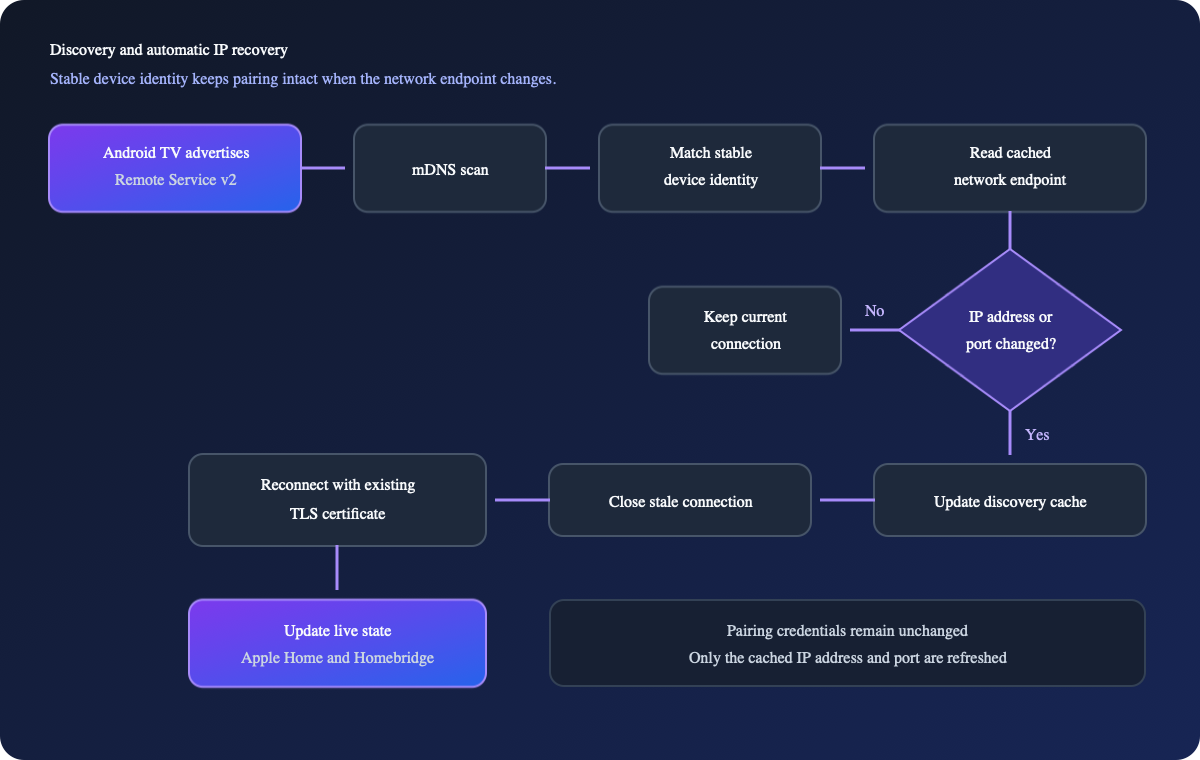
Discovery data is stored at:
<Homebridge storage>/androidtv-ultimate/discovery.jsonPreviously discovered devices remain cached while powered off. New devices appear in the pairing dashboard, but are not added to Apple Home until pairing succeeds.
Device identity matching
The cache matches advertisements using the strongest available identity:
- Existing device ID or saved alias
- Network MAC address
- Android TXT or hardware discovery ID
- mDNS service name
- mDNS hostname
- Previous endpoint or a unique matching display name
The Android bt TXT value may be retained as a stable discovery identifier, but it is never treated as a Wake-on-LAN network MAC.
IPv4 and IPv6
IPv4 is preferred when a device advertises both IPv4 and link-local IPv6 addresses. IPv6 remains available as a fallback when it is the only advertised address.
Pairing
Remote Service v2 uses two local TLS endpoints:
| Purpose | Port | Authentication |
| --- | ---: | --- |
| Pairing | 6467/tcp | On-screen six-character code |
| Remote control | 6466/tcp | Mutual TLS client certificate |
Pairing creates an individual certificate and private key for each device. If a TV is factory-reset or revokes its client, select Re-pair in the dashboard.
Credential storage
Credentials are kept outside config.json at:
<Homebridge storage>/androidtv-ultimate/credentials.jsonThe file is written with owner-only permissions (0600). Certificates, private keys, and pairing codes are excluded from dashboard diagnostics.
Power-state behavior
The initial device state is deliberately conservative:
connection: offline
power: off
The accessory changes to On only after mutual TLS connects successfully. Following a disconnect, it changes to Off when disconnectGraceMs expires. The default grace period is 2500 milliseconds, which filters brief network interruptions without retaining a stale state indefinitely.
TLS authentication alone is not considered ready. The plugin completes Android's server-led Configure and SetActive exchange and waits for RemoteStart before reporting the connection online or sending HomeKit commands. A command received during a brief reconnect waits up to ten seconds for that readiness signal.
Feature guides
Settings dashboard
The custom plugin modal is organized into four responsive tabs:
- Dashboard — setup progress, discovered/configured/paired/online totals, and device health.
- Devices — explicit device names, manufacturer/model, pairing and power state, endpoints, mDNS identity, hardware ID, first/last seen timestamps, Wake-on-LAN and CEC-helper readiness, configured inputs, and connection testing.
- Settings — platform behavior, manual device editing, HomeKit profile, bridged/standalone exposure, per-control switches, Android key mapping, network details, Wake-on-LAN, CEC wake using another Android device, and rich input management.
- Tools & Support — package/runtime details, GitHub bug reporting, privacy-safe diagnostics, encrypted backup/restore, and legacy migration.
The dashboard supports automatic, light, and dark themes. Automatic mode follows the browser or operating-system color preference.
Interface preview
Select any screenshot to open the full-resolution view.
Configurable Input Sources
An input has a display name, Apple Home type, stable identifier, and one command: either an Android package/URI/deep link or a numeric Android key code. Supported Apple Home types are Application, Home Screen, Tuner, HDMI, Composite Video, S-Video, Component Video, DVI, AirPlay, USB, and Other.
The device editor includes a searchable, categorized preset catalog for apps and hardware sources. The official version is maintained in catalog/input-presets.json, so contributors can add or correct presets through a pull request. After a catalog change reaches main, installed plugins receive it without requiring a new npm release.
Opening the editor shows the bundled or last-known-good catalog immediately and refreshes it from GitHub's raw catalog in the background. A loading/status line identifies whether the current entries came from GitHub, the local cache, or the bundled fallback. Timeouts, invalid JSON, incompatible schemas, and GitHub outages never replace a valid cache. Refresh catalog retries manually, while Suggest a preset opens the official file for a GitHub contribution.
Every generated row remains editable, and Create custom input adds a blank row for any other package, deep link, source, or Android key command. The guided Command type selector shows only the field needed for that command and validates it inline. Existing inputs and catalog presets are classified automatically. If you switch command types while editing, the alternative values remain available until the editor closes, but only the selected command is saved.
Use Test input on any row to send its current unsaved command directly to the paired device. The device must already be on and reachable; testing never triggers Wake-on-LAN or a CEC wake helper. After sending, the editor watches foreground-app feedback for up to ten seconds. A matching package confirms the app input, while HDMI and other hardware commands may correctly report that the command was sent without package confirmation. If a different package is detected, Use detected package copies it into the unsaved row for review—the test never saves configuration or learned mappings automatically.
Catalog choices show whether each preset is an app package or Android key command. Catalog-linked rows show Edited from catalog after a local change and offer Restore catalog defaults. Refreshing the catalog never rewrites saved inputs automatically; even a removed preset keeps its saved values.
Use Save to My presets on a completed custom input to keep it in the plugin configuration and reuse it on other TVs. Personal presets appear in a dedicated My presets group above the public catalog and are included in encrypted plugin backups. Adding one to a TV creates an independent copy: updating or deleting the personal preset never silently changes existing TV inputs. A linked row can explicitly Apply saved preset or Update My preset when its values differ.
App presets use their standard Android TV package IDs. When sending a command, AndroidTV Ultimate converts a bare package ID to the Remote Service v2 market://launch?id= form required by Android TV; the catalog and saved configuration remain readable package IDs, and explicit deep-link schemes are sent unchanged. Hardware presets use Android KeyEvent values. HDMI has portable direct key commands; Android does not define a portable direct USB command, so the USB preset opens the TV's source selector with key code 178. Replace that value when the television firmware exposes a dedicated USB command.
Remote Service v2 can launch Android app links and report the foreground Android package. When the TV reports a matching package, Apple Home selects that input automatically—even if the app was opened with the physical remote or another controller.
For a direct package launch, the URI can also act as the package mapping:
{
  "name": "YouTube",
  "type": "application",
  "uri": "com.google.android.youtube.tv"
}
For a firmware-specific HDMI command, use a numeric Android key code instead of a URI:
{
  "name": "Game Console",
  "type": "hdmi",
  "keyCode": 243,
  "identifier": 3
}
For a deep link, optionally provide its foreground Android package:
{
  "name": "Streaming App",
  "uri": "example-app://browse",
  "packageName": "com.example.streaming"
}
If packageName is omitted for a deep link, AndroidTV Ultimate opens a 15-second learning window after launch. A package reported continuously for three seconds is stored privately as the mapping for that input. Explicit package settings always take precedence, and learned mappings can be inspected or cleared in the device editor.
Apple Home changes the active input only after the television confirms the foreground app. Unknown apps, offline TVs, and new connections show no active configured input instead of retaining a stale selection. A hardware input can be selected with a working key code, but its active state cannot be confirmed unless the firmware also reports a package that can be mapped to packageName.
Wake-on-LAN
When a TV is online, power commands use Remote Service v2. When it is offline, an On request sends a Wake-on-LAN packet only if mac is configured.
The HomeKit accessory remains Off until the authenticated remote connection returns. This prevents a magic packet from being reported as a successful wake prematurely.
Wake-on-LAN depends on hardware and firmware. Enable network standby, quick start, or the equivalent TV setting. Use the Ethernet/Wi-Fi network MAC—not a Bluetooth identifier.
CEC wake using another Android device
If a TV cannot remain reachable for Wake-on-LAN, it can use another paired Android device, such as a set-top box, as its CEC wake device. When the TV is requested on, AndroidTV Ultimate powers or wakes the helper and then sends Home. A compatible helper becomes the active HDMI source, allowing HDMI-CEC to turn on the TV and select that input.
Choose the helper in the target TV's device editor. Both devices must be configured and paired with AndroidTV Ultimate, connected through HDMI, and have HDMI-CEC enabled. The Power-to-Home delay defaults to 1500 milliseconds and can be adjusted for slower hardware. The target TV's own Wake-on-LAN and the CEC route are dispatched together when both are available.
The target remains Off until its own authenticated Remote Service connection confirms that it is online. After the configurable confirmation timeout, the plugin can either keep showing Off or report No Response in Apple Home. Turning off the target never powers off the helper, and helper chains are not followed recursively.
This method activates only the helper's HDMI input. It does not provide arbitrary HDMI input selection, and its reliability depends on the HDMI-CEC implementation in both devices and the TV.
Docker and network requirements
Host networking is recommended because mDNS multicast and Wake-on-LAN broadcast traffic may not cross a bridged container network.
Required local traffic:
| Protocol | Destination | Purpose |
| --- | --- | --- |
| UDP | 224.0.0.251:5353 | mDNS discovery |
| TCP | TV-address:6467 | Pairing |
| TCP | TV-address:6466 | Remote control |
| UDP | Broadcast address, normally port 9 | Optional Wake-on-LAN |
Manual host configuration remains available when multicast cannot reach the container.
Legacy migration
The dashboard can preview:
<Homebridge storage>/androidtv-config.jsonOn common Docker installations this is /var/lib/homebridge/androidtv-config.json.
Migration imports recognized device settings and reusable Remote Service v2 certificate/key pairs. It deliberately excludes Apple Home usernames, setup PINs, bridge identities, and cached HomeKit accessories. The original file is not deleted.
Encrypted plugin backup and restore
Tools & Support → Encrypted plugin backup creates a portable AES-256-GCM encrypted file containing:
- AndroidTV Ultimate platform and TV configuration
- Android Remote Service v2 pairing certificates and private keys
- Cached discovery identities and current IP endpoints
- Last-known connection and power state
- Automatically learned app-package mappings
The encryption key is derived from a passphrase with scrypt. The passphrase is never stored and cannot be recovered. Keep the backup file and passphrase separately.
Restoring replaces AndroidTV Ultimate's saved configuration and plugin data, then requires a Homebridge restart. For a complete Homebridge reinstall, also create a full Homebridge backup so the Apple Home bridge identity, cached accessories, and other plugins are preserved.
Personal input presets are part of the plugin configuration and are included in encrypted backups. The public input-catalog cache is deliberately excluded because it contains no personal data and is recreated from the bundled or GitHub catalog.
Configuration
The dashboard creates and maintains device identities automatically. The main options are:
| Option | Default | Description |
| --- | ---: | --- |
| disconnectGraceMs | 2500 | Delay before a disconnected device is reported as Off |
| discoveryIntervalSeconds | 60 | Interval for refreshing cached mDNS endpoints |
| customInputPresets[] | — | Reusable personal input templates saved in the plugin configuration and encrypted backups |
| remotePort | 6466 | Remote Service v2 control port |
| pairingPort | 6467 | Remote Service v2 pairing port |
| mac | — | Optional network MAC for identity matching and Wake-on-LAN |
| broadcastAddress | 255.255.255.255 | Wake-on-LAN broadcast destination |
| cecWake.helperDeviceId | — | Another paired Android device, such as a set-top box, used to wake this TV through HDMI-CEC |
| cecWake.powerToHomeDelayMs | 1500 | Delay between activating the helper and sending Home to assert its HDMI source |
| cecWake.confirmationTimeoutSeconds | 30 | Time allowed for the target TV to reconnect, from 10 to 120 seconds |
| cecWake.failureBehavior | remainOff | Keep the TV Off or report No Response when wake is not confirmed |
| deviceType | television | Apple Home profile: Television, Set-top Box, Streaming Stick, Apple TV, Audio Receiver, Speaker, or HomePod |
| exposureMode | bridged | bridged keeps the TV on the Homebridge bridge; standalone advertises the exact profile category |
| controls.* | Profile default | Enable Power, Remote, Media, Volume, Mute, Inputs, and Wake-on-LAN independently |
| controls.keyMappings.* | Android default | Override the numeric Android key code for an individual remote, media, or volume-step command |
| inputs[].type | application | Apple Home input type, including Application, HDMI, Tuner, USB, and the other HAP input types |
| inputs[].presetId | — | Optional official catalog identity used to report local edits and restore defaults; it never enables automatic updates |
| inputs[].customPresetId | — | Optional personal preset identity used to show edits and manually reapply saved defaults |
| inputs[].uri | — | Android package, URI, or deep link to launch; optional when keyCode is set |
| inputs[].keyCode | — | Numeric Android key command used instead of a URI |
| inputs[].packageName | — | Optional foreground Android package used for TV-confirmed active-input feedback |
Fields such as discoveryId, serviceName, and hostname are maintained by discovery and should normally not be edited manually.
Complete configuration example
{
  "platform": "AndroidTVUltimate",
  "name": "AndroidTV Ultimate",
  "disconnectGraceMs": 2500,
  "discoveryIntervalSeconds": 60,
  "devices": [
    {
      "id": "stable-device-id",
      "name": "Living Room TV",
      "host": "192.168.1.40",
      "remotePort": 6466,
      "pairingPort": 6467,
      "deviceType": "television",
      "exposureMode": "bridged",
      "mac": "AA:BB:CC:DD:EE:FF",
      "broadcastAddress": "192.168.1.255",
      "controls": {
        "power": true,
        "remote": true,
        "media": true,
        "volume": true,
        "mute": true,
        "inputs": true,
        "wakeOnLan": true,
        "keyMappings": {
          "home": 3,
          "playPause": 85
        }
      },
      "cecWake": {
        "helperDeviceId": "paired-set-top-box",
        "powerToHomeDelayMs": 1500,
        "confirmationTimeoutSeconds": 30,
        "failureBehavior": "remainOff"
      },
      "inputs": [
        {
          "name": "Streaming App",
          "type": "application",
          "uri": "example-app://browse",
          "packageName": "com.example.streaming",
          "identifier": 1
        }
      ]
    },
    {
      "id": "paired-set-top-box",
      "name": "Set-top Box",
      "host": "192.168.1.41",
      "deviceType": "settopbox",
      "mac": "11:22:33:44:55:66"
    }
  ]
}
Apple Home glyphs and exposure
Television-like profiles use Television as the primary service. Speaker uses the standard Speaker service, while HomePod uses Smart Speaker with play, pause, stop, volume, and mute. This also gives bridged devices a profile-appropriate service instead of a generic accessory tile where Apple Home supports it.
Remote Service v2 does not report playback state, so Smart Speaker play/pause/stop state follows the last command and resets to stopped when the device goes offline. Power, volume, mute, and foreground-app feedback continue to use device reports where available.
Apple's HAP protocol advertises accessory categories only for independently published accessories. Choose Standalone accessory when the exact Television, Set-top Box, Streaming Stick, Apple TV, Audio Receiver, Speaker, or HomePod glyph matters. After restarting Homebridge, add that device to Apple Home separately with the Homebridge setup code. Every profile still uses the same local Remote Service v2 connection; only its HomeKit service and default controls differ.
Profiles also provide sensible control defaults:
| Profile | Primary service | Default controls | | --- | --- | --- | | Television, Set-top Box, Streaming Stick, Apple TV, Audio Receiver | Television | Power, navigation, media, volume, mute, inputs, Wake-on-LAN | | Speaker | Speaker | Power, volume, mute, Wake-on-LAN | | HomePod | Smart Speaker | Media, volume, mute |
The dashboard can enable additional groups or disable any default. Enabling navigation, inputs, or other Television-only controls on a Speaker/HomePod profile exposes the secondary Television service required to carry those controls.
Android key-code defaults
The defaults follow Android's KeyEvent constants. Override only commands that the target firmware maps differently.
| Action | Key code |
| --- | ---: |
| Home / Back | 3 / 4 |
| Up / Down | 19 / 20 |
| Left / Right | 21 / 22 |
| Select | 23 |
| Volume Up / Down | 24 / 25 |
| Menu | 82 |
| Play / Pause (combined) | 85 |
| Stop | 86 |
| Next / Previous | 87 / 88 |
| Rewind / Fast Forward | 89 / 90 |
| Play / Pause (dedicated) | 126 / 127 |
| Information | 165 |
Changing an existing TV from bridged to standalone removes its old bridged tile. Apple Home treats the standalone TV as a new accessory, so its room, scenes, and automations may need to be assigned again. The Android TV pairing credentials remain safely stored in Homebridge and do not need to be recreated.
Troubleshooting
Scan Network finds no devices
- Wake the TV and keep it on during the scan.
- Confirm Homebridge and the TV are on the same VLAN or multicast-enabled network.
- Allow UDP multicast traffic to
224.0.0.251:5353. - For Docker, use host networking or add the host manually.
- Confirm the firmware exposes
_androidtvremote2._tcp.local.
Expected result: the dashboard lists the device with its current address, port, and last-seen time.
Pairing does not start or the code fails
- Confirm TCP port
6467is reachable from the Homebridge host. - Keep the TV awake and leave the pairing code visible.
- Enter exactly six hexadecimal characters.
- Cancel the existing session before starting another attempt.
- Use Re-pair if the TV previously revoked this client.
Expected result: credentials are saved and the dashboard reports the device as paired.
A paired TV remains offline
- Confirm TCP port
6466is reachable. - Select Scan Network to refresh the endpoint cache immediately.
- Compare the dashboard's last-discovered address and timestamp with the current network address.
- Re-pair only if the TV was reset or its pairing clients were cleared.
Expected result: the cached endpoint updates and the existing certificate reconnects without creating a new HomeKit accessory.
The TV is off but Apple Home shows On
- Wait for
disconnectGraceMsto expire. - Confirm the dashboard reports
offline. - Lower
disconnectGraceMsif faster offline reporting is preferred. - Confirm no older plugin controls the same Television accessory.
Expected result: the accessory reports Off after the remote connection is unavailable beyond the grace period.
Apple Home does not show the active app
- Confirm the app exists as an Input Source for that TV.
- For a direct package launch, use the Android package as
uri; for a deep link, setpackageNameor launch it once to let the plugin learn it. - Check Devices → Current app and Apple Home input after the app is fully open.
- Clear an incorrect detected package in the device editor, restart Homebridge, and launch the input again.
Expected result: Apple Home selects the configured input only after the TV reports its foreground package.
Test input cannot confirm the selected source
- Keep the paired Android device powered on; direct input testing deliberately does not invoke Wake-on-LAN or a CEC wake helper.
- Confirm TCP port
6466is reachable and use Test connection if the input test reports the device offline. - For apps and deep links, compare the reported package and use Use detected package when it is the correct foreground app.
- For HDMI or another hardware source, visually confirm the switch on the TV; many firmwares do not report a foreground package for physical inputs.
Expected result: the row reports whether the command was sent and whether Remote Service v2 confirmed a foreground package, without saving the edited input.
Wake-on-LAN does not work
- Confirm
macis the Ethernet/Wi-Fi network MAC, not a Bluetooth identifier. - Enable network standby or quick start on the TV.
- Configure the subnet broadcast address when global broadcast is blocked.
- Confirm the Homebridge host or container can send UDP broadcasts.
Expected result: the TV wakes, reconnects over TLS, and only then changes to On in HomeKit.
CEC wake does not turn on the TV
- Confirm the selected Android helper is paired and can be controlled from Apple Home.
- Enable HDMI-CEC on the TV and helper, then verify that waking the helper with its physical remote turns on the TV and selects its HDMI input.
- If the helper sleeps deeply, configure its network MAC and enable Wake-on-LAN.
- Increase the Power-to-Home delay when Home is sent before the helper is ready.
- Increase the confirmation timeout only when the TV wakes but its Remote Service reconnects slowly.
Expected result: the helper activates its HDMI source, the TV wakes, and the target accessory changes to On only after the TV reconnects.
[!TIP] Generate diagnostics from Tools & Support before opening an issue. Certificates and private keys are always excluded; TV names, local addresses, MAC addresses, hardware IDs, and fingerprints are redacted by default.
Security and privacy
- Control traffic remains on the local network.
- Opening the input editor checks the public catalog on
raw.githubusercontent.com; the last valid response is cached locally and no TV, Homebridge, or account identifiers are sent. - Each TV receives its own pairing identity.
- Credentials are stored outside
config.jsonwith owner-only permissions. - Diagnostics always exclude certificates and private keys and redact network/device identifiers by default.
- Portable plugin backups are encrypted with AES-256-GCM and a user-supplied passphrase.
- No cloud login, telemetry, analytics, or vendor API is used.
[!WARNING] Never post pairing certificates, private keys, pairing codes, Homebridge backups, or unsanitized packet captures in a public issue.
Supported scope
AndroidTV Ultimate targets Android TV and Google TV devices that expose Remote Service v2.
Features outside the current scope
- Fire TV support
- ADB control
- Vendor cloud APIs
- Voice streaming
- Automatic installed-app enumeration
- Remote Service v1
Development and contributing
Issues and pull requests are welcome. Read CONTRIBUTING.md and SECURITY.md before contributing.
Development setup
git clone https://github.com/tharunpkarun/homebridge-androidtv-ultimate.git
cd homebridge-androidtv-ultimate
npm install
npm run check
npm run build
npm pack --dry-run
Tests cover protobuf framing, pairing and remote messages, state isolation, Wake-on-LAN, migration, mDNS filtering, persistent discovery, offline cache retention, and DHCP/IP changes.
When reporting protocol behavior, include the manufacturer, model, firmware version, and sanitized dashboard diagnostics.
Author
| Discover more | Read and explore | Connect | | :---: | :---: | :---: | | About me | Blog | Contact | | Projects | Home Lab | X / Twitter |
License
This project is available under the MIT License. © 2026 Tharun P Karun.