
homebridge-chromecast-google-tv
v2.0.2
Published
Integration with google TV to control it with HomeKit and create integrations

Maintainers
 rubenrp
Readme
Chromecast Television Accessory
This plugin will discover all chromecasts on the network and create a Television/Streaming Accessory. Supported are Chromecast with Google TV.
It triggers on/off when the Chromecast is activated or deactivated. Useful for automatizations
Compatibility
- Homebridge: 1.6+ and 2.0+
- Node.js: 18.x / 20.x (Homebridge 1.x) and 22.x / 24.x (Homebridge 2.0)
If you upgraded to Homebridge 2.0 and the plugin disappeared, reinstall it — the package was temporarily removed from npm and has been republished:
npm install -g homebridge-chromecast-google-tv@latestDiscovery Methods
The plugin uses multiple discovery methods to find Chromecast devices:
- Primary Method: mDNS discovery using the
dnssdlibrary (more reliable and Node.js 22 compatible) - Fallback Method: Manual network scanning as a backup
If the primary dnssd method fails, the plugin automatically falls back to manual network scanning to ensure reliable device detection.
Installation
npm i -g homebridge-chromecast-google-tvAdd this to your config.json.
"platforms":[
    {
        "name": "Google TV",
        "category": "TELEVISION",
        "platform": "HomebridgeChromecastGoogleTV"
    }
]
Configuration Options
- name: The name that will appear in HomeKit
- category: Controls the icon shown in Apple Home app. Options:
TELEVISION- TV icon (default)TV_STREAMING_STICK- Streaming stick iconTV_SET_TOP_BOX- Set-top box iconAPPLE_TV- Apple TV icon
You can specify category for HomeKit accessory. This determines the icon displayed in the Apple Home app but does not change the device functions.
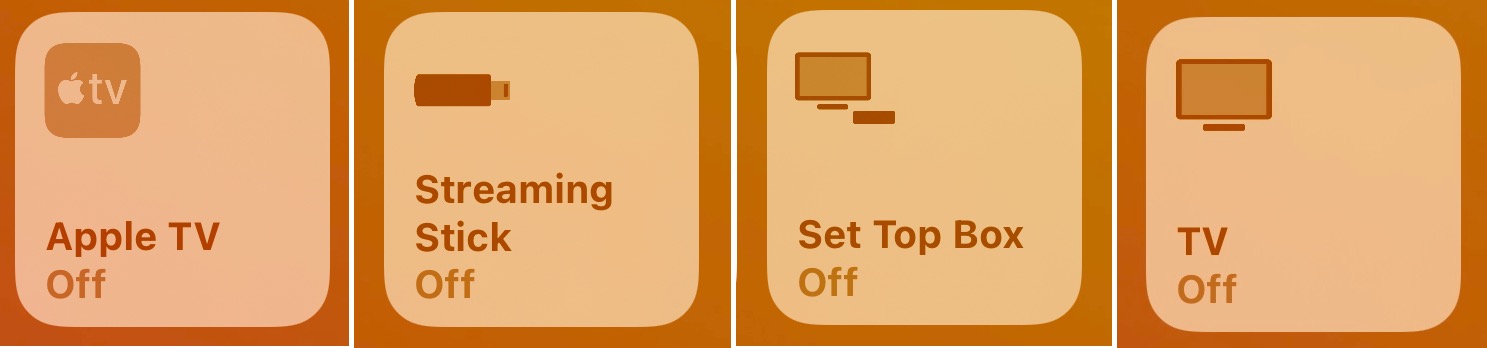
Behavior
Power State
- ON: Chromecast is active and running applications
- OFF: Chromecast is in standby mode
When the Chromecast enters standby mode, it will appear as "OFF" in HomeKit. When it becomes active (playing content, showing home screen, etc.), it will appear as "ON" in HomeKit.
Input Sources
The plugin automatically creates and manages input sources based on the current Chromecast state:
- Standby: When the device is in standby mode
- Home Screen: When the device is active but no specific app is running
- App Name: When a specific application is running (Netflix, YouTube, etc.)
Add to HomeKit
This plugin adds the Chromecast as an external device. Once the plugin is configured you will have to add a new accessory in the Home app using the same code as your homebridge instance.
Due to an Apple limitation TV-type devices cannot be controlled in 3rd party HomeKit apps such as Eve.
Credits
@homebridge-chromecast-television @homebridge-control-chromecast
Build Plugin
TypeScript needs to be compiled into JavaScript before it can run. The following command will compile the contents of your src directory and put the resulting code into the dist folder.
$ npm run buildLink To Homebridge
Run this command so your global installation of Homebridge can discover the plugin in your development environment:
$ npm linkYou can now start Homebridge, use the -D flag, so you can see debug log messages in your plugin:
$ homebridge -DWatch For Changes and Build Automatically
If you want to have your code compile automatically as you make changes, and restart Homebridge automatically between changes, you first need to add your plugin as a platform in ~/.homebridge/config.json:
{
...
    "platforms": [
        {
            "name": "Config",
            "port": 8581,
            "platform": "config"
        },
        {
            "name": "<PLUGIN_NAME>",
            //... any other options, as listed in config.schema.json ...
            "platform": "<PLATFORM_NAME>"
        }
    ]
}
and then you can run:
$ npm run watchThis will launch an instance of Homebridge in debug mode which will restart every time you make a change to the source code. It will load the config stored in the default location under ~/.homebridge. You may need to stop other running instances of Homebridge while using this command to prevent conflicts. You can adjust the Homebridge startup command in the nodemon.json file.