
homebridge-siegenia
v0.1.2
Published
Homebridge plugin for Siegenia
Downloads
9

Maintainers
 przemyslawklys
Readme
Homebridge Siegenia Plugin
This is a plugin for Homebridge that exposes Siegenia Devices to Apple Homekit. Currently it supports MHS Family of devices (Windows), as this is the only device I have access to. If you have other devices, please let me know, and I will try to add support for them.
This plugin was built with huge help of @Apollon77 and his ioBroker siegenia plugin. It allowed me to understand how the communication with Siegenia devices works. Without it this plugin wouldn't be possible.
As this is my first plugin ever, and first typescript project, I'm open to any feedback, and help.
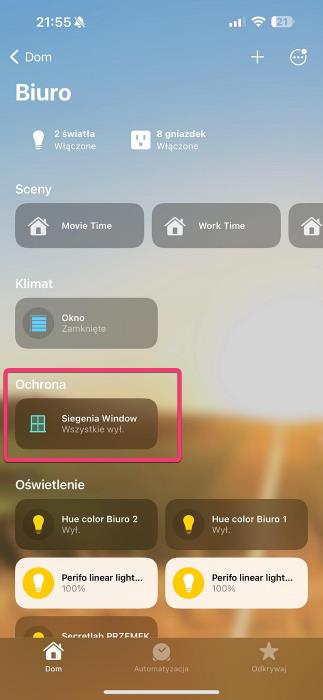
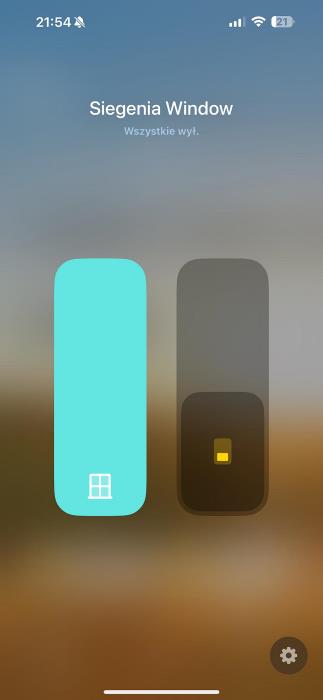
By default this plugin exposes the following services:
- Window that can be used to open, close, close without lock, open with a gap
- Switch Button (on/off) that acts as a stop button (turn on to stop the window, turning off does nothing, and should switch itself off)
Since the Window doesn't natively support to open the Window to given percentage the window slider acts on hardcoded values that are:
- When setting value:
- 0% - Close
- 0-20% - Gap vent open
- 20-40% - Close without lock
- 41-99% - Stop over
- 100% - Open
- When reading value (depending on what is the state of the window) the window slider will show:
- 0% - Closed
- 10% - Gap vent open
- 20% - Closed without lock
- 40% - Stop over
- 70% - Stopped (when using manual stop button)
- 100% - Open
The Stop Over value is configurable in Siegenia App, so it can be 30-90-120cm or any other value, and I guess the most used value to open a window.
How communication works
For the sake of understanding how the communication with Siegenia devices works, I will describe it here, as it may come in handy for someone.
1. Login
[25.02.2024, 10:18:12] [Siegenia] 192.168.241.198: SEND: {"command":"login","user":"admin","password":"mypassword","long_life":false,"id":2}
[25.02.2024, 10:18:12] [Siegenia] 192.168.241.198: RECEIVE: {"data":{"isadmin":true,"token":"yWjMYdldZ","user":"admin","userid":0},"id":2,"status":"ok"}
[25.02.2024, 10:18:12] [Siegenia] Logged in successfully
2. Get Device Info
[25.02.2024, 10:18:12] [Siegenia] 192.168.241.198: SEND: {"command":"getDevice","id":3}
[25.02.2024, 10:18:12] [Siegenia] 192.168.241.198: RECEIVE: {"data":{"adminpwinit":true,"devicefloor":"Parter","devicelocation":"","devicename":"Okno Salon","firmware_update":0,"hardwareversion":"1.2","hardwareversion_wifi":"1","initialized":true,"multiadminpwinit":true,"serialnr":"af050261","softwareversion":"1.7.2","subvariant":0,"type":6,"userpwinit":true,"variant":1},"id":3,"status":"ok"}
[25.02.2024, 10:18:12] [Siegenia] Device Info: {
  data: {
    adminpwinit: true,
    devicefloor: 'Parter',
    devicelocation: '',
    devicename: 'Okno Salon',
    firmware_update: 0,
    hardwareversion: '1.2',
    hardwareversion_wifi: '1',
    initialized: true,
    multiadminpwinit: true,
    serialnr: 'af050261',
    softwareversion: '1.7.2',
    subvariant: 0,
    type: 6,
    userpwinit: true,
    variant: 1
  },
  id: 3,
  status: 'ok'
}
3. Get Device Params
[25.02.2024, 10:18:12] [Siegenia] 192.168.241.198: SEND: {"command":"getDeviceParams","id":4}
[25.02.2024, 10:18:12] [Siegenia] 192.168.241.198: RECEIVE: {"data":{"clock":{"day":25,"hour":9,"minute":18,"month":2,"year":2024},"cn":"e45564a10fa004b3f4f22093849893d63813cdddac6b7e1e6cc0dfa3ca1e2104","devicefloor":"Parter","devicelocation":"","devicename":"Okno Salon","firmware_update":0,"max_stopover":13,"states":{"0":"CLOSED"},"stopover":3,"timer":{"duration":{"hour":0,"minute":10},"enabled":false,"remainingtime":{"hour":0,"minute":0}},"timezone":"CET-1CEST,M3.5.0,M10.5.0\/3","warnings":[]},"id":4,"status":"ok"}
[25.02.2024, 10:18:12] [Siegenia] Device Params: {
  data: {
    clock: { day: 25, hour: 9, minute: 18, month: 2, year: 2024 },
    cn: 'e45564a10fa004b3f4f22093849893d63813cdddac6b7e1e6cc0dfa3ca1e2104',
    devicefloor: 'Parter',
    devicelocation: '',
    devicename: 'Okno Salon',
    firmware_update: 0,
    max_stopover: 13,
    states: { '0': 'CLOSED' },
    stopover: 3,
    timer: { duration: [Object], enabled: false, remainingtime: [Object] },
    timezone: 'CET-1CEST,M3.5.0,M10.5.0/3',
    warnings: []
  },
  id: 4,
  status: 'ok'
}
Setup Development Environment
Install Development Dependencies
Using a terminal, navigate to the project folder and run this command to install the development dependencies:
$ npm installBuild Plugin
TypeScript needs to be compiled into JavaScript before it can run. The following command will compile the contents of your src directory and put the resulting code into the dist folder.
$ npm run buildLink To Homebridge
Run this command so your global installation of Homebridge can discover the plugin in your development environment:
$ npm linkWatch For Changes and Build Automatically
If you want to have your code compile automatically as you make changes, and restart Homebridge automatically between changes
$ npm run watch