
i18n-auto-translate
v0.0.3
Published
Automatically translates from an i18n main file to multiple i18n target files via Google translate.

Maintainers
 mdix
mdixReadme
i18n-auto-translate
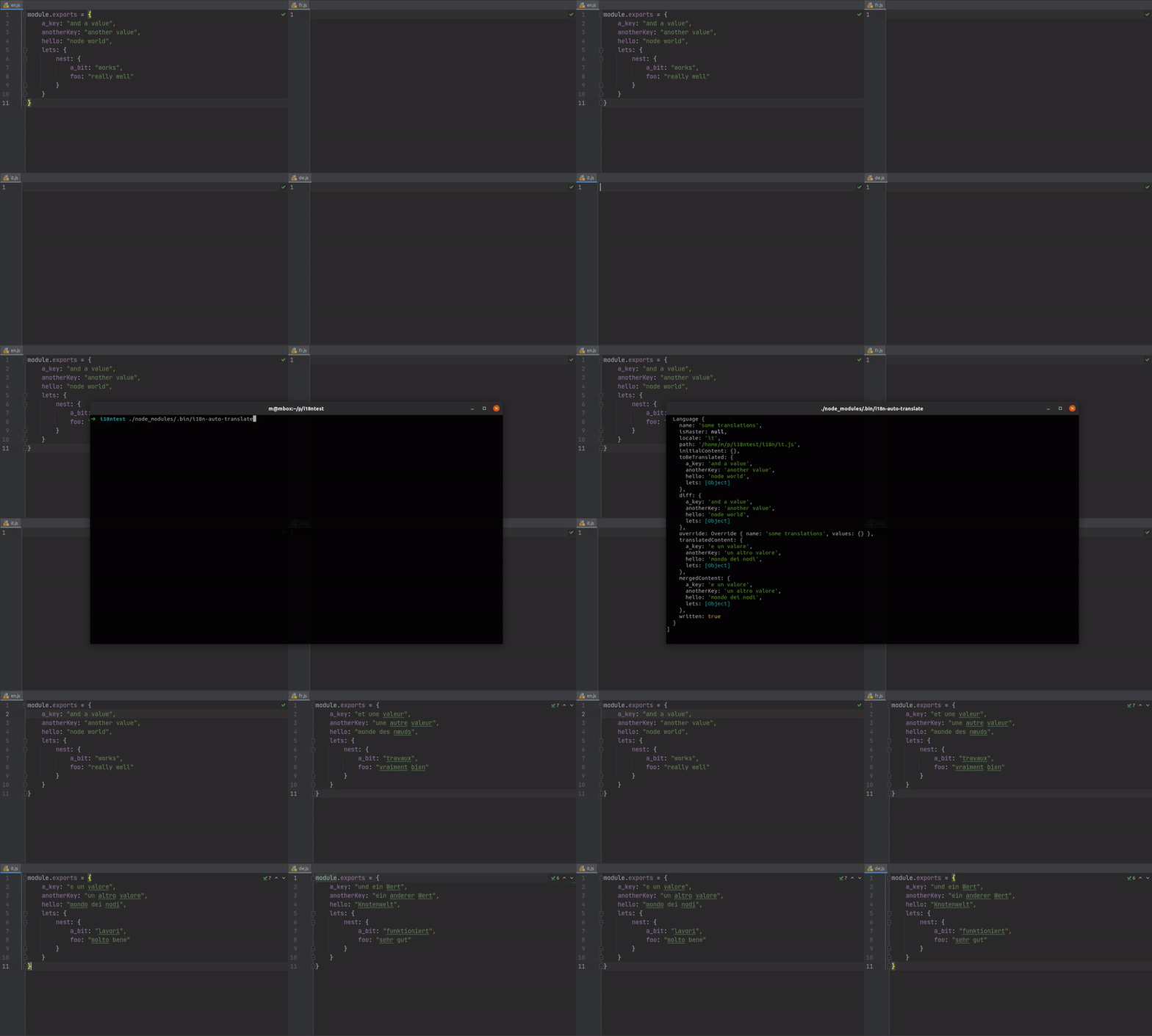
Automatically translates via an i18n main file to multiple i18n target files. Can also override values that already existed. Uses the google-translate API.
Note: The language files are always resorted and saved (also the main file) to have a common sorting throughout all files.
Setup / Configuration / Installation
npm install i18n-auto-translateIn order to use the Google translate API, you need to place a file called
google-credentials.jsonin the directory you execute i18n-auto-translate from. Follow the four steps mentioned here to create yourgoogle-credentials.json. Check the example here https://gist.github.com/mdix/b1b9cf88180d0d33f5ce98132f4359a2 and don't forget to addgoogle-credentials.jsonto your.gitignoreso you don't accidentally commit it!Prepare a directory with your translation files, e.g.
en.js,de.js,fr.jset cetera. Place an EMPTY file for every language you want translated. Only put keys and values in the file that will be your main file (usually english; see step 4). The filenames need to be valid ISO 639-1 codes (https://en.wikipedia.org/wiki/List_of_ISO_639-1_codes). Please note: The translation files need to be commonjs modules, NOT ES6 modules, e.g. they shouldmodule.exportsan Object, e.g.module.exports = { someKey: 'some value', }Add a configuration file called
i18n-auto-translate.config.jsinside the main directory of your project and add at least one file group:module.exports = { files: [ { // a name to uniquely identify this group name: 'a_unique_name_to_identify_this_file_group', // path to all your translations files path: 'the/path/to/the/translation/files', // this is your locale file that is used as the "main" (inside the directory you defined in 'path') main: 'name_of_the_main_translation_file.js', }, ] }You should now have something like:
yourproject
├── i18n-auto-translate.config.js
├── google-credentials.json
└── i18n
    ├── de.js
    ├── en.js
    └── fr.js
Run
node_modules/.bin/i18n-auto-translate. Please note: If you already have translations files with content, you might want to run with--resort-onlyfirst (read the section below).You should now have the structure from your main file in your empty translations files. The values are the translations.
re-sort only
When applying i18n-auto-translate to a project, you might already have translations that you don't want to override. To get a clean state where you can later check with the help of git what changed, you can just resort all your translation files (including the main). This will keep everything as is, just sort the keys (recursively) ascending A-Z in every translation file so that you end up with the same order everywhere (also making it easier to spot missing translations).
Usage
i18n-auto-translate --resort-only
dryrun
You can have a dryrun to check what would be translated and written. Google API is never called and no file is written in dryrun mode.
Usage
i18n-auto-translate --dryrun
override
As it's hard to determine that you changed a translation in the main file and want it to also be changed in the translated files, it's only done automatically for keys that did NOT already exist in the "non main" translation files.
However, you can have a manual override by specifying the name of the file group (see i18n-auto-translate.config.js above)
and the key path that you want to override, regardless of their existence in the translated files.
Usagei18n-auto-translate --override=file_group_name:json.path.in.the.main.file.one,json.path.in.the.main.file.two --override=another_group_name...
Examplei18n-auto-translate --override=survey:blah.blah.123,blubb.blubb.456,blubb.di.blubber.di.blubb --override=other:blubber.di.blubb
That way we can ensure that, whenever you update a translation (i.e. because you want it to be different), it's not overridden when
using i18n-auto-translate again.