
imdone-cli
v0.91.0
Published
Turn Jira or GitHub issues into a local Markdown workspace for AI and humans, synced back to your provider.


Readme
imdone-cli
Turn your Jira and GitHub backlog into a product-engineering lab notebook for humans and AI agents.
imdone-cli pulls issue content, comments, attachments, lifecycle history, and progress notes into a local Markdown backlog, then syncs useful updates back to Jira or GitHub. Developers and AI agents can work locally in the editor while product, design, and stakeholders keep using the provider.
The goal is to keep learning attached to the work. Hypotheses, decisions, evidence, blockers, and next steps should live with the issue instead of disappearing into chat sessions, branches, terminals, and browser tabs.
What you get:
- A local Markdown backlog where Jira and GitHub issues become issue workspaces.
- Shared context for humans and AI agents without giving up provider-native collaboration.
- Progress notes that capture observations, evidence, decisions, blockers, completed work, and next steps.
- Comments, attachments, lifecycle history, and metadata stored with each issue workspace.
- Backlog-level templates, skills, and project configuration that keep story structure consistent across issues.
imdone aiandimdone hddworkflows that launch supported coding agents with story context.imdone pullandimdone pushsync so stakeholders can stay in Jira or GitHub.- Track feature work and feedback loops visually on the imdone kanban board.
- Use bundled skills to create and structure issues, refine stories, define success metrics, tighten plans, assess handoff quality, render PDFs, and generate archived cycle-time reports.
- Reduce handoff risk by keeping the product-engineering record in the backlog and linked to provider issues.


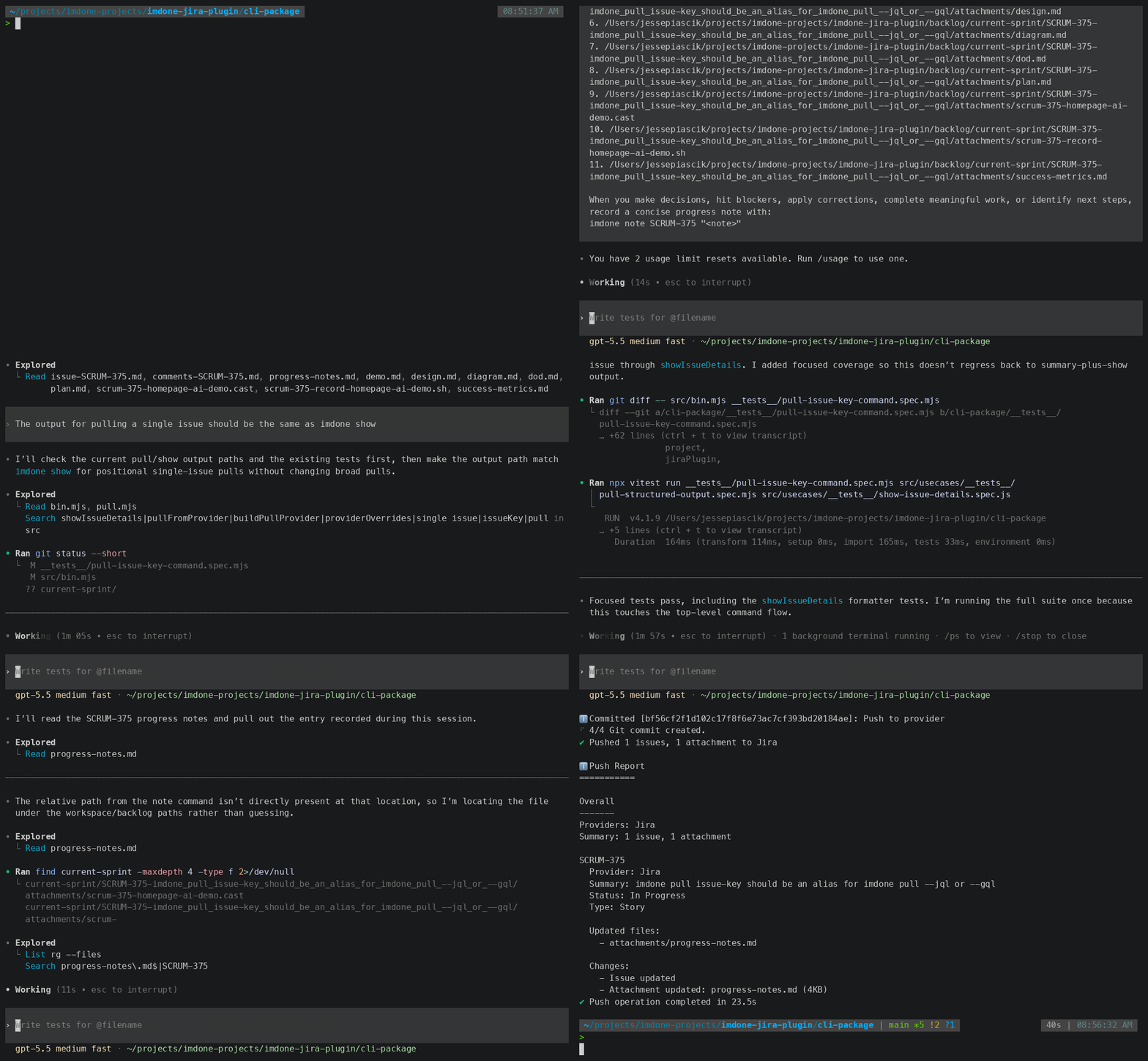
Table of Contents
- Why imdone-cli exists
- Requirements
- Get Started
- 1Password-Managed Credentials
- Core Commands
- Bundled AI Skills
- Bundled AI Plugins
- Support & Feedback
- Commands
- Status Mapping
- GitHub Integration
- Markdown Formatting Guide
- Detailed Documentation
- imdone-cli and Git
- Attachment Versioning
- Troubleshooting
Why imdone-cli exists
AI makes it easier to produce code, but it also makes product-engineering learning easier to scatter. Decisions live in chat, evidence sits in terminal scrollback, blockers are mentioned in meetings, and the next agent session starts by reconstructing context.
imdone-cli makes the backlog a durable product-engineering lab notebook. Each issue workspace is an entry in that notebook: issue body, comments, attachments, lifecycle history, metadata, progress notes, and AI-ready context live together in local files next to the code. Backlog-level templates and skills keep structure consistent across issues. Humans and AI agents can read and update the same record, then imdone push syncs the useful parts back when the team is ready.
Requirements
- git installed for normal git-coordinated pull/push workflows, except when using the macOS arm64 standalone artifact's bundled Git fallback. npm installation and explicit pull-only refreshes with
imdone pull --no-gitdo not require git. - For the macOS arm64 standalone artifact: no separate Node.js or npm install is required; the artifact bundles the Node.js runtime used by
imdoneand a private Git fallback used only when system Git is unavailable. - For npm installation: Node.js v22 or higher installed
- For Jira:
- Jira account with API access
- A Jira API token with read and write permissions for the project
- For GitHub:
- GitHub account with repository access
- A GitHub Personal Access Token: classic tokens need
repo; fine-grained tokens need repositoryContents: Read and write,Issues: Read and write, andPull requests: Read and write
- A git repository used for your software development (optional —
imdone initworks in any directory)
Get Started
Start with one local setup path, then run imdone init from the project where you want issue context to live.
For macOS arm64, use the standalone DMG when you want to try imdone without installing Node.js or npm first:
# 1) Mount the standalone DMG
hdiutil attach imdone-cli-0.75.0-darwin-arm64.dmg

# 2) Install the native package
sudo installer -pkg /Volumes/imdone-cli-0.75.0-darwin-arm64/imdone-cli-0.75.0-darwin-arm64.pkg -target /

# 3) Run imdone from your terminal
imdone --version
imdone init
The standalone DMG includes a native .pkg installer with the runtime needed to execute imdone. It installs the bundled app under /usr/local/lib/imdone-cli and exposes /usr/local/bin/imdone. The launcher uses system git when git --version succeeds and falls back to the private bundled Git runtime only when system Git is unavailable or unusable. Third-party notices for the bundled Node.js and Git runtimes are installed at /usr/local/lib/imdone-cli/THIRD_PARTY_NOTICES.md. If install or first-run output fails, include the imdone version, platform/architecture, artifact name, installer package name, and command output when contacting [email protected].
Prefer npm or using another platform? Install the published imdone-cli package:
# 1) Install
npm i -g imdone-cli

# 2) Initialize and sync issues
imdone init

# 3) Open stories in your editor (Markdown next to your code)
code . # nvim .
What you'll see: A backlog/current-sprint/ directory with one folder per issue. Each issue folder contains the main issue content, comments, lifecycle history in changelog.yml, provider metadata in the issue file, and an attachments/ folder for files and progress notes. Edit Markdown locally; imdone push syncs issue text, comments, notes, labels, status moves, and attachments back to Jira or GitHub using the provider capabilities available for that project.
Try the smallest lab-notebook loop:
imdone pull
imdone show PROJ-123
imdone note PROJ-123 "Observation: The failing checkout test exposes a missing retry path. Evidence: npm test -- --run checkout failed in retry.spec.js. Decision: add the retry branch before touching checkout UI. Next: rerun the focused test, then push the note."
imdone ai PROJ-123 # or: imdone hdd --light PROJ-123
imdone push PROJ-123
That loop keeps the issue useful for the next teammate or AI agent: what changed, what evidence was seen, what decision was made, what blockers remain, and what should happen next.
The same synced issues can also be monitored visually on the imdone kanban board.
You can try imdone-cli without creating an account. Anonymous CLI users get 50 provider syncs on their device, then 10 provider syncs per month forever on that same device. A provider sync is a command that writes changes back to Jira or GitHub, such as imdone push, imdone add, or imdone move; reading and local discovery commands such as imdone pull, imdone ls, and imdone show do not use that allowance.
When a command that syncs with Jira or GitHub is ready to use anonymous command and error events, imdone-cli asks before capturing them. The answer is saved in your home imdone config and can be yes or no; no issue content, credentials, tokens, email addresses, or file paths are captured in anonymous event payloads.
backlog/
├── .imdone/
│   ├── config.yml
│   └── templates/
│       └── story.md
├── current-sprint/
│   ├── PROJ-123-Fix_login_bug/
│   │   ├── attachments/
│   │   │   └── error-screenshot.png
│   │   ├── changelog.yml
│   │   ├── comments-PROJ-123.md
│   │   └── issue-PROJ-123.md
│   └── PROJ-124-Add_user_dashboard/
│       ├── attachments/
│       ├── changelog.yml
│       ├── comments-PROJ-124.md
│       └── issue-PROJ-124.md
1Password-Managed Credentials
imdone now supports direct 1Password-backed credentials without a wrapper script.
Recommended flow from your software project root:
imdone init --1password
imdone ls
imdone push
Requirements:
- 1Password CLI:
brew install 1password-cli - A signed-in 1Password account:
op signin
What the direct integration does:
- Stores Jira and GitHub credentials in 1Password and replaces plain backlog
.envsecrets withop://...references. - Resolves those
op://...references automatically when you runimdonedirectly. - Prompts you to migrate when
opis available but the repo is still using plain provider secrets in.env.
By default, migration writes items to the Employee vault. Set IMDONE_1PASSWORD_VAULT to target a different vault before running setup:
IMDONE_1PASSWORD_VAULT=Private imdone init --1passwordCore Commands
imdone pull     # Bring issues/comments/attachments into Markdown
imdone status   # See what's changed locally (alias: st)
imdone push     # Push your Markdown edits back to your provider
imdone push KEY # Push one issue without publishing other local changes
imdone note KEY "text" # Record a timestamped local progress note
imdone ai KEY   # Launch Codex or Claude with lightweight story context
imdone hdd KEY  # Launch Codex or Claude with HDD story context
imdone hdd --light KEY # Launch lightweight HDD without the mode prompt
imdone docs     # Open the imdone-cli docs in your browser
Uninstall anytime: imdone destroy && npm uninstall -g imdone-cli (your code is untouched; backlog/ is git-ignored).
Bundled AI Skills
imdone-cli ships the imdone plugin for Claude Code and Codex. The plugin carries imdone's bundled skills, hooks, and progress-note helpers as one installable workflow bundle. imdone init, imdone clone, and imdone update refresh the plugin in the configured backlog and install or link it for detected agents wherever an ancestor .imdone-cli.yml exists. When multiple configs exist, the highest config owns backlog context, while every configured ancestor receives the plugin. This keeps both outer-project and nested sessions working in ignored layouts such as kb/backlog, even when kb has its own .imdone-cli.yml, .claude, or .codex configuration.
| Skill | Problem it solves |
| --- | --- |
| imdone-ls | You need to find the right local Jira or GitHub issues quickly without jumping back to the provider UI or hand-scanning the backlog. |
| imdone-template | A story exists but is missing the right template-backed structure, so you need a fast way to apply or repair the expected sections and attachment links on an existing issue. |
| imdone-add | You want to create a new Jira or GitHub issue with the project's usual defaults without switching back to the provider UI or manually rebuilding the same issue shape each time. |
| backlog-refinement | TODO stories are too vague to build, so developers and product owners need a fast way to identify weak stories and tighten them into thin, executable slices. |
| hypothesis-driven-development | Teams start building before they agree on the value, success criteria, demo path, or execution plan, which leads to output without proof of outcome. |
| ai-experiment-capture | Teams try new AI coding practices but lose the problem, prompt, outcome, and evidence unless a developer explicitly captures the experiment as shared working memory, with no background monitoring. |
| learning-loop-report | It is hard to tell which in-progress stories are safe to hand off or how to brief others on the work without interrupting the team because planning context is missing or uneven across the work set. |
| markdown-pdf-docker | Teams have markdown reports and Mermaid diagrams, but no reliable way to turn them into polished PDFs without depending on host-specific tooling. |
| cycle-time-report | Teams want to inspect delivery speed from archived issue history and share the result as a markdown report, trend chart, and PDF without rebuilding the numbers by hand. |
Imdone-bundled skills are installed inside <configured-backlog>/.claude/plugins/imdone/skills/ and <configured-backlog>/.codex/plugins/imdone/skills/. User-created or project-local top-level skills can still live under the configured backlog's .claude/skills/ or .codex/skills/; when a supported agent is detected, imdone preserves those custom skill directories and links them into each configured ancestor without moving them into the bundled plugin.
Bundled AI Plugins
imdone-cli bundles agent plugin manifests under the configured backlog's .claude/plugins/ and .codex/plugins/ directories. When a supported agent is detected, imdone creates symlinks and performs project-scoped plugin installation under every ancestor directory containing .imdone-cli.yml, pointing each installation back to the same backlog copy. The highest config still determines backlog context; nested configs add agent installation scopes instead of replacing it.
imdone update groups plugin installation results by configured root using paths relative to the highest .imdone-cli.yml. The highest root is shown as ., with nested roots shown as paths such as kb; JSON and YAML output include the same relative projectPath on every plugin result.
| Plugin | Problem it solves |
| --- | --- |
| imdone | Developers start direct Codex or Claude sessions, disagree with AI output, add context, hit blockers, make decisions, complete meaningful work, or identify next steps during normal coding work, but that progress disappears unless the agent records a local progress note. The plugin ships the bundled imdone skills listed above, the imdone-ai skill for loading configured active-story context on demand, progress-note hooks, and target-selection prompts when no active story is configured. |
Support & Feedback
Found a bug or have a feature request? We'd love to hear from you!
- Website: imdone.io
- Email: [email protected]
- Discord: Join our Imdone users group for real-time support and discussions
Commands
📋 Output Formats: Many commands support the
-f, --formatoption to change output format. Available formats are:json,yaml,csv,text(default).
init – Initialize Issue Tracking Integration
imdone initInitialize integration with Jira or GitHub Issues. You'll be prompted to select your provider and provide the necessary configuration.
Common Options:
--name- Project name--provider- Issue tracking provider:jiraorgithub--force- Force initialization even if.imdone-cli.ymlexists in an ancestor directory
Jira Options:
--jira-url- Jira instance URL--jira-project-key- Jira project key--jira-username- Jira username--jira-api-token- Jira API token--jql- JQL query for filtering issues
Jira Notes:
- Enterprise or self-hosted Jira instances that use Personal Access Tokens with Bearer auth should set
JIRA_AUTH_BASIC=falsein the backlog.envfile. - Jira-backed configs require
issueTypeundersettings.plugins.JiraPlugin; use the exact Jira issue type name such asStory,Task, orBug. - Generated configs write JQL as a YAML block scalar. If you hand-edit
.imdone/config.yml, usejql: |-for queries with quotes, colons, or other punctuation.
GitHub Options:
--github-url- GitHub Enterprise URL (for example,https://github.mycompany.com)--github-owner- GitHub repository owner (auto-detected from git remote when in a git repo)--github-repo- GitHub repository name (auto-detected from git remote when in a git repo)--github-token- GitHub Personal Access Token--gql- GitHub issue query (for example,is:issue state:open)
GitHub Notes:
imdone pullfetches issues, comments, and attachments from GitHubimdone pushsyncs issue content, labels, comments, and attachments (add/modify/delete/rename)imdone addfully supports creating GitHub issues- GitHub owner and repo are auto-detected from your git remote origin URL
- During
imdone init, the GitHub repository prompt accepts HTTPS and Git-style SSH repository inputs such ashttps://github.com/owner/repo,[email protected]:owner/repo.git,ssh://[email protected]/owner/repo.git, andgit+ssh://[email protected]/owner/repo.git - The GitHub repository prompt now shows accepted repository examples directly in the prompt, and invalid input repeats those examples in the validation message
- Token guidance: classic tokens need
repo; fine-grained tokens need repositoryContents: Read and write,Issues: Read and write, andPull requests: Read and write
clone – Clone Remote Backlog Repository
imdone cloneOptions:
--remote-url--backlog-dir--github-owner--github-repo--github-token
Clones a remote backlog repo for onboarding or setting up a new local workspace. After the backlog is cloned locally, imdone clone reads the cloned config and prompts only for any missing provider-specific setup values that are still needed, such as GitHub owner, repo, or token.
If the cloned .imdone-cli.yml is already configured for GitHub, imdone clone now preserves that provider instead of falling back to Jira prompts. GitHub-backed clones only ask for missing owner, repo, and token values after clone. Existing cloned config values and CLI flags suppress redundant prompts, and gql stays in the cloned config rather than being re-prompted.
update – Update imdone-cli Config
imdone update
imdone update --format json
Alias: u
Refresh newer imdone-managed project files from origin/main, then refresh bundled imdone project files such as docs, skills, templates, and local support files. Explicit and automatic updates preserve the configured default directory and .imdone/config.personal.yml, so active story changes do not block maintenance. The command reports its mode, trigger, and changed file paths, or reports that no files changed. Run imdone pull separately when you want to sync Jira or GitHub issues.
After a successful imdone pull or imdone push, detected remote or bundled changes update automatically by default. To keep the confirmation prompt while developing imdone-cli, add this personal override:
# .imdone/config.personal.yml
settings:
  plugins:
    JiraPlugin:
      updateMode: prompt
The personal file overrides the complete settings.plugins.JiraPlugin subtree in memory, including values such as providers, statuses, queries, nested adapter settings, and updateMode. Plain objects merge recursively while personal arrays and scalar values replace shared values. Settings outside that subtree are ignored, personal values are not written into shared .imdone/config.yml, and the personal file is excluded from remote update and staging paths.
Options:
--force- Force the update without prompting when imdone-cli is outdated--skip-merge- Skip remote project-file application and only copy bundled files-f, --format <format>- Output format: json, yaml, text
docs – Open imdone-cli Docs
imdone docsOpens the public imdone-cli docs page in your default browser:
https://imdone.io/imdone-clicurrent – Show Or Set The Current Story
imdone current
imdone current PROJ-123
Shows the active story stored in backlog/.imdone/agent-config.yml, including the story key and title. Use this before recording progress notes when you want to confirm which story imdone-backed agent workflows consider current.
With an issue key, imdone current <issueKey> validates that the issue exists locally before changing the active story. If no story is active, the stored story is stale, or the requested issue is not available locally, the command exits non-zero and tells you how to recover.
imdone current is the workflow-friendly way to inspect or change active-story context. Use imdone agent-config only when you need the lower-level JSON configuration surface.
ai – Launch A Coding Agent With Story Context
imdone ai [issueKey]
imdone ai --setup
Launch Codex or Claude with lightweight story context. Use this when you want an agent to read the local issue, comments, attachments, and progress notes, then wait for your next instruction without starting the full HDD workflow.
By default, imdone ai:
- uses the explicit
issueKeyargument when provided - otherwise prompts for a story key, with the active story from
backlog/.imdone/agent-config.ymlpreselected when available - does not change the active story in
backlog/.imdone/agent-config.yml - reuses the saved default coding agent when available
- falls back to a pasteable story-context prompt when no supported coding agent is installed
Launch output shows the configured active story and points to imdone current <issueKey> when you need to correct story context before progress notes are recorded.
Use --setup to force reselecting both the story key and coding agent instead of reusing the saved lightweight AI launch context.
Options:
-s, --setup- Force issue-key and agent setup before launch
The prompt tells the agent to wait for user instructions before assuming it should do more than read context, and to use imdone note for decisions, blockers, corrections, completed work, evidence, and next steps. Use imdone hdd when you want the full Hypothesis-Driven Development session contract.
hdd – Launch A Coding Agent With HDD Context
imdone hdd [issueKey]
imdone hdd --light [issueKey]
imdone hdd --setup
Launch Codex or Claude with a startup prompt that tells the agent to use the bundled hypothesis-driven-development skill for the resolved story.
By default, imdone hdd:
- uses the explicit
issueKeyargument when provided - otherwise reuses the active HDD story from
backlog/.imdone/agent-config.yml - otherwise prompts for a story key
- reuses the saved default coding agent when available
- falls back to a pasteable HDD prompt when no supported coding agent is installed
Use --light to start lightweight HDD directly for low-risk work without asking the agent to prompt you to choose full or lightweight mode.
Use --setup to force reselecting both the story key and coding agent instead of reusing the saved HDD launch context.
Options:
--light- Start lightweight HDD without the full/light mode prompt-s, --setup- Force issue-key and agent setup before launch
HDD now supports a lighter path for low-risk work, but the lighter path still has a measurement floor. Choose lightweight mode during story triage or Define, capture a minimum success measure before writing the plan, and name the observable outcome, feedback path, and evidence/data-capture mechanism. After the plan is drafted and evaluated, the agent must stop at the plan approval checkpoint before implementation or product-code edits; confirm the evaluated plan to continue, or request plan changes.
After accepting the Hypothesis, choose Continue through the evaluated Plan to batch the remaining Define, Design, and Plan edits locally without routine artifact-review or push prompts. The agent keeps local changes pending until the evaluated Plan checkpoint, where you can keep them local or explicitly push; product-code edits still require Plan approval.
note – Record A Local Issue Progress Note
imdone note PROJ-123 "Changed the implementation path after the failing test exposed a missing fallback"
imdone note PROJ-123 "Override path test" --file /tmp/progress-notes.md
imdone note PROJ-123 "SAFE_EXAMPLE=value" --allow-env SAFE_EXAMPLE
Appends a timestamped progress note for an issue. By default, notes are written to the issue's attachments/progress-notes.md file and the issue body is linked to that attachment when needed.
imdone note blocks obvious credential assignments and environment-variable dumps before writing progress notes. Do not paste environment variables or their values into note text unless the value is safe to persist and the variable name is explicitly allowlisted with --allow-env <name> or comma-separated names.
Each note includes:
- a full ISO timestamp with timezone offset
- the local git author when available
- a fallback author when git identity is unavailable
- the note text
For evidence-bearing notebook entries, prefer this four-line shape:
Observation: <what I saw>
Evidence: <test count / captured response / command output / commit>
Decision: <what we're doing about it, and why over the alternative>
Next: <what the next person should do / trust>
imdone note is local-only. It does not push to Jira or GitHub by itself; run imdone push when you are ready to sync the note attachment and issue-file link to your provider.
Use --file <path> to append the note to a specific file instead of the issue's default progress-notes attachment.
Use --allow-env <names> only for specific variables that are safe to persist. The command reports when allowlisted environment variable content was recorded without echoing the note value back to the terminal.
pull – Pull Issues from Provider
imdone pull
imdone pull SCRUM-375
imdone pull 123
Alias: g
Options:
-f, --format <format>- Output format: json, yaml, csv, text (default: text)--jql [jql]- Jira only. Temporarily override the saved Jira query for this pull run only--gql [gql]- GitHub only. Temporarily override the saved GitHub query for this pull run only--no-git- Skip git coordination for this pull run while still refreshing provider issues
Fetches issues, comments, and attachments from your configured provider, updates the local Markdown workspace, and restores local changes when needed.
Use imdone pull <issue-key> when you only need to refresh one known issue. Jira-style keys such as SCRUM-375 target Jira, and numeric ids such as 123 target GitHub. This is the shortest single-issue pull form; use --jql or --gql when you need an explicit provider-specific query override.
Use imdone pull --no-git when you only need provider state refreshed and cannot rely on a git repository or git-safe working tree for that operation. This still runs provider configuration checks, provider refresh, project refresh, and empty-directory cleanup, but it skips branch safety, local-change detection, stashing, clean-worktree checks, git commits, stash-pop, and merge-conflict checks. The command output warns that local changes were not protected by git and includes a feedback link for pull-only problems.
For headless automation such as CI, containers, or Lambda jobs that only read provider issues, install imdone-cli from npm and run imdone pull --no-git. When no anonymous data-capture preference is saved and the process has no TTY, imdone defaults to no anonymous capture instead of prompting. Because --no-git opts out of local-change protection, use it in a disposable workspace or make sure no local issue edits need to be preserved by imdone's git coordination.
For Jira-backed projects, you can use --jql to temporarily broaden or change the pull scope for one run without editing .imdone/config.yml. This is useful for backlog refinement when you want to pull a wider set of issues and then return to your normal default sync scope on the next plain imdone pull.
For GitHub-backed projects, you can use --gql to temporarily target a specific GitHub issue or pull-request slice for one run without changing the saved default GitHub query.
If the project is configured with both Jira and GitHub providers:
--jqlaffects only the Jira provider for that run--gqlaffects only the GitHub provider for that run- you can use both in the same
imdone pullcommand
What gets pulled:
- Issue content and metadata
- All comments (see Working with Comments)
- All attachments (see Working with Attachments)
- Status and field updates
Provider Notes:
GitHub:
- Fetches issues based on state (open/closed), labels, milestones, and assignees
- Maps GitHub states to imdone lists via status configuration
- Handles pagination automatically for large repositories
- Attachments are downloaded from the dedicated
imdone-attachmentsbranch and linked locally - When an issue is newly pulled and already maps to the done list, it is created directly in the archive folder if archive is configured
Jira:
- Uses JQL queries for flexible filtering
- Sprint and epic integration
imdone pull --jql "<query>"temporarily replaces the saved Jira query for that run only, while still refreshing already-synced local Jira issues- In mixed Jira/GitHub projects,
--jqlaffects only the Jira provider's pull for that run - When an issue is newly pulled and already maps to the done list, it is created directly in the archive folder if archive is configured
GitHub query override examples:
# Refresh one GitHub issue by number
imdone pull 123

# Temporarily target one GitHub slice
imdone pull --gql 'is:pr state:open'

# Temporarily override both providers in the same run
imdone pull --jql 'project = "SCRUM" AND status != Done ORDER BY updated DESC' --gql 'is:pr state:open'

# Refresh provider issue files without git coordination
imdone pull --no-git
Jira issue examples:
# Refresh one Jira issue by key
imdone pull SCRUM-375
push – Push Changes to Provider
imdone push
imdone push PROJ-123
imdone push 17
Alias: p
Pass an issue key or number to push one issue only. For example, imdone push SCRUM-335 syncs that Jira issue and leaves unrelated local issue changes in your working tree. In mixed Jira/GitHub projects, Jira-style keys such as SCRUM-335 route to Jira, and numeric issue ids such as 17 route to GitHub.
Options:
--rewrite-repo-links- GitHub only. For touched issues, republish in-scope issue content and text attachments so local repo-relative markdown links are refreshed against the current source-repo web-link mapping
Lints, pulls, extracts updates, and syncs your local Markdown changes back to the provider. A plain imdone push processes pending provider-backed issue changes. imdone push <issueKey> scopes the pull, provider write, and local git commit to that issue.
What gets pushed:
- Issue content and metadata changes
- New comments (see Working with Comments)
- New and modified attachments (see Working with Attachments)
- Labels
- Provider workflow state when the issue's local imdone list has an explicit status mapping
Provider Notes:
Jira:
- Validates markdown formatting for Jira compatibility
- Converts markdown to Jira markup automatically
- Applies mapped local-list changes as Jira workflow transitions when
.imdone/config.ymlhas a matchingstatuses[*].listandstatuses[*].jiraentry
GitHub:
- Uses markdown natively (no conversion needed)
- Applies mapped local-list changes by using native
open/closedstate mappings or configured GitHub status labels/tags - Attachments are uploaded to the dedicated
imdone-attachmentsbranch; local links are rewritten to the current attachment URL imdone push --rewrite-repo-linksexplicitly refreshes in-scope repo-relative markdown links in touched GitHub issue content and text attachments against the current source-repo web-link mapping, even when the touched content would not otherwise need republishing- GitHub attachment add, modify, delete, and rename operations update the branch-backed current set without writing an attachment ledger comment
💡 Pro Tip: Use
commentRequired:truein task metadata to enforce comments on critical issues before pushing.
status – Show Pending Changes
imdone status
imdone status -f json
Alias: st
Shows local file changes across the backlog repo. Backlog issue files are grouped by issue context, and other files in the backlog repo appear under Other changes.
Output:
Changes (5 files):

In current-sprint (4 files):
  Added:
    attachment  SCRUM-200    DOING         current-sprint/SCRUM-200-New_plan/attachments/new-plan.md

  Modified:
    task        SCRUM-123    TODO          current-sprint/SCRUM-123-Example/issue-SCRUM-123.md
    comment     SCRUM-123    TODO          current-sprint/SCRUM-123-Example/comments-SCRUM-123.md

  Deleted:
    attachment  SCRUM-456    DONE          current-sprint/SCRUM-456-Screenshot/attachments/screenshot.png

Other changes (1 file):
  Modified:
    README.md
Backlog issue lines show the kind (task, comment, or attachment), the issue key, and the cwd-relative path. Other local changes also show cwd-relative file paths. If the working directory is clean, it prints Working directory is clean.
Use -f, --format for script-readable output:
imdone status --format json
imdone status --format yaml
imdone status --format csv
JSON and YAML output include defaultDirectory, displayDefaultDirectory, statusRootPath, and changes. CSV output emits flattened change rows with path, displayPath, op, kind, issueKey, list, and inDefaultDirectory columns.
add – Create New Issue
imdone addAlias: a
Creates a new Jira or GitHub issue either interactively or from provided options. The prompts adapt to the selected provider. After the new issue is pulled locally, text output includes the issue file path relative to the cwd where imdone add was run.
Options:
--provider [provider]- Provider to create the issue in (jiraorgithub)--project-key [projectKey]- Project key (e.g.,PROJfor Jira,owner/repofor GitHub)--template [template]- Template to use for the issue (e.g., story, bug)--issue-type [issueType]- Issue type (Jira only: Story, Task, Bug, etc.)--location [location]- Issue location (Jira only): "backlog" or "sprint"--sprint-id [sprintId]- Sprint ID when location is "sprint" (Jira only)--list-sprints- Jira only. List active sprint names and IDs that can be used with--sprint-id, then exit without creating an issue--list-issue-types- Jira only. List available issue types that can be used with--issue-type, then exit without creating an issue--summary [summary]- Issue summary/title--body <text>- Markdown text to use as the initial issue body--body-file <path>- Markdown file to use as the initial issue body-f, --format <format>- Output format: json, yaml, csv, text (default: text)
Examples:
# Jira: Discover valid sprint IDs first
imdone add --project-key PROJ --list-sprints

# Jira: Discover valid issue types first
imdone add --project-key PROJ --list-issue-types

# Jira: Create issue with all options specified
imdone add --project-key PROJ --template story --issue-type Story --location sprint --sprint-id 123 --summary "New feature request"

# Jira: Create a templated issue with short initial body text
imdone add --project-key PROJ --template story --issue-type Story --location backlog --summary "New feature request" --body "Users need a faster way to create useful issues."

# Jira: Create a templated issue with multiline body markdown
imdone add --project-key PROJ --template story --issue-type Story --location backlog --summary "New feature request" --body-file story-body.md

# GitHub: Create issue (note: no issue-type or location needed)
imdone add --project-key owner/repo --template story --summary "Bug fix request"

# Interactive mode for any provider
imdone add
Interactive prompts (when options not provided):
- Template selection - Choose from available templates in
.imdone/templates - Project selection - Choose which project to create the issue in (only shown when multiple projects are configured)
- Issue type - Select issue type (Jira only - skipped for GitHub)
- Location - Choose current sprint or backlog (Jira only - skipped for GitHub)
- Summary - Enter the issue title/summary
Sprint discovery:
If you want to script issue creation into a specific Jira sprint, run imdone add --list-sprints first. It prints the active sprint names and IDs for the selected Jira project, so you can copy the correct value into --sprint-id without opening Jira.
Issue type discovery:
If you want to script issue creation with an exact Jira issue type, run imdone add --list-issue-types first. It prints the available issue types for the selected Jira project, so you can pass the exact value into --issue-type without guessing.
What gets created:
- New issue in your provider (Jira or GitHub) with specified summary
- Markdown content based on selected template (if any)
- Basic structure (Description, Tasks) if no template is used
- Template tags automatically converted to labels (GitHub) or labels field (Jira)
- A provider-specific replay command showing how to create similar issues without prompts
- Automatic pull of the new issue into your local project
- Cwd-relative issue file output so you can open the new local Markdown file from the same terminal location
- When a template is selected, follow-up template files, provider updates, and local commits are scoped to the new issue so other local issue edits remain untouched
Templates:
If your project has templates in .imdone/templates, they are available during issue creation. Templates give you consistent starting structure, and tags in templates (for example #bug or #urgent) are automatically converted to labels.
Templates can also include special links that automatically create files in the issue's attachments/ directory. See the Auto-File Creation in Templates section under the template command for details.
💡 Replay Command: After creating an issue, the CLI will display the exact command to create a similar issue without prompts, tailored to your provider:
Jira example:
💡 Next time, use: imdone add --project-key "PROJ" --template "story" --issue-type "Story" --location "backlog" --summary "Your issue title"GitHub example:
💡 Next time, use: imdone add --project-key "owner/repo" --template "story" --summary "Your issue title"template – Apply Template to Existing Issue
imdone template [issueKey]Alias: t
Applies a template to an existing issue through an interactive guided flow or with explicit options.
Arguments:
[issueKey]- Issue key to apply template to (e.g., PROJ-123)
Options:
--template [template]- Template to apply (e.g., story, bug, dod)
Examples:
# Apply template with all options specified
imdone template PROJ-123 --template dod

# Interactive mode - prompts for missing arguments
imdone template

# Prompt for template only
imdone template PROJ-123
Interactive prompts (when options not provided):
- Issue selection - Choose from available issues in current sprint
- Template selection - Choose from available templates in
.imdone/templates
What gets applied:
- Template metadata (tags, custom fields) is merged with existing metadata
- Provider refresh and push are scoped to the target issue. If the issue was just refreshed in the same command,
imdone templateskips a redundant second pull before pushing the template update.
Templates:
Templates are markdown files in .imdone/templates that provide consistent issue structure. Templates can reference existing issue content with ${markdown} to keep current content in place. A default story template is included.
Auto-File Creation in Templates:
Templates can automatically create files in the issue's attachments directory using specially formatted links. This works with both imdone add (when creating new issues) and imdone template (when applying templates to existing issues).
[Link Text](./attachments/filename.ext?template=<template_name>)
[Empty File](./attachments/filename.ext)- Links with
?template=<template_name>create files populated with content from the specified template- Template names can be specified with or without the
template_prefix (e.g.,storyortemplate_story)
- Template names can be specified with or without the
- Links without a template parameter create empty files
- Files are created in the issue's
attachments/directory when the template is used - Existing files are never overwritten
- If a template is not found, an empty file is created with a warning
Example Template with Auto-File Creation:
# Story Template

## Documents
- [Story Document](./attachments/story.md?template=story)
- [Notes](./attachments/notes.md)
- [Test Plan](./attachments/test-plan.md?template=test)

## Description
Add your story description here...
When this template is used (either with imdone add or imdone template), the system will automatically:
- Create the
attachments/directory in the issue folder - Create
story.mdwith content from thestorytemplate - Create an empty
notes.mdfile - Create
test-plan.mdwith content from thetesttemplate
merge – Resolve Conflicts
imdone mergeAfter resolving conflicts manually, run this to push the resolved changes to your configured provider.
move – Move Issue to New Status
imdone move [<ISSUE_KEY>] [<STATUS>]Alias: mv
Moves a Jira or GitHub issue to a new status by performing the provider-specific status change. If arguments are not provided, the command will prompt for them interactively.
When moving an issue to "Done" status, the resolution field can be set automatically or interactively.
Arguments:
ISSUE_KEY- The issue identifier (for example, JiraPROJ-123or a GitHub issue number)STATUS- The target status name (case-insensitive)
Options:
-f, --format <format>- Output format: json, yaml, csv, text (default: text)-r, --resolution <resolution>- Set custom resolution when moving to Done (e.g., "Fixed", "Won't Do")--no-resolution- Skip setting resolution even when moving to Done-p, --prompt-resolution- Interactively select resolution from available options--list-statuses- List valid statuses for the issue without changing it--list-transitions- Alias for--list-statuses
Resolution Behavior:
- By default, moving to "Done" automatically sets resolution to "Done"
- Existing resolutions are never overwritten
- Use
--prompt-resolutionto see all available resolutions and choose interactively - Use
--no-resolutionto skip resolution setting entirely
Examples:
# Move issue with specified arguments (auto-sets resolution to "Done")
imdone move PROJ-123 "Done"

# Move issue with custom resolution
imdone move PROJ-123 "Done" --resolution "Fixed"

# Interactive resolution selection
imdone move PROJ-123 "Done" --prompt-resolution

# Move to Done without setting resolution
imdone move PROJ-123 "Done" --no-resolution

# Move issue and output in JSON format
imdone move PROJ-123 "In Progress" --format json

# List valid statuses without changing the issue
imdone move PROJ-123 --list-statuses

# List valid statuses in structured output
imdone move PROJ-123 --list-statuses --format json

# Interactive mode - prompts for missing arguments
imdone move

# Prompt for status only
imdone move PROJ-123
The command automatically discovers available transitions for the issue and provides an interactive selection if the specified status is not valid. Use --list-statuses or --list-transitions when you want that discovery step without mutating the issue.
lint – Lint Todo Comments
imdone lintChecks and fixes formatting issues for compatibility with Jira.
reset – Reset Local Project State
imdone resetOptions:
-f, --format <format>- Output format: json, yaml, csv, text (default: text)
Rebuilds only the configured provider-backed issue directory (for example,
current-sprint) from the provider. Uncommitted changes elsewhere in the
repository are preserved and do not trigger a prompt.
If the configured issue directory has local changes, imdone reset lists the
affected paths and asks once before discarding them. Declining leaves the
project unchanged. In a non-interactive terminal, reset fails safely instead
of discarding those changes.
clean – Clean Project Data
imdone cleanRemoves temporary files and data from the project without affecting the core configuration.
destroy – Remove Integration
imdone destroyDeletes the config and backlog folder. Prompts for confirmation first.
license – Manage License
imdone licenseOptions:
--token-s, --show
Examples:
imdone license --token <your-token>
imdone license --show
imdone license -s
show – Show Local Issue Context
imdone show [ISSUE_KEY]Alias: s
Shows the local shared context for one issue from your backlog repo. The default text output includes the issue title, status, tags, metadata, cwd-relative paths for the issue and comments files, the attachments directory, and visible attachment filenames. If no issue key is provided, you'll be prompted to search and select from existing issues.
In projects with GitHub issues enabled, the issue argument can be a GitHub issue number such as 121.
Options:
-f, --format <format>- Output format: json, yaml, csv, text (default: text)
Structured output:
jsonandyamlinclude the local issue-context fields for automation, includingkey,title,status,tags,meta,issueFile,commentsFile,attachmentsDir, andattachmentscsvflattens the same fields for shell and spreadsheet workflows
Notes:
- Paths are relative to the cwd where the command was run, not absolute
- Missing comments or attachments are shown explicitly as
nonein text output andnull/ empty arrays in structured output
Examples:
# Interactive mode - search and select issue
imdone show

# Default text format - local shared context
imdone show PROJ-123

# GitHub issue number
imdone show 121

# Text format (explicit)
imdone show PROJ-123 --format text
imdone show PROJ-123 -f text

# JSON format - structured data for automation
imdone show PROJ-123 --format json

# YAML format - preserves Jira markup and metadata
imdone show PROJ-123 --format yaml

# CSV format - tabular data
imdone show PROJ-123 --format csv

# Interactive mode with different format
imdone show --format json
list – List Local Issues
imdone listAlias: ls
Lists all issues from your configured provider (Jira or GitHub). Uses Unix ls-style flags for familiar terminal behavior. Issue paths are shown relative to the cwd where the command was run.
Display Options:
-l- Long format with detailed issue information (status, assignee, type)-1- One issue per line (compact: KEY + PATH)-t- Sort by modification time (most recent first)-r- Reverse sort order- Default format shows compact listing (KEY + cwd-relative PATH per line)
- Favorited issues show a ★ indicator in all views
Filter and Output Options:
--fav, --favorites- Show only favorited issues (seeimdone favorite)--limit <number>- Limit the number of tasks displayed (default: 0, no limit)-f, --format <format>- Output format: json, yaml, csv, text (default: text)-q, --query <query>- Filter issues using imdone filter syntax (applied locally)
Examples:
# Compact listing (default) - shows KEY and PATH
imdone list

# Long format with details (table view)
imdone ls -l

# Sort by time, most recent first
imdone ls -t

# Long format, sorted by time
imdone ls -lt

# Reverse the sort order (oldest first)
imdone ls -ltr

# One issue per line (same as default compact format)
imdone ls -1

# Limit to 10 most recent issues
imdone list -t --limit 10

# Show only favorited issues
imdone list --favorites
imdone ls --fav

# Favorites in long format, sorted by time
imdone ls --fav -lt

# List issues in JSON format
imdone list --format json

# List limited issues in CSV format
imdone list --limit 5 --format csv

# Filter by status
imdone ls -q 'meta.status="In Progress"'

# Filter by assignee
imdone ls -q 'meta.assignedTo="username"'

# Filter by label/tag
imdone ls -q 'tag:bug'

# Filter open issues
imdone ls -q 'meta.status="open"'

# Filter by milestone
imdone ls -q 'meta.milestone="v1.0"'

# Filter blocked issues (Jira)
imdone ls -q 'meta.blocked=*'

# Combine filters
imdone ls -q 'meta.status="open" and tag:enhancement'

# Filter pull requests (GitHub)
imdone ls -q 'meta.isPullRequest=true'
imdone Filter Syntax:
The -q, --query option uses imdone's filter syntax, applied locally against your synced issues. This single query language works across all providers (Jira, GitHub).
Learn more about imdone filter syntax
Common filter patterns:
meta.status="In Progress"- Filter by status valuemeta.assignedTo="username"- Filter by assigneemeta.milestone="v1.0"- Filter by milestone (GitHub)meta.blocked=*- Show blocked/flagged issues (Jira)tag:bug- Filter by tag/labelmeta.isPullRequest=true- Show only pull requests (GitHub)meta.status="open" tag:enhancement- Combine multiple filters
favorite – Mark Issues as Favorites
imdone favorite [ISSUE_KEY]Alias: f
Mark issues as favorites for quick access when working with many issues in your current sprint. Favorites are stored locally in .imdone/favorites.yml and are personal to your workspace.
Arguments:
[ISSUE_KEY]- Issue key to favorite (e.g.,PROJ-123for Jira,42for GitHub)
Options:
-r, --remove- Remove issue from favorites
Examples:
# Mark issue as favorite
imdone favorite PROJ-123

# Interactive mode - search and select from available issues
imdone favorite

# Remove issue from favorites
imdone favorite PROJ-123 --remove
imdone favorite PROJ-123 -r

# Interactive removal - search and select from favorited issues only
imdone favorite --remove

# List only your favorite issues
imdone ls --favorites
imdone ls --fav

# Combine with other ls flags
imdone ls --fav -l      # Long format, favorites only
imdone ls --fav -t      # Favorites sorted by time
How it works:
- Mark as favorite: Validates the issue exists in your current sprint and adds it to your favorites list
- Visual indicator: Favorited issues show a ★ indicator in all list views
- Filter favorites: Use
imdone ls --favoritesto see only your favorited issues - Personal workspace: Favorites are stored in
.imdone/favorites.yml(git-ignored) and don't sync across team members
When to use:
- Working on 2-3 specific issues among many in current sprint
- Quickly filtering to your most important work items
- Reducing navigation overhead in large sprints
Provider Support:
- Jira: Use project keys like
PROJ-123 - GitHub: Use issue numbers like
42
log – View Issue Changelog
imdone log [<ISSUE_KEY>] [--stats]Shows changelog for a Jira or GitHub issue, with optional statistics. If no issue key is provided, you'll be prompted to search and select from existing issues. In mixed-provider projects, the selected or supplied issue key is resolved against local issue metadata so the changelog request is sent to the correct provider adapter.
Arguments:
ISSUE_KEY- The issue identifier (optional). Use Jira keys likePROJ-123or GitHub issue numbers like42.
Options:
-s, --stats- Show statistics for the changelog-f, --format <format>- Output format: json, yaml, csv, text (default: text)
Examples:
# Show changelog for specific issue
imdone log PROJ-123

# Show changelog for a GitHub issue
imdone log 42

# Show changelog statistics for specific issue
imdone log PROJ-123 --stats

# Show changelog in JSON format
imdone log PROJ-123 --format json

# Show changelog statistics in YAML format
imdone log PROJ-123 --stats --format yaml

# Interactive mode - search and select issue
imdone log

# Interactive mode with statistics
imdone log --stats
test – Test Configuration
imdone testValidates connection and permission setup.
pause – Pause Desktop Watcher
imdone pausePauses the imdone desktop watcher by creating a .imdonepause file in the backlog directory. This prevents conflicts between CLI operations and the desktop application.
When to use:
- Before running extended CLI operations
- When you want to prevent desktop automatic syncing temporarily
- During manual conflict resolution
Note: All imdone-cli commands automatically pause the watcher during execution and resume when complete.
resume – Resume Desktop Watcher
imdone resumeResumes the imdone desktop watcher by removing the .imdonepause file from the backlog directory.
When to use:
- After manually pausing the watcher
- If a CLI command was interrupted and didn't resume automatically
hooks – Git Hooks Management
Set up automatic imdone pull after git pull and imdone push before git push
imdone hooks setupOptions:
--force- Overwrite existing git hooks
This sets up git hooks that automatically synchronize your configured provider with git operations:
- post-merge hook: Runs
imdone pullafter each successfulgit pullto fetch the latest provider issues - pre-push hook: Runs
imdone pushbefore eachgit pushto ensure your local issue changes are synchronized
Remove git hooks
imdone hooks removeRemoves git hooks that were set up by imdone-cli.
How it works:
- Creates
post-mergeandpre-pushhooks in.git/hooks/ - The hooks detect if the current directory has imdone configuration
- post-merge: Automatically runs
imdone pullafter successful git merges (which happen duringgit pull) - pre-push: Automatically runs
imdone pushbeforegit pushoperations - The pre-push hook will cancel the push if
imdone pushfails (usegit push --no-verifyto bypass) - Only runs for actual merges, not rebases
- Gracefully handles cases where imdone-cli is not available
Status Mapping
Status mapping applies to both Jira and GitHub. Configure the local list and provider mapping together in .imdone/config.yml:
code:
  include_lists:
    - TODO
    - DOING
    - REVIEW
    - DONE
lists:
  - name: TODO
    hidden: false
    ignore: false
  - name: DOING
    hidden: false
    ignore: false
  - name: REVIEW
    hidden: false
    ignore: false
  - name: DONE
    hidden: false
    ignore: true
settings:
  plugins:
    JiraPlugin:
      providers:
        - jira
        - github
      statuses:
        - jira: To Do
          github: open
          list: TODO
        - jira: In Progress
          github: in_progress
          list: DOING
        - jira: Code Review
          github: code-review
          list: REVIEW
        - jira: Done
          github: closed
          list: DONE
Use the list value for the local imdone board column. Use jira for Jira workflow status names and github for GitHub states or workflow labels like code-review.
How the mapping is used:
imdone pullreads provider state and chooses the local list. For GitHub, a configured workflow label/tag such ascode-reviewwins before the normalopen/closedfallback, and that label/tag is stored in localstatusmetadata.imdone pushreads the local list and updates provider state. Jira issues transition to the mapped Jira status. GitHub issues move to the mappedopen/closedstate or configured workflow label/tag, and stale configured workflow labels/tags are removed. Unmapped lists leave provider workflow state unchanged.
For Jira projects with custom workflows, exact workflow status names such as Code Review can map to their own local list before imdone falls back to the Jira status category. For GitHub projects, engineers can apply a label such as code-review when they want that workflow state reflected in the imdone list.
GitHub Integration
imdone-cli fully supports GitHub Issues as an alternative to Jira. This allows teams using GitHub to benefit from the same context-driven development workflow.
Supported Features
imdone initwith GitHub provider selectionimdone pullto fetch GitHub issues, comments, and attachments into local markdown filesimdone pushto sync local changes back to GitHub (content, comments, and attachments)imdone addto create new GitHub issues with template supportimdone lsto list GitHub issues with custom queriesimdone templateto apply templates to GitHub issues- Comment synchronization (via
imdone pullandimdone push) - Attachment synchronization — add, modify, delete, and rename attachments locally; changes sync bidirectionally
- Auto-detection of GitHub owner/repo from git remote origin
- Status mapping (open/closed → TODO/DOING/DONE)
- Optional label-based status mapping for GitHub workflow labels like
code-review - Label support (template tags automatically converted to labels)
Getting Started with GitHub
Initialize with GitHub:
imdone init
# Select "github" when prompted for provider
GitHub automatically detects your repository:
- Owner and repo are extracted from your git remote origin URL
- Supports HTTPS and Git-style SSH remote URLs, including
[email protected]:owner/repo.git,ssh://[email protected]/owner/repo.git, andgit+ssh://[email protected]/owner/repo.git
If you enter the repository URL manually during
imdone init:- The prompt shows accepted examples for HTTPS and SSH forms up front
- Invalid input repeats those accepted examples instead of implying HTTP-only setup
Provide your GitHub Personal Access Token:
- Create a classic token at: https://github.com/settings/tokens/new?scopes=repo
- Or create a fine-grained token with repository
Contents: Read and write,Issues: Read and write, andPull requests: Read and write - Under Repository access, choose Only select repositories, then confirm your target repo appears under Selected repositories before you generate the token
- If GitHub still shows 0 selected repositories, re-select the repo there or use a classic token instead
- Token is stored securely in
.envfile
Inspect your synced GitHub issues:
ls backlog/current-sprint
GitHub-Specific Features
Query Syntax: GitHub uses a simplified query syntax (not JQL):
is:open- Open issuesis:closed- Closed issueslabel:bug- Issues with "bug" labelmilestone:v1.0- Issues in "v1.0" milestoneassignee:username- Issues assigned to specific user
Directory Structure:
Same as Jira — each issue gets its own folder, including an attachments/ subdirectory:
backlog/
├── current-sprint/
│   ├── 1-Fix_login_bug/
│   │   ├── attachments/
│   │   │   ├── screenshot.png
│   │   │   └── .metadata.yml
│   │   ├── comments-1.md
│   │   └── issue-1.md
│   └── 2-Add_dashboard/
│       ├── attachments/
│       └── issue-2.md
Pull Request (PR) Support
When syncing issues from GitHub, imdone automatically detects pull requests and provides special handling:
Directory Naming: PRs get a
PR-prefix in their directory names for easy visual identification:- Regular issue:
123-my-issue-title/ - PR issue:
PR-456-fix-bug/
- Regular issue:
PR Metadata: Local-only metadata fields are added to PR issues (filtered from push to GitHub):
isPullRequest- Boolean, true if the issue is a PRprSourceBranch- Source branch name (e.g.,feature/my-feature)prTargetBranch- Target branch name (e.g.,main)prMergedAt- Merge timestamp (ISO 8601) if the PR was merged
Filtering PRs: Use the
lscommand with metadata filters:# List all PRs imdone ls meta.isPullRequest=true # List merged PRs only imdone ls meta.prMergedAt=* # Filter by source branch imdone ls meta.prSourceBranch=feature/my-feature # Filter by target branch imdone ls meta.prTargetBranch=main
Reactions Metadata
GitHub issue reactions are synced as individual metadata fields (local-only, filtered from push):
| Metadata Field | Description |
| ----------------- | ------------------------ |
| reactionThumbsUp | 👍 +1 reactions count |
| reactionThumbsDown | 👎 -1 reactions count |
| reactionLaugh | 😄 laugh reactions |
| reactionHooray | 🎉 hooray reactions |
| reactionConfused | 😕 confused reactions |
| reactionHeart | ❤️ heart reactions |
| reactionRocket | 🚀 rocket reactions |
| reactionEyes | 👀 eyes reactions |
| reactionTotal | Total reaction count |
Filter by reactions:
# Issues with 5+ thumbs up
imdone ls meta.reactionThumbsUp=5..

# Issues with any heart reactions
imdone ls meta.reactionHeart=1..

# Issues with any reactions at all
imdone ls meta.reactionTotal=1..
Jira-Specific Metadata
Jira issues include additional metadata fields synced from Jira custom fields:
| Metadata Field | Description | Example Value |
| -------------- | ----------------------------------------------- | -------------- |
| blocked | Flagged/Blocked field value from Jira | Impediment |
| epic | Epic link (parent epic key) | PROJ-100 |
| rank | Jira ranking field for issue ordering | 0|i00007: |
| statusName | Exact Jira workflow status for custom workflows | Code Review |
For engineers working in Jira projects with custom workflows, statusName keeps the exact workflow state visible in the local issue file. The existing status metadata remains the Jira status category, and statusName is not written into provider-side issue body metadata.
Blocked Field:
- Automatically detected from Jira "Flagged" or "Blocked" custom fields
- Value can be any string set in Jira (e.g., "Impediment", "Blocked", "Yes")
- Used by Learning Loop Reports to identify blockers and provide unblock advice
Filter by Jira-specific fields:
# Show all blocked/flagged issues
imdone ls -q 'meta.blocked=*'

# Filter by epic
imdone ls -q 'meta.epic=PROJ-100'
GitHub vs Jira Feature Comparison
| Feature | Jira | GitHub | |---------|------|--------| | Pull issues | ✅ | ✅ | | Push changes | ✅ | ✅ | | Comments | ✅ | ✅ | | Attachments (pull) | ✅ | ✅ | | Attachments (push: add/modify/delete/rename) | ✅ | ✅ | | Attachment link rewriting | ✅ | ✅ | | Custom fields | ✅ | ❌ Not supported | | Sprints | ✅ | ❌ Use milestones | | Issue types | ✅ | ❌ Use labels | | Epics | ✅ | ❌ Use milestones |
GitHub Attachments
GitHub doesn't have a native attachments API, so imdone-cli uses a dedicated imdone-attachments branch to give you the same local attachment workflow you get with Jira.
How it works:
- Storage: Files are stored on a dedicated branch named
imdone-attachments, under a top-level_imdone-attachments/folder with stable per-issue paths such as_imdone-attachments/{issueNumber}/{filename}. - Branch-backed current set:
imdone pullreads the current attachment list from the branch tree/Contents API. GitHub issue comments are not used as an attachment ledger and new machine-readable attachment comments are not posted. - Stable content updates: When an attachment's content changes but its filename does not, imdone updates the existing branch-backed file path and uses GitHub's content SHA for change detection and concurrency protection.
- Rename/delete cleanup: When a GitHub attachment is renamed or deleted locally,
imdone pushremoves the old stable path from theimdone-attachmentsbranch so the old filename does not reappear on the next pull. - History: Attachment history comes from GitHub branch commits for
_imdone-attachments/{issueNumber}/{filename}. - Link rewriting: Local links like
[plan.md](./attachments/plan.md)are automatically converted to the current GitHub attachment URL on push, and back to local paths (original filename) on pull — exactly like Jira. - Explicit repo-link refresh: `imdone push --rewrite