
insomnia-plugin-op-2
v0.3.1
Published
Insomnia Plugin to integrate with 1Password CLI (op)

Maintainers
 insomnia-admin
Readme
1Password CLI Plugin for Insomnia
A plugin to retrieve secrets from your 1Password Vault. Note: This is a forked version of the original plugin.
Motivation
Even though Insomnia can be configured to be end-to-end encrypted I still don't like to have my secrets stored in plain text. In addition, Insomnia would be another place where I'd need to keep my secrets within environment variables in sync (e.g. if I change a password).
Using the Plugin system from Insomnia secrets can safely be retrieved from a 1Password Vault authenticating via e.g. biometrics.
Getting started
- Install the 1Password CLI.
- Install the plugin from the Insomnia Plugin Hub
Configuration
If you install the 1Password CLI via a package manager (like Homebrew), then you need to tell the plugin the path to the CLI.
Add the plugin config into your base environment (replace or remove the account name to use the default 1Password account):
{
  "__op_plugin": {
    "cliPath": "/opt/homebrew/bin/op",
    "defaultAccount": "team-name.1password.com",

    // Passwords are kept in memory for 3600 seconds (1 hour) by default. You can change this TTL here.
    // To access passwords that are added to 1Password before the TTL expires you'll need to restart Insomnia.
    // Use 0 for infinite caching. This will require a restart Insomnia to refresh credentials.
    "cacheTTL": 3600,
    // --- Performance Tuning ---

    // Enables a debounced live preview of the secret in the editor.
    // When enabled, the plugin will fetch the secret after you stop typing.
    // Defaults to 'true'. Set to 'false' to disable fetching in the editor entirely.
    "enableLivePreview": true,

    // The delay in milliseconds after you stop typing before the secret is fetched.
    // Defaults to 500ms.
    "livePreviewFetchDelay": 500,

    // If you need to set any global flags set them here.
    // For available flags, see https://developer.1password.com/docs/cli/reference/#global-flags
    "flags": {
      "account": "example.1password.com",
    }
  }
}
Usage
Hit
Ctrl + Spaceand select the1Password => Fetch Secretaction.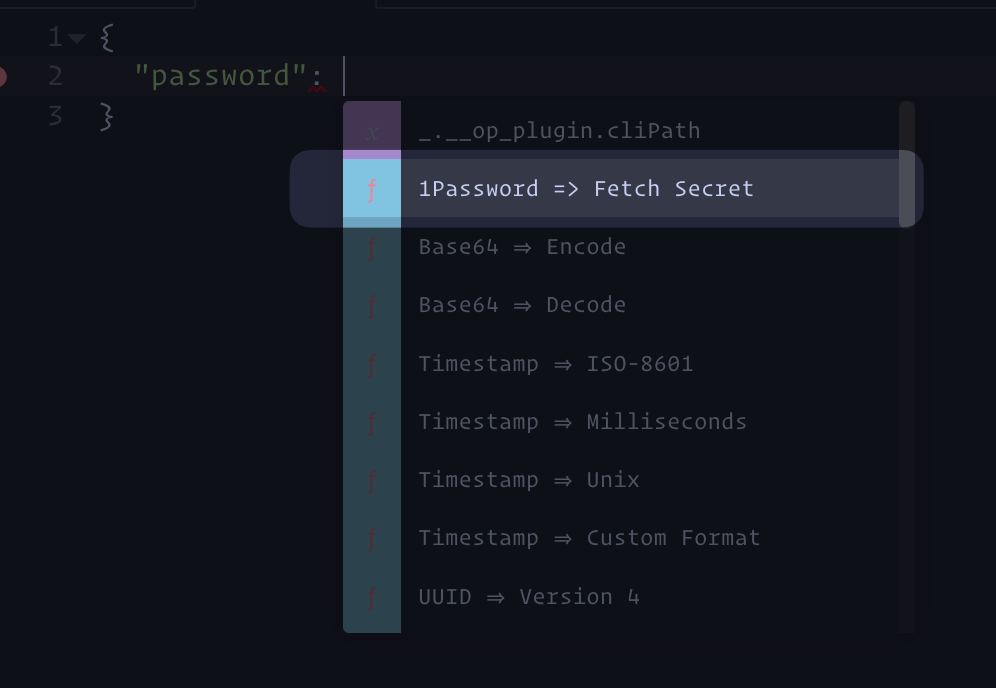
Click on the action and paste a reference to your 1Password Secret.
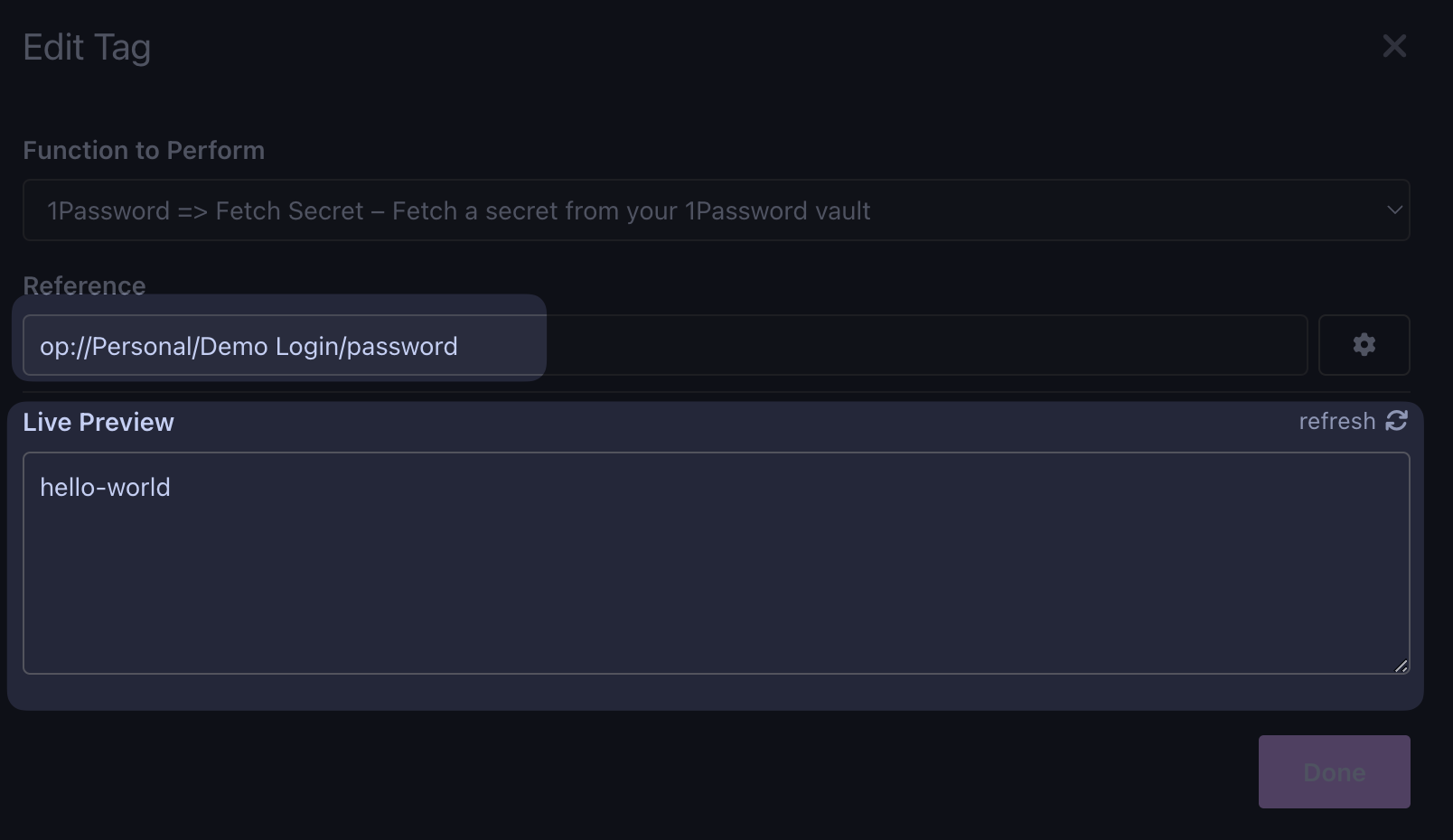
Add a custom account name, or leave empty to use the default account.
As an alternative, you can also add the secret reference to your environment variables and reference this variable inside the action.
Performance Tuning & Live Preview
Previously, the plugin could cause UI lag or freezing when editing a secret reference due to fetching on every keystroke. This has been resolved by implementing a debounced live preview.
The plugin now waits for you to stop typing before fetching the secret, providing a smooth editing experience by default. Additionally, it no longer performs a fetch on simple mouse-over events.
You can customize this behavior using the enableLivePreview and livePreviewFetchDelay settings in the configuration.
Caveats
Due to the fact that Insomnia retrieves the values every time when you e.g. hover over a variable
the plugin uses node-cache to cache secrets for one hour. If you want to purge the cache,
restart Insomnia.