
insomnia-plugin-profile-picker
v1.0.1
Published
Insomnia plugin for managing dynamic profiles and seamlessly integrating them into your requests


Readme
insomnia-plugin-profile-picker
Overview
The Profile Picker plugin streamlines your API testing process by allowing you to maintain multiple profiles and switch between them seamlessly.
What's more, you can dynamically use profile data as Tags for your requests. Enhance your testing capabilities by mapping your data directly to your Collection environment variables, combining the power of both Environment and Profile.
Installation
- Start Insomnia,
- Click "Application" -> "Preferences" and choose the "Plugins" tab,
- Enter insomnia-plugin-profile-picker and click "Install Plugin",
- Close the dialog.
Usage
Creating a profile
- Click on the Document dropdown menu.
- Select "Create profile"
- Enter a name for your profile.
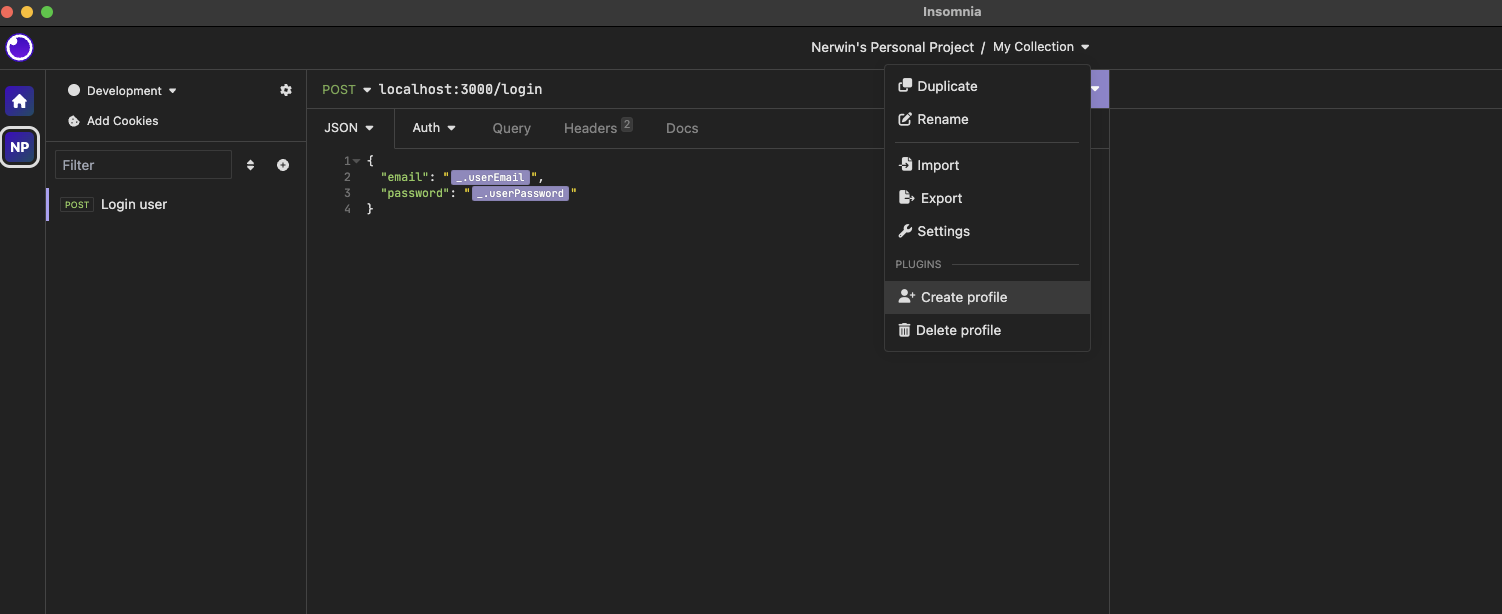
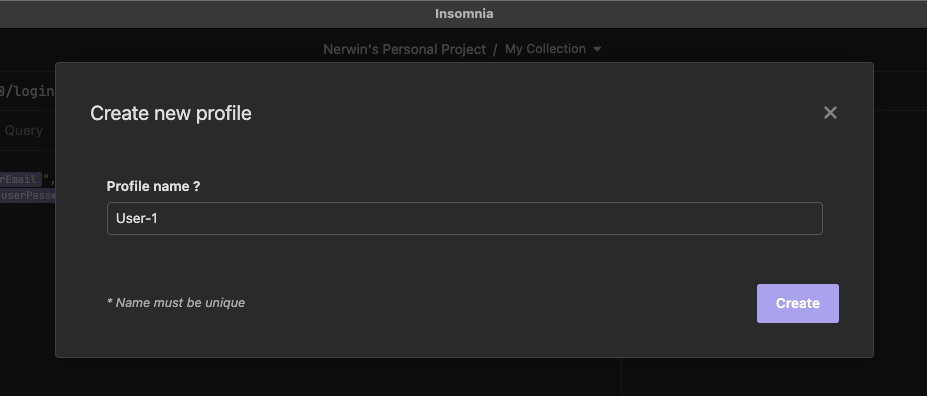
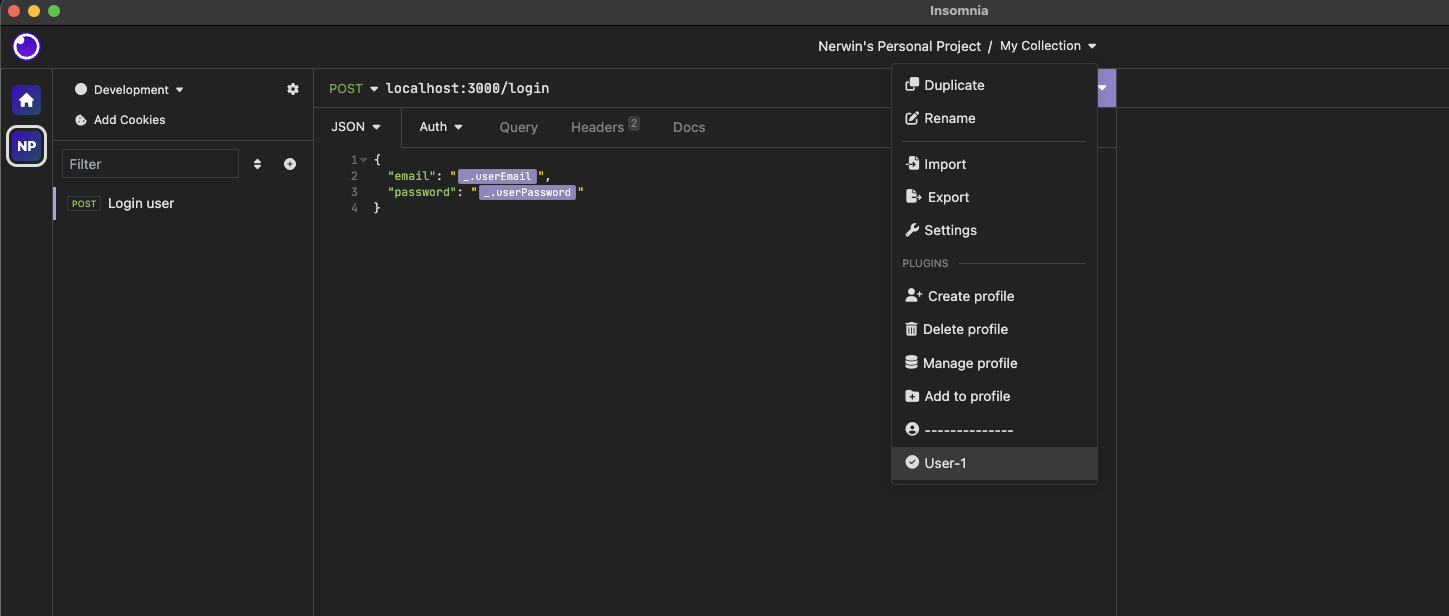
Your profiles will be listed in the Document dropdown menu. The active profile will be marked with a check icon. Switch between profiles by clicking on a profile name.
Adding profile data
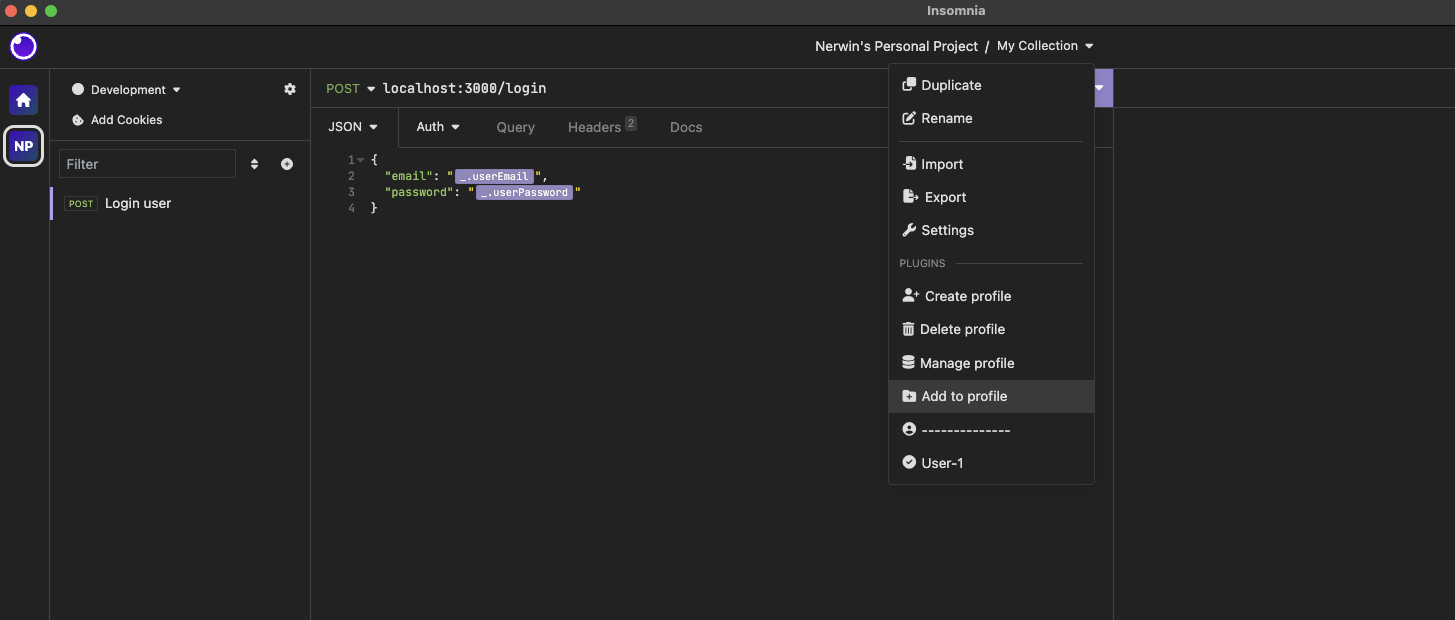
- With your desired profile active, click on the Document dropdown menu.
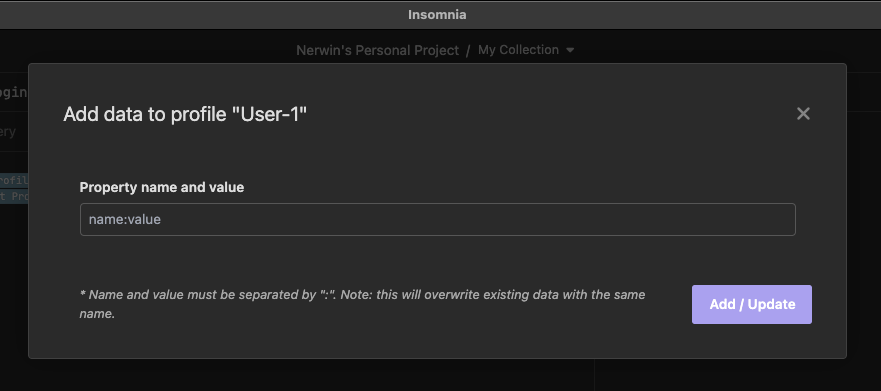
- Choose "Add to profile"
- Provide a name and a value for your data, using a ":" as a separator.
To update an existing data, use the same name and give it a new value.
Managing profile data
- Click on the Document dropdown menu
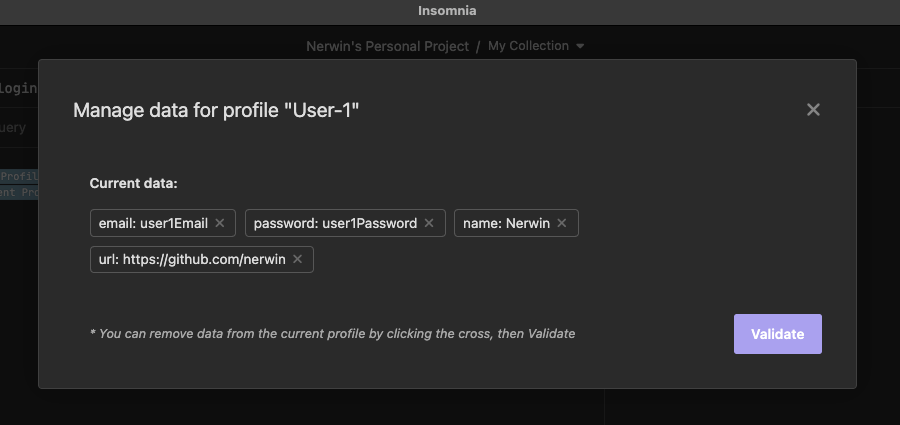
- Select "Manage profile"
- View a list of your profile data
- To delete specific data, double-click on the "x" icon next to the data
Using profile data
Retrieve Tags
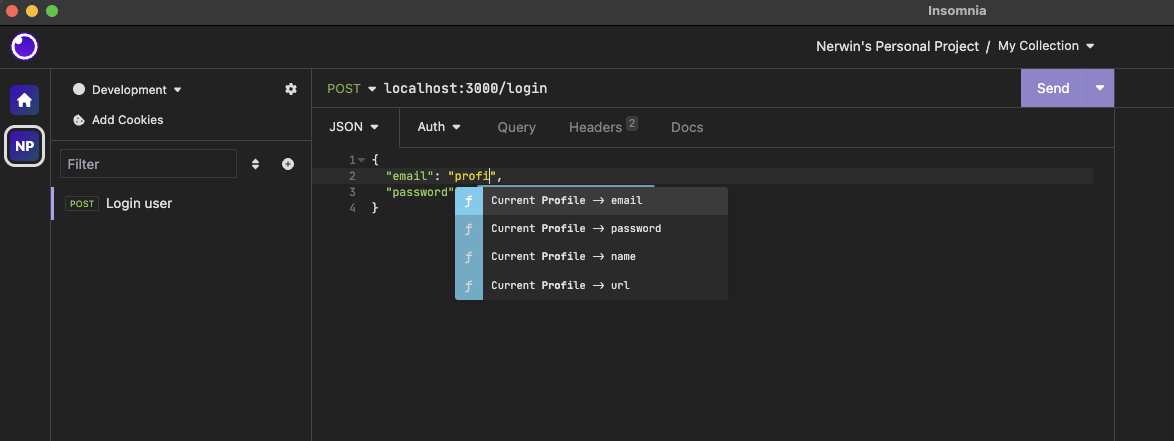
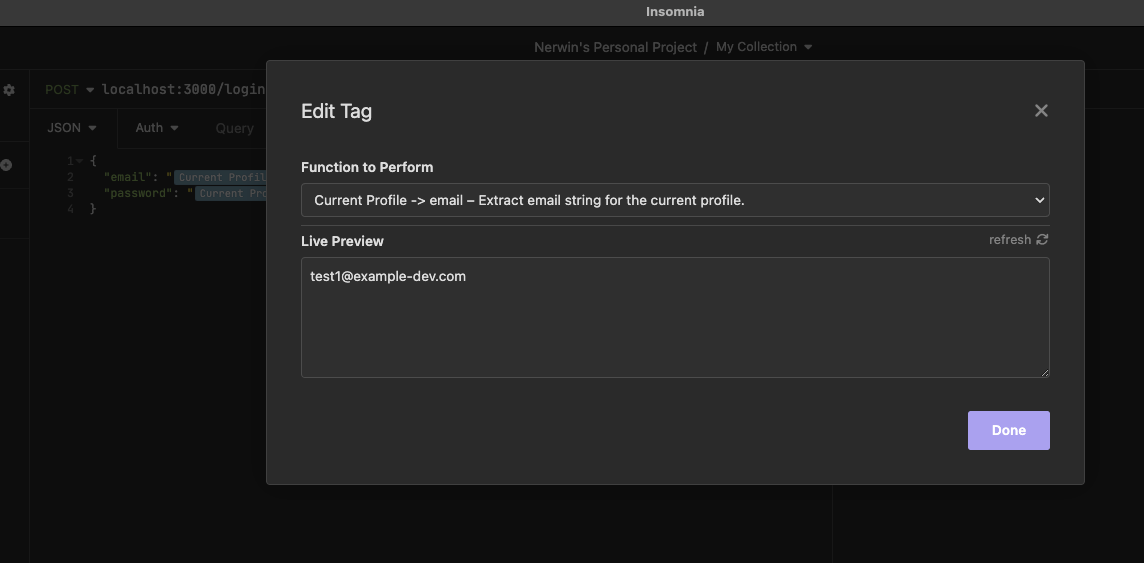
To access profile data, leverage the dynamic template tags the plugin provides
Search for "Current Profile" or "Profile" in the tags list
All your profile data will be available as Tags. Use them in your request just like any other Tag
Mapping profile data to environment variable
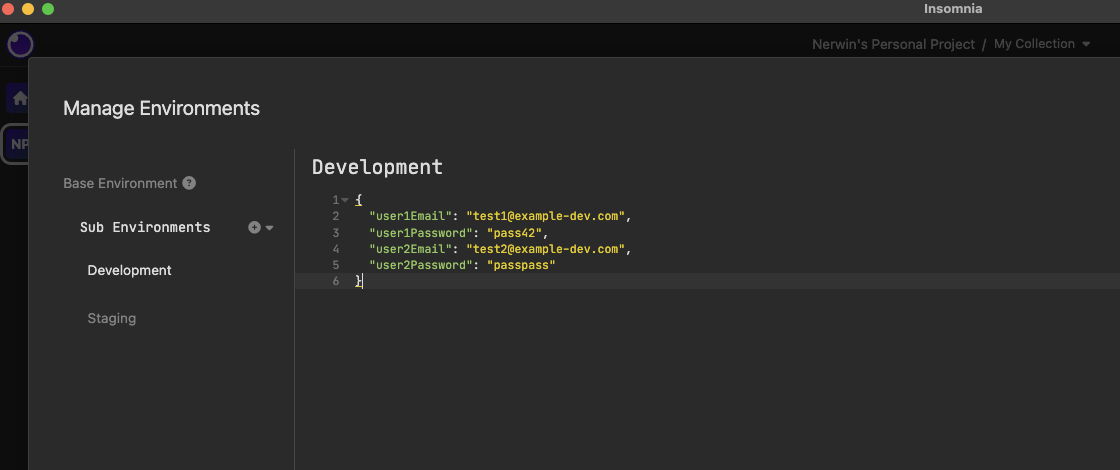
Create a profile data entry with the name of the environment variable as its value
Example: If your environment variable is user1Email, create a profile data entry like: email:user1Email
The plugin will attempt to fetch the environment variable's value and use it as the Tag's value. If the variable isn't found, the plugin will use the provided value
Deleting a profile
- Click on the Document dropdown menu
- Choose "Delete Profile."
- A modal will display your profiles
- Double-click on the "x" icon next to any profile to delete it
- Click "Finish" to confirm
Credits
Inspiration drawn from insomnia-plugin-user-picker
Author
Developed by Nerwin