npm package discovery and stats viewer.

Discover Tips

  • General search

    [free text search, go nuts!]

  • Package details

    pkg:[package-name]

  • User packages

    @[username]

Sponsor

Optimize Toolset

I’ve always been into building performant and accessible sites, but lately I’ve been taking it extremely seriously. So much so that I’ve been building a tool to help me optimize and monitor the sites that I build to make sure that I’m making an attempt to offer the best experience to those who visit them. If you’re into performant, accessible and SEO friendly sites, you might like it too! You can check it out at Optimize Toolset.

About

Hi, 👋, I’m Ryan Hefner  and I built this site for me, and you! The goal of this site was to provide an easy way for me to check the stats on my npm packages, both for prioritizing issues and updates, and to give me a little kick in the pants to keep up on stuff.

As I was building it, I realized that I was actually using the tool to build the tool, and figured I might as well put this out there and hopefully others will find it to be a fast and useful way to search and browse npm packages as I have.

If you’re interested in other things I’m working on, follow me on Twitter or check out the open source projects I’ve been publishing on GitHub.

I am also working on a Twitter bot for this site to tweet the most popular, newest, random packages from npm. Please follow that account now and it will start sending out packages soon–ish.

Open Software & Tools

This site wouldn’t be possible without the immense generosity and tireless efforts from the people who make contributions to the world and share their work via open source initiatives. Thank you 🙏

© 2026 – Pkg Stats / Ryan Hefner

jerd

v1.0.1

Published

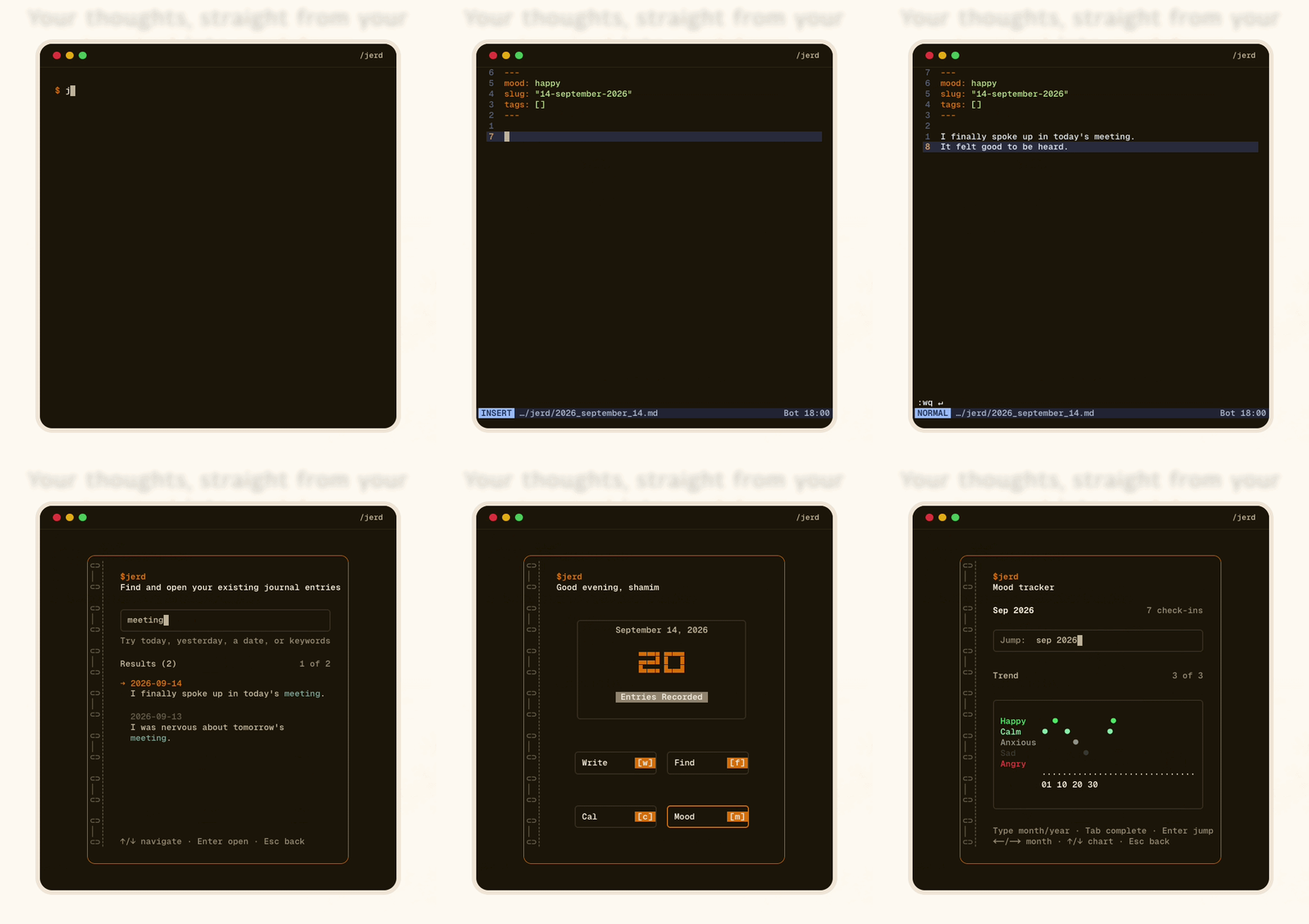
A terminal-first journaling tool that syncs just fine with your favourite editors — Vim to VS Code

Readme

Jerd - A terminal-first journaling tool

A terminal-first journaling tool that syncs just fine with your favourite editors — Vim to VS Code

Overview

In Details: Jerd is a terminal-first journaling tool that allows users to do daily journaling right from their terminals. It works from terminal-based editors like Nano/Vim to GUI-based editors like VS Code. Its commands are simple and intuitive, letting you navigate journals directly from the terminal in a fast and convenient way.

Jerd follows a folder-based hierarchy and uses Markdown for journal files, which naturally lets you build content-first blogging sites on top of your journals using tools like Astro, Hugo, or Eleventy.

Features

  • Simple, filesystem-based journal management
  • Predictable structure: Jerd/YYYY/YYYY-MM/YYYY-MM-DD.md
  • Customizable templates via JSON
  • Cross-platform support (macOS, Linux, Windows)
  • Opens entries in your preferred editor

Installation

npm install -g jerd

Quick Start

1. Initialize Jerd

jerd init

This creates:

  • jerd/ directory in your current location
  • config.json with default settings
  • templates.json with a default template

2. Create a Journal Entry

# Create today's entry
jerd new

# Create entry for specific date
jerd new 2024-12-25

# Use keywords
jerd new today
jerd new yesterday
jerd new tomorrow

# Use a specific template
jerd new --template default

3. Open Existing Entries

# Open today's entry
jerd open

# Open specific dates
jerd open yesterday
jerd open monday
jerd open 25 dec 2024

4. List Your Entries

# Show all entries
jerd list

# Show specific year or month
jerd list 2025
jerd list december
jerd list dec 2024

Commands

jerd init

Initializes a new Jerd journal in the current directory.

  • Creates ./jerd folder
  • Creates jerd-config.json with default editor settings
  • Creates templates.json with default template

If Jerd is already initialized, it will prompt before overwriting.

jerd new [date] [--template <name>] [--editor <editor>]

Creates a new journal entry for the specified date (or today if not specified).

Arguments:

  • date - Optional date in various formats (see Date Formats below)

Options:

  • -t, --template <name> - Template to use (default: from config.json)
  • -e, --editor <editor> - Override default editor for this entry

Behavior:

  • If the file exists, opens it without overwriting
  • If the file doesn't exist, creates it from the template
  • Opens the file in your configured editor

Examples:

# Create today's entry
jerd new
jerd new today

# Create entry for specific date
jerd new 2025-12-25
jerd new 25 dec
jerd new 25th december 2024

# Use keywords
jerd new yesterday
jerd new tomorrow
jerd new monday

# With custom template
jerd new --template work
jerd new today -t daily

# With custom editor
jerd new -e vim
jerd new today --editor code

jerd open [date] [--editor <editor>]

Opens an existing journal entry for the specified date.

Arguments:

  • date - Optional date in various formats (see Date Formats below)

Options:

  • -e, --editor <editor> - Override default editor for this entry

Behavior:

  • Opens the journal entry if it exists
  • Shows an error if the entry doesn't exist
  • Use jerd new to create entries that don't exist

Examples:

# Open today's entry
jerd open
jerd open today

# Open specific date
jerd open 2025-12-25
jerd open 25 dec 2024

# Open recent entries
jerd open yesterday
jerd open monday

# With custom editor
jerd open today -e vim
jerd open yesterday --editor code

jerd list [month|year] [year]

Lists journal entries in a tree view format.

Arguments:

  • No arguments - Shows all entries organized by year and month
  • year - 4-digit year (e.g., 2025) - Shows all entries for that year
  • month - Month name or abbreviation - Shows entries for that month (current year)
  • month year - Month and year - Shows entries for specific month and year

Options:

  • -a, --all - Show all entries (same as no arguments)

Behavior:

  • Displays entries in a hierarchical tree structure
  • Shows month names (e.g., "December") instead of numbers
  • Organized by Year → Month → Individual entries

Examples:

# Show all entries
jerd list
jerd list --all

# Show specific year
jerd list 2025
jerd list 2024

# Show specific month (current year)
jerd list january
jerd list jan
jerd list december
jerd list dec

# Show specific month and year
jerd list january 2025
jerd list dec 2024
jerd list feb 2023

Supported Month Names:

  • Full names: january, february, march, april, may, june, july, august, september, october, november, december
  • Abbreviations: jan, feb, mar, apr, may, jun, jul, aug, sep, sept, oct, nov, dec
  • Case insensitive: JANUARY, January, january all work

Date Formats

All date-accepting commands (new and open) support flexible date formats:

Keywords:

today, now          # Current date
yesterday           # Previous day
tomorrow            # Next day

Weekdays:

monday, mon         # Most recent Monday (including today)
friday, fri         # Most recent Friday
# Searches backwards from today

ISO Dates:

2025-12-25          # YYYY-MM-DD format
2025/12/25          # YYYY/MM/DD format

Day Only (current month/year):

25                  # 25th of current month
15th                # 15th of current month
1                   # 1st of current month

Day + Month (current year):

25 dec              # December 25th, current year
25th december       # December 25th, current year
12 feb              # February 12th, current year

Day + Month + Year:

25 dec 24           # December 25, 2024
25th december 2024  # December 25, 2024
12 feb 2025         # February 12, 2025

Month Only (defaults to 1st, current year):

dec                 # December 1st, current year
january             # January 1st, current year

Month + Year (defaults to 1st):

dec 24              # December 1, 2024
december 2025       # December 1, 2025

File Structure

Jerd/
├── config.json
├── templates.json
├── 2025/
│   ├── 2025-01/
│   │   ├── 2025-01-01.md
│   │   ├── 2025-01-02.md
│   │   └── ...
│   ├── 2025-02/
│   │   └── ...
│   └── 2025-12/
│       ├── 2025-12-24.md
│       └── 2025-12-25.md
└── 2026/
    └── ...

Configuration

jerd.config.json

{
  "editor": "nano",
  "jerdPath": "./jerd",
  "dateFormat": "YYYY-MM-DD",
  "defaultTemplate": "default"
}

templates.json

Templates define the structure of new journal entries.

{
  "templates": [
    {
      "name": "default",
      "sections": [
        {
          "type": "auto-date",
          "title": "Date",
          "format": "dddd, MMMM D, YYYY"
        },
        {
          "type": "list",
          "title": "What I'm grateful for",
          "items": []
        },
        {
          "type": "text",
          "title": "Mood",
          "content": ""
        },
        {
          "type": "text",
          "title": "Notes",
          "content": ""
        }
      ]
    }
  ]
}

Template Section Types

1. auto-date

Automatically inserts a formatted date.

{
  "type": "auto-date",
  "title": "Date",
  "format": "dddd, MMMM D, YYYY"
}

Output:

## Date

Thursday, December 25, 2025

2. list

Creates a markdown list.

{
  "type": "list",
  "title": "Tasks",
  "items": []
}

Empty list output:

## Tasks

-

With items:

{
  "type": "list",
  "title": "Tasks",
  "items": ["Task 1", "Task 2"]
}

Output:

## Tasks

- Task 1
- Task 2

3. text

Inserts text content.

{
  "type": "text",
  "title": "Notes",
  "content": ""
}

Output:

## Notes

Creating Custom Templates

Edit jerd/templates.json to add custom templates:

{
  "templates": [
    {
      "name": "work-log",
      "sections": [
        {
          "type": "auto-date",
          "title": "Date",
          "format": "YYYY-MM-DD"
        },
        {
          "type": "list",
          "title": "Completed",
          "items": []
        },
        {
          "type": "list",
          "title": "In Progress",
          "items": []
        },
        {
          "type": "list",
          "title": "Blocked",
          "items": []
        },
        {
          "type": "text",
          "title": "Notes",
          "content": ""
        }
      ]
    }
  ]
}

Then use it:

jerd new --template work-log

Editor Configuration

Jerd respects your system's $EDITOR environment variable.

Setting your editor: notepad"


Edit `jerd/config.json` directly:

```json
{
  "editor": "vim"
}

Supported editors:

  • Terminal: nano, vim, vi, emacs, nvim, helix, micro
  • GUI: code (VS Code), subl (Sublime Text), atom, gedit

Examples

Daily Journaling Workflow

# Morning routine
jerd new
# Opens today's entry, add morning thoughts

# Later in the day
jerd new
# Opens the same file, continue writing

# Review yesterday's entry
jerd open yesterday

Finding and Reviewing Entries

# List all your journal entries
jerd list

# See what you wrote in December
jerd list december
jerd list dec 2024

# See all entries from a specific year
jerd list 2024

# Open last Monday's entry
jerd open monday

# Open a specific date
jerd open 15 dec 2024
jerd open 2024-12-15

Searching Your Journal

Since entries are just markdown files, you can use standard Unix tools:

# View a specific entry
cat jerd/2025/2025-12/2025-12-25.md

# Search all entries for text
grep -r "important note" jerd/
grep -r "meeting" jerd/
grep -ri "project alpha" jerd/  # Case-insensitive

# List all December entries
ls jerd/2025/2025-12/

# Find entries modified in last 7 days
find jerd/ -name "*.md" -mtime -7

# Count total entries
find jerd/ -name "*.md" | wc -l

License

MIT

Philosophy

Jerd follows a minimal, predictable, filesystem-based philosophy:

  • No database - Just markdown files
  • Opinionated structure - Predictable paths (YYYY/YYYY-MM/YYYY-MM-DD.md)
  • External templates - Easy to share and version control
  • Cross-platform - Works everywhere Node.js runs

Author

Shamim

X (formerly twitter) | GitHub