
joplin-plugin-embedded-notes
v1.1.0
Published
A plugin for Joplin that enables referencing content from other notes using placeholder tokens.
Downloads
1,692


Readme
Embedded Notes for Joplin


A plugin for Joplin that enables referencing content from other notes using placeholder tokens.
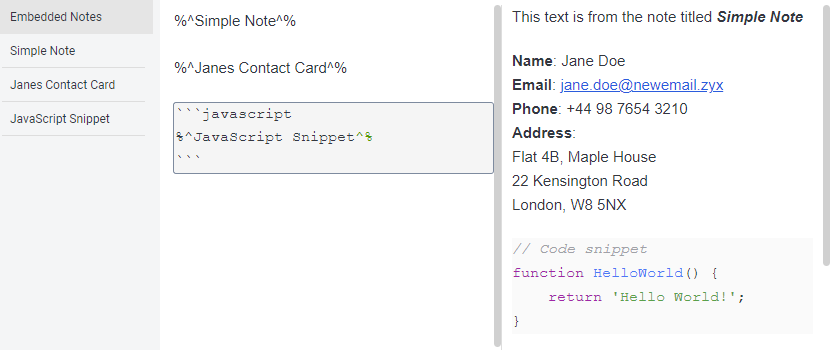
Usage
[!CAUTION]
Using the Rich Text editor will overwrite all tokens with embedded content when saving documents. To preserve tokens, always use the Markdown editor.
Referencing Notes
To reference the content of another note, use the following syntax:
%^Title of Another Note^%This will display the content of the note titled "Title of Another Note" in the markdown viewer.
Alternatively, reference a note using its ID:
%^4a7fbc2e5d9a36e10cf8b4d7ea12c390^%[!NOTE]
Attachments (images, videos, audio, and PDFs) are not rendered by default. To enable rendering, activate Show resources under Show Advanced Settings. This setting is experimental and may cause display issues.
Code Blocks
Token replacement can be restricted to fenced code blocks by enabling the Code blocks only option in the settings panel.
With this setting enabled, add the following headers within fenced code blocks to reference content:
- Use
embeddedto replace tokens within the block.
```javascript embedded
%^Note containing JavaScript^%
```- Use
embeddedandmarkdownto display the content using the markdown renderer.
```embedded markdown
%^Note containing Markdown^%
```
[!CAUTION] This mode provides limited support for the Rich Text editor. Tokens may be overridden when editing the document. Using the Markdown editor is strongly encouraged.
Embedded Links
A list of embedded note titles with links to the original notes can be displayed with the following options.
- Markdown Viewer: Links can be displayed as a footer or header in the markdown viewer or by adding a header with the text "Embeddings". The heading text, position, and list type can be customised in the settings panel.
- Separate Panel: Links can also be displayed in a separate panel. This can be enabled through the Display panel setting or by clicking the toggle panel button in the main toolbar. The Panel stylesheet setting allows applying custom CSS to style the panel.
Filtering Notes
The Tag filter restricts named tokens to notes with the specified tag. Notes without this tag can still be accessed using their unique IDs.
Generic search queries are also supported. For example:
notebook:"Snippets"[!NOTE] Applying a filter may help reduce memory usage and improve performance, especially when working with a large database of notes.
Generate Note
To create a new note that includes the full content from referenced notes, open a note containing tokens and select from the menu:
- Tools > Embedded notes > Create a new note with embedded content
Or press:
- CTRL+ALT+E
The new note will open automatically in the editor.
Autocomplete
Typing the opening tag (%^) triggers a dropdown menu listing available note titles. Selecting a title will autocomplete the token.
Token Customisation
The token prefix and suffix can be customised in the settings panel. Both settings must be defined.
To avoid ambiguous token matches, it is recommended to use distinct character sequences for opening and closing tags. For example:
- Preferred:
%^ and ^%or%% and $$ - Avoid:
%% and %%or&& and &&
Settings
| Setting | Default | Description |
| ---------------- | ------------ | ----------------------------------------------------------------------------------------------------------------- |
| Autocomplete | Yes | Display a dropdown of token suggestions in the editor when the opening tag is entered. |
| Code blocks only | No | Restrict token replacement to fenced code blocks (```) that include embedded in the header. |
| Note IDs only | No | Allow only note IDs to be used as tokens. |
| Tag filter | | Restrict token titles to notes with the specified tag name. Notes without this tag can still be referenced by ID. |
| Token prefix | %^ | Opening tag for tokens. |
| Token suffix | ^% | Closing tag for tokens. |
| Embedded links | Note Footer | Position to display the list of embedded note links in the markdown viewer. |
| List style | Ordered List | Display embedded links as new lines, ordered, or unordered list. |
| Display panel | No | Display embedded links in a separate panel. |
| Joplin icon | Yes | Display Joplin link icon next to embedded links. |
| Show resources | No | Render embedded resources in referenced content. This setting is experimental and may cause issues. |
| Embedded title | - Embed | Text to appened to note titles when creating a new note with embedded content. |
| List header | Embeddings | Header text for the embedded links section. |
| List delimiter | \n | Defines a custom delimiter to separate embedded links when the "New Line" list style is selected. |
| Panel stylesheet | | Path to custom CSS for styling the embedded links panel. |
| Disable text | | Use this text to prevent token replacement in a note. (Default: <!-- embedded-notes-disable -->) |
Installation
Automatic
- Open Joplin and navigate to Tools > Options > Plugins.
- Search for "Embedded Notes" and click Install.
- Restart Joplin to enable the plugin.
Manual
- Download the latest
.jplfile from releases. - Open Joplin and navigate to Tools > Options > Plugins.
- Click the gear icon and select Install from file.
- Choose the downloaded
.jplfile and restart Joplin.
Known issues and limitations
- Mobile Support: Limited to creating new notes with embedded content and does not support dynamic token replacement.
- Rendering Tokens: Tokens may not update immediately when switching between notes or upon loading the application. Editing the note or quickly switching between notes will trigger the tokens to render.
- Token Naming: Token names cannot contain the character sequence reserved for the opening and closing tags, or have spaces at the beginning or end. Use note ID tokens to reference notes with titles that include reserved characters.
- Duplicate Titles: Only the first note found with a duplicate title is used. To avoid ambiguity, reference notes with duplicate titles using their unique note ID.
Acknowledgments
This plugin is inspired by and builds upon features from the following projects:
- Note Variables Plugin
- Joplin Extract Paragraphs
- Joplin Note Link System
- Quick Links Plugin for Joplin
- Embed search in note
Links
License
This project is licensed under the MIT License. See LICENSE.md for details.