
jschemer
v3.0.3
Published
A Node.js library to generate documentation for JSON Schemas
Downloads
166

Maintainers
 dwhieb
Readme
jschemer





jschemer is a utility that generates documentation for JSON Schemas, providing end users with human-readable web pages instead of raw JSON documents. See an example of generated jschemer documentation here. jschemer accepts one or more JSON Schemas as input, and produces an HTML page for each schema, along with a landing page for the documentation. It can be run as a Node module or from the command line.
Maintained by Daniel W. Hieber
View a demo of documentation generated with jschemer.
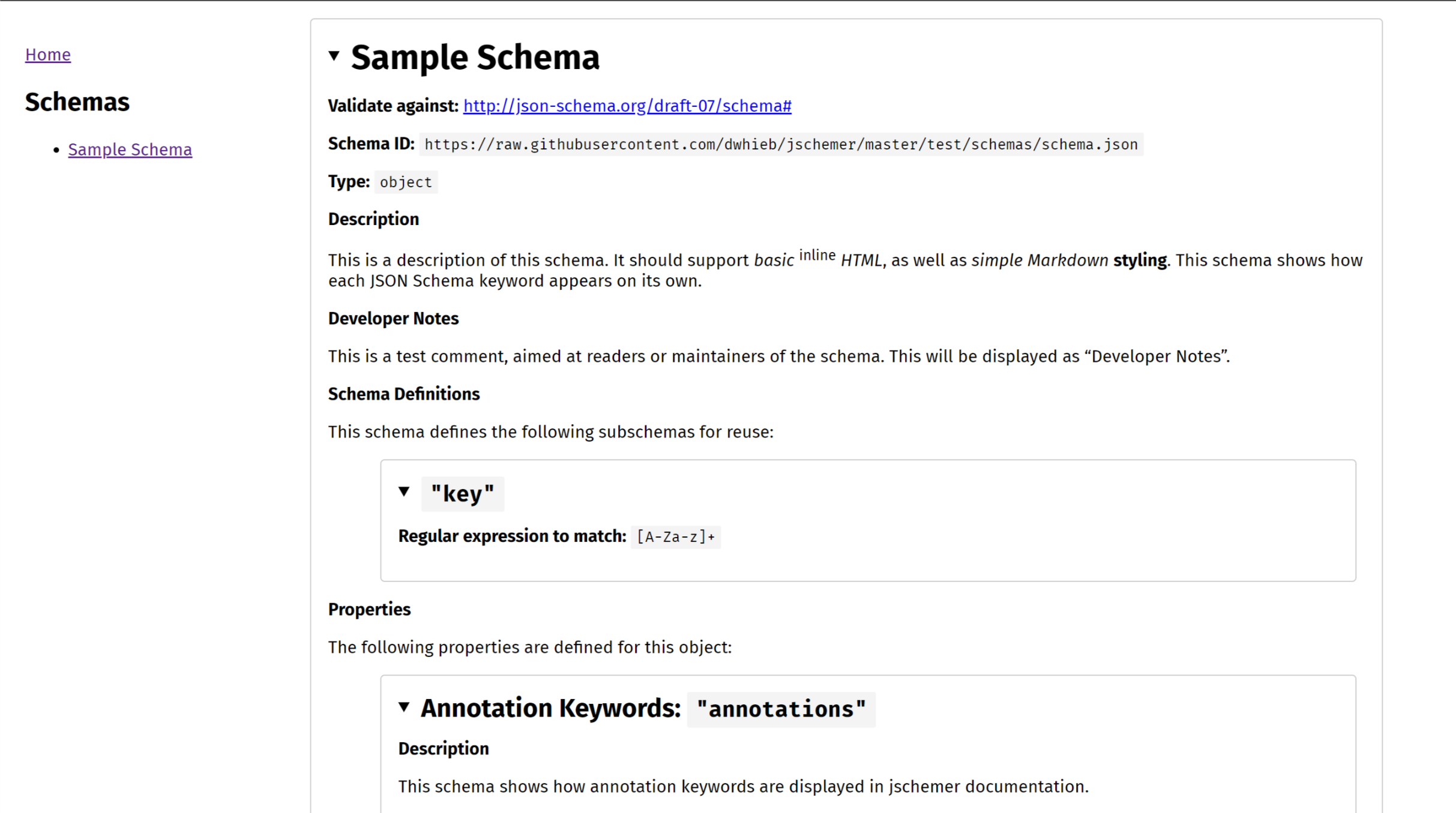
Contents
Installation & Usage
Installation
npm i -D jschemer # if installing as a dev dependency
npm i jschemer    # if installing as a core dependency
Command Line Usage
# This example uses JSON schemas located in the /json folder to generate documentation in the /docs folder
jschemer --schemas json --out docs --readme README.md

# You can also just run jschemer with its defaults (/schemas -> /out)
jschemer
Usage in Node
const jschemer = require(`jschemer`);

// options (see additional options below)
const opts = {
  out:     `docs`,
  readme:  `README.md`,
  schemas: `schemas`,
};

// generate the documentation
jschemer(opts)
.then(/* code to run after documentation is generated */)
.catch(/* catch any errors */);

// jschemer may also be run with defaults
jschemer()
.then(/* code to run after documentation is generated */)
.catch(/* catch any errors */);
The jschemer module exposes a single function which accepts two arguments: the path to a directory of JSON schemas (defaults to /schemas), and an options object (see the Options below). The jschemer function returns a promise that resolves when the documentation is done being generated.
Options
Node | Command Line | Default | Description
--------- | :---------------: | ----------- | -----------
out | ‑o, ‑‑out | out | The path to the folder where the documentation will be generated. The folder will be created if it does not already exist.
readme | ‑r, ‑‑readme | — | The path to a readme file to include in the generated documentation. This will be displayed on the landing page for the documentation (index.html). If no readme is provided, a placeholder readme is used.
schemas | ‑s, ‑‑schemas | schemas | The path to the folder where the JSON schemas are located.
Customizing
To customize the readme used on the landing page of the documentation, use the readme option to specify the path to a different readme.
To customize the HTML or CSS used to generate the documentation, edit the files in the /components folder. The HTML templates are written using Handlebars. The CSS for the documentation is written in LESS.
In the HTML, each schema and subschema is wrapped in a <section class=schema> element. Each keyword in the JSON Schema is wrapped in a single element (typically a <section> or <p>) with two CSS classes: the name of the keyword (e.g. minimum, additionalItems, etc.) and keyword.
For example, here is the HTML for JSON Schema's minimum keyword. If a JSON Schema has the minimum keyword in it, it will use the following Handlebars code.
{{#if minimum}}
  <p class='minimum keyword'>
    <strong>Minimum:</strong> <code>{{minimum}}</code>
  </p>
{{/if}}
If you would like to embed the schema template in your own site, without using the accompanying pages generated by jschemer, simply copy the files in components/schema into your project. Then use LESS to compile schema.less to a CSS file, and use Handlebars to compile the schema.hbs template with your schema data. You can then insert the HTML generated by Handlebars into your webpage, and link to the CSS file to apply styling.
Notes
Each schema is validated using ajv when the documentation is generated. If a schema cannot be parsed as JSON, or is not a valid schema, it will be ignored, and a warning will be shown in the console.
When using the
$refkeyword, you may provide additional keywords in the referencing schema as well, and jschemer will include them in the documentation. This is useful so that your end users don't need to visit the referenced schema to see information about it. If both the referencing schema and the referenced schema have the same keyword, the value of the referencing schema will be used. This is most useful when you would like to provide specific notes (usually in thedescriptionproperty) about how an external schema should be used or interpreted in the context of the current schema.