
npm package discovery and stats viewer.

Discover Tips

  • General search

    [free text search, go nuts!]

  • Package details

    pkg:[package-name]

  • User packages

    @[username]

Sponsor

Optimize Toolset

I’ve always been into building performant and accessible sites, but lately I’ve been taking it extremely seriously. So much so that I’ve been building a tool to help me optimize and monitor the sites that I build to make sure that I’m making an attempt to offer the best experience to those who visit them. If you’re into performant, accessible and SEO friendly sites, you might like it too! You can check it out at Optimize Toolset.

About

Hi, 👋, I’m Ryan Hefner  and I built this site for me, and you! The goal of this site was to provide an easy way for me to check the stats on my npm packages, both for prioritizing issues and updates, and to give me a little kick in the pants to keep up on stuff.

As I was building it, I realized that I was actually using the tool to build the tool, and figured I might as well put this out there and hopefully others will find it to be a fast and useful way to search and browse npm packages as I have.

If you’re interested in other things I’m working on, follow me on Twitter or check out the open source projects I’ve been publishing on GitHub.

I am also working on a Twitter bot for this site to tweet the most popular, newest, random packages from npm. Please follow that account now and it will start sending out packages soon–ish.

Open Software & Tools

This site wouldn’t be possible without the immense generosity and tireless efforts from the people who make contributions to the world and share their work via open source initiatives. Thank you 🙏

© 2026 – Pkg Stats / Ryan Hefner

keyhop

v0.1.1

Published

KeyHop: a macOS menu bar app launcher with global shortcuts and optional proxy settings.

Readme

KeyHop

KeyHop 是一款 macOS 应用启动工具。你可以把常用应用放进菜单栏,也可以为每个应用设置独立的全局快捷键,在其他应用中直接打开或切换过去。

应用已经运行时,KeyHop 会将它切到前台,保留当前窗口和工作内容。需要代理时,可以在设置中手动开启。
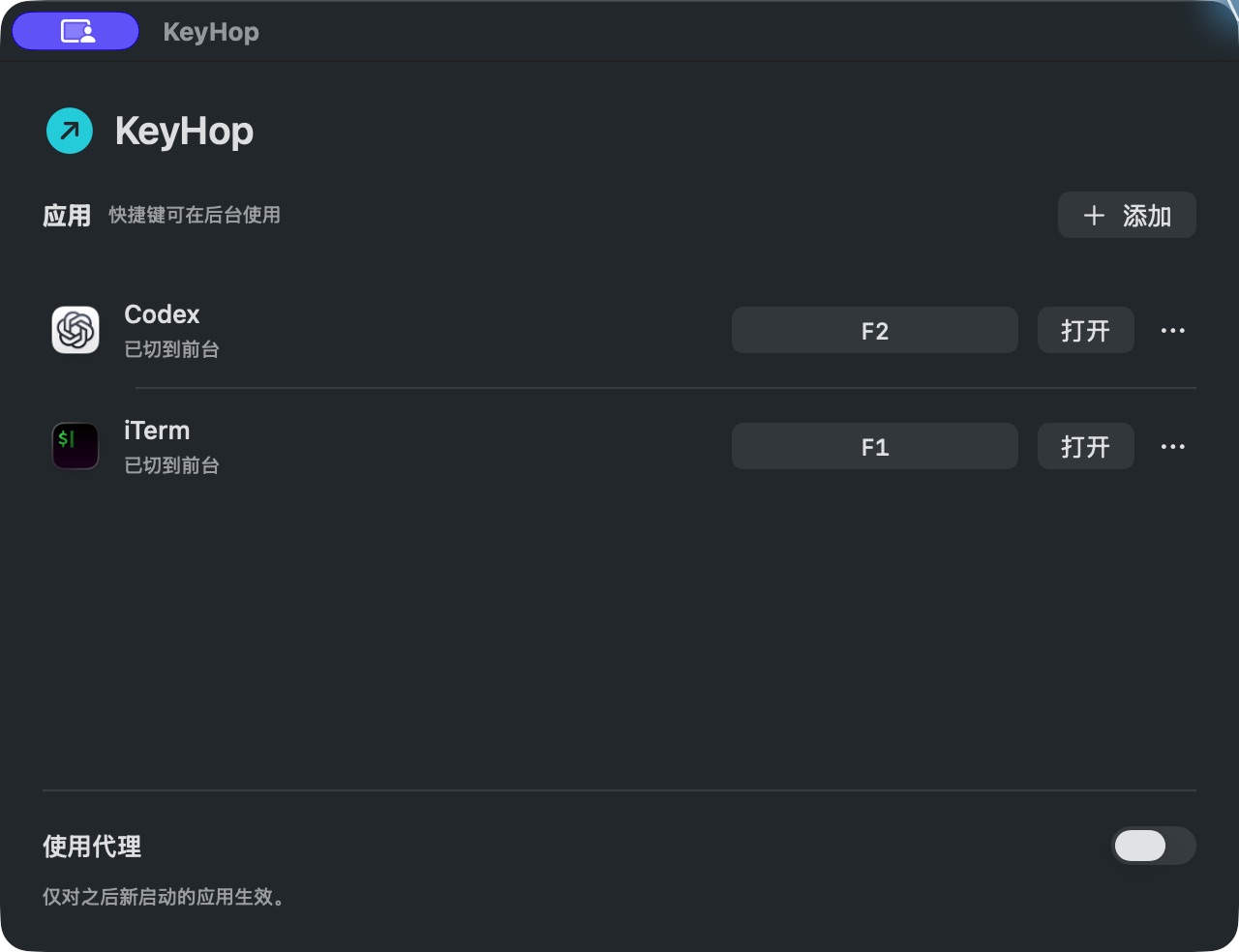
KeyHop 主界面:应用列表、自定义快捷键与默认关闭的代理开关

应用列表与快捷键设置。图中的 F1、F2 为手动绑定,首次使用不会预设快捷键。

使用

KeyHop 适合需要经常在几个应用之间切换的场景,例如 Codex、终端和浏览器。添加应用后,日常操作都可以在菜单栏或通过快捷键完成。

  1. 从菜单栏选择「添加新应用…」,在打开的设置窗口中点击「添加」,选择应用。
  2. 如果需要快捷键,点击应用旁的「录制快捷键」,按下要使用的组合,例如 ⌃⌥C。
  3. 点击菜单中的应用名,或按下对应快捷键。应用未运行时会启动,已运行时会切到前台。

快捷键可以留空,默认也不会占用 F1 等按键。录制时按 Esc 取消、Delete 清除;重复或系统报告冲突的绑定会提示调整。快捷键在 KeyHop 运行期间生效,无需辅助功能权限。

除了 macOS 应用,也可以添加命令行工具,它们会在 Terminal 中交互运行。已有的命令行实例不会重复启动,需要自行切换到对应终端。

安装

需要 macOS 13+、Node.js 20+。

npm install -g keyhop
keyhop

安装包同时支持 Apple Silicon 和 Intel Mac,安装后无需 Swift。首次运行会打开设置;关闭窗口后,KeyHop 留在菜单栏。再次运行 keyhop 会打开已有实例,不重复启动。

可选代理

代理默认关闭,正常使用 KeyHop 不需要配置代理。有需要时,在设置中开启「使用代理」,填写已有代理软件的地址,例如 127.0.0.1:7897,并选择对应的 HTTP 或 SOCKS5 协议。应用的代理启动方式由 KeyHop 自动判断。
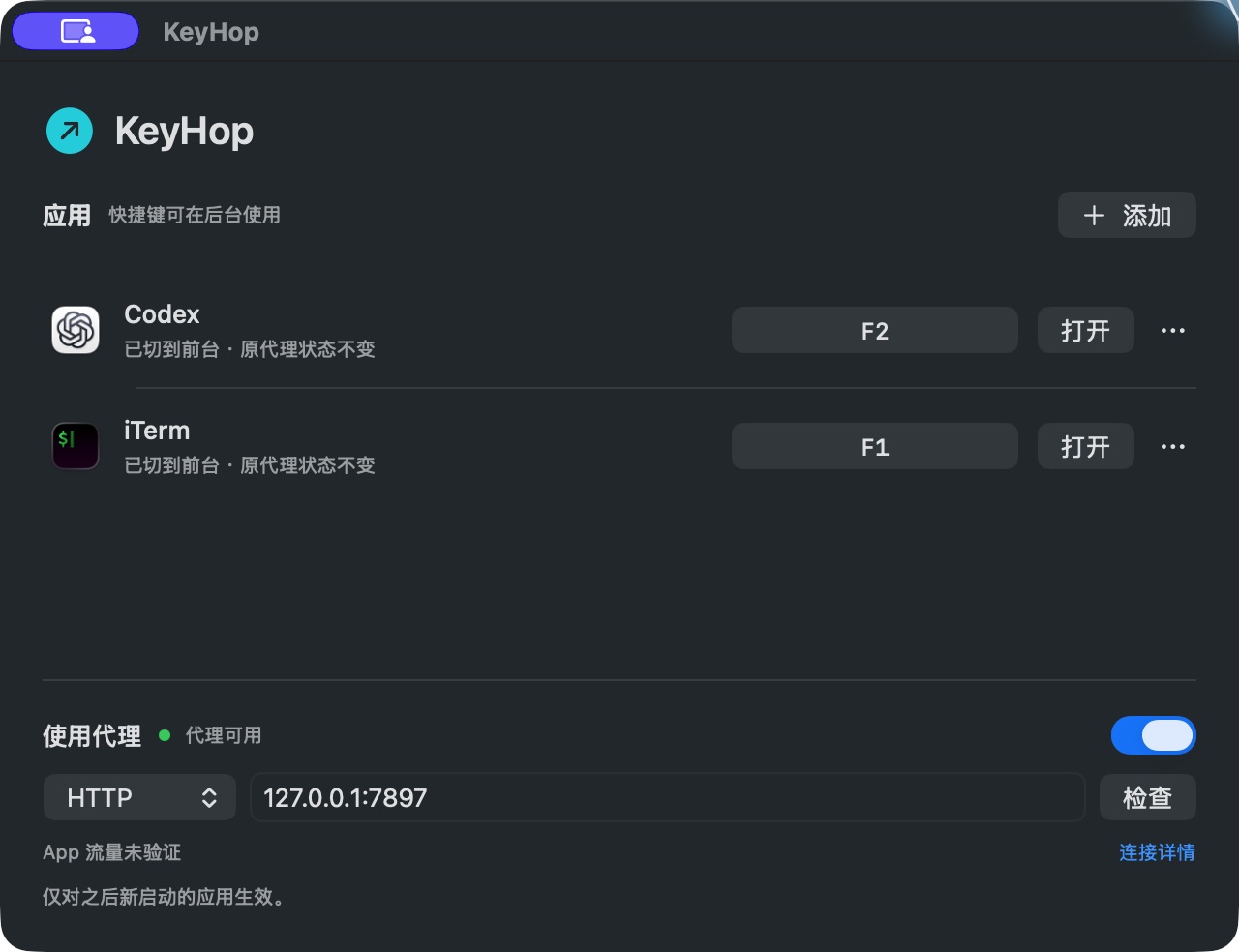
KeyHop 可选的代理设置,开启后显示协议、地址与连接状态

开启代理后的设置界面。关闭开关后,连接设置会收起。

开启后,KeyHop 会在启动应用前检查代理;检查失败时会提示原因,并停止本次启动。开关和地址的变更只影响之后通过 KeyHop 新启动的应用。对于已经运行的应用,点击或按快捷键仍然只是切到前台;要应用新的代理设置,需要先保存工作、退出应用,再通过 KeyHop 打开。

KeyHop 使用已有的代理服务,不修改系统代理。应用是否采用代理配置,取决于它自身的网络实现,因此代理检查通过不代表该应用的全部流量都经过代理。具体说明见 产品说明。

命令与维护

keyhop status   # 查看当前状态
keyhop quit     # 退出 KeyHop,已打开的 App 继续运行

更新前先退出 KeyHop,再运行 npm install -g keyhop@latest;卸载使用 npm uninstall -g keyhop,个人配置会保留。

随包提供的 App 使用 ad hoc 签名,尚未完成 Apple 公证。配置位置、源码构建与签名说明见 开发指南,测试记录见 本地验收。