
koine-figma-developer-mcp
v0.2.2
Published
Model Context Protocol server for Figma integration with Supabase Storage support made for Koine
Downloads
158

Maintainers
 alakazamworld
Readme
Koine-Figma Developer MCP with S3 Support
This is a modified fork of the Framelink Figma MCP Server with added S3 upload functionality for Figma images.
New Features
- S3 Upload Support: Images downloaded from Figma are now automatically uploaded to an S3 bucket
- Configurable S3 Parameters: Set bucket name and key prefix through environment variables or parameters
- S3 URL Generation: Returns S3 URLs for the uploaded images
Getting Started
Installation
npm install koine-figma-developer-mcpConfiguration
Set the following environment variables in your .env file:
# Figma API configuration
FIGMA_API_KEY=your_figma_api_key_here
FIGMA_ACCESS_TOKEN=your_figma_access_token_here

# Server configuration
PORT=3333

# AWS Configuration for S3 uploads
AWS_ACCESS_KEY_ID=your_aws_access_key_id_here
AWS_SECRET_ACCESS_KEY=your_aws_secret_access_key_here
AWS_REGION=eu-central-1             # Primary AWS region
AWS_REGION_ASSETS=eu-west-2         # Region for asset storage (optional)

# S3 Bucket configuration
S3_BUCKET_NAME=your_primary_bucket_name     # Main bucket for Figma assets
S3_ASSET_BUCKET_NAME=your_asset_bucket_name # Secondary bucket for assets (optional)

# Public bucket configuration (for client-side access)
NEXT_PUBLIC_S3_BUCKET_NAME=your_primary_bucket_name
NEXT_PUBLIC_S3_ASSET_BUCKET_NAME=your_asset_bucket_name
NEXT_PUBLIC_AWS_REGION_ASSETS=eu-west-2
Usage with Cursor or other MCP clients
{
  "mcpServers": {
    "Koine Figma MCP with S3": {
      "command": "npx",
      "args": [
        "-y",
        "koine-figma-developer-mcp",
        "--figma-api-key=YOUR-FIGMA-API-KEY",
        "--aws-region=your-region",
        "--s3-bucket-name=your-bucket-name",
        "--stdio"
      ]
    }
  }
}
You can also specify all AWS-related parameters as command line arguments:
{
  "mcpServers": {
    "Koine Figma MCP with S3": {
      "command": "npx",
      "args": [
        "-y",
        "koine-figma-developer-mcp",
        "--figma-api-key=YOUR-FIGMA-API-KEY",
        "--aws-access-key-id=YOUR-AWS-ACCESS-KEY",
        "--aws-secret-access-key=YOUR-AWS-SECRET-KEY",
        "--aws-region=eu-central-1",
        "--aws-region-assets=eu-west-2",
        "--s3-bucket-name=your-primary-bucket",
        "--s3-asset-bucket-name=your-asset-bucket",
        "--stdio"
      ]
    }
  }
}
Alternatively, you can use environment variables in a .env file as shown in the Configuration section above.
Enhanced Tools
download_figma_images
This tool has been enhanced to upload images to S3 after downloading them from Figma:
{
  "fileKey": "figma_file_key",
  "nodes": [
    {
      "nodeId": "1234:5678",
      "fileName": "icon.svg"
    },
    {
      "nodeId": "9876:5432",
      "fileName": "composite_icon.svg",
      "isComposite": true  // Use this for multi-vector SVG components
    }
  ],
  "localPath": "/tmp/images",
  "s3KeyPrefix": "figma-assets"  // Optional - defaults to no prefix
}
The response will include S3 URLs for each uploaded image:
[
  {
    "fileName": "icon.svg",
    "localPath": "/tmp/images/icon.svg",
    "s3Url": "https://your-bucket.s3.region.amazonaws.com/figma-assets/icon.svg"
  }
]
Handling Composite Vector Images
When working with complex SVG images that consist of multiple vector components arranged in a group, use the isComposite: true flag to ensure the entire group is properly exported as a single unified SVG. This is particularly helpful for:
- Icon sets composed of multiple vector shapes
- Complex illustrations with multiple paths and layers
- Any vector group that should be treated as a single SVG entity
Without this flag, each vector might be processed individually, potentially leading to malformed SVGs when uploaded to S3.
Give Cursor, Windsurf, Cline, and other AI-powered coding tools access to your Figma files with this Model Context Protocol server.
When Cursor has access to Figma design data, it's way better at one-shotting designs accurately than alternative approaches like pasting screenshots.
Demo
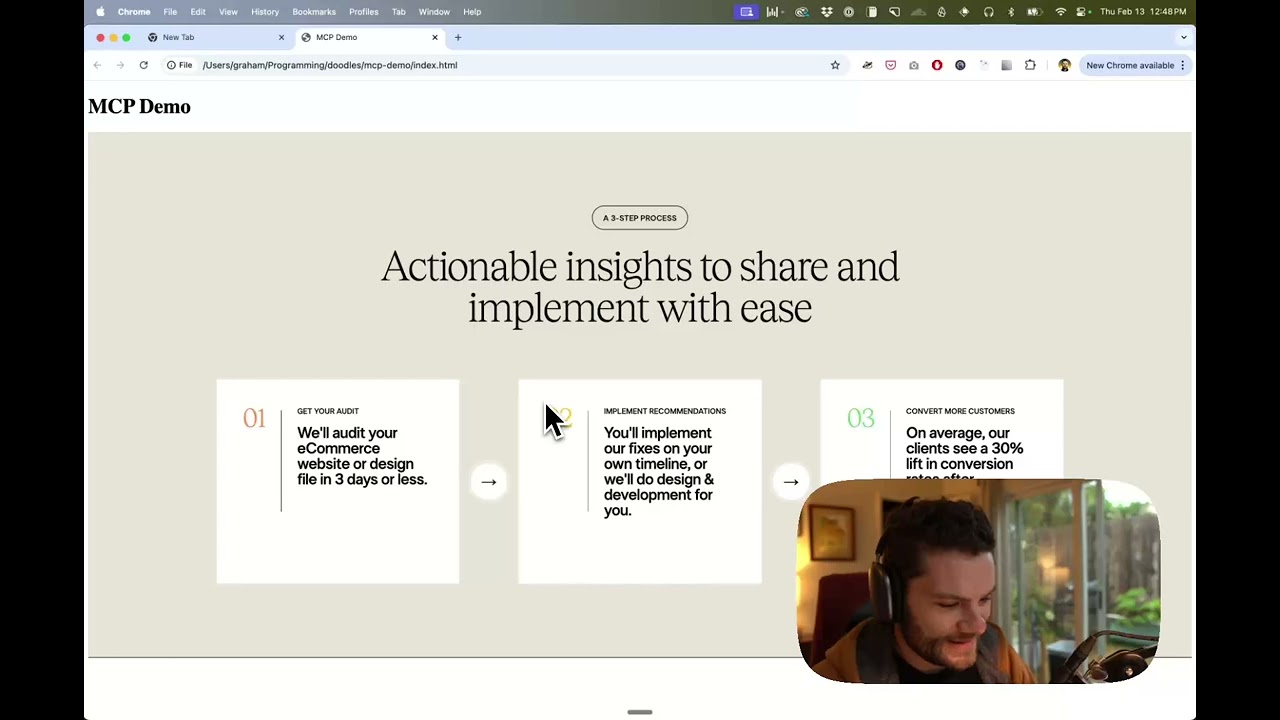
Watch a demo of building a UI in Cursor with Figma design data
How it works
- Open your IDE's chat (e.g. agent mode in Cursor).
- Paste a link to a Figma file, frame, or group.
- Ask Cursor to do something with the Figma file—e.g. implement the design.
- Cursor will fetch the relevant metadata from Figma and use it to write your code.
This MCP server is specifically designed for use with Cursor. Before responding with context from the Figma API, it simplifies and translates the response so only the most relevant layout and styling information is provided to the model.
Reducing the amount of context provided to the model helps make the AI more accurate and the responses more relevant.
Getting Started
Many code editors and other AI clients use a configuration file to manage MCP servers.
The figma-developer-mcp server can be configured by adding the following to your configuration file.
NOTE: You will need to create a Figma access token to use this server. Instructions on how to create a Figma API access token can be found here.
MacOS / Linux
{
  "mcpServers": {
    "Framelink Figma MCP": {
      "command": "npx",
      "args": ["-y", "figma-developer-mcp", "--figma-api-key=YOUR-KEY", "--stdio"]
    }
  }
}
Windows
{
  "mcpServers": {
    "Framelink Figma MCP": {
      "command": "cmd",
      "args": ["/c", "npx", "-y", "figma-developer-mcp", "--figma-api-key=YOUR-KEY", "--stdio"]
    }
  }
}
If you need more information on how to configure the Framelink Figma MCP server, see the Framelink docs.
Star History
Learn More
The Framelink Figma MCP server is simple but powerful. Get the most out of it by learning more at the Framelink site.