
launcher-links
v1.0.3
Published
Add abitrary launcher icons

Maintainers
 bloomsa
Readme
Launcher Links



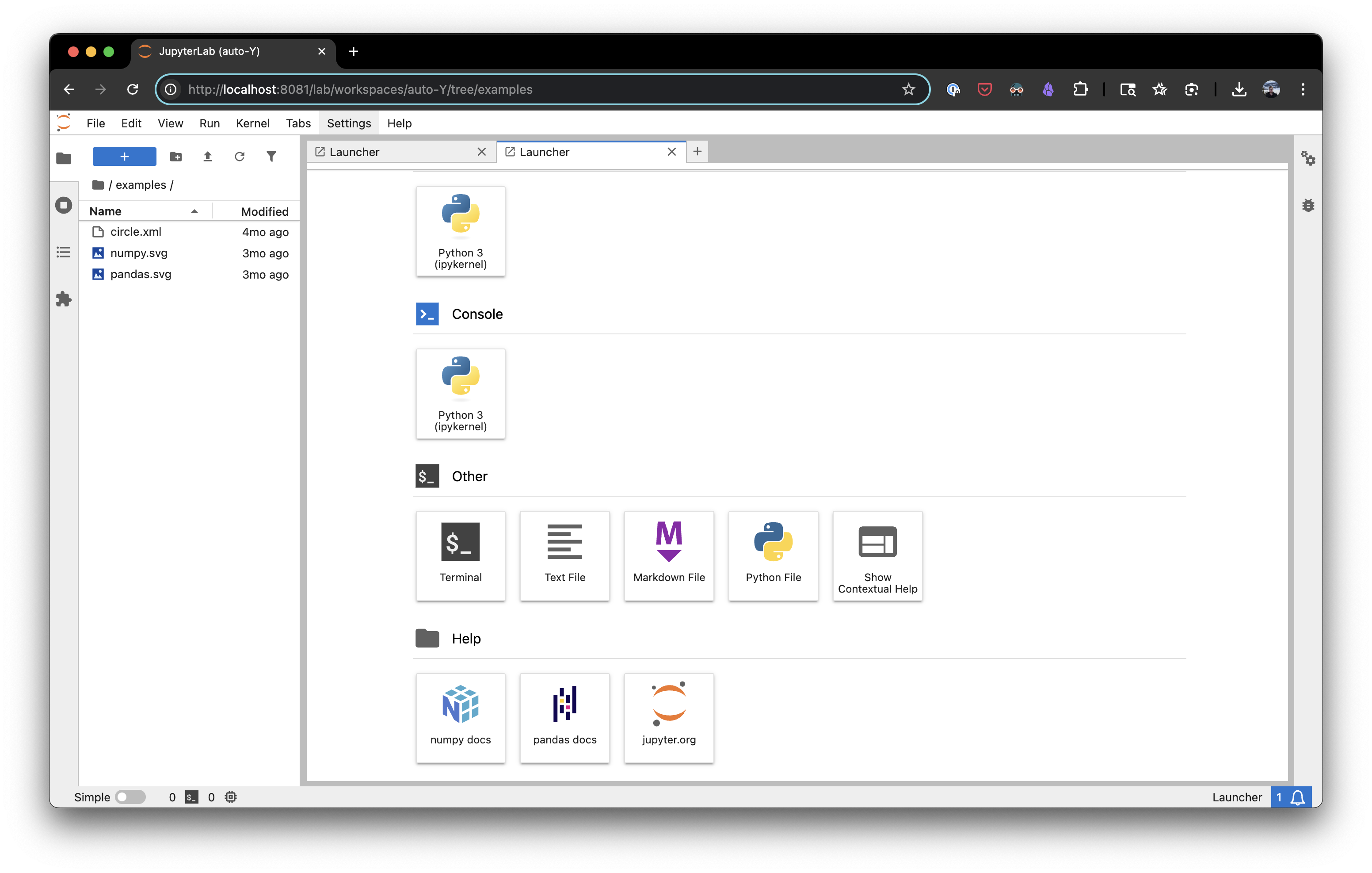
Add JupyterLab Launcher items that link out to external sites.
You can add custom icons with SVG strings, or leverage pre-existing JupyterLab icons. Additionally, you can add items to any section of the launcher, or create brand new sections for your link items automatically.
Requirements
- JupyterLab >= 4.0.0
Install
To install the extension, execute:
pip install launcher_linksUsage
After installation and a browser refresh you will see options for Open Jupyter and Open Example.com on your launcher. You can change the link items from the normal JupyterLab Settings editor.
SVGs can be added to a launcher item by pasting the full SVG string into the icon field. A few SVGs, for numpy and pandas are in this repo for your convenience.
Ordering of links within a category is controlled by rank. A lower rank moves the link closer to the front of a given category.
Uninstall
To remove the extension, execute:
pip uninstall launcher_linksContributing
Development install
Note: You will need NodeJS to build the extension package.
The jlpm command is JupyterLab's pinned version of
yarn that is installed with JupyterLab. You may use
yarn or npm in lieu of jlpm below.
# Clone the repo to your local environment
# Change directory to the launcher_links directory
# Install package in development mode
uv sync
# Link your development version of the extension with JupyterLab
jupyter labextension develop . --overwrite
# Rebuild extension Typescript source after making changes
jlpm build
You can watch the source directory and run JupyterLab at the same time in different terminals to watch for changes in the extension's source and automatically rebuild the extension.
# Watch the source directory in one terminal, automatically rebuilding when needed
jlpm watch
# Run JupyterLab in another terminal
uv run jupyter lab
With the watch command running, every saved change will immediately be built locally and available in your running JupyterLab. Refresh JupyterLab to load the change in your browser (you may need to wait several seconds for the extension to be rebuilt).
By default, the jlpm build command generates the source maps for this extension to make it easier to debug using the browser dev tools. To also generate source maps for the JupyterLab core extensions, you can run the following command:
uv run jupyter lab build --minimize=FalseDevelopment uninstall
uv pip uninstall launcher_linksIn development mode, you will also need to remove the symlink created by jupyter labextension develop
command. To find its location, you can run jupyter labextension list to figure out where the labextensions
folder is located. Then you can remove the symlink named launcher-links within that folder.
Testing the extension
Frontend tests
This extension is using Jest for JavaScript code testing.
To execute them, execute:
jlpm
jlpm test
Integration tests
This extension uses Playwright for the integration tests (aka user level tests). More precisely, the JupyterLab helper Galata is used to handle testing the extension in JupyterLab.
More information are provided within the ui-tests README.
Packaging the extension
See RELEASE