
lilac-editor
v0.2.1
Published
Lilac - a smooth, modern WYSIWYG text editor built with pure TypeScript. Zero dependencies, framework-agnostic, with a clean interface and elegant typography.
Downloads
391

Maintainers
 maifeeulasad
Readme
🌸 Lilac
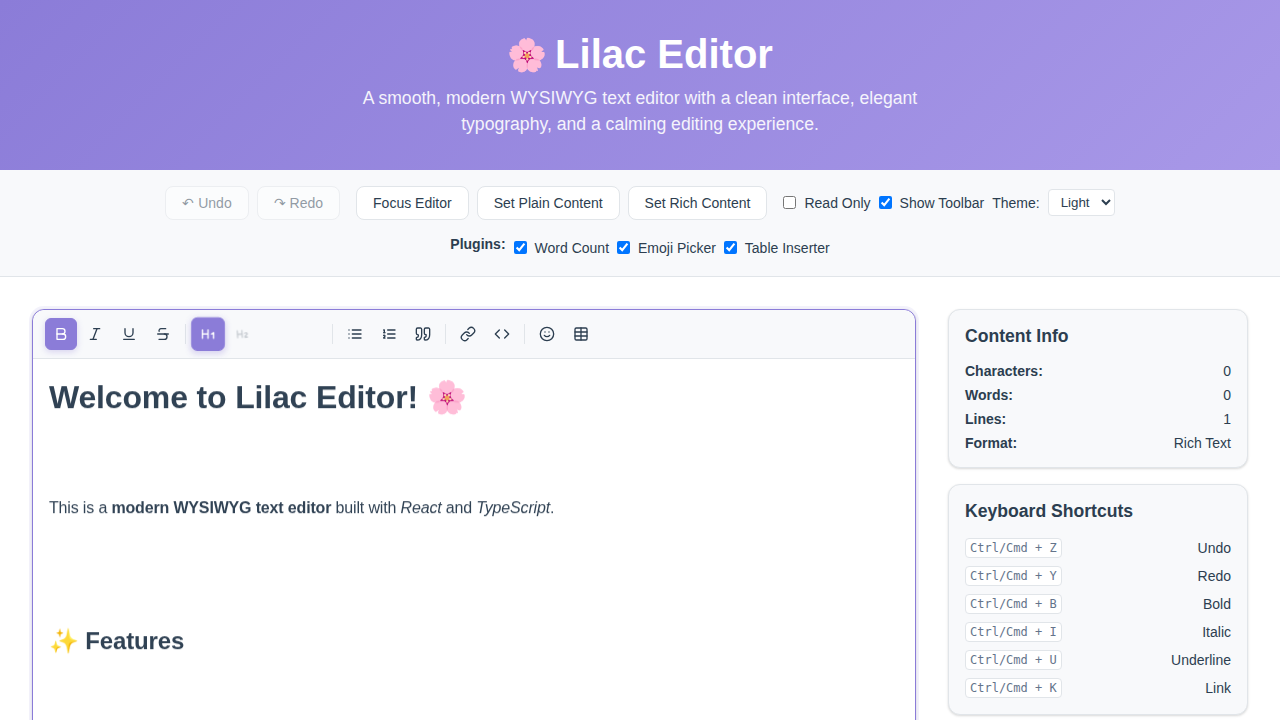
A smooth, modern WYSIWYG text editor built with pure TypeScript. Zero dependencies, framework-agnostic, with a clean interface, elegant typography, and a calming editing experience.



✨ Features
- 🎨 Beautiful Design: Clean, calming interface with elegant typography
- 📝 Rich Text Editing: Full WYSIWYG editor with formatting toolbar
- ⚡ Pure TypeScript: Built with pure TypeScript, no framework dependencies
- 📦 Zero Dependencies: Completely standalone, no external packages required
- 🔧 Fully Typed: Strict TypeScript configuration for better development experience
- 📱 Responsive: Works seamlessly across desktop, tablet, and mobile devices
- 🌙 Dark Mode: Built-in light and dark theme support
- ♿ Accessible: WCAG compliant with proper ARIA attributes
- ⚙️ Configurable: Extensive customization options
- 🔄 Undo/Redo: Full history management with keyboard shortcuts
- ⌨️ Keyboard Shortcuts: Full support for common formatting shortcuts
- 🛠️ Extensible Toolbar: Customizable toolbar with rich formatting options
- 🔌 Plugin System: Powerful extension system with built-in plugins
- 🎯 Framework Agnostic: Works with any framework or vanilla JavaScript
🚀 Quick Start
Installation
npm install lilac-editor
# or
yarn add lilac-editor
# or
pnpm add lilac-editor
Basic Usage
import { LilacEditor, injectStyles } from 'lilac-editor';

// Inject the editor styles (only needed once)
injectStyles();

// Create editor instance
const editor = new LilacEditor({
  container: document.getElementById('editor-container')!,
  initialContent: '<h1>Welcome to Lilac!</h1><p>Start typing...</p>',
  placeholder: 'Enter your text here...',
  theme: 'light',
  autoFocus: true,
  onChange: (content) => {
    console.log('Content changed:', content);
  },
  toolbar: {
    show: true,
    tools: ['bold', 'italic', 'underline', 'separator', 'heading1', 'heading2']
  }
});
Using Built-in Plugins
import { LilacEditor, wordCountPlugin, emojiPlugin, tablePlugin, injectStyles } from 'lilac-editor';

injectStyles();

const editor = new LilacEditor({
  container: document.getElementById('editor-container')!,
  initialContent: '<h1>Welcome to Lilac!</h1><p>Start typing...</p>',
  plugins: [
    wordCountPlugin,    // Document statistics
    emojiPlugin,        // Emoji picker with Ctrl+Shift+E
    tablePlugin,        // Table inserter with Ctrl+Shift+T
  ],
  toolbar: { show: true }
});
Advanced Usage with API
import { LilacEditor, injectStyles } from 'lilac-editor';

injectStyles();

const editor = new LilacEditor({
  container: document.getElementById('editor-container')!,
  onChange: (content) => console.log('Content:', content)
});

// Programmatic control
document.getElementById('undo-btn')?.addEventListener('click', () => {
  editor.undo();
});

document.getElementById('redo-btn')?.addEventListener('click', () => {
  editor.redo();
});

document.getElementById('get-content-btn')?.addEventListener('click', () => {
  const content = editor.getContent();
  console.log('Current content:', content);
});

// Focus/blur control
editor.focus();
// editor.blur();

// Set new content
editor.setContent('<p>New content!</p>');
Custom Configuration
import { LilacEditor, injectStyles } from 'lilac-editor';

injectStyles();

const editor = new LilacEditor({
  container: document.getElementById('editor-container')!,
  initialContent: '<h1>Welcome to Lilac!</h1>',
  placeholder: 'Start typing...',
  readOnly: false,
  autoFocus: true,
  theme: 'light',
  onChange: (content) => console.log('Changed:', content),
  onFocus: () => console.log('Editor focused'),
  onBlur: () => console.log('Editor blurred')
});
📖 API Reference
LilacEditor Constructor Options
| Option | Type | Default | Description |
|--------|------|---------|-------------|
| container | HTMLElement | required | DOM element to mount the editor |
| initialContent | string | '' | Initial HTML content of the editor |
| placeholder | string | 'Start writing...' | Placeholder text when editor is empty |
| readOnly | boolean | false | Whether the editor is read-only |
| autoFocus | boolean | false | Auto-focus editor on mount |
| theme | 'light' \| 'dark' | 'light' | Editor theme |
| onChange | (content: string) => void | undefined | Content change callback |
| onFocus | () => void | undefined | Focus event callback |
| onBlur | () => void | undefined | Blur event callback |
LilacEditor Methods
| Method | Type | Description |
|--------|------|-------------|
| getContent() | () => string | Get current editor HTML content |
| setContent(content) | (content: string) => void | Set editor content (replaces all content) |
| focus() | () => void | Focus the editor |
| blur() | () => void | Blur the editor |
| undo() | () => void | Undo last change |
| redo() | () => void | Redo last undone change |
| destroy() | () => void | Clean up and remove the editor |
Toolbar Tools
The editor includes a built-in toolbar with the following tools:
| Tool | Description | Keyboard Shortcut | |------|-------------|-------------------| | Bold | Bold text formatting | Ctrl/Cmd + B | | Italic | Italic text formatting | Ctrl/Cmd + I | | Underline | Underline text formatting | Ctrl/Cmd + U | | Strikethrough | Strikethrough text | - | | Heading 1 | Format as H1 | - | | Heading 2 | Format as H2 | - | | Heading 3 | Format as H3 | - | | Paragraph | Format as paragraph | - | | Bullet List | Create bullet list | - | | Ordered List | Create numbered list | - | | Blockquote | Format as blockquote | - | | Code Block | Format as code block | - | | Link | Insert/edit link | Ctrl/Cmd + K |
🔌 Plugin System
Lilac features a powerful plugin system that allows you to extend the editor with custom functionality. The system supports toolbar buttons, keyboard shortcuts, panels, content transformers, and lifecycle hooks.
Built-in Plugins
📊 Word Count Plugin
Displays real-time document statistics.
import { PluginManager, wordCountPlugin } from 'lilac-editor';

const pluginManager = PluginManager.getInstance();
pluginManager.install(wordCountPlugin);
Features:
- Words, characters, paragraphs, sentences count
- Real-time updates
- Keyboard shortcut: Shows statistics on demand
- Clean modal interface
😊 Emoji Picker Plugin
Add emojis to your content with an easy-to-use picker.
import { PluginManager, emojiPickerPlugin } from 'lilac-editor';

const pluginManager = PluginManager.getInstance();
pluginManager.install(emojiPickerPlugin);
Features:
- Categorized emoji selection (Smileys, People, Nature, Food, Travel)
- Toolbar button integration
- Keyboard shortcut:
Ctrl+Shift+E - Modal interface with categories
📋 Table Inserter Plugin
Insert and manage HTML tables with interactive controls.
import { PluginManager, tableInserterPlugin } from 'lilac-editor';

const pluginManager = PluginManager.getInstance();
pluginManager.install(tableInserterPlugin);
Features:
- Configurable rows and columns
- Interactive table controls (add/delete rows and columns)
- Toolbar button integration
- Keyboard shortcut:
Ctrl+Shift+T - Delete entire table option
Creating Custom Plugins
Create your own plugins by implementing the EditorPlugin interface:
import { EditorPlugin } from 'lilac-editor';

export const myCustomPlugin: EditorPlugin = {
  id: 'my-custom-plugin',
  name: 'My Custom Plugin',
  version: '1.0.0',

  // Add toolbar button
  getToolbarButtons: () => [{
    id: 'my-button',
    icon: '🎯',
    label: 'My Tool',
    tooltip: 'My custom tool (Ctrl+M)',
    onClick: (editor) => {
      document.execCommand('insertHTML', false, '<strong>Custom content!</strong>');
    },
  }],

  // Add keyboard shortcut
  getKeyboardShortcuts: () => [{
    key: 'm',
    ctrlKey: true,
    handler: (editor, event) => {
      event.preventDefault();
      document.execCommand('insertHTML', false, '<em>Shortcut triggered!</em>');
    },
  }],

  // Lifecycle hooks
  onInstall: () => console.log('Plugin installed'),
  onUninstall: () => console.log('Plugin uninstalled'),
  onEditorReady: (editor) => console.log('Editor ready'),
  onContentChange: (content) => {
    // React to content changes
  },
};
Plugin Capabilities
| Feature | Description | |---------|-------------| | Toolbar Buttons | Add custom formatting tools and actions | | Keyboard Shortcuts | Define custom hotkey combinations | | Panels | Create custom UI panels (sidebar, modal, etc.) | | Content Transformers | Process and transform content automatically | | Context Menu Items | Add right-click menu items | | Lifecycle Hooks | React to editor events (install, mount, content changes) |
Plugin Manager
Access the plugin manager for programmatic control:
import { PluginManager } from 'lilac-editor';

const pluginManager = PluginManager.getInstance();

// Install a plugin
pluginManager.install(myCustomPlugin);

// Uninstall a plugin
pluginManager.uninstall('my-plugin-id');

// Execute lifecycle hook
pluginManager.executeHook('onContentChange', '<p>New content</p>');

// Get toolbar buttons from all plugins
const buttons = pluginManager.getToolbarButtons();

// Get keyboard shortcuts from all plugins
const shortcuts = pluginManager.getKeyboardShortcuts();
Plugin API Exports
// Plugin system
import {
  PluginManager,
  EditorPlugin
} from 'lilac-editor';

// Built-in plugins
import {
  wordCountPlugin,
  emojiPickerPlugin,
  tableInserterPlugin
} from 'lilac-editor';
🛠️ Development
Prerequisites
- Node.js 18+, recommended 20+ LTS
- npm, yarn, or pnpm
Setup
# Clone the repository
git clone https://github.com/maifeeulasad/lilac.git
cd lilac

# Install dependencies
npm install

# Start development server
npm run dev

# Build for production
npm run build

# Run tests
npm test

# Type check
npm run typecheck
Project Structure
src/
├── components/              # Core components
│   ├── Editor.ts           # Main editor class (LilacEditor)
│   ├── Toolbar.ts          # Toolbar component class
│   └── index.ts            # Component exports
├── plugins/                # Plugin system and built-in plugins
│   ├── PluginManager.ts    # Plugin manager singleton
│   ├── wordCount.ts        # Word count plugin
│   ├── emojiPicker.ts      # Emoji picker plugin
│   ├── tableInserter.ts    # Table inserter plugin
│   └── index.ts            # Plugin exports
├── types/                  # TypeScript type definitions
│   ├── editor.ts           # Core editor types
│   ├── plugin.ts           # Plugin system types
│   └── index.ts            # Type exports
├── utils/                  # Utility functions
│   ├── formatting.ts       # Text formatting utilities
│   ├── icons.ts            # SVG icon definitions
│   └── index.ts            # Utility exports
└── index.ts                # Main library entry point
🎨 Customization
Themes
Lilac comes with built-in light and dark themes. You can also create custom themes by overriding CSS custom properties:
.lilac-editor {
  --lilac-color-primary: #your-color;
  --lilac-color-background: #your-bg;
  --lilac-border-radius: 8px;
  /* ... other variables */
}
Styling
The editor uses CSS custom properties for easy theming. All styles are scoped to prevent conflicts with your application.
🗺️ Roadmap
- [x] 🔧 Rich text toolbar (Bold, Italic, Underline, etc.)
- [x] 😉 Emoji support (via Emoji Picker plugin)
- [ ] 📋 Copy/Paste enhancements
- [x] 🔗 Link insertion and management
- [ ] 🖼️ Image upload and embedding
- [ ] 📝 Markdown support
- [ ] 🔍 Find and replace
- [x] 📊 Table support
- [ ] 🎯 Vue.js integration
- [ ] 🅰️ Angular integration
- [x] 🔌 Plugin system
- [ ] 📱 Mobile optimizations
- [ ] 🎨 More themes
- [ ] 🧪 Comprehensive test suite
🤝 Contributing
We welcome contributions! Please see our Contributing Guide for details.
Development Workflow
- Fork the repository
- Create your feature branch (
git checkout -b feature/amazing-feature) - Make your changes
- Add tests for your changes
- Ensure all tests pass (
npm test) - Commit your changes (
git commit -m 'Add amazing feature') - Push to the branch (
git push origin feature/amazing-feature) - Open a Pull Request
📄 License
This project is licensed under the MIT License - see the LICENSE file for details.
🙏 Acknowledgments
- Inspired by modern text editors like Notion, Linear, and GitHub
- Built with love using pure TypeScript and modern web standards
- Zero dependencies - powered by native DOM APIs
- Thanks to all contributors and the open-source community