
macos-insertable
v0.7.0
Published
Find the focused text field of any macOS application, learn whether text can be inserted there, and insert it — verified, safely, through the Accessibility API with clipboard and keystroke fallbacks.

Maintainers
 barkouski
Readme
macos-insertable


Find the text field the user is working in, learn whether text can be put there, and put it there. Every write is verified: if the text did not land, you get a reason instead of a false success.
Built for dictation tools, AI assistants, and snippet expanders. Anything that produces text and needs it to arrive in the field the user was actually typing in.
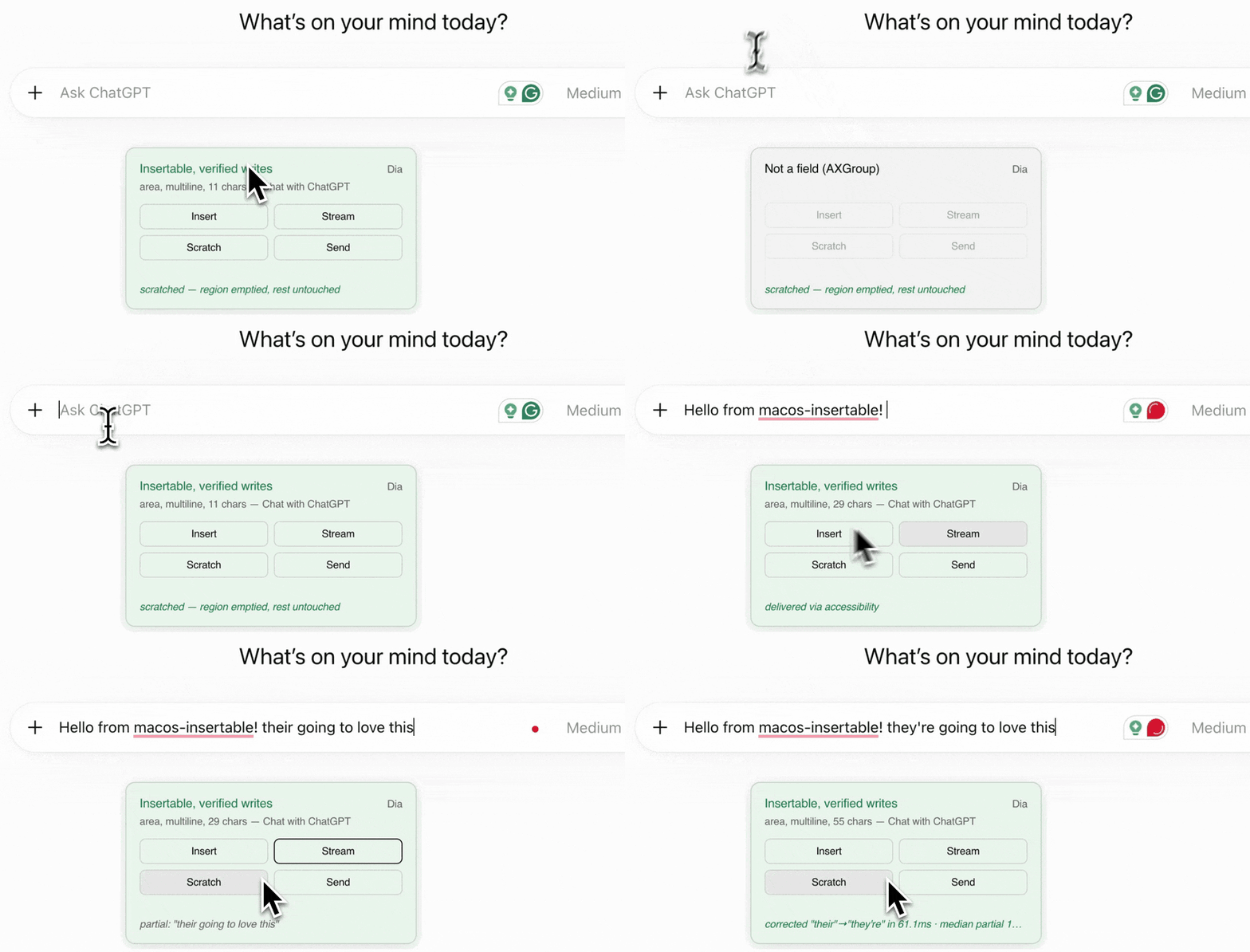
A sample app driving the library against a ChatGPT composer in another window. The panel reads
the focused field four times a second: it names what it found, whether writes there can be
verified, and how many characters the field holds. Insert writes once. Stream types a sentence
word by word and then corrects their to they're in place. Scratch empties what it wrote and
leaves the rest of the field alone. The panel never takes keyboard focus, so the composer stays
focused throughout.
import { insertText } from 'macos-insertable'

const outcome = await insertText('On my way, ten minutes.')

if (outcome.delivered) {
  console.log('landed via', outcome.via)     // 'accessibility' | 'clipboard' | 'keystrokes'
} else {
  console.log('refused:', outcome.reason)    // e.g. 'secure-input', 'read-only'
}
Text can also arrive in pieces and revise itself, which is what streaming transcription needs. Each revision rewrites only the span that changed, so it costs about a millisecond:
using captured = await captureFocusedField()
if (captured.status !== 'field') return

const started = await captured.startDraft()
if (!started.ok) return

await started.draft.update('their')                // words appear as they are spoken
await started.draft.update('their going home')
await started.draft.update("they're going home")   // one word is corrected in place
The API
Four entry points, ordered by how much control you need. Every result is a discriminated union, so TypeScript makes you handle the cases where nothing happened.
checkAccess()            can this library do anything right now?
readFocusedField()       what is focused, and can text go there?
insertText(text)         put text where the user is typing, in one call
captureFocusedField()    pin the field now, write to it later
  .insert(text, opts)      write once: caret / selection / whole field
  .startDraft()            own a region and keep revising it
  .submit(modifier?)       press the send key, safely
  .reread()                current field state, same element proven first
  .caretBounds()           where the caret is on screen
  .traits                  what kind of app this is
Why it works this way
Most tools that type into other apps do one thing: put the text on the clipboard and press ⌘V at whatever holds focus when the transcription finishes. That fails in ways nobody sees. The paste lands in the window the user just switched to. It overwrites a clipboard they were using. It goes into a password box. Nothing reports an error, because nothing was ever checked.
The design here is to check each of those things instead.
It identifies the field before writing. An element counts as a text field when it advertises text content, an insertion point, and evidence that it is editable. Not when its role appears on a list. Rich editors focus containers that match no text role at all, and a role allowlist rejects every one of them. The editability requirement matters in the other direction: modern AppKit hands the caret vocabulary to everything, including read-only chat transcripts and Finder buttons, so a caret alone proves nothing. Both rules were checked against Chromium and WebKit source.
It assumes it will be wrong about web content, and bounds the damage. Canvas editors like
Google Docs focus decoy elements that carry everything a text field advertises while mirroring
nothing — and against a decoy, an Accessibility write that "succeeds" with an unchanged
read-back is undecidable: inert, or tunneled invisibly into the document. Chaining a fallback
paste after a tunneled write is how text lands twice. So trust is earned, not assumed: a web
element whose value shows no real content gets exactly one self-verifying paste — which creates
its own evidence on a genuine field, and lands once, trusted, on a decoy the classifier has
never seen. Precise verified writes are granted to native controls, and to web fields once they
show readable content. When any write's effect could not be observed, the failure carries
mayHaveLanded: true, which means: do not blind-retry, tell the user to look first.
It pins the field, then re-proves it. The focused element is captured as a live reference inside the target app. Before every write the library confirms the same app is frontmost, the same element still holds focus, and its identity is unchanged. If any of that moved, the write is refused.
It reads back what it wrote. The Accessibility API's most common failure is a write that reports success and changes nothing. A write is only reported as delivered once the field confirms it.
It borrows the clipboard rather than taking it. The pasteboard is snapshotted natively, restored afterwards, and left alone if the user copied something in the meantime.
It never touches password fields. A secure field's text is withheld in native code, before it can reach JavaScript, and no delivery path will target one.
Install
npm install macos-insertablemacOS 11 or later. Installing needs no compiler: the package ships prebuilt binaries for Apple Silicon and Intel, and because they are N-API each one works across every Node and Electron version. They are also loaded when the package is required rather than when it is installed, so the library still works in setups that block install scripts. Source builds are the fallback, and those do need the Xcode Command Line Tools.
Installing on Linux or Windows succeeds and does nothing. There is no os restriction, so the
package resolves everywhere and reports { status: 'unsupported' } at runtime, which lets a
cross-platform app depend on it without branching its dependency tree.
Reading and writing other applications requires the Accessibility permission, granted per app in System Settings under Privacy & Security. Check it from the terminal:
npx macos-insertable doctorcheckAccess()
Synchronous, and touches nothing outside your own process. Call it at startup, and again whenever you need to explain why nothing happened.
const { supported, trusted, secureInput, secureInputHolder } = checkAccess()

if (!supported) {
  // Not macOS, or the addon was not built. The library is inert; your app still runs.
} else if (!trusted) {
  // Send the user to System Settings → Privacy & Security → Accessibility.
} else if (secureInput) {
  // Some app has a password field open, which suppresses synthetic input system-wide.
  const who = secureInputHolder?.name ?? 'another app'
  console.log(`Close the password prompt in ${who} to continue.`)
}
Secure input is the state people do not expect. While any application has a password field
open, macOS blocks synthetic keystrokes everywhere, so delivery will refuse. secureInputHolder
names the application responsible when macOS is willing to say, which turns an unactionable
error into an instruction.
readFocusedField()
Answers what is focused and whether text can go there. Returns plain data and holds nothing, so there is nothing to release.
const capture = await readFocusedField()

switch (capture.status) {
  case 'field':         break  // text can go here; details in capture.field
  case 'secure-field':  break  // a password box; its text is never read
  case 'not-a-field':   break  // something else is focused; capture.role says what
  case 'disabled':      break  // a text field, greyed out
  case 'no-element':    break  // the app reports nothing focused
  case 'no-permission': break  // the Accessibility grant is missing
  case 'unsupported':   break  // not macOS, or the addon is not built
}
For a user in Slack's message box, with hello world typed and world selected:
{
  status: 'field',
  app: { pid: 4242, bundleId: 'com.tinyspeck.slackmacgap', name: 'Slack' },
  field: {
    kind: 'area',          // 'field' (single line) | 'area' | 'container' (rich editor)
    surface: 'readable',   // 'readable' | 'opaque'
    label: 'Message #general',
    purposeHint: '',       // 'search' | 'url' | 'email', when the platform declares one
    multiline: true,
    value: 'hello world',
    selectionStart: 6,
    selectionEnd: 11,
    selectedText: 'world',
    readOnly: false
  }
}
surface decides what the library can do with the field.
readable means the app exposes both the text and a writable selection. You can read the field
to build a prompt around it, and writes are precise and verified.
opaque means the element behaves like an editor but keeps its text somewhere unreadable, as
Google Docs and Monaco do. value is empty on purpose, because the text those elements do expose
is input-method scratch rather than the document. Writing still works through paste or
keystrokes, but nothing can confirm it afterwards.
insertText(text, options?)
Captures the frontmost field, writes, and releases. This is the call for "the user pressed the hotkey, put the transcript where they are."
const outcome = await insertText('On my way, ten minutes.')

if (outcome.delivered) {
  // 'accessibility' was verified by read-back.
  // 'clipboard' and 'keystrokes' were aimed correctly, but the target cannot confirm receipt.
  showConfirmation(outcome.via === 'accessibility' ? 'sure' : 'probably')
} else if (outcome.reason === 'not-insertable') {
  // Nothing insertable was focused. The capture verdict says why.
  if (outcome.capture.status === 'secure-field') tell('Not into password fields.')
  if (outcome.capture.status === 'no-element') tell('Click into a text field first.')
} else {
  tell(messageFor(outcome.reason))
}
captureFocusedField()
Dictation has a timing problem. The user focuses a field, speaks for eight seconds, and by the time the transcript exists, focus can be anywhere. Tools that paste at delivery time write into whatever won the race.
This pins the actual element up front.
// Hotkey pressed. Pin the element the user is looking at.
using captured = await captureFocusedField()
if (captured.status !== 'field') return answerInChatInstead(captured)

const transcript = await transcribe(await recordUntilHotkeyReleased())

// Eight seconds later. The library re-proves the target before writing.
const result = await captured.insert(transcript)

if (!result.delivered && result.reason === 'element-changed') {
  // Focus moved to a different field, so nothing was written to it.
  // Offer the transcript somewhere else rather than guessing.
}
using releases the pin at the end of scope. Without it, call captured.release() yourself,
since the pin holds a native reference inside the target application.
captured.reread() returns the field's current state, but only after proving the same element
still holds focus. It returns null when the world moved on, which means recapture rather than
guess.
mode
Where the text goes, relative to the field as captured. Take a field holding hello world with
the caret after hello and nothing selected:
| mode | writes | result |
| --- | --- | --- |
| 'caret' (default) | at the caret | hello THERE world |
| 'selection' | over the selection | refused with 'no-selection', since nothing is selected |
| 'all' | the whole field | THERE |
Two guard rails are deliberate. 'caret' refuses when a selection exists, because inserting
would silently delete it. 'all' refuses on any surface that cannot be read back, because
replacing a document you cannot verify is not an edit.
spacing
Dictated text arrives without knowing what surrounds it. spacing: 'fit' adjusts the whitespace
at each end so the result reads correctly. It never changes your words, punctuation, or
capitalization.
await captured.insert('world', { spacing: 'fit' })| field before | result | why |
| --- | --- | --- |
| Hello | Hello world | a separator was needed |
| Hello | Hello world | one was already there |
| re- | re-world | the caret is mid-token |
| 你好 | 你好world | Han does not separate words with spaces |
| ( | (world | an opening bracket belongs to what follows it |
The rules come from Unicode itself rather than a hand-written character list. No-space scripts
are matched by Script_Extensions, which covers CJK, Thai, Lao, Khmer, Myanmar and the
punctuation those scripts share, and correctly leaves Korean alone. Invisible characters are
skipped using Default_Ignorable_Code_Point, which matters because some applications park a
zero-width space at an empty insertion point; read as content, it suppresses a separator the
user wanted.
Two behaviours worth knowing. Fitting never leaves a trailing space at the end of a field, so a user who stops dictating is not left with dangling whitespace, and consecutive dictations still separate because the next one supplies its own leading space. Fitting is also idempotent: running it on already-fitted text changes nothing.
Context is read live at delivery, so a second sentence is judged against what the first one
left. Fitting needs a readable surface; where the surroundings cannot be read, the text is
inserted exactly as given. The same logic is exported as fitSpacing(text, { before, after })
for callers who want to apply it themselves.
strategy
'auto' climbs the delivery ladder described below. Force 'clipboard' or 'keystrokes' only
when you know the target better than the classifier does.
waitForModifiersMs
Hotkey-driven callers deliver at the moment a chord is released, and a ⌘V posted while ⌘⇧ is
still physically down becomes a different shortcut. The library waits for the user's modifiers
to clear before posting anything synthetic, up to 300ms by default, then refuses with
'modifiers-held'. Set 0 to skip the wait. The Accessibility path ignores this setting
because it posts no events.
startDraft()
Streaming partials, corrections, cleanup passes, and "scratch that" are all the same operation:
own a region of the field and keep reconciling it to new text. A Draft is that region.
const started = await captured.startDraft()
if (!started.ok) return          // 'opaque-surface' on canvas editors, which cannot range-edit
const draft = started.draft

for await (const partial of transcriptionStream) {
  await draft.update(partial)    // each partial replaces only what changed
}

await draft.update(finalTranscript)     // the corrected text
await draft.update(await cleanUp(text)) // an LLM pass arriving seconds later
await draft.update('')                  // "scratch that": the region empties, still owned
Each update computes the smallest changed span and sends it to the target as a single native
transaction: prove focus, compare the region against what the draft last wrote, replace the
span, verify, park the caret. Verification reads only the region, so the cost depends on the size
of the edit rather than the size of the document. Measured against a live AppKit app: 0.9ms
median per update, and a flat 6 to 8ms when streaming into a 10,000-character document.
If the user edits inside the region between updates, the next update refuses with
'draft-drifted'. Their typing outranks the transcript. Recapture instead of fighting them.
A draft started while text is selected owns that selection, so the first update replaces it. Dictating over selected text does what typing over it does.
submit()
await captured.insert(transcript)
await captured.submit()            // Enter
await captured.submit('command')   // ⌘Enter, since chat apps disagree about the send key
The element is re-proven first, so Enter cannot be pressed in an application other than the one captured. For the unmodified key, the library first tries the element's own confirm action where it exposes one, which commits the field through the application's handler with no synthetic event at all.
caretBounds() and traits
const bounds = await captured.caretBounds()  // { x, y, width: 0, height } or null
if (bounds) showHudBelow(bounds)

if (captured.traits.terminal) {
  // A shell runs what it receives on every newline.
  await captured.insert(transcript.replace(/\n/g, ' '))
}
caretBounds() returns the caret's rectangle in screen coordinates, which is what you need to
anchor a dictation HUD, ghost text, or a correction popover to the insertion point.
traits.terminal exists for safety rather than presentation. Text delivered into a terminal is
executed on its newlines, so a dictated paragraph that wraps becomes a sequence of shell
commands, and a submit key runs whatever sits on the prompt. A terminal's text area looks like
any other in the accessibility tree, so this is decided by bundle identifier from a short,
auditable list.
Refusals
empty-text · no-permission · secure-input · released           your process
app-changed · element-changed · element-gone                   the target moved on
read-only · element-disabled                                   the field will not take it
selection-in-the-way · no-selection · unreadable-replace-all   the mode does not fit
modifiers-held                                                 the user is still on their hotkey
paste-not-posted · paste-did-not-land · type-failed            delivery failed
draft-drifted · range-write-failed · no-caret                  the draft lost its region
opaque-surface · submit-not-posted                             the surface cannot do this
Each one maps to a different thing you would tell a user. A bare false would tell you nothing;
{ delivered: false, reason: 'secure-input' } tells you what to say.
How delivery works
insert(text)
  │  preflight: permission, secure input, read-only, mode vs. selection,
  │             app still frontmost, same live element, same identity
  ▼
  1. Accessibility write     readable surfaces; read back and verified, with a settle
  │                          loop for apps that mirror their text asynchronously
  ▼  write refused or unverified
  2. Clipboard paste         snapshot the pasteboard, write the text with concealment
  │                          markers, post a real ⌘V to the target pid, read the field
  │                          back, restore the snapshot only if still ours
  ▼  pasteboard cannot be borrowed
  3. Synthetic keystrokes    chunked Unicode key events, no clipboard involved
Four details behind that ladder:
The ⌘V is a real chord, with actual modifier key events around the keystroke rather than flags
alone. Some toolkits track modifiers from the events they receive and read a flag-only chord as
a bare v.
The V keycode is resolved against the current keyboard layout. Physical keycode 9 is V on QWERTY-shaped layouts, but on plain Dvorak or Colemak that key under Command is a different and possibly destructive command. Layouts in the "QWERTY ⌘" family, which remap while Command is held, keep the physical code.
Focus comes from the window server's window list. Neither NSWorkspace.frontmostApplication nor
the Accessibility system-wide focused application can be used, because both are notification-fed
caches that freeze at their first answer in a process without a serviced run loop, which
describes every plain Node process. This was measured, and the end-to-end suite exists because
of it.
A failed paste leaves the text on the clipboard. Text the user can still paste by hand beats text that vanished.
Paste verification needs positive evidence before reporting failure. A field that reads empty both before and after a paste proves nothing either way, so the paste is trusted.
CLI
npx macos-insertable doctor        # permission and platform state
npx macos-insertable watch 30      # follow the frontmost app; click into fields to test them
npx macos-insertable sweep         # one pass over running apps
Prints metadata only: roles, kinds, labels, lengths. Field contents never leave the process.
Testing
| Tier | Runs on | Proves |
| --- | --- | --- |
| npm test (230 tests) | any OS, including Linux CI | every decision: classification, preflight, the delivery ladder, draft diffing, spacing, clipboard borrowing, all against a scripted fake bridge |
| npm run test:contract (12 tests) | macOS | the compiled addon loads, exports its full surface, answers bad input with typed results instead of crashing, and holds pasteboard snapshots across run-loop turns |
| npm run test:e2e (17 tests) | macOS, with the Accessibility grant and an idle desktop | the real thing: live AppKit and Chromium apps are launched, focused, captured, written into, and read back, covering all three rungs, draft streaming with measured latency, drift refusal, secure-field refusal, wrong-app refusal, clipboard restoration, spacing, and submit |
The end-to-end suite builds its own AppKit host from test/e2e/TestHost.swift and takes real
keyboard focus while it runs, so run it when you are not typing.
Security
Everything here requires the user-granted Accessibility permission, and nothing works without it.
Password and one-time-code fields are withheld in native code, classified as secure-field, and
never targeted. While Secure Event Input is active anywhere on the system, delivery refuses.
Field text stays in this process, is length-capped, and is made well-formed before it can cross
a serializer. Text written to the clipboard is marked transient and concealed so clipboard
managers skip it, and attributed with org.nspasteboard.source.
Platform scope
macOS only today. The native surface is a single platform-neutral interface of about twenty
primitives, and a Windows UI Automation backend could satisfy it unchanged:
GetFocusedElement, runtime IDs, and ValuePattern map onto the read, verify, and write calls.
Contributions welcome.
Releases
Published from a tag on macOS CI, which builds both architectures and attaches npm provenance,
so a published version traces back to a commit and a workflow run. CONTRIBUTING.md has the
steps. Versions follow semver, and CHANGELOG.md records what changed and why.
How this compares
Ten open-source projects insert text into macOS applications: Espanso, Handy, VoiceInk, Whispering, Vibe, OpenWhispr, Lirevo, Amical, Yap, and fnkey. Their insertion paths were read in source. None of them identifies the target before writing, verifies that the write landed, revises text in place, or returns a typed reason when it fails.
What that costs in practice, what they do better, and where their position is defensible:
docs/comparison.md.
License
MIT