
markdown-design-doc-viewer
v1.4.1
Published
Preview design documents written in Markdown: mermaid sequence diagrams and flowcharts side by side with their linked step descriptions, a document header from the front matter, a table of contents, GitHub alerts and task lists.

Maintainers
 playree
Readme
markdown-design-doc-viewer


English | 日本語
The command line of Markdown Design Doc Viewer, to export design documents written in Markdown to single HTML files, in CI or in a batch, without VS Code.
The HTML is the same as the VS Code extension's Export Design Doc as HTML command writes: mermaid sequence diagrams and flowcharts are shown side by side with their step descriptions, and each arrow (or flowchart node) is linked to its heading, highlighted when hovered or clicked. The diagrams are rendered with headless Chrome and local images are embedded, so the file can be opened in any browser or printed to PDF.
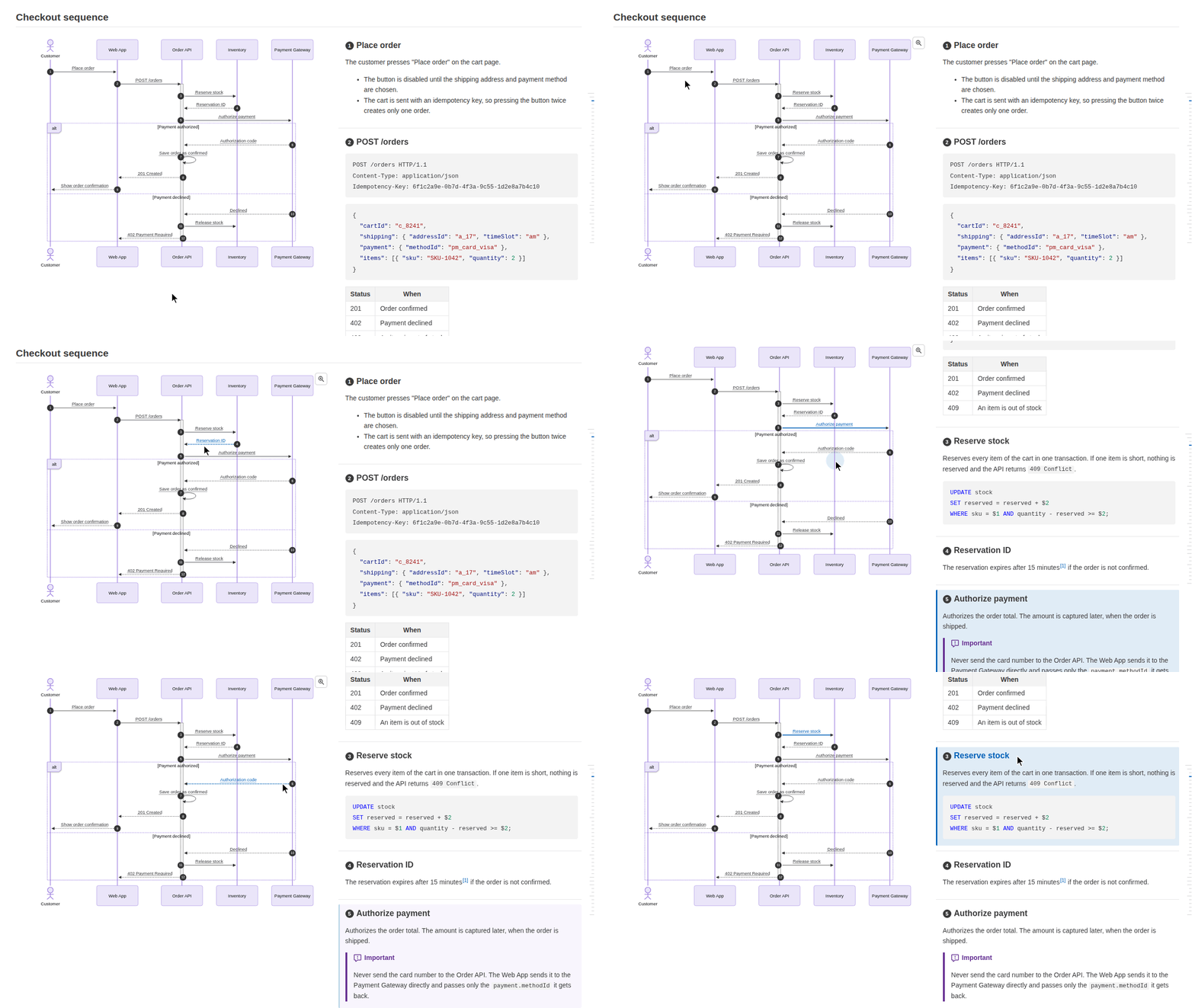
Live sample: an HTML file written by this command from examples/screenshot.md.
Usage
npx markdown-design-doc-viewer export docs -o site     # all the Markdown files under docs/ to site/docs/*.html
npx markdown-design-doc-viewer export docs -o site --index   # plus site/index.html, a list of the documents
npx markdown-design-doc-viewer export docs -o site --diff-base v1.0   # with their changes since the tag v1.0
npx markdown-design-doc-viewer export README.md        # README.html next to it
npx markdown-design-doc-viewer capture http://localhost:5173/signin -o docs/screens/signin.html --width 375   # a screen as a wireframe
Installed in a project (npm install --save-dev markdown-design-doc-viewer), the command is md-design-doc:
md-design-doc export docs -o siteRequirements
- Node.js 22 or later.
- Chrome or Chromium:
--chrome <path>or$CHROME_PATH, else a Chromium installed withnpx playwright-core install chromium, else the Google Chrome installed on the system (GitHub Actions' Ubuntu runners have one). - For documents in Japanese or other CJK languages, a font for them (
fonts-noto-cjkon Debian / Ubuntu), or their diagrams are drawn with boxes.
Options
| Option | Description |
|---|---|
| -o, --out-dir <dir> | Write the HTML files to this folder, in the same subfolders as the documents under --root. By default, each one is written next to its document. |
| --root <dir> | Folder that image paths starting with / are relative to (the workspace in VS Code). Images in it or in the document's folder are embedded; others stay links. Default: the current folder. |
| --lang <lang> | Language of the texts added to the document and of the link warnings: en (default) or ja. |
| --diagram-look <look> | Look of the diagrams: neo (default, mermaid's, with shadows on flowchart nodes) or classic (flat). |
| --split-min-width <px> | Minimum window width (px) for the diagrams beside their steps. Default: 1000. |
| --full-width | Do not keep the text in a centered column up to 1280px wide. |
| --no-heading-numbers | Do not show the arrow numbers (autonumber) at the start of the linked headings. |
| --no-front-matter | Hide the YAML front matter (shown as a table of metadata, or as a header with type: design_doc). |
| --no-sticky-table-header | Do not keep the header row of a long table at the top while scrolling. |
| --no-table-tree-highlight | Do not highlight the parents and children of the row under the pointer in the tables shown as trees (level= of the table options). |
| --no-toc | Do not show the table of contents (headings h1-h3) that opens when hovering the right edge of the page. |
| --chrome <path> | Chrome or Chromium to render the diagrams with. |
| --strict | Fail when a document has a warning: a link warning (a broken @ref or a misplaced marker), table options that cannot be applied, or a selector of the parts of a wireframe (item.<number>=) that matches nothing. Arrows and headings that are only not linked do not fail. |
| --diff-base <rev> | Show the changes of each document since the git revision <rev> (a tag, a commit or a branch), as the VS Code extension shows its differences from a revision: the blocks added, changed and deleted are marked with green, blue and red bands, the words changed are highlighted, and the old version of a changed diagram is shown folded below it. A bar at the bottom of the page goes from one change to the next, and hides or shows them. A document the revision does not have at its path (added or renamed since) is shown as all added. Requires git, and the history of the revision in the clone (see GitHub Actions). With --index, the list has a column of the changes of each document. |
| --index | Also write index.html in --out-dir (required), a list of the exported documents: a table for each folder, with their title (linked), file name, and the version, product, status and updated of their front matter. The page has a search box that filters the documents, and its column headers sort them. |
| --index-title <title> | Title of index.html. Default: Design Docs (設計書一覧 with --lang ja). |
| --index-design-docs | List only the design docs (type: design_doc in their front matter) in index.html. The other documents are still exported. |
| -h, --help | Show the help. |
| -v, --version | Show the version. |
Folders are searched for *.md and *.markdown files, including their subfolders, except node_modules and folders starting with a dot. Link warnings and the warnings of table options are written to the standard error (as annotations in GitHub Actions).
The exit status is 1 when a document could not be exported (also when git fails with --diff-base, e.g. for an unknown revision) or has a diagram mermaid cannot render (its HTML is written anyway), or with --strict a warning, and 2 for a wrong command line.
Capturing screens
capture writes a screen of a running web app (on its development server, for example; a file: URL works too) as the HTML file of a wireframe: the page as it is shown in headless Chrome, also when its scripts draw it (a single-page app), without its scripts and with the styles that apply to it, so that the preview shows it as in a browser. Its images and the fonts it uses are embedded, so the file stands alone (for a file: page, only local files in its folder or the current folder).
md-design-doc capture http://localhost:5173/signin -o docs/screens/signin.html --width 375The style sheets are taken in with the rules that scripts added (CSS-in-JS), and the page is laid out as in the window it was captured in: the
@mediarules are kept or left out for its width and height, and the lengths relative to the window (100vh) are in pixels. Write the--widthas thewidth=of the wireframe.The state of the form controls (the text typed, the boxes checked, the options selected) is kept. The text of a password is masked, and the hidden fields and the
<meta>elements (which may have tokens of the session) are left out. Dialogs and popovers open in the top layer are kept where they are shown.What the first view does not show, such as an error message, a dialog or another tab, is captured after actions on the page:
--fill,--click,--hoverand--press, done in their order. Wait with--wait-forfor what they show:md-design-doc capture http://localhost:5173/signin -o docs/screens/signin-error.html --width 375 \ --fill '#[email protected]' --fill 'input[name=password]=wrong' --click 'button[type=submit]' --wait-for '[role=alert]'For more, a Playwright script given with
--scriptprepares the page: its default export is called with the page once it is open, and its exportsetupbefore it is opened, for example to give the answers of the API that the screen needs:// error.mjs export async function setup(page) { await page.route('**/api/signin', (route) => route.fulfill({ status: 401, json: { message: 'Wrong password.' } })); } export default async function (page) { await page.getByLabel('Email').fill('[email protected]'); await page.getByRole('button', { name: 'Sign in' }).click(); await page.getByRole('alert').waitFor(); }The parts of the screen are numbered in the options of the wireframe, which stay when it is captured again:
<!-- wireframe: link-headings width=375 item.1="#email" item.2="button[type=submit]" -->.Not captured: the looks of
:hoverand:focus(the elements that hovering shows are), the backdrop of a modal<dialog>(::backdrop), the content of frames and of the shadow roots of web components, and videos.
| Option | Description |
|---|---|
| -o, --out <file.html> | Write the HTML file here (required). Its folder is created if needed. |
| --width <px> | Width of the window. Default: 1280. |
| --height <px> | Height of the window, which 100vh is. Default: 800. The whole page is captured, however long. |
| --color-scheme <scheme> | light (default) or dark, for the pages that follow the color scheme of the system. |
| --storage-state <file> | Cookies and local storage to open the page with: a storage state of Playwright, for example of a signed-in user. |
| --script <file.mjs> | Playwright script that prepares the page (see above). It runs as your code, with the access of the command. |
| --fill <selector>=<text> | Types the text into the field. The selector ends at the first = outside brackets and quotes (input[name=email][email protected]). |
| --click <selector> | Clicks the element. |
| --hover <selector> | Moves the pointer over the element. |
| --press <key> | Presses the key, for example Enter or Escape. |
| --wait-for <selector> | Waits for the element to be shown before capturing the page. |
| --wait <ms> | Waits this long before capturing the page, for example for an animation. |
| --chrome <path> | Chrome or Chromium to open the page with. |
The selectors are those of Playwright: CSS selectors, and its own ones such as text=Sign in. The page is opened when the network is idle, and an action waits up to 30 seconds for its element. The exit status is 1 when the page could not be opened or an action failed (no file is written), and 2 for a wrong command line. The images and fonts that could not be fetched are left as links, and the style sheets left out, with a warning.
GitHub Actions
For example, to publish the documents of a repository as an artifact of each build:
- uses: actions/setup-node@v4
  with:
    node-version: 22
- run: npx markdown-design-doc-viewer export docs -o site
- uses: actions/upload-artifact@v4
  with:
    name: design-docs
    path: site
To show the changes since the last release with --diff-base, check out the history, which actions/checkout leaves out by default:
- uses: actions/checkout@v4
  with:
    fetch-depth: 0   # the tags and commits to compare with
- run: npx markdown-design-doc-viewer export docs -o site --index --diff-base v1.0
Writing linked documents
A diagram is linked to the headings after it with %% @link-headings in the diagram; arrows and nodes are matched with the headings by their text, or with %% @ref. See Writing linked documents for the syntax, and the authoring guide for AI to have an AI assistant write documents in this format. The guide and the usage of this command are also packaged as an Agent Skill: markdown-design-doc-skill.zip.
To preview the documents while writing them, with the editor and the preview in sync, use the VS Code extension.