
mc-filediff
v1.0.5
Published
CLI tool to compare files using FileDiff Pro web interface

Maintainers
 mohanchinnappan
Readme
FileDiff CLI
A powerful command-line tool to compare files using a beautiful web-based diff viewer
🌟 Features
- 🚀 Fast & Easy - Compare files with a single command
- 🎨 Beautiful UI - Modern dark theme with glassmorphism effects
- 📝 Monaco Editor - Professional code editor with IntelliSense
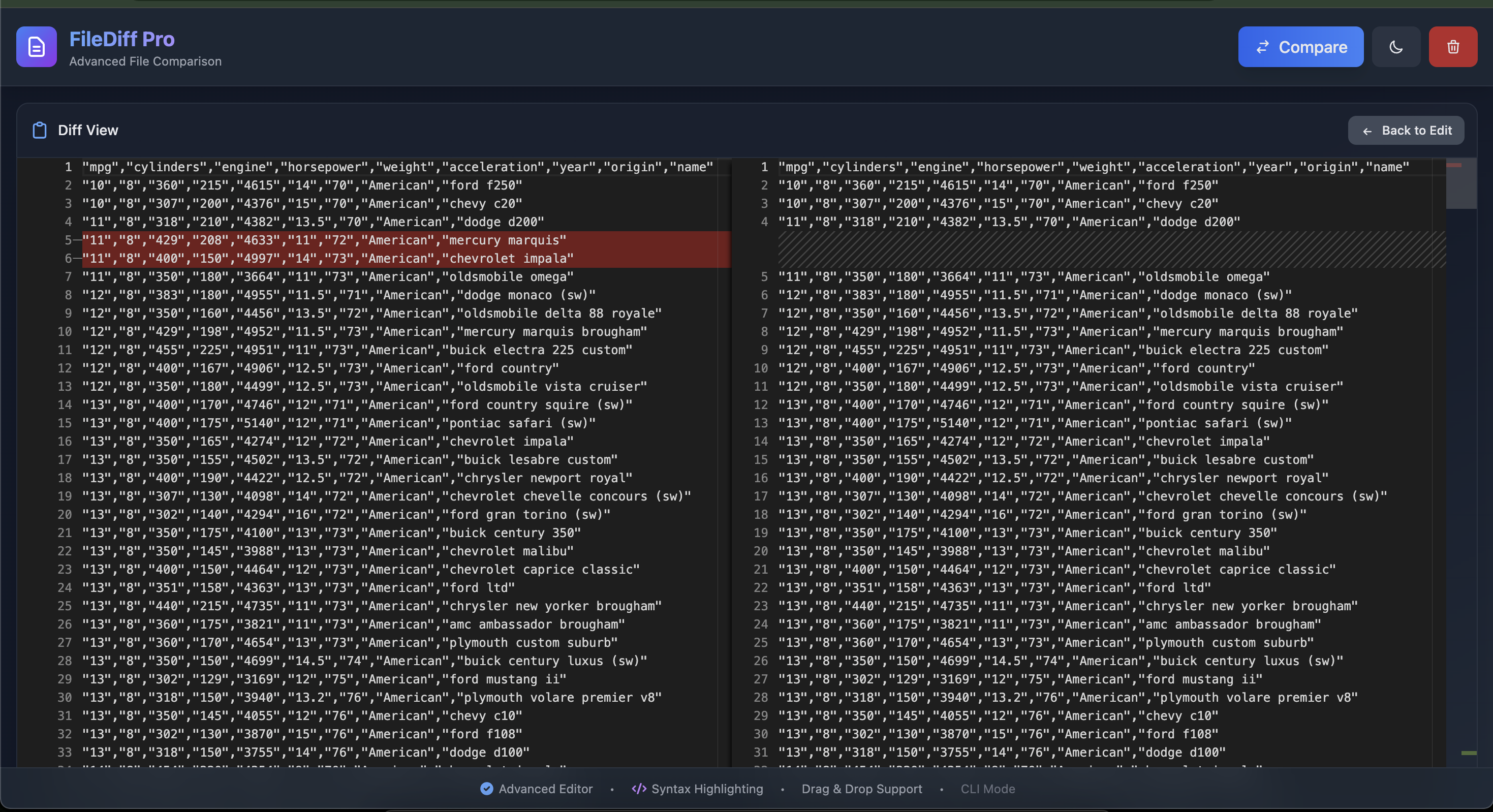
- 🔄 Side-by-Side Diff - Clear visual comparison with inline changes
- 💾 Multi-Language Support - Syntax highlighting for 20+ languages
- 🌐 Web-Based - Automatically opens in your default browser
- ✏️ Live Editing - Make changes and re-compare on the fly
- 📋 Copy & Download - Easy content management
- 🎯 Drag & Drop - Drop new files directly into the viewer
- 🌓 Theme Toggle - Switch between light and dark modes
Screenshot
Online version also available
📦 Installation
Prerequisites
- Node.js 14.0.0 or higher
- npm or yarn
Step 1: Install
To use mc-filediff command from anywhere:
npm install -g mc-filediff 🚀 Usage
Basic Syntax
# After global install
mc-filediff -s <source-file> -t <target-file>
Real-World Examples
Compare JavaScript files:
mc-filediff -s app.old.js -t app.jsCompare JSON configurations:
mc-filediff -s config.dev.json -t config.prod.jsonCompare Python scripts:
mc-filediff -s script_v1.py -t script_v2.pyUse custom port:
mc-filediff -s file1.txt -t file2.txt -p 8080Don't auto-open browser:
mc-filediff -s file1.txt -t file2.txt --no-openThen manually open: http://localhost:3456
📋 Command Options
| Option | Alias | Description | Required | Default |
|--------|-------|-------------|----------|---------|
| --source <file> | -s | Path to source/original file | ✅ Yes | - |
| --target <file> | -t | Path to target/modified file | ✅ Yes | - |
| --port <number> | -p | HTTP server port | ❌ No | 3456 |
| --no-open | - | Don't auto-open browser | ❌ No | false |
| --help | -h | Display help information | ❌ No | - |
| --version | -V | Display version number | ❌ No | - |
🎨 Supported Languages
Auto-detects and highlights syntax for:
| Language | Extensions |
|----------|-----------|
| JavaScript | .js |
| TypeScript | .ts |
| Python | .py |
| Java | .java |
| C/C++ | .c, .cpp, .h |
| HTML | .html |
| CSS | .css |
| JSON | .json |
| XML | .xml |
| Markdown | .md |
| SQL | .sql |
| Plain Text | .txt and others |
🖥️ Web UI Features
Once the browser opens, you have access to:
Header Controls
- Compare Button - Toggle between edit and diff view
- Theme Toggle - Switch between dark/light modes
- Clear All - Reset both editors
Editor Panel Controls
Each editor panel has:
- Upload - Load a different file
- Download - Save current content
- Copy - Copy content to clipboard
- Drag & Drop Zone - Drop files directly
Diff View
- Side-by-Side Comparison - See changes clearly
- Inline Highlights - Added/removed lines color-coded
- Scroll Sync - Both panels scroll together
- Back to Edit - Return to editing mode
💡 Tips & Tricks
Keyboard Shortcuts (Monaco Editor)
Ctrl+F/Cmd+F- FindCtrl+H/Cmd+H- Find and ReplaceCtrl+Z/Cmd+Z- UndoCtrl+Y/Cmd+Y- RedoCtrl+//Cmd+/- Toggle line commentAlt+Click- Add cursorCtrl+D/Cmd+D- Select next occurrence
Workflow Tips
- Live Editing - Make changes in the browser and click Compare to see new diff
- Keep Server Running - Refresh browser to reload changes from disk
- Save Changes - Use Download button to save edited files
- Multiple Comparisons - Stop server (Ctrl+C) and run new comparison
🐛 Troubleshooting
Port Already in Use
Problem: Error message about port 3456 being in use
Solution: Use a different port
filediff -s file1.txt -t file2.txt -p 8080Browser Doesn't Open
Problem: Browser doesn't launch automatically
Solutions:
- Check terminal output for the URL and open manually
- Make sure you have a default browser set
- Use
--no-openflag and open URL manually:
filediff -s file1.txt -t file2.txt --no-open
# Then open: http://localhost:3456
File Not Found
Problem: Error message about file not found
Solutions:
- Check file path is correct (use
lsordirto verify) - Use absolute paths:
filediff -s /full/path/to/file1.txt -t /full/path/to/file2.txt- Check file permissions
Server Won't Stop
Problem: Server keeps running after closing terminal
Solution: Press Ctrl+C in the terminal where server is running
Large Files Slow Performance
Problem: Browser is slow with very large files
Solutions:
- Use diff on smaller sections of files
- Increase browser memory allocation
- Close other browser tabs
📁 Project Structure
filediff-cli/
├── filediff-cli.js    # Main CLI application
├── package.json       # npm configuration
├── README.md         # This file
└── node_modules/     # Dependencies (after npm install)
🔐 Security Notes
- Server only binds to
localhost(127.0.0.1) - No external network access
- Files are read once and embedded in HTML
- Server stops when you press Ctrl+C
🤝 Contributing
Contributions are welcome! Feel free to:
- Report bugs
- Suggest new features
- Submit pull requests
- Improve documentation
📄 License
MIT License - feel free to use this tool in your projects!
**Made with ❤️ for developers **